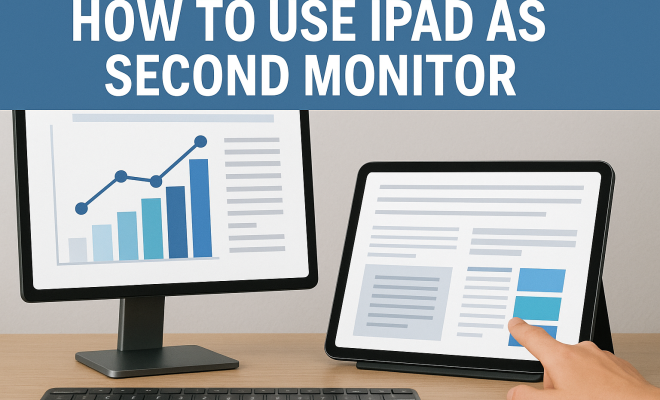
How to use iPad as second monitor
“`html
The modern workspace is constantly evolving, and many professionals are looking for innovative ways to boost productivity. One of the most effective methods is by utilizing an iPad as a second monitor. This not only enhances multitasking capabilities but also allows for a more organized digital workspace. Whether you’re a designer, a programmer, or just someone who wants more screen real estate, mastering the art of using your iPad as a second monitor can be a game-changer.
1. Understanding the Need for a Second Monitor
Before diving into the how-to, let’s explore why you might consider using your iPad as a second monitor. The benefits are numerous, particularly in today’s fast-paced digital environment. With increased screen space, you can keep your primary work focused while using the second screen for reference materials, emails, or even video calls. Studies show that using multiple monitors can increase productivity by up to 50%, allowing for more efficient workflows and less time switching between applications.
Moreover, using an iPad can be a cost-effective solution for those who may not want to invest in a full-sized monitor. The iPad’s portability also means you can set up your workspace anywhere, whether at home, in a coffee shop, or in a shared office space. It fits seamlessly into various setups, making it an attractive option for anyone looking to expand their digital workspace.
2. Supported Devices and Requirements
To effectively use your iPad as a second monitor, you need to check compatibility with your primary device. Generally, this setup works best with Mac computers and iPads running iPadOS 13 or later. For Windows users, third-party applications are available that can facilitate this function, but the process might not be as seamless as with Mac. Ensure your devices are connected to the same Wi-Fi network, as most solutions operate over local network connections.
For the best experience, an iPad with a larger screen, like the Pro models, may be preferable. The additional screen real estate can significantly enhance usability, especially for tasks that require detailed attention, such as graphic design or programming. Make sure your iPad is also charged or plugged in to avoid interruptions during use.
3. Using Sidecar: The Built-in Solution for Mac Users
If you’re a Mac user, Apple’s Sidecar is your best bet for using your iPad as a second monitor. This feature allows you to extend or mirror your Mac display onto your iPad seamlessly. To get started, ensure both devices are updated to the latest software and that you’re logged in with the same Apple ID.
To activate Sidecar, simply go to the AirPlay menu on your Mac and select your iPad from the list of available devices. You can choose to either mirror your display or extend it, depending on how you want to utilize the additional screen. Sidecar also supports Apple Pencil, which is a fantastic feature for artists and designers who want to use the iPad for drawing directly on the screen.
4. Third-Party Apps for Windows Users
If you’re using a Windows computer, you might feel left out without built-in support. However, several third-party applications can bridge this gap. Popular options include Duet Display and Splashtop Wired XDisplay. These apps allow you to connect your iPad to your Windows PC either via USB or wirelessly.
Duet Display, for instance, is popular for its high responsiveness and ease of use. After installing the app on both your iPad and PC, simply connect the two devices, and you’ll be able to drag windows from your primary monitor to your iPad. This solution is great for managing multiple tasks without cluttering your main screen.
5. Tips for Optimal Performance
Once you’ve set up your iPad as a second monitor, you’ll want to ensure it operates as smoothly as possible. First, consider adjusting the display settings on your iPad to ensure text and images are sharp and clear. You can do this under the display settings menu, where options for brightness and resolution can be customized. (See: using multiple monitors increases productivity.)
Another tip is to keep your iPad close to your primary device to ensure a strong Wi-Fi connection, particularly if you’re not using a wired connection. For those using apps like Duet Display, a USB connection may yield better performance than relying solely on wireless. Regularly checking for updates for both the app and your iPad can help you avoid performance issues.
6. Creative Use Cases for Your iPad as a Second Monitor
The applications for using an iPad as a second monitor are virtually endless. For students, it can mean having lecture notes on one screen while taking assignments on another. For designers, it can facilitate a smoother workflow by allowing you to display palettes, reference images, or chat applications while working on a main project.
For those in the business world, using the iPad to present slides while keeping notes or analytics on your main screen can lead to more efficient meetings. Gamers may also find a second screen useful for streaming content or managing chat without disrupting their main gameplay. The added versatility can transform how you approach your daily tasks.
7. Potential Issues and Troubleshooting
While the process of using your iPad as a second monitor is generally straightforward, issues can arise. For instance, some users report lag or disconnection problems, particularly when using wireless connections. If this happens, try restarting both devices and reconnecting them. Ensure your Wi-Fi signal is strong or consider switching to a wired connection for optimal performance.
Additionally, if you’re using third-party applications, ensure they are updated to the latest version. Sometimes, compatibility issues can stem from outdated software. If all else fails, consulting forums and support pages for specific applications can yield solutions from other users who experienced similar issues.
8. The Future of Multi-Screen Workflows
The trend of using devices like the iPad as second monitors is likely to continue growing, especially as remote work and digital collaboration become more prevalent. Companies are increasingly recognizing the importance of flexible work environments, and tools that enhance productivity will become even more vital.
As technology evolves, we can anticipate improvements in wireless connections, app functionality, and overall user experience. Features that allow for even more seamless integration between devices are on the horizon. Keeping abreast of trends in tech will help users harness the full potential of their devices, ensuring that workflows remain efficient and productive.
9. Final Thoughts
Using your iPad as a second monitor can truly revolutionize the way you work, study, or create. By leveraging the tools and options available—like Sidecar for Mac users or various third-party apps for Windows—you can enhance your productivity and make the most of your digital environment. Whether it’s for professional projects, educational purposes, or personal preferences, the advantages are clear.
As you experiment with this setup, consider what works best for your workflow and adjust your approach accordingly. The ultimate goal is to create a workspace that feels comfortable and efficient for you. So why not give it a try? The next level of productivity might just be a few taps away.
10. Common Questions About Using an iPad as a Second Monitor
What apps can I use to turn my iPad into a second monitor for Windows?
For Windows users, several apps can facilitate this setup. Notable mentions include Duet Display, Splashtop Wired XDisplay, and iDisplay. Each has its own features, so it’s worth trying a couple to see which works best for you.
Can I use my iPad as a second monitor with a Chromebook?
While there isn’t direct support for using an iPad as a second monitor with a Chromebook, some users report success with applications like Duet Display. Depending on your specific setup, your experience may vary, so testing is recommended. (See: study on productivity and screen space.)
Is there a lag when using my iPad as a second monitor?
Lag can sometimes occur, particularly with wireless connections. Using a wired connection is typically more stable and responsive. If you experience lag, check your Wi-Fi signal strength or consider restarting your devices.
Can I use an iPad as a second monitor for gaming?
Yes, many gamers utilize an iPad as a second monitor to manage chat applications, streaming software, or even guides while gaming on their primary screen. This separation can help streamline the gaming experience without cluttering the main display.
How do I adjust the display settings on my iPad when using it as a second monitor?
To adjust the display settings when your iPad is acting as a second monitor, go to the “Settings” app, select “Display & Brightness,” and tweak the settings according to your preference. You can adjust brightness, Night Shift, and more to enhance your viewing comfort.
Are there any security concerns when using my iPad as a second monitor?
Using an iPad as a second monitor typically does not introduce significant security concerns as long as you’re mindful of the applications you’re using and ensure they’re from reputable sources. Avoid connecting to public Wi-Fi networks whenever possible to minimize risks.
11. Real-Life Use Case Scenarios
Case Study: Graphic Designer
A graphic designer named Sarah transformed her workflow by utilizing her iPad as a second monitor. She used Sidecar to extend her MacBook display, allowing her to have her design software open on her primary screen while referencing color palettes and images on her iPad. This setup not only improved her efficiency but also reduced the time spent switching between applications, enabling her to focus more on her creative process.
Case Study: Remote Teacher
John, a remote educator, found that using his iPad as a second monitor enhanced his teaching experience. By utilizing the iPad to display his lesson plans and student assignments while using his main screen for video conferencing, he created a more interactive and engaging environment for his students. The dual setup allowed him to maintain eye contact with his students while managing his materials efficiently.
Case Study: Software Developer
For software developer Lisa, having her iPad as a second monitor meant she could keep her code editor open on her main screen while using her iPad to run the application she was developing. This setup allowed her to instantly see the effects of her coding changes in real-time, minimizing downtime and boosting her overall productivity.
Case Study: Data Analyst
In the fast-paced world of data analysis, Mark discovered that his iPad could serve as a powerful second monitor. By running his data visualization tools on his Mac and using the iPad for displaying reports and spreadsheets, he was able to quickly analyze data trends and make informed decisions. This dual-display approach not only streamlined his workflow but also improved his overall accuracy in reporting.
Case Study: Video Producer
For video producer Emily, having her iPad as a second monitor was a game changer during editing sessions. She could play her timeline on her main screen while using the iPad to reference scripts and notes. This enhanced her ability to stay organized and focused on the creative aspects of her work without losing track of the technical details that needed attention. (See: working from home boosts productivity.)
12. Advanced Features to Explore
Alongside the basic functionalities of using your iPad as a second monitor, there are several advanced features worth exploring. For example, if you’re using Sidecar, you can utilize the Touch Bar feature, which gives you access to additional controls that can enhance your workflow. This is particularly useful for creative software where shortcuts can save time.
Many apps also allow you to customize your experience further. For instance, in Duet Display, you can adjust the frame rate and resolution to optimize for performance or quality, depending on your needs. This can significantly improve your user experience, especially for video editing or gaming.
Additionally, with continuous advancements in technology, expect future updates to bring more functionality. Features like virtual desktops, enhanced drag-and-drop capabilities, and even AI-driven suggestions for productivity might soon make their way into apps that utilize your iPad for multi-screen setups. Staying updated with app improvements can give you the competitive edge you need in a busy digital workspace.
13. Tips for Educators Using iPads as Second Monitors
For teachers and educators, the iPad can serve not just as a second monitor but as a versatile educational tool. Here are a few tips to maximize its potential:
- Interactive Lessons: Utilize apps that support interactive learning. For example, use the iPad to display quizzes or polls while conducting lectures on your main screen.
- Real-Time Feedback: Use educational apps that allow students to send you questions or feedback while you’re teaching, keeping the conversation dynamic and engaging.
- Resource Access: Keep a digital library or resources open on your iPad for quick access during discussions, allowing for seamless transitions between topics.
14. Considerations for the Future
The landscape of technology is constantly shifting, and the use of devices like the iPad as second monitors is likely to evolve. With the rise of 5G technology, for instance, we may see significant improvements in wireless connections, making setups even more efficient. Additionally, the development of cross-platform applications will likely allow for smoother integration between various devices, enhancing user experience.
As remote work continues to be commonplace, companies might invest more in multi-device setups to facilitate productivity and collaboration. The future could very well include the ability to use multiple iPads or integrate other devices seamlessly, creating a digital ecosystem that enhances creativity and efficiency.
15. Conclusion: Embracing the Future of Work
As we move towards more fluid and dynamic work environments, the ability to use multiple screens will only become more important. The iPad as a second monitor is just one example of how technology can be leveraged to improve productivity and versatility in our workspaces. By embracing this trend, whether through Apple’s built-in solutions or third-party applications, you can create a workspace that fits your unique needs and enhances your overall efficiency. Don’t hesitate to explore the possibilities with your iPad and take your productivity to new heights!
“`
Trending Now
Frequently Asked Questions
Can I use my iPad as a second monitor for my laptop?
Yes, you can use your iPad as a second monitor for your laptop, especially if you have a Mac. With iPadOS 13 or later, you can easily connect your iPad to your Mac for an extended display. Windows users can also achieve this using third-party applications, although the setup may be less seamless.
What are the benefits of using an iPad as a second monitor?
Using an iPad as a second monitor enhances productivity by providing additional screen space for multitasking. It allows you to keep your main work focused while using the iPad for reference materials, emails, or video calls, potentially increasing efficiency by up to 50%.
What do I need to set up my iPad as a second monitor?
To set up your iPad as a second monitor, ensure that your devices are compatible, with your iPad running iPadOS 13 or later. Both devices should be connected to the same Wi-Fi network. For Mac users, the process is straightforward, while Windows users may need third-party apps.
Is using an iPad as a second monitor cost-effective?
Yes, using an iPad as a second monitor can be a cost-effective solution for expanding your workspace, especially compared to purchasing a full-sized monitor. It leverages existing devices and provides portability, allowing you to work from various locations.
How can I improve my experience using an iPad as a second monitor?
To improve your experience using an iPad as a second monitor, consider using a larger screen iPad for better visibility. Ensure your devices are on the same Wi-Fi network, and explore various apps or settings that enhance the connection and display options.
Agree or disagree? Drop a comment and tell us what you think.