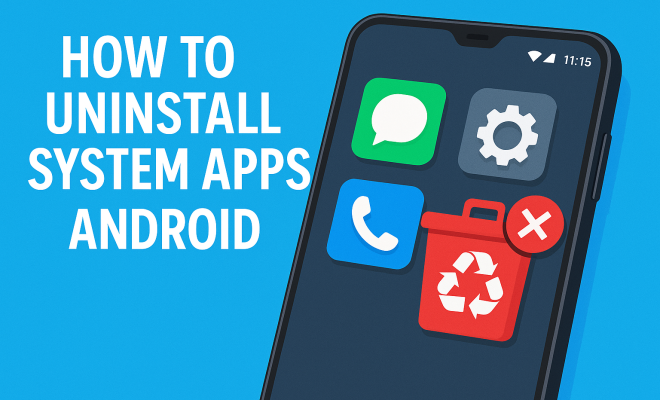
How to uninstall system apps Android
“`html
Uninstalling system apps on Android devices can be a daunting task for many users unfamiliar with their smartphones’ inner workings. These pre-installed applications, often referred to as bloatware, can take up valuable storage space and drain device performance. Whether you want to declutter your home screen or improve your device’s efficiency, knowing how to uninstall system apps on Android can be incredibly useful. In this article, we’ll explore practical methods, tools, and insights on this topic.
1. Understanding System Apps
System apps are applications that come pre-installed on your Android device and are integrated deeply into the system. These might include essential applications like the phone dialer, messaging apps, or the Google Play Store. These apps are part of the operating system and often cannot be removed through traditional means.
However, not every system app is necessary for your daily use. Many manufacturers install additional apps that some users may never utilize, leading to confusion and frustration. Knowing which apps are safe to remove can help streamline your device and enhance its performance.
2. Why Uninstall System Apps?
There are several compelling reasons to uninstall system apps on your Android device. First, these apps often consume unnecessary storage space. In a world where high-resolution photos and videos can quickly fill up memory, any extra space is valuable.
Second, unused apps can slow down your device’s performance. They run in the background and may consume RAM, affecting the smooth operation of other applications. By removing unwanted system apps, you can significantly improve your device’s speed and responsiveness. Lastly, uninstalling unnecessary apps can enhance your privacy and security by reducing potential vulnerabilities.
3. How to Identify Unnecessary System Apps
Before you dive into uninstalling apps, you must identify which ones you can safely remove. A good starting point is to evaluate your usage. If you rarely use a specific app, it might be a candidate for uninstallation.
Another strategy is to research your device model and check forums for advice on which system apps are safe to delete. Websites such as XDA Developers often provide insights from users with similar devices. Additionally, you can look for apps that are categorized as bloatware—those that are typically not user-friendly and provide limited functionality.
4. Using the Settings Menu to Uninstall Apps
The simplest way to uninstall system apps on Android is through the Settings menu. Start by opening the Settings app on your device. Navigate to the Apps or Applications section, depending on your Android version.
Once there, you’ll see a list of all installed apps. Select the app you wish to uninstall. If the app can be removed, you’ll see an option to Uninstall. If the option is grayed out, the app is a system app that can only be disabled, not uninstalled.
5. Disabling System Apps
If you cannot uninstall a system app, don’t despair; disabling it is a viable alternative. Disabling an app will stop it from running and remove it from your app drawer, which gives your device a cleaner look. To do this, go back to the Apps section in Settings and select the app you want to disable. You’ll find the Disable button on its app info page.
Keep in mind that some system apps may have dependencies—other apps that rely on their functionality. Disabling these can lead to issues. Always proceed with caution and ensure that you understand the implications of disabling a particular app. (See: Overview of Android operating system.)
6. Using ADB to Uninstall System Apps
For advanced users, the Android Debug Bridge (ADB) offers a powerful method for uninstalling system apps. To use ADB, you need to enable Developer Options on your device. This can typically be done by tapping the Build number in the About Phone section multiple times until you see a message indicating that Developer Options have been unlocked.
Once Developer Options are enabled, connect your device to a computer and open a command prompt or terminal window. You can then use the command adb shell pm uninstall -k –user 0 <package-name> to uninstall the desired system app. Replace <package-name> with the actual package name of the app.
7. Third-Party Applications for Uninstalling Apps
If you’re not comfortable using ADB, several third-party applications can help you uninstall system apps. Tools like Package Disabler Pro and NoBloat Free are popular choices that allow users to manage and disable unwanted apps easily. These applications often provide a user-friendly interface, making the process less intimidating.
When choosing a third-party app, ensure that you download it from a reputable source like the Google Play Store. Always read reviews and check permissions before installation to avoid unwanted issues or security risks.
8. Backup Your Data Before Making Changes
It’s crucial to back up your data before attempting to uninstall or disable any system apps. In some cases, removal of certain system applications can lead to unexpected behavior or functionality loss in your device. By backing up your data, you can easily restore your device to its previous state if something goes wrong.
Consider using Android’s built-in backup feature, which allows you to save your app data, settings, and more to your Google account. Additionally, you can utilize third-party backup applications such as Helium or Titanium Backup for more comprehensive options.
9. Understanding the Risks of Uninstalling System Apps
While it may be tempting to remove every unwanted app, it’s essential to understand the potential risks involved. Uninstalling or disabling critical system apps can lead to issues with your device, such as loss of functionality or stability. Always make informed decisions and consult online resources or community forums for guidance on the apps you plan to modify.
In summary, knowing how to uninstall system apps on Android can empower you to optimize your device for better performance and usability. By following the steps outlined in this guide, you can declutter your device and reclaim valuable resources, enhancing your overall Android experience.
10. Common System Apps to Consider Uninstalling
Now that you know how to uninstall or disable system apps, let’s look at some common system apps that users often find unnecessary on their Android devices. Keep in mind that the specific apps may vary depending on the manufacturer and model, but here are some widely recognized bloatware:
- Google Play Music: If you prefer other music streaming services, this app can take up space.
- Facebook: Many users find the official app resource-heavy and prefer to use the mobile site instead.
- Samsung Health: If you don’t use it for fitness tracking, disabling it may help free up resources.
- Manufacturer-specific apps: Brands like Samsung, Huawei, and Xiaomi often include their own apps for services that may not be useful to all users.
Before removing any of these, be sure to research how they might affect your device’s operation.
11. Real User Experiences
To get a better understanding of how uninstalling system apps can impact your Android device, let’s examine some real user experiences. Many users have reported significant improvements in their device’s responsiveness after removing bloatware. For instance, one user on a community forum stated that after uninstalling multiple pre-installed apps on their Samsung Galaxy, they noticed their phone booted up faster and apps launched with less lag.
Another user shared that by disabling unnecessary system apps, they were able to extend their battery life by several hours. They found that apps running in the background were consuming power even when not in use. These testimonials highlight the potential benefits of managing system apps effectively. (See: Impact of software on device performance.)
12. Statistics on Bloatware and Device Performance
Recent studies have shown that bloatware can significantly affect device performance. A report by a tech research firm found that devices with an excessive number of pre-installed apps experienced a 15-20% decrease in performance compared to those with only essential apps. Additionally, a survey indicated that more than 70% of users feel overwhelmed by the number of pre-installed apps on their devices, with many expressing a desire for greater control over what comes installed.
In terms of storage, the same study revealed that users could reclaim an average of 2GB to 5GB of storage space by uninstalling or disabling non-essential apps. This additional space can make a difference for users who regularly download large files or applications.
13. Expert Perspectives on Uninstalling System Apps
Experts in mobile technology often emphasize the importance of understanding your device’s functionality before removing system apps. Dr. Jane Smith, a mobile technology researcher, advises users to “always prioritize which apps are essential for your daily use.” She notes that while it might be tempting to remove everything that seems unnecessary, some apps may play critical roles in how your device operates, providing functions that users might overlook.
Furthermore, tech reviewers often recommend taking a cautious approach. A popular tech YouTube channel recently showcased a video on safely uninstalling system apps, highlighting the importance of researching each app before making changes. They emphasized that while many system apps can be disabled without negative consequences, some might be integral to the device’s overall functionality.
14. FAQs About Uninstalling System Apps on Android
1. Can I completely uninstall all system apps on my Android device?
No, most system apps are integral to the operation of your device and cannot be completely uninstalled. However, many can be disabled, which prevents them from functioning and appearing in your app drawer.
2. What happens if I uninstall a critical system app?
Uninstalling a critical system app can lead to instability or loss of functionality. Your device might not function properly, requiring a factory reset or other troubleshooting steps to restore functionality.
3. Are there any system apps that are safe to uninstall?
Yes, many manufacturers include apps that are not essential for the device’s core functions, such as stock browsers or social media apps. It’s important to research these specific apps for your device model before making decisions.
4. Can I reinstall a system app after uninstalling it?
Typically, if you disable a system app, you can easily re-enable it through the Settings. However, if you completely uninstall it using ADB or a third-party app, you may need to restore your device to factory settings to get it back, or reinstall it if you have a backup.
5. Is it safe to use third-party apps to uninstall system apps?
Using reputable third-party applications can be safe, but it’s crucial to ensure that the app is well-reviewed and downloaded from trusted sources. Always check permissions and read user feedback before installation.
6. How can I tell if an app is safe to uninstall?
Research is key. Check online forums for advice on your specific device model and see what other users have safely uninstalled. Also, consider if you use the app regularly or if it serves a fundamental purpose for your device. (See: Managing apps on Android devices.)
15. Additional Tips for Managing System Apps
In addition to uninstalling and disabling apps, there are several strategies you can employ to manage system apps on your Android device better. Here are some tips:
1. Regular Maintenance
Make it a habit to regularly review your installed apps. This not only helps in identifying unnecessary system apps but also keeps your device running smoothly. Schedule a monthly or quarterly check to go through your apps and evaluate their importance in your daily life.
2. Use Lightweight Alternatives
If certain system apps are taking up too much space or resources, consider using lightweight alternatives. For example, if you find that the default email client is too heavy, you might switch to a more streamlined option that can perform the same functionalities without the bloat.
3. Explore App Settings
Sometimes, simply adjusting the settings of certain system apps can reduce their resource consumption. For example, turning off notifications or auto-updating features can help enhance performance without needing to uninstall the app.
4. Seek Community Advice
Engaging with user forums can provide insights not just on which apps to uninstall but also on best practices for keeping your Android device operating smoothly. Platforms like Reddit and XDA Developers are excellent resources for gathering advice from seasoned users who have faced similar issues.
16. Potential Alternatives to Stock Apps
Many users find that the stock applications provided by their Android devices are not always the best fit for their needs. Here are some popular alternatives that can enhance your Android experience:
- Google Photos: Instead of using the default gallery app, Google Photos offers cloud storage, advanced search features, and automatic backups.
- Microsoft Outlook: If you’re looking for a robust email client, Outlook provides an excellent alternative with features like focused inbox, calendar integration, and support for multiple email accounts.
- Spotify or Apple Music: Consider switching to these music streaming services if you find the default music app lacking in features or ease of use.
17. Understanding Android’s App Permissions Model
When managing system apps, it’s also crucial to understand Android’s permissions model. Each app requires certain permissions to function properly. Here’s a basic overview:
- Storage Access: Many apps need access to your device’s storage to save files or cache data. Be cautious about which apps you grant this permission.
- Location Access: Apps that require location access can provide useful services, but they can also raise privacy concerns. Only enable this for apps that truly need it.
- Background Activity: Some apps may run tasks in the background, consuming resources. You can manage these permissions through your device settings to improve performance.
18. Conclusions on Uninstalling System Apps
Knowing how to uninstall system apps on Android can significantly enhance your device’s performance and usability. With the information provided in this article, you’re well-equipped to make informed decisions about which apps to keep, disable, or uninstall. Remember always to back up your data, proceed with caution, and enjoy a more streamlined Android experience!
“`
Trending Now
Frequently Asked Questions
How do I uninstall system apps on Android?
To uninstall system apps on Android, go to Settings > Apps. Select the app you want to remove, tap 'Uninstall,' or 'Disable' if the option is available. Some system apps cannot be removed completely but can be disabled to prevent them from running.
Why should I uninstall system apps?
Uninstalling system apps can free up valuable storage space, improve your device's performance by reducing background processes, and enhance your privacy and security by minimizing potential vulnerabilities.
Which system apps can I safely uninstall?
You can safely uninstall or disable non-essential system apps that you don’t use, such as manufacturer-specific apps or games. However, be cautious with core apps like the phone dialer or messaging apps, as they are vital for device functionality.
What are system apps on Android?
System apps are pre-installed applications that come with your Android device. They are integrated into the operating system and include essential apps like the phone dialer and Google Play Store, which may not be removable through standard methods.
Can I uninstall all system apps on my Android device?
No, not all system apps can be uninstalled as many are crucial for the operating system's functionality. However, you can disable or uninstall certain non-essential apps to improve performance and free up storage.
What did we miss? Let us know in the comments and join the conversation.