How to cast to TV from phone
“`html
In a world where mobile devices reign supreme, the ability to cast phone to TV has become increasingly essential. Whether you’re binge-watching the latest series, showcasing your vacation photos, or making a presentation, casting allows you to share your phone’s content on a larger screen with ease. This article covers everything you need to know about casting from your phone to your TV, ensuring you can enjoy your media as it was meant to be experienced.
1. Understanding the Basics of Casting
Before diving into how to cast your phone to the TV, it’s crucial to understand what casting is. At its core, casting involves sending audio and video content from your mobile device to a larger screen, allowing for a more immersive viewing experience. Unlike screen mirroring, which duplicates your entire phone screen, casting typically sends just specific content, like a video or music.
Popular casting technologies include Google Chromecast, Apple AirPlay, and Roku’s casting feature. Each of these technologies works slightly differently, but they all aim to make your streaming experience seamless. Familiarizing yourself with these options will help you choose the best solution for your needs.
2. Check Your TV Compatibility
Before attempting to cast from your phone, ensure your TV supports casting. Many modern smart TVs come with built-in casting capabilities, typically supporting either Google Cast or Apple AirPlay. If your TV is older, you may need to purchase an additional device, such as a Chromecast or Apple TV, to enable casting functionality.
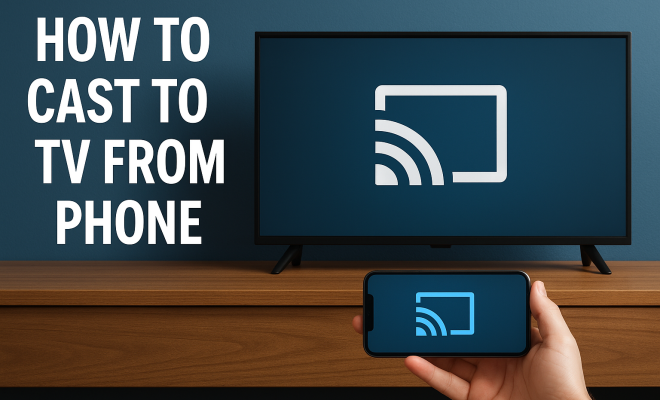
To check compatibility, look for the casting logo, which resembles a rectangle with curved lines in the corner. This logo indicates that your TV can receive cast signals from compatible devices. If you’re unsure about your TV, consult the user manual or the manufacturer’s website for specifics.
3. Wi-Fi Network: The Key to Successful Casting
Both your phone and your TV must be connected to the same Wi-Fi network for casting to work. This means if your phone is using mobile data or a different Wi-Fi network, casting will fail. Ensure that both devices are on the same network to avoid connectivity issues.
It’s also crucial to have a stable Wi-Fi connection. A weak signal can lead to buffering or poor video quality, ruining your viewing experience. If you’re experiencing issues, consider moving closer to your router or restarting your Wi-Fi connection.
4. How to Cast from Android Devices
For Android users, casting to your TV is straightforward. Most Android devices come equipped with built-in casting capabilities. Here’s how to do it:
- Make sure your phone and TV are on the same Wi-Fi network.
- Open the app you want to cast from, such as YouTube or Netflix.
- Look for the cast icon, typically resembling a rectangle with a Wi-Fi signal in the corner.
- Tap the cast icon and select your TV from the list of available devices.
- Once connected, select the content you want to play, and it should start streaming on your TV.
Additionally, you can use the Google Home app to cast your entire screen or specific apps. Just open the app, select your device, and choose “Cast Screen.” This feature is particularly useful when you want to share content that may not have a built-in cast option.
5. How to Cast from iOS Devices
iOS users can easily cast their content using Apple’s AirPlay technology. If you have an Apple TV or a smart TV with AirPlay support, follow these steps: (See: Television usage statistics.)
- Ensure your iPhone or iPad and your TV are on the same Wi-Fi network.
- Open the app you want to cast, like Photos or Music.
- Tap the AirPlay icon, which looks like a triangle with circles above it.
- Select your Apple TV or compatible smart TV from the list.
- Enjoy your content on the larger screen.
For screen mirroring, simply swipe down from the upper right corner of your device to access Control Center, tap on “Screen Mirroring,” and select your TV. This will duplicate your entire device screen, allowing you to share anything from apps to games.
6. Using Streaming Devices for Casting
If your TV doesn’t support casting natively, don’t worry. There are plenty of streaming devices that you can add to your setup. Devices like Chromecast, Amazon Fire Stick, Roku, and Apple TV enhance your TV’s functionality and allow you to cast easily from your phone.
For example, with Chromecast, you can cast content from compatible apps directly to your TV. Just connect the device to your TV’s HDMI port, and follow the setup instructions through the Google Home app. Once set up, you can access a wide array of streaming services and cast your phone’s content effortlessly.
7. Common Issues and Troubleshooting
Even with the best of technology, issues can arise when trying to cast your phone to TV. Here are some common problems and how to troubleshoot them:
- Device Not Found: If your TV doesn’t appear in the list of available devices, ensure both devices are on the same Wi-Fi network. Restarting your TV and phone can also help.
- Buffering or Lag: Poor Wi-Fi connection can lead to lag. Check your internet speed and consider moving closer to your router or restarting your modem.
- Screen Mirroring Issues: If screen mirroring isn’t working, ensure it’s enabled on your TV. Some TVs may require specific settings to activate screen mirroring.
Don’t hesitate to consult your TV’s user manual for guidance on resolving specific casting problems. Many manufacturers provide online resources and support to assist with common issues.
8. Enhancing Your Casting Experience
To get the most out of casting, consider optimizing your setup. For instance, invest in quality HDMI cables and ensure your TV is updated with the latest firmware. Keeping your apps updated on your phone also contributes to a smoother casting experience.
Additionally, explore the various applications available for casting. Services like Google Photos allow you to cast slideshows of your images, while music apps let you share playlists with friends, making gatherings more enjoyable. The possibilities are vast, and experimenting with different applications can lead to new ways to engage with your media.
9. The Future of Casting Technology
The technology behind casting continues to evolve. With advancements in wireless communication and video streaming, the future looks bright for casting from phone to TV. Emerging technologies like 8K streaming and improved low-latency connections will enhance the viewing experience further.
Moreover, as smart home devices become more prevalent, casting may integrate even more seamlessly into our daily lives. Imagine a scenario where your TV recognizes your phone automatically when you enter the room, making media sharing instantaneous.
10. Best Apps for Casting
When it comes to casting, many apps make the experience enjoyable and straightforward. Some popular choices include: (See: How to cast to TV guide.)
- YouTube: Easily cast videos from your phone to your TV, perfect for sharing your favorite clips with family or friends.
- Netflix: Stream your favorite movies and shows without the hassle of navigating multiple devices.
- Spotify: Take your music experience to the next level by casting playlists to your speakers or TV.
- Google Photos: Share slideshows from your recent vacation or family events directly to your TV, allowing everyone to enjoy the memories.
- Hulu: Watch your favorite shows and movies with friends by casting right from your device.
Each of these apps has its unique features that enhance the casting experience, making it easy to enjoy content on a larger screen with minimal effort.
11. Comparison of Casting Technologies
Understanding the differences between various casting technologies can help you make informed decisions when choosing devices or apps. Here’s a quick overview:
| Feature | Google Chromecast | Apple AirPlay | Roku |
|---|---|---|---|
| Device Compatibility | Android and iOS | iOS and Mac | Cross-platform |
| Screen Mirroring | Yes | Yes | Yes |
| Audio Streaming | Yes | Yes | Yes |
| Video Quality | Up to 4K | Up to 4K | Up to 4K |
| Price Range | Affordable | Moderate | Varies |
Choosing the right technology often depends on your existing devices and personal preferences. If you’re heavily invested in the Apple ecosystem, AirPlay might be your best choice. On the other hand, if you want a budget-friendly option, Chromecast is an excellent alternative.
12. Frequently Asked Questions (FAQ)
What devices can I use to cast my phone to my TV?
You can use various devices like smart TVs with built-in casting support, streaming devices like Chromecast, Roku, Amazon Fire Stick, and Apple TV. Make sure to check compatibility before purchasing.
Do I need a special app to cast?
Most casting technologies come with designated apps. Google Home is used for Chromecast, while AirPlay relies on built-in iOS functionalities. However, many streaming apps like Netflix and YouTube have integrated casting features.
Can I cast without Wi-Fi?
Some devices support casting over a local network connection without Wi-Fi, like using a mobile hotspot. However, performance may vary, and it’s generally recommended to use Wi-Fi for optimal quality.
Is casting secure?
As long as you’re connected to a secure and private network, casting is relatively safe. Avoid casting on public Wi-Fi networks to limit exposure to potential security risks.
What do I do if my casting fails?
If casting fails, first check your internet connection and ensure both devices are on the same network. Restarting your devices can also help resolve many common issues. Consult the user manual for specific troubleshooting steps related to your device.
13. Advanced Casting Techniques
As you become more familiar with the casting technology, you may want to explore advanced techniques that can enhance your experience. For example, using a second screen can allow for multitasking while casting. This is particularly handy for presentations or watching tutorials. Simply cast the video and continue working on your phone without interrupting the stream.
Additionally, many apps support multi-device casting. This means you can cast different content on multiple devices simultaneously, which is especially useful for households with different viewing preferences. For instance, while one family member watches a show on the TV, another can cast music to their connected speakers.
14. Statistics on Casting Usage
Understanding the trends in casting usage can provide insights into its growing significance. According to recent surveys, over 50% of households in the U.S. now own a streaming device, reflecting the shift towards content-sharing technologies. Moreover, data indicates that users who regularly cast content to their TVs report a 35% increase in their overall media consumption compared to those who do not.
Interestingly, younger audiences are leading the charge with nearly 70% of millennials and Gen Z utilizing casting technologies, often preferring this method for sharing content with friends. With the rise of remote work, there’s also been a notable increase in casting for work-related presentations, with many users appreciating the ease it brings to virtual meetings.
15. Real-Life Examples of Casting
To illustrate the practical applications of casting technology, let’s look at some real-life scenarios:
- Family Movie Night: A family gathers for a movie night. Using a smartphone, one member casts a newly released film from Netflix to their smart TV, allowing everyone to enjoy it on a larger screen.
- Creating a Travel Slideshow: After a vacation, someone creates a slideshow on their phone using Google Photos. They cast this slideshow to their TV during a family gathering, sharing memories and experiences with relatives.
- Remote Work Presentations: A professional prepares for a meeting by casting a presentation from their phone to the TV in the conference room. This allows everyone in the room to see the slides clearly, facilitating a better discussion.
16. Tips for a Smooth Casting Experience
To ensure the best possible experience while casting, consider the following tips:
- Keep Your Apps Updated: Regular updates for your casting apps can enhance performance and introduce new features.
- Use Quality Equipment: Invest in good quality cables and devices to minimize connectivity issues.
- Maintain a Clear Network Environment: Reduce interference from other devices on your Wi-Fi network, as this can improve streaming quality.
- Adjust Resolution Settings: Some apps allow you to adjust the resolution for casting. If you experience lag, try lowering the quality temporarily.
- Explore Guest Modes: Many devices have a guest mode feature that allows visitors to cast content without needing access to your network credentials.
17. Conclusion: Embrace the Power of Casting
Mastering the ability to cast phone to TV can significantly enhance your entertainment experience. Whether you’re watching movies, sharing photos, or giving presentations, casting allows you to enjoy your content on a larger scale. By understanding the basics, troubleshooting common issues, and keeping abreast of new technologies, you can ensure a smooth and enjoyable casting experience.
So why not give it a try? Experience your favorite media in a whole new way, and make your gatherings more dynamic and engaging. With just a few simple steps, you’ll be casting like a pro in no time.
“`
Trending Now
Frequently Asked Questions
How do I cast my phone to my TV?
To cast your phone to your TV, ensure both devices are connected to the same Wi-Fi network. Open a compatible app on your phone, look for the cast icon, select your TV, and choose the content you want to display. Popular options include Google Chromecast, Apple AirPlay, and Roku.
What devices can I use to cast to my TV?
You can use various devices to cast to your TV, including smartphones, tablets, and laptops. Popular casting technologies include Google Chromecast, Apple AirPlay, and Roku. Ensure your TV supports these technologies for seamless casting.
Do I need a smart TV to cast from my phone?
While many modern smart TVs come with built-in casting capabilities, you don't necessarily need a smart TV. If your TV is older, you can purchase devices like Chromecast or Apple TV to enable casting functionality.
What is the difference between casting and screen mirroring?
Casting sends specific content from your phone to your TV, allowing for a more focused viewing experience, while screen mirroring duplicates your entire phone screen. Casting is often preferred for streaming videos or music.
How can I check if my TV is compatible with casting?
To check if your TV supports casting, look for the casting logo, which resembles a rectangle with curved lines in the corner. You can also consult your TV's user manual or the manufacturer's website for compatibility details.
Have you experienced this yourself? We’d love to hear your story in the comments.