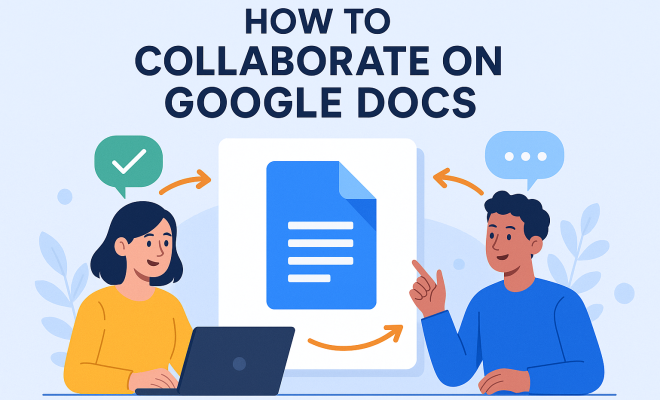
How to collaborate on Google Docs
“`html
1. Understanding Google Docs Collaboration
Google Docs has revolutionized the way we work together, making it easier than ever to collaborate on Google Docs in real time. Whether you’re a student working on a group project, a team crafting a business proposal, or friends planning an event, Google Docs provides a seamless platform for everyone involved. At its core, Google Docs is a cloud-based word processing tool that allows multiple users to edit and comment on a document simultaneously.
With its inception in 2006, Google Docs has evolved significantly, integrating features that enhance collaboration. The ability to see edits made by others in real time, leave comments, and suggest changes has made it a favorite among users. Its user-friendly interface and accessibility from any device with internet connectivity make it an indispensable tool for collaborative efforts.
2. Getting Started: Creating and Sharing Your Document
The first step to effectively collaborate on Google Docs is to create and share your document. Start by logging into your Google account and navigating to Google Drive, where you can create a new document. Once your document is ready, click on the ‘Share’ button located in the upper right corner. Here, you can invite other users by entering their email addresses.
When sharing, you can customize the permissions for each collaborator. Google Docs allows you to choose between three levels of access: ‘Viewer’, ‘Commenter’, and ‘Editor’. Each role has its specific capabilities, with ‘Editor’ being the most permissive, allowing team members to make changes. This flexibility is crucial, especially when collaborating with individuals who may only need to review or comment on the document.
Additionally, if you’re working with a team that spans different time zones, consider including a brief note in the document to communicate deadlines and expectations for each collaborator. This ensures that everyone is on the same page and can manage their contributions effectively. Clear communication during the sharing process can set a positive tone for the collaboration that follows.
3. Real-Time Collaboration Features
One of the standout features of Google Docs is its real-time collaboration capability. When you collaborate on Google Docs, you can see changes made by your partners as they happen. This allows for a dynamic editing process where ideas can be shared instantly. You’ll notice color-coded cursors representing each user in the document, making it easy to follow who’s working on what.
Additionally, Google Docs includes a chat feature, enabling users to communicate directly within the document. This is particularly useful for discussing specific edits or ideas without needing to switch to another communication platform. By utilizing these features, you can streamline your collaborative process, reducing misunderstandings and enhancing productivity.
For teams that need to brainstorm together, consider using the ‘Insert’ menu to add drawings or comments directly in the document. This can visually enhance discussions and provide a richer context for ideas. It’s a great way to leverage creativity and ensure that everyone’s thoughts are represented in the document.
4. Commenting and Suggesting Edits
Another critical aspect of efficient collaboration is the ability to comment and suggest edits. Google Docs allows collaborators to leave comments on specific sections of the text, providing feedback or asking questions. To leave a comment, highlight the relevant text and click on the comment icon or use the shortcut Ctrl + Alt + M (Cmd + Option + M for Mac users).
Moreover, the ‘Suggesting’ mode is a feature worth exploring. When enabled, any changes you make will appear as suggestions, leaving the original text intact. This way, collaborators can review proposed edits and either accept or reject them. This feature not only helps maintain the integrity of the document but also fosters a collaborative environment where everyone’s input is valued.
It’s also beneficial to set ground rules for commenting and suggesting edits at the beginning of your project. For example, you might decide that all comments should be specific and constructive to help streamline the process. Clear guidelines can prevent confusion and lead to more effective collaboration as everyone understands the expectations.
5. Using Google Docs Add-Ons for Enhanced Functionality
While Google Docs is powerful on its own, its real potential emerges when you leverage add-ons. These third-party tools can enhance your collaborative experience significantly. For instance, tools like ‘Kaizena’ enable voice comments, allowing for richer feedback, while ‘Lucidchart Diagrams’ lets you create and insert diagrams directly into your document.
To explore and install add-ons, navigate to the ‘Add-ons’ menu in Google Docs. Here, you’ll find a plethora of options tailored to various needs — from project management to grammar checking. By integrating these tools, you can customize your collaborative experience and ensure that the document meets your team’s specific requirements. (See: Wikipedia page on Google Docs.)
Consider also utilizing add-ons that integrate project management features. Tools like ‘Trello’ or ‘Asana’ can link tasks to specific sections of your document, allowing teams to track progress on their projects seamlessly within Google Docs. This integration can facilitate accountability and ensure that everyone remains aligned with project goals.
6. Version History: Tracking Changes Over Time
As you collaborate on Google Docs, it’s essential to keep track of changes made throughout the document’s lifecycle. Fortunately, Google Docs provides a ‘Version History’ feature that records every change, allowing you to see who made edits and when. To access this, click on ‘File’ and select ‘Version History’.
This feature serves multiple purposes. For one, it allows you to revert to previous versions if necessary, which can be a lifesaver if a mistake was made. Additionally, it provides insights into the document’s evolution, helping collaborators understand decisions and edits made over time. Being able to track contributions fosters accountability among team members and ensures transparency in the collaborative process.
Another practical use of the version history is that it can serve as a learning tool. If a collaborator made a series of changes that didn’t yield the desired results, revisiting those decisions can help the team understand what went wrong. This reflective practice can improve future collaborations and help everyone enhance their skills.
7. Integrating Google Docs with Other Google Services
Google Docs doesn’t exist in a vacuum; it integrates seamlessly with other Google services like Google Drive, Google Sheets, and Google Forms. This integration allows for a cohesive workflow when collaborating. For example, you can link data from Google Sheets directly into your document, ensuring that your figures are always up to date.
Moreover, if you’re using Google Forms to gather information, you can easily import responses into your Google Docs. This is particularly useful for teams working on surveys or reports, as it consolidates all information in one place. By utilizing these integrations, you can streamline your workflow and enhance the collaborative experience.
Additionally, consider taking advantage of Google Calendar to set deadlines and reminders for your collaborative project. Linking your document with a shared calendar can help keep everyone accountable for their contributions and ensure that timelines are met without confusion.
8. Accessing Google Docs Offline
One common concern when collaborating online is the need for constant internet connectivity. Thankfully, Google Docs offers an offline mode that allows you to collaborate on Google Docs even without internet access. To enable this feature, go to Google Drive settings and check the box for offline access.
Once offline mode is activated, any changes you make will sync automatically once you reconnect to the internet. This feature is invaluable for teams who may not always have reliable internet, like those working in remote locations or traveling. It ensures that collaboration isn’t hindered by connectivity issues, allowing for continuous work on joint projects.
For teams that frequently work offline, it might be helpful to establish a protocol for syncing changes after going back online. Setting up a quick review process once connectivity returns can help ensure that no important edits or comments are missed.
9. Best Practices for Effective Collaboration
While the tools and features of Google Docs facilitate collaboration, best practices can significantly enhance your experience. First, establish clear goals for your document, ensuring all collaborators understand their roles. This clarity fosters accountability and keeps the project on track.
Regular check-ins can also be beneficial, especially for larger projects. Scheduling brief meetings to discuss progress and address any concerns can help keep everyone aligned. Lastly, encourage open communication. Creating a culture where feedback is welcomed and valued can lead to more productive collaborations and better outcomes.
Additionally, keep the document organized by using headings and a table of contents for longer projects. This aids in navigation and helps collaborators find sections relevant to their contributions quickly. An organized document can boost efficiency and clarity, ensuring that everyone can focus on their tasks without confusion.
10. Advanced Collaboration Techniques
To take your collaboration to the next level on Google Docs, consider employing advanced techniques that go beyond the basic functionalities. For instance, using the ‘Explore’ tool can help you conduct research within your document. Simply click on the ‘Explore’ icon (a star in the bottom right corner), and you can search the web for related content, images, or articles to enrich your document.
This feature is particularly useful for research papers or reports, as it allows you to pull in credible sources directly while collaborating. You can even cite sources with just a click, which saves time and ensures proper attribution.
Another advanced technique is to utilize templates for common document types. Google Docs offers a range of templates for reports, resumes, and proposals that can speed up the creation process. By starting with a template, teams can focus more on content and less on layout, ensuring that their collaborative efforts are directed toward producing high-quality output. (See: CDC on technology in education.)
Team members can also establish a shared glossary in the document for specific terms used throughout the project. This practice can help maintain consistency and prevent confusion, especially in technical documents where precise terminology is crucial. A shared glossary can be a valuable reference point for all collaborators.
11. Real-World Examples of Collaboration
Seeing how organizations and teams utilize Google Docs can provide insight into effective collaboration. A prime example is the way educational institutions leverage Google Docs for group projects. Schools often encourage students to work together on presentations or reports using Google Docs, allowing teachers to monitor progress and provide feedback in real-time.
In corporate environments, companies like HubSpot and Buffer have successfully integrated Google Docs into their workflows. These companies often use Google Docs for drafting marketing content collaboratively, enabling team members from various departments to contribute ideas and edits seamlessly. The real-time collaboration allows for a more dynamic content creation process, accelerating the time to publication.
Another inspiring example comes from non-profit organizations that use Google Docs for community outreach programs. By collaborating on grant proposals in real-time, these organizations can pool their expertise and create more compelling applications. The accessibility of Google Docs allows for diverse input, which is vital for projects that require multiple perspectives.
12. Statistics on Collaboration
Research shows that effective collaboration can significantly enhance productivity. A study conducted by the McKinsey Global Institute found that productivity improves by 20-30% in organizations with connected employees. Google Docs facilitates this connectivity, allowing team members to work together more efficiently.
Furthermore, according to a report from Forrester Research, companies that encourage collaboration through technology see up to a 400% increase in employee engagement. By providing tools like Google Docs that promote real-time collaboration, organizations can foster a more engaged workforce, leading to better results.
Additionally, a survey by the International Data Corporation (IDC) found that companies using cloud-based collaboration tools report a 300% increase in team productivity. This evidence underscores the importance of adopting collaborative technologies like Google Docs to remain competitive in today’s fast-paced work environment.
13. Frequently Asked Questions (FAQ)
What is Google Docs?
Google Docs is a cloud-based word processing application that allows users to create, edit, and collaborate on documents in real time from anywhere with internet access.
How do I share a document in Google Docs?
To share a document, click on the ‘Share’ button located in the top right corner, enter the email addresses of your collaborators, and set their permission levels as ‘Viewer’, ‘Commenter’, or ‘Editor’.
Can I collaborate on Google Docs offline?
Yes, by enabling offline mode in Google Drive settings, you can collaborate on Google Docs without an internet connection. Changes will sync once you are back online.
What are the benefits of using Google Docs for collaboration?
Google Docs provides real-time editing, commenting, version history, and the ability to integrate with other Google services, which enhances collaboration among team members.
Is Google Docs secure for collaboration?
Google Docs uses encryption and offers robust sharing settings, making it a secure platform for collaboration. Users can control who has access to their documents and what they can do with them. (See: New York Times article on Google Docs.)
Can I use Google Docs for group projects?
Absolutely! Google Docs is perfect for group projects as it allows multiple users to work on a document simultaneously, share feedback, and track changes in real time.
14. Future of Collaboration with Google Docs
As technology continues to advance, the future of collaboration on platforms like Google Docs looks promising. With the rise of artificial intelligence and machine learning, we can expect features that will further enhance productivity. For instance, AI-driven suggestions could help users create more effective documents by analyzing trends in language and structure.
Additionally, integrating Google Docs with emerging collaboration technologies such as virtual reality (VR) and augmented reality (AR) could lead to immersive collaborative experiences, allowing users to interact with documents in entirely new ways. Imagine collaborating in a virtual space where you can manipulate documents as though they were physical objects, providing a new layer of interaction and engagement.
As remote work becomes more prevalent, tools like Google Docs will continue to evolve, making collaboration easier, more intuitive, and more effective for teams around the world. By staying ahead of these trends, users can maximize their collaborative efforts and ensure they are leveraging the latest capabilities for success.
15. Common Challenges in Google Docs Collaboration and How to Overcome Them
While collaborating on Google Docs offers many benefits, it’s not without its challenges. One common issue is version control. Even with the version history feature, confusion can arise if multiple users are making changes simultaneously. To mitigate this, establish a clear process for editing, perhaps by assigning specific sections of the document to different team members.
Another challenge is managing feedback. When multiple collaborators leave comments, it can become overwhelming to address them all. Consider assigning a lead editor who can consolidate feedback and ensure that all suggestions are considered in the final document. This not only streamlines the process but also helps maintain a clear direction for the project.
Lastly, technical issues can occasionally disrupt collaboration. If users experience connectivity problems or device compatibility issues, it can hinder progress. To combat this, make sure that all team members are using compatible devices and browsers. Providing a brief tech overview at the beginning of the project can help familiarize everyone with the platform and reduce potential issues down the line.
16. Tips for Enhancing Your Google Docs Collaboration Experience
To further enhance your collaboration experience on Google Docs, consider the following tips. First, utilize the “Outline” feature, which can help organize your document and make navigation easier for collaborators. By summarizing key sections, everyone can quickly find relevant content without scrolling through the entire document.
Another tip is to establish a feedback timeline. If you’re working on a document that requires input from several people, create a timeline for when comments should be received. This ensures that everyone is on the same page and helps prevent last-minute rushes to incorporate feedback.
Finally, embrace the use of visuals. Including charts, images, and diagrams can enhance understanding and engagement. Google Docs allows for easy insertion and editing of visual content, which can make your collaborative document more dynamic and easier to digest.
“`
Trending Now
Frequently Asked Questions
How do you collaborate on Google Docs?
To collaborate on Google Docs, start by creating a document in Google Drive and clicking the 'Share' button. You can invite others by entering their email addresses and set their permissions as 'Viewer', 'Commenter', or 'Editor', depending on the level of access you want to grant.
Can multiple people edit a Google Doc at the same time?
Yes, Google Docs allows multiple users to edit a document simultaneously. You can see real-time changes made by collaborators, making it an efficient tool for teamwork and enhancing collaborative efforts.
What are the different access levels in Google Docs?
Google Docs offers three access levels: 'Viewer' allows users to view the document, 'Commenter' lets users add comments, and 'Editor' enables users to make changes directly to the document, providing flexibility in collaboration.
How can I leave comments in Google Docs?
To leave comments in Google Docs, highlight the text you want to comment on, then click the comment icon or use the shortcut Ctrl + Alt + M (Cmd + Option + M on Mac). This opens a comment box where you can type your feedback.
Is Google Docs good for group projects?
Absolutely! Google Docs is ideal for group projects as it allows real-time collaboration, easy sharing, and the ability to leave comments and suggestions. Its user-friendly interface and accessibility from any device make it a top choice for teamwork.
Have you experienced this yourself? We’d love to hear your story in the comments.