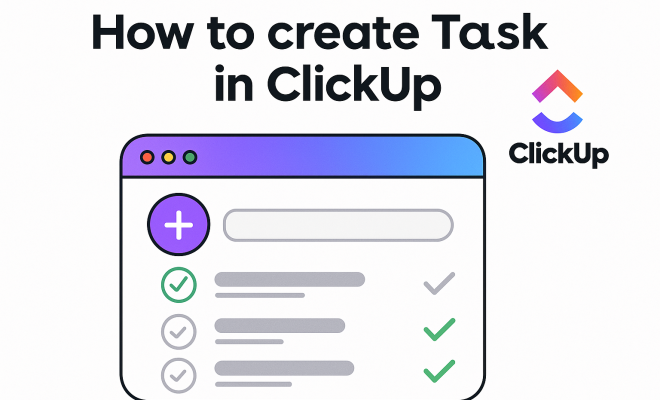
How to create task in ClickUp
“`html
ClickUp has emerged as one of the most popular project management tools available today. With its extensive features, it’s no wonder that teams and individuals alike are looking for ways to maximize their productivity using this platform. One of the core functionalities you need to grasp to make the most of ClickUp is how to create tasks. In this article, we’ll break down the essential steps and provide insights to help you optimize your task creation process.
1. Understanding ClickUp’s Task Structure
Before jumping into the nitty-gritty of creating tasks, it’s crucial to understand how ClickUp organizes its tasks. Tasks in ClickUp can vary significantly in complexity. They can be simple, standalone actions or intricate tasks that contain subtasks, checklists, and even time estimates. This flexibility allows teams to customize tasks according to their specific needs.
ClickUp breaks down tasks into several parts: projects, lists, and folders, allowing users to create a hierarchy that suits their workflows. Understanding this structure helps in managing and monitoring tasks effectively. Each task can be assigned to different team members, tagged with priorities, and organized into various statuses (like To Do, In Progress, or Done). This allows for easy tracking of who’s working on what and how far along they are.
2. Getting Started: Accessing ClickUp
The first step to creating a task in ClickUp is obviously to access the platform. You can do this through your web browser by visiting ClickUp.com or by downloading the mobile app available on both Android and iOS. Once you’re logged in, you’ll land on your workspace dashboard.
If you’re new to ClickUp, you might want to explore the onboarding tutorials available on the platform. These guides can help familiarize you with the user interface and the basic functionalities. The dashboard displays all your projects, tasks, and relevant analytics, so take a moment to get acquainted with its layout before proceeding to create your first task.
3. Creating a Task: Step-by-Step Guide
Now that you’re in ClickUp, here’s how to create a task:
- Select Your Workspace: Choose the workspace where you want the task to be created if you’re managing multiple workspaces.
- Choose a Space and Folder: Navigate to the space and folder where you want to add the task. Spaces can be thought of as departments or major projects, while folders can represent sub-projects or categories.
- Click on the ‘+ Task’ Button: In the designated folder, look for the ‘+ Task’ button. This is often located at the top right corner of your screen. Clicking it will open a new task window.
- Fill in Task Details: Enter the task name, description, and any other relevant details. Be as specific as possible to ensure clarity.
- Assign Team Members: You can assign the task to yourself or other team members by clicking on the assignee section and selecting individuals from your team.
- Add Due Dates: Specify a due date to keep everyone on track. This is a vital step to ensure timely task completion.
- Set Priority Levels: ClickUp allows you to assign priority levels (Urgent, High, Normal, Low) to tasks. This helps in distinguishing more critical tasks from trivial ones.
- Utilize Tags and Checklists: Tags can help categorize tasks, while checklists within tasks help you break down activities into smaller, actionable items.
- Save and View Task: Once you’ve finished inputting details, save the task. It will now appear in your task list!
Take your time while creating tasks, especially if you’re working on a large project where clarity is paramount. Remember, the more detailed your task is, the easier it is for team members to understand their responsibilities.
4. Advanced Task Features in ClickUp
Creating a task in ClickUp is not just about entering a name and hitting save. The platform provides several advanced features that allow you to customize tasks further. For instance, you can attach files directly to a task, ensuring all necessary documents are housed in one place. This can save hours of searching through emails or shared drives.
Moreover, ClickUp allows you to integrate with other tools like Google Drive, Trello, and Slack, giving you the power to streamline your workflow. Use automations to reduce repetitive tasks—like moving tasks to different statuses when a due date is reached. This can significantly enhance your team’s efficiency.
Additionally, you can set recurring tasks for activities that happen regularly, such as weekly meetings or monthly reports. This ensures that important tasks don’t fall through the cracks and allows you to maintain a steady workflow. (See: Project management overview on Wikipedia.)
5. Utilizing Views for Task Management
ClickUp offers multiple views for task management, which can help you visualize your workload in various ways. The list view is great for a straightforward approach, while the board view is similar to Kanban boards, making it perfect for teams who prefer visual progress tracking.
Calendar view is particularly useful for project timelines, allowing you to see who’s working on what and when. Gantt charts can be used for more complex project planning and scheduling. By utilizing these views, you can easily adjust timelines, shift priorities, and keep track of your team’s workload.
Each view has its advantages, so experimenting with them can help you find what works best for your project management style. You can switch views effortlessly within the ClickUp interface, enabling you to maintain visibility on tasks from different perspectives.
6. Effective Collaboration through Comments and Mentions
ClickUp emphasizes collaboration, and one of its standout features is the commenting system. Each task allows team members to leave comments, ask questions, and provide updates. This real-time communication can significantly reduce the back-and-forth email exchanges that often bog down productivity.
You can also mention teammates in comments by using the ‘@’ symbol followed by their name. This will notify them directly, ensuring that they are aware of any discussions relevant to their tasks. This feature is particularly helpful in large teams where keeping track of conversations can be challenging.
Moreover, you can attach images or files directly in the comment section, allowing for better context and clarity on tasks. The combination of comments and mentions can foster a more engaged team environment and streamline communication.
7. Monitoring Progress with Reporting Tools
Once tasks are created and assigned, monitoring their progress becomes essential. ClickUp offers robust reporting tools that provide insights into how work is progressing. You can view dashboards that track the status of tasks, team productivity, and even time spent on each task.
These reports can help identify bottlenecks in the workflow or areas where additional resources may be needed. For managers, this data is invaluable for making informed decisions about project timelines and team assignments.
Regularly checking in on these reports can also help motivate team members, as they can visually see their progress and contributions to the project. Setting up scheduled reports can automate this process, saving time while providing continuous feedback.
8. Integrating ClickUp with Other Tools
ClickUp is designed to be flexible and integrate seamlessly with other tools you might already be using. Whether it’s Google Workspace, Slack, or Zapier, these integrations can streamline your workflow and enhance productivity. For instance, if your team communicates via Slack, you can set up notifications for task updates directly in your channels. (See: Ergonomics and productivity from CDC.)
Moreover, integrating with tools like Google Calendar can help you sync deadlines and appointments, ensuring that you never miss a due date. Automations can be set up to create tasks in ClickUp based on triggers in other apps, further reducing manual input and increasing efficiency.
Explore ClickUp’s integrations page to see all available options, and consider your team’s specific needs when implementing these tools. This can significantly enhance your project management capabilities and reduce the risk of oversight.
9. Best Practices for Creating Tasks in ClickUp
To make the most out of ClickUp and improve task management, consider these best practices:
- Be Specific: When creating a task, ensure that the title and description are clear and concise. This prevents misunderstandings.
- Regular Updates: Encourage team members to update tasks as they progress. This keeps everyone informed and on the same page.
- Review Tasks Periodically: Regularly review tasks to assess what’s working and what’s not. This can help improve overall productivity.
- Use Templates: For repetitive tasks, create templates to save time in the future. This can streamline the task creation process significantly.
- Encourage Feedback: Foster a culture where team members can provide feedback about tasks and processes. This can lead to improvements and innovations.
By following these best practices, you’ll not only streamline your task creation process but also enhance your overall productivity within ClickUp.
10. Common Challenges When Creating Tasks in ClickUp
Even though ClickUp is user-friendly, you might encounter some challenges as you create tasks. Here are a few common issues and tips on how to overcome them:
- Overwhelming Features: With so many features, it can be easy to feel overwhelmed. Focus on mastering one feature at a time instead of trying to do everything all at once.
- Lack of Clarity: Sometimes, tasks may lack clarity, leading to confusion. Always ensure that your task descriptions are detailed and comprehensive. Don’t hesitate to ask team members for input if you’re unsure of the best way to articulate a task.
- Not Utilizing Checklists: Many users forget about the checklist feature, which can help break tasks into smaller steps. Use checklists for complex tasks to ensure nothing is overlooked.
- Ignoring Due Dates: Failing to set due dates can lead to missed deadlines. Make it a habit to always assign due dates to tasks, keeping the entire team accountable.
- Task Overload: Sometimes, managing too many tasks can become overwhelming. Use ClickUp’s filtering options to prioritize tasks efficiently, ensuring that you’re focusing on what’s most important.
11. Tips for Enhancing Collaboration in ClickUp
Collaboration is key to successful project management. Here are some tips to enhance teamwork when creating and managing tasks in ClickUp:
- Use Task Dependencies: Establishing task dependencies (where one task cannot start until another is completed) can help clarify the project flow. This ensures that everyone understands what needs to be done first.
- Host Regular Check-ins: Schedule weekly or bi-weekly meetings to discuss task progress and address any issues. This creates an opportunity for team members to share updates and ask questions in a collaborative environment.
- Celebrate Achievements: Recognize and celebrate when tasks are completed, whether small or large. This boosts morale and encourages a culture of accomplishment.
- Encourage Open Communication: Foster an environment where team members feel comfortable sharing their thoughts and concerns. Use ClickUp’s comments feature to facilitate communication directly within tasks.
- Provide Training: Ensure that all team members are well-trained on how to use ClickUp effectively. Consider hosting workshops or sharing helpful resources.
12. FAQs on Creating Tasks in ClickUp
Q: Can I create a task from an email in ClickUp?
A: Yes! ClickUp has an Email Integration feature that allows you to create tasks directly from emails. Simply forward the email to your ClickUp email address, and a task will be created with the email contents.
Q: Is it possible to create recurring tasks in ClickUp?
A: Absolutely! When creating a new task, you can set it to repeat daily, weekly, monthly, or even at custom intervals. This is great for tasks that need to be completed on a regular basis.
Q: How can I track the time spent on tasks in ClickUp?
A: ClickUp offers time tracking features where you can start, stop, and log time directly within a task. This way, you can gather data on how long tasks take and adjust your project estimates accordingly. (See: Harvard University resources on productivity.)
Q: Can I assign multiple people to one task?
A: As of now, ClickUp allows you to assign only one person to each task. However, you can add collaborators or use the comments section to involve additional team members.
Q: What happens to a task if the due date is missed?
A: If a task’s due date is missed, it will typically be marked as overdue in ClickUp. You can easily filter to see which tasks are overdue and address them accordingly.
Q: Can I attach files to a task in ClickUp?
A: Yes, you can attach files to tasks from your computer, or integrate with services like Google Drive or Dropbox to attach files directly from those sources.
13. Tips for Task Management in ClickUp
Managing tasks efficiently in ClickUp requires a strategic approach. Here are some additional tips to help you stay organized:
- Break Down Larger Tasks: For complex projects, break tasks into smaller, manageable subtasks. This makes it easier to track progress and ensures no detail is overlooked.
- Use Custom Fields: ClickUp allows you to create custom fields tailored to your project’s needs. Utilize these fields to capture additional information relevant to your tasks, such as budget, type of work, or client preferences.
- Leverage Automations: Set up automations that can help streamline repetitive tasks. For instance, you can automatically change the status of a task when it’s completed, or send reminders to team members about upcoming due dates.
- Utilize the ClickUp Mobile App: Don’t forget about the mobile app! Use it to manage tasks on the go, ensuring you can create and update tasks whenever inspiration strikes or when you’re away from your desk.
14. Case Study: Success Stories Using ClickUp
Many organizations have turned to ClickUp for project management, and the results have been impressive. For example, a marketing agency reported a 25% increase in productivity after integrating ClickUp into their workflow. They attributed this to the ability to create, assign, and track tasks all in one platform, which eliminated the need for multiple tools.
In another case, a software development team utilized ClickUp’s task dependencies and time tracking features to improve their sprint planning. By clearly mapping out tasks and tracking time spent, they were able to reduce project completion times by 30%, leading to quicker releases and happier clients.
15. Conclusion: Mastering Task Creation in ClickUp
In summary, learning how to create a task in ClickUp is just the beginning. By understanding the platform’s advanced features, utilizing its collaborative tools, and integrating it with other applications, you can significantly enhance your project management skills. Whether you’re part of a large team or managing personal projects, mastering ClickUp can lead to increased efficiency and a clearer view of your workload.
“`
Trending Now
Frequently Asked Questions
How do I create a task in ClickUp?
To create a task in ClickUp, first log in to your workspace. From the dashboard, navigate to the project or list where you want to add the task. Click on the 'Add Task' button, fill in the task details, and assign it to team members if necessary. You can also set priorities and statuses to help manage the task effectively.
What is the task structure in ClickUp?
ClickUp organizes tasks into a hierarchy consisting of projects, lists, and folders. This structure allows you to create simple standalone tasks or more complex tasks that include subtasks, checklists, and time estimates. Understanding this hierarchy is essential for effective task management within the platform.
Can I customize tasks in ClickUp?
Yes, ClickUp allows extensive customization of tasks. You can add subtasks, checklists, attach files, and set due dates. Additionally, you can assign tasks to different team members and tag them with priorities, enabling a tailored approach to task management that meets your team's specific needs.
Is there a mobile app for ClickUp?
Yes, ClickUp offers a mobile app available for both Android and iOS devices. You can download it from the respective app stores. The app provides access to all features, allowing you to create and manage tasks on the go, ensuring you stay productive wherever you are.
What should I do if I'm new to ClickUp?
If you're new to ClickUp, it's recommended to explore the onboarding tutorials available on the platform. These guides will help you familiarize yourself with the user interface and basic functionalities, making it easier to navigate your workspace and create tasks effectively.
What did we miss? Let us know in the comments and join the conversation.