How to add comments in Google Docs
“`html
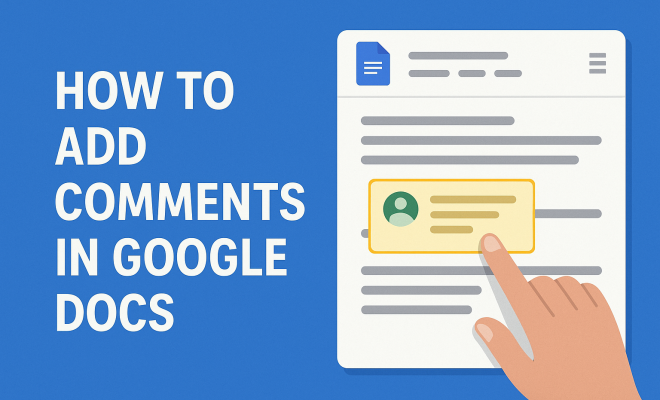
Google Docs has revolutionized the way we collaborate on documents. Its cloud-based platform allows users to work together in real-time, making it an essential tool for students, professionals, and teams alike. One of its most powerful features is the ability to add comments in Google Docs, which facilitates feedback, suggestions, and discussions without altering the original text. In this comprehensive guide, we’ll explore the mechanics of commenting in Google Docs, practical tips for effective collaboration, and the latest updates to the commenting features.
1. Understanding the Commenting Feature
Before diving into the steps for adding comments, it’s essential to understand what comments are within Google Docs. Comments serve as notes or suggestions linked to specific parts of the document. They help users communicate thoughts and feedback without changing the document’s actual content. Each comment can be addressed and resolved, making it easier to track discussions and decisions related to the text.
Unlike traditional documents where edits might overwrite original content, Google Docs preserves the integrity of the original while allowing for dynamic conversations through comments. This capability is particularly beneficial in collaborative environments, where multiple users may have differing opinions or suggestions.
2. How to Add Comments in Google Docs
Let’s get into the nitty-gritty. Adding comments in Google Docs is a straightforward process. Here’s how you can do it:
- Highlight the Text: First, highlight the section of the text where you want to add a comment. This indicates to other collaborators where your feedback is directed.
- Click the Comment Button: After highlighting, look for the comment icon (speech bubble) at the top right of your document. Clicking this icon opens a comment box.
- Type Your Comment: Enter your thoughts, suggestions, or questions in the comment box. Once satisfied, hit the “Comment” button to save it.
This simple process allows for quick feedback and keeps discussions organized. You can also add comments using keyboard shortcuts, which can speed up your workflow dramatically.
3. Using Keyboard Shortcuts for Efficiency
In an increasingly fast-paced world, efficiency is key. Google Docs offers several keyboard shortcuts that allow you to add comments in Google Docs without breaking your flow. Here are a few:
- Ctrl + Alt + M (Windows) or Cmd + Option + M (Mac): This shortcut opens the comment box directly, saving you the step of clicking the comment icon.
- Ctrl + K (Windows) or Cmd + K (Mac): This command allows you to insert links within your comments, perfect for referencing external documents or resources.
- Ctrl + Enter: After typing your comment, this shortcut submits it without needing to move your hand to the mouse.
Using these shortcuts can significantly enhance your productivity, especially when collaborating on lengthy documents or during tight deadlines.
4. Replying to Comments
Collaboration doesn’t stop at adding comments; responding to them is just as crucial. When someone tags you in a comment or leaves feedback, you’ll want to know how to reply effectively.
To reply to a comment, simply click on the comment you want to address. You’ll see the option to write a response below the original comment. This feature allows for threaded discussions, making it easier to keep track of conversations. For instance, if a team member suggests a modification to a section, you can respond with your thoughts or agree/disagree with their points.
5. Tagging Collaborators
One of the best aspects of using Google Docs is the ability to tag collaborators in comments. This feature ensures that the right people are notified and involved in the discussion. To tag someone, simply type the “@” symbol followed by their email address or name. Google Docs will often auto-suggest names from your contacts.
When you tag someone, they’ll receive an email notification, prompting them to review the comment. This can be a game-changer for project management, allowing teams to quickly address feedback and maintain momentum. For example, if you’re working on a marketing proposal and need input from your graphic designer, tagging them directly in relevant comments ensures they see your requests immediately.
6. Resolving Comments
Once a comment has been addressed and the necessary actions taken, it’s time to resolve it. This feature helps keep your document organized and free of clutter. To resolve a comment, simply click on the “Resolve” button within the comment thread. (See: Overview of Google Docs features.)
Resolved comments become hidden from view but can be un-hidden at any time if you need to revisit the discussion. This is particularly helpful in long-term projects where feedback may need to be referenced again in the future.
7. Managing Comments: Viewing and Filtering
As documents grow in length and complexity, so can the number of comments. Google Docs offers tools to manage this effectively. You can view all comments in a sidebar, making it easy to navigate through discussions without scrolling through the entire document.
In the comment sidebar, you have the option to filter comments by status — whether they’re unresolved or resolved. This feature allows you to focus on what still needs attention while keeping track of what’s already been addressed. Additionally, comments can be sorted chronologically, providing a timeline of discussions that can be very useful for accountability.
8. Best Practices for Effective Commenting
While adding comments in Google Docs is simple, ensuring that your comments are effective is an art in itself. Here are some best practices to keep in mind:
- Be Clear and Concise: Make sure your comments are easy to understand. Avoid jargon unless everyone involved is familiar with it.
- Stay Constructive: Focus on providing actionable feedback. Instead of simply pointing out issues, suggest potential solutions or alternatives.
- Use Labels or Formatting: If you’re working on documents with many comments, consider using labels or formatting to categorize your feedback. For instance, you might use “urgent” or “question” to prioritize your comments.
By following these best practices, you’ll foster a more productive collaboration environment that benefits everyone involved.
9. Current Relevance: Google Docs in Remote Work
The rise of remote work has made tools like Google Docs indispensable. With teams spread across different locations, the need for effective collaboration has never been more critical. Google Docs’ commenting feature has become a cornerstone for virtual collaboration, enabling teams to work together seamlessly.
As organizations continue to adapt to hybrid and remote work models, mastering the ability to add comments in Google Docs is essential. This tool not only enhances communication but also ensures that everyone remains aligned on project goals, no matter where they are located.
10. Exploring Advanced Commenting Features
Google is continually improving its suite of tools, and commenting features are no exception. Recent updates include options for suggesting edits, which allows users to propose changes that others can review before finalizing. This feature is especially useful in writing and editing contexts, enabling a more collaborative editing process.
Furthermore, Google Docs now integrates with various project management tools, allowing comments to be exported or linked to tasks. This integration streamlines workflows, ensuring that feedback is not only captured but also actionable in broader project contexts.
In summary, knowing how to add comments in Google Docs is just the beginning. By understanding the full range of commenting features and best practices, you can supercharge your collaborative efforts and enhance productivity in any project.
11. Commenting in Different Document Types
Google Docs isn’t just for text documents; it supports various formats, including spreadsheets and presentations through Google Sheets and Google Slides. Each of these platforms has its own commenting capabilities, allowing for tailored feedback depending on the type of document you’re working with.
For instance, in Google Sheets, you can comment on individual cells, which is incredibly useful for data collaboration. If a team member wants to clarify a particular entry or suggest a revision, they can leave a comment directly linked to that cell. This not only provides context but also keeps your feedback organized and directly applicable to the relevant information.
Similarly, in Google Slides, you can add comments to specific slides. This makes it easier to discuss design choices or content placements. If you’re collaborating on a presentation, you might comment on a slide to suggest changing an image or adjusting the layout. The ability to add comments in Google Docs (and its related applications) enhances the collaborative process across different types of media.
12. Using Comments for Peer Reviews
One of the most effective uses of comments in Google Docs is for peer reviews. When working in academic or professional settings, feedback from peers can significantly enhance the quality of a document. By using the commenting feature, you can create a dialogue about specific points, making it easier to address concerns and suggestions directly. (See: Importance of feedback in collaboration.)
For example, if you’re part of a writing group, you can share a draft and ask your peers to comment on specific sections. They can highlight areas that might need more clarity or suggest additional sources to reference. This structured feedback mechanism can help you refine your work before final submission.
Additionally, you can set up a system where commenters use certain phrases or symbols to indicate the type of feedback they’re giving, such as “suggestion,” “concern,” or “praise.” This practice helps streamline the review process and ensures that all feedback is constructive.
13. The Role of Comments in Educational Settings
In educational environments, the ability to add comments in Google Docs has transformed the way teachers and students interact with assignments. Educators can provide real-time feedback on student work, making it easier to address issues as they arise. Instead of waiting for a paper to be graded, students can receive comments throughout the writing process.
For example, a teacher might comment on a student’s thesis statement, suggesting they clarify their argument. This immediate feedback loop encourages students to engage more deeply with their work and improve their writing skills. Additionally, teachers can tag students in comments to prompt specific actions or questions, further enhancing the learning experience.
Moreover, many educational institutions have adopted Google Docs as a collaborative platform for group projects. Students can work together, leaving comments for each other and making suggestions, which fosters a sense of teamwork and peer learning.
14. Integrating Comments with Other Google Workspace Tools
Google Workspace (formerly G Suite) offers a suite of tools that can be integrated seamlessly with Google Docs, enhancing the commenting experience. For instance, integrating Google Calendar can help schedule discussions around the comments left in the document, making collaboration more organized.
Additionally, using Google Meet for video calls while collaborating on a Google Docs document allows for real-time discussions about comments. This integration can be particularly useful for remote teams who want to discuss feedback while viewing the document simultaneously. The combination of visual and verbal communication enhances understanding and clarity.
Other integrations include Google Forms, which can be used to gather feedback or additional information from collaborators. Using comments alongside data collected through forms can streamline the decision-making process and ensure that all voices are heard.
15. Frequently Asked Questions (FAQ)
Here are some common questions users have about adding comments in Google Docs:
- Can I delete a comment I’ve added? Yes, you can delete your own comments by clicking on the comment and selecting the “Delete” option. However, unless you have editing permissions, you won’t be able to delete comments made by others.
- Can I edit a comment after I’ve posted it? Absolutely! Click on the comment you want to edit, select the three-dot menu, and choose “Edit.” Make your changes and save the updated comment.
- What happens to comments when I download the document? If you download a Google Docs file as a Word document or PDF, comments will typically not be included in the download. However, if you’re exporting in other formats like a Google Docs format, comments might be retained.
- How do I get notified about new comments? If you’ve been tagged in a comment, you’ll receive an email notification. You can also adjust your notification settings in the Google Docs general settings to receive updates about all comments or just those you’re involved in.
- Can I print a document with comments? Yes, when printing, you can select the option to include comments in the printout. This can be useful for discussions in person or for keeping physical copies of feedback.
- Is there a limit to how many comments I can add? Google Docs does not impose a strict limit on the number of comments you can add, but performance might be affected if a document has an extremely high number of comments.
By understanding the ins and outs of commenting in Google Docs, you can leverage this powerful tool to enhance your collaboration efforts, streamline communication, and ultimately produce better documents.
16. Benefits of Commenting Over Traditional Editing
When it comes to collaborative writing, commenting provides a unique advantage over traditional editing. Traditional editing often involves making direct changes to the text, which can lead to confusion about the original content. Commenting, on the other hand, preserves the integrity of the document while allowing for discussion and feedback.
This method promotes transparency; collaborators can see who made specific comments, which helps in understanding the context behind suggestions. Furthermore, it provides an opportunity for learning. For example, if an editor suggests a change along with reasoning, the author can learn from that feedback and apply similar logic in future writing. (See: Google Docs in modern collaboration.)
Additionally, commenting enables a more democratic process where all voices can be heard. Contributors may feel more comfortable sharing their opinions in a comment rather than suggesting edits directly, leading to richer discussions and more creative solutions.
17. Case Studies: Effective Use of Comments in Teams
To illustrate the power of commenting in Google Docs, let’s look at a couple of case studies from different industries.
In a tech company developing new software, the design team utilized comments extensively during the proposal phase. By tagging each other in comments, they discussed design elements in real-time, allowing for faster decision-making. One comment led to a team brainstorming session that resulted in a feature that significantly improved user experience. This kind of dynamic interaction would have been much slower with traditional editing, where changes could have led to multiple revisions and confusion.
In an educational setting, a university professor implemented peer review assignments using Google Docs comments. Students would leave feedback on each other’s drafts, leading to a collaborative learning environment. The professor noted that students were more engaged and invested in the writing process, as the comments encouraged them to think critically about their work and that of their peers.
18. Commenting Etiquette: What to Remember
While comments can enhance collaboration, it’s crucial to maintain decorum and professionalism. Here are some guidelines for commenting etiquette:
- Be Respectful: Always phrase feedback in a respectful manner. Use a tone that fosters a positive environment.
- Avoid Overloading Comments: Instead of bombarding a collaborator with numerous comments at once, try to consolidate your feedback. This makes it easier for them to process and act upon your suggestions.
- Check for Clarity: Before submitting a comment, review it to ensure that your points are clear and constructive. Ambiguity can lead to misunderstandings.
By following these etiquette tips, you can contribute to a collaborative atmosphere that values each team member’s input.
19. Future Developments in Commenting Features
As technology evolves, so will the tools we use for collaboration. Google continues to update Google Docs, and we can expect future enhancements to commenting features. Anticipated developments include improved AI-driven suggestions for comments, which could provide context-aware feedback based on the document’s content.
Additionally, there may be features that allow for more visual commenting, enabling users to leave marks or annotations directly on document sections, enhancing the interaction experience. These advancements could make the feedback process even more intuitive and efficient.
Staying updated on these changes will help you adapt your collaboration strategies and take full advantage of the capabilities Google Docs has to offer.
“`
Trending Now
Frequently Asked Questions
How do you add comments in Google Docs?
To add comments in Google Docs, first highlight the text you want to comment on. Then, click the comment icon (speech bubble) at the top right of the document. A comment box will appear where you can type your feedback or suggestion. Finally, click the 'Comment' button to save it.
Can you edit comments in Google Docs?
Yes, you can edit comments in Google Docs. Simply click on the comment you want to change, and then click the pencil icon to edit your text. After making your changes, hit 'Comment' again to save the updated comment.
How do you resolve comments in Google Docs?
To resolve comments in Google Docs, click on the comment you wish to address and then select the 'Resolve' button. This action will hide the comment from view but allows you to revisit it later if necessary.
Can you add comments to images in Google Docs?
Yes, you can add comments to images in Google Docs. Click on the image to select it, then follow the same steps as you would for text: click the comment icon, type your feedback, and click 'Comment' to save.
What is the purpose of comments in Google Docs?
Comments in Google Docs serve as a way for users to provide feedback, suggestions, or ask questions without altering the original content of the document. They facilitate discussions and help track decisions related to the text, enhancing collaborative efforts.
What’s your take on this? Share your thoughts in the comments below — we read every one.