How to track changes in Google Docs
“`html
In today’s digital age, collaboration is a crucial aspect of our work and personal projects. Google Docs has emerged as a leading platform for document creation and collaboration, allowing users to seamlessly edit and share documents in real-time. One of the most powerful features of Google Docs is its ability to track changes, making it easier to manage edits, provide feedback, and maintain version control. In this article, we’ll explore how to track changes in Google Docs effectively and delve into the various features and techniques that can enhance your collaborative efforts.
1. Understanding Track Changes in Google Docs
Before diving into the specifics of tracking changes, let’s clarify what this feature entails. Google Docs allows users to see all edits made to a document, which can include text additions, deletions, formatting changes, and comments. This functionality is crucial for maintaining an organized workflow, especially in environments where multiple people contribute to a single document.
Unlike traditional word processors like Microsoft Word, where users need to activate a separate ‘Track Changes’ mode, Google Docs automatically tracks edits by default. Every change is recorded, and users can revert to previous versions if needed. This makes it simple to monitor contributions and changes without added hassle.
2. How to Enable and Use Suggesting Mode
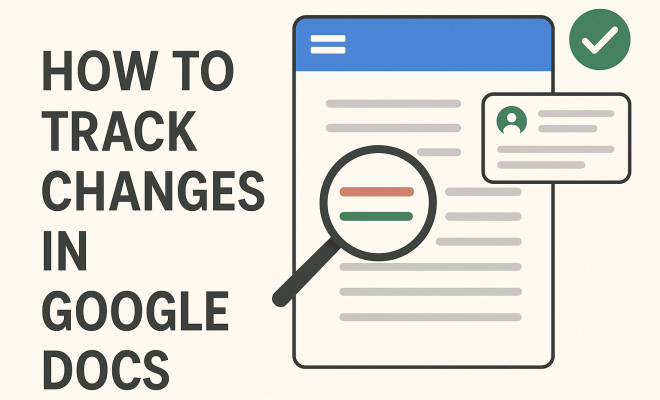
One of the best ways to track changes in Google Docs is through the Suggesting mode. This mode allows you to propose edits without altering the original text directly. Instead, your suggestions appear as comments, with the original text remaining visible but struck through. To enable Suggesting mode, follow these steps:
- Open the Google Docs document you want to edit.
- In the upper-right corner, click on the pencil icon and select ‘Suggesting’ from the dropdown menu.
- Make your suggested changes, and they will appear in a different color.
Using Suggesting mode is particularly beneficial for collaborative projects where feedback is essential. It ensures that all parties can review and accept or reject changes without confusion.
3. Reviewing Changes with the Version History
Google Docs automatically saves every version of your document, allowing you to see the evolution of your work over time. To access version history, click on ‘File’ in the menu, then hover over ‘Version History’ and select ‘See Version History.’ This feature displays a timeline of all changes made, allowing you to restore any version with a simple click.
This capability is especially useful if you need to revert to an earlier draft or track specific contributions from different collaborators. Each version shows who made the changes and when, providing a clear audit trail of the document’s development.
In a collaborative setting, understanding how version history works is critical. For instance, if multiple users are editing a document concurrently, you can easily identify who made specific changes, which can help in resolving conflicts or discussing content more effectively. According to a survey by Google, 82% of users reported that version history greatly improved their editing process, highlighting its importance in collaborative environments.
4. Making the Most of Comments and Feedback
Comments in Google Docs play a vital role in the collaborative process. They allow users to provide context and feedback on specific sections of text. To add a comment, highlight the text you want to discuss, right-click, and select ‘Comment.’ Alternatively, you can click the comment icon in the toolbar.
Comments can also be resolved once they’ve been addressed, which is handy for keeping your document tidy. You can even tag collaborators by using the ‘@’ symbol followed by their email address, ensuring that they receive notifications about your feedback. This interactivity fosters effective communication and helps streamline the editing process. (See: Google Docs overview on Wikipedia.)
To maximize the utility of comments, consider establishing a commenting protocol. For instance, you could allocate specific colors to different types of feedback—green for positive notes, red for critical changes, and blue for questions. This way, users can quickly gauge the tone and importance of comments at a glance. This practice not only enhances clarity but also fosters a more organized discussion.
5. Utilizing Add-ons for Enhanced Tracking
While Google Docs offers robust built-in tracking features, various add-ons can augment your experience. Popular options include ‘DocuSign’ for document signing and ‘EasyBib’ for citation management. These tools can streamline processes that involve multiple edits or require adherence to specific guidelines.
To explore add-ons, click on ‘Extensions’ in the menu and select ‘Add-ons.’ You can browse the store and install tools that meet your specific needs. For example, an add-on like ‘Track Changes’ can help you create a more detailed change log or enhance the way you visualize edits within your document.
Another noteworthy add-on is ‘Draftback,’ which allows you to replay the editing history of your document. This can be particularly useful for understanding how ideas evolved over time or demonstrating progress in a project. With the capability to visualize your edits, you can extract valuable insights and even present these findings in meetings or reports.
6. Sharing Settings and Permissions
Sharing settings in Google Docs significantly impact how changes are tracked and managed. When you share a document, you can choose from various permission levels: Viewer, Commenter, or Editor. Each role has distinct abilities that affect how users interact with the document.
For instance, if you want someone to only provide feedback without altering the original text, set them as a Commenter. This way, they can leave comments and suggestions, which you can later accept or reject. Understanding these permissions not only helps maintain control over your document but also enhances the collaborative experience.
It’s also essential to regularly review your sharing settings, especially when project timelines change or new team members join. A study showed that 75% of security breaches in collaborative environments stem from improperly configured sharing settings. Therefore, ensuring that only the necessary personnel have access to edit or view sensitive documents can mitigate potential risks and enhance overall document security.
7. Best Practices for Collaborating Effectively
To maximize the benefits of tracking changes in Google Docs, consider implementing best practices throughout your collaboration process. Here are a few strategies to keep in mind:
- Set clear expectations: When starting a project, discuss and agree on how edits will be tracked and who will be responsible for what changes.
- Regularly review comments and suggestions: Schedule periodic reviews to go through feedback and ensure everyone’s input is acknowledged and addressed.
- Use version history effectively: Make it a habit to check version history before making significant changes to avoid losing valuable information.
- Encourage open communication: Foster an environment where team members feel comfortable discussing their edits and suggestions without fear of judgment.
- Implement deadlines for feedback: To avoid stalling the editing process, set deadlines for when feedback should be submitted. This keeps everyone accountable and ensures that changes are made in a timely manner.
These practices can lead to a more organized and efficient editing process, resulting in a polished final product. Remember, effective collaboration is not just about tracking changes but also about how well you communicate and work together as a team.
8. The Future of Document Collaboration
As technology continues to evolve, so does the landscape of document collaboration. Google Docs has already adopted various AI-driven features, like Smart Compose and automatic grammar checks, which make writing and editing smoother and more efficient. The focus on real-time collaboration is likely to increase, with advancements in machine learning enhancing the way we track changes in Google Docs.
It’s essential to stay updated on the latest features and tools being introduced, as they can significantly impact your workflow. As more organizations shift towards remote work environments, the ability to track changes effectively will become increasingly critical. Embracing these changes and adapting to new tools will ensure that you remain proficient in collaborative writing and editing.
The rise of cloud-based applications offers not just convenience but also the potential for future innovations. Imagine features that allow you to analyze the sentiment of edits or even AI tools that suggest improvements based on collaborative input. The possibilities are endless, and staying adaptive will give you a competitive edge in any collaborative setting. (See: Understanding version control and tracking changes.)
9. Common Mistakes to Avoid When Tracking Changes
While Google Docs makes it easy to track changes, there are still some common pitfalls users should be aware of. Here are a few mistakes to avoid:
- Ignoring Version Control: Regularly check version history to ensure you’re aware of all changes made. Failing to do so can lead to confusion, especially in lengthy projects.
- Overlooking Comments: It’s crucial to address comments promptly. Ignoring them can lead to unresolved issues and hinder the progress of your document.
- Not Setting Permissions Correctly: Always double-check sharing settings before distributing your document. Incorrect permissions can lead to unauthorized edits or loss of valuable feedback.
- Being Overly Critical: Feedback is essential, but be mindful of how you present it. Constructive criticism fosters a positive collaborative atmosphere.
By being aware of these common mistakes, you can streamline your document editing process and create a more harmonious working environment.
10. Frequently Asked Questions (FAQ)
Q1: Can I track changes in Google Docs without using Suggesting mode?
A1: Yes, Google Docs automatically tracks all changes by saving a version history. However, using Suggesting mode provides a clearer way to propose edits without altering the original text directly.
Q2: How do I see who made specific changes in the document?
A2: You can access the version history by clicking on ‘File’ and then ‘Version History.’ Each version lists the changes made, including the name of the collaborator who made them.
Q3: What should I do if I want to revert to an earlier version of my document?
A3: Open the version history and click on the version you want to restore. Then, click on ‘Restore this version’ to revert your document back to that point.
Q4: Are there limitations to the number of versions saved in Google Docs?
A4: Google Docs saves all versions of your document. There’s no set limit on the number of versions, but Google may only display the most recent changes in the version history for quicker access.
Q5: Can I turn off track changes in Google Docs?
A5: Google Docs does not allow you to turn off tracking completely since it saves version history automatically. However, you can choose not to use Suggesting mode, which may help minimize visible changes.
Q6: How can I track changes in a shared document with limited editing permissions?
A6: If someone has limited permissions (like Viewer or Commenter), they won’t be able to make direct edits. However, they can still leave comments, which you can track and address in your editing process.
Q7: Is it possible to integrate Google Docs with other project management tools for better change tracking?
A7: Yes, various integrations and add-ons can help you connect Google Docs to project management tools, allowing you to streamline changes and track feedback more effectively. Tools like Trello and Asana often have Google Docs integration options.
Q8: How can I improve the quality of feedback in Google Docs?
A8: To enhance the quality of feedback, establish clear guidelines for commenting. Encourage specificity, timeliness, and politeness in comments. Creating a feedback template might also help reviewers focus on the essential aspects. (See: Harvard University on collaborative tools.)
Q9: What are the advantages of using Google Docs for tracking changes compared to other platforms?
A9: Google Docs provides real-time collaboration, automatic saving, and version history without additional setup. It also integrates well with other Google services and tools, making it versatile for various workflows.
Q10: Can I customize the notifications I receive about changes made in Google Docs?
A10: Yes, you can customize notifications for comments and suggestions. Go to ‘Tools’ and select ‘Notification settings’ to adjust your preferences, ensuring you’re alerted when relevant changes occur.
11. Advanced Tips for Mastering Change Tracking
For those looking to take their Google Docs collaboration to the next level, here are some advanced tips for mastering change tracking:
- Color Coding Edits: Google Docs allows you to color code your text. Utilize this feature to visually differentiate between different types of changes or between contributions from various team members, making it easier to follow the conversation.
- Utilize Shortcuts: Familiarize yourself with keyboard shortcuts for commenting and suggesting changes. This can speed up the editing process significantly. For example, Ctrl + Alt + M (or Cmd + Option + M on Mac) allows you to add comments quickly.
- Regularly Clean Up Comments: Don’t let comments accumulate indefinitely. Regularly review and resolve comments that have been addressed to keep the document clean and organized. This practice also helps maintain focus on unresolved feedback.
- Conduct Post-Mortem Reviews: After a project wraps up, organize a review session to go over the document. Discuss what aspects of the tracking process worked well and where improvements can be made for future collaborations.
- Encourage Peer Reviews: Consider implementing a peer review system where team members review each other’s contributions before finalizing any document. This can enhance the quality of the final product and allow for diverse perspectives.
12. Real-World Examples of Effective Collaboration Using Google Docs
Let’s look at some real-world examples of how organizations and teams have effectively used Google Docs to track changes and enhance collaboration:
- Educational Institutions: Many schools and universities utilize Google Docs for collaborative projects among students. For instance, group essays often see students proposing edits via Suggesting mode, and teachers can provide real-time feedback using comments, leading to a more interactive and engaging learning experience.
- Marketing Teams: A marketing agency may use Google Docs for content creation, where writers draft blog posts while editors review and suggest changes. The version history allows the team to track drafts and see the progression of a piece from inception to final approval.
- Software Development: Development teams often document project requirements and design specifications in Google Docs. Utilizing comments and suggestions, they can refine these documents collaboratively, ensuring everyone’s input is captured and easily reviewed in version history.
These examples demonstrate how versatile Google Docs can be across various fields, enhancing collaborative efforts and ensuring that every change is tracked and accounted for.
13. Conclusion and Call to Action
In today’s fast-paced work environment, the ability to track changes in Google Docs is not just a convenience; it’s a necessity for successful collaboration. By leveraging the features discussed in this article, you can optimize your document editing processes, foster better communication among team members, and ultimately produce higher-quality work.
Whether you’re working on a small team project or managing large-scale documentation, understanding and effectively utilizing Google Docs’ change tracking capabilities will empower you to enhance your collaborative efforts. Start implementing these strategies today and watch your teamwork transform!
“`
Trending Now
Frequently Asked Questions
How do you track changes in Google Docs?
To track changes in Google Docs, simply open your document and use the Suggesting mode. Click on the pencil icon in the upper-right corner and select 'Suggesting.' This allows you to propose edits, showing them as comments while keeping the original text visible.
What is Suggesting mode in Google Docs?
Suggesting mode in Google Docs lets users propose edits without changing the original text directly. Edits appear as suggestions with the original text struck through, allowing for easy review and collaboration on documents.
Can you see edit history in Google Docs?
Yes, Google Docs automatically tracks all edits made to a document. You can access the version history by clicking 'File' and then 'Version history' to review changes and revert to previous versions if necessary.
Is Track Changes available in Google Docs?
While Google Docs does not have a separate 'Track Changes' mode like Microsoft Word, it automatically tracks all changes made to a document. Users can view edits and comments directly without needing to activate a special mode.
How do I revert to a previous version in Google Docs?
To revert to a previous version in Google Docs, go to 'File,' select 'Version history,' and then choose 'See version history.' From there, you can view past versions and restore the document to any earlier state.
What did we miss? Let us know in the comments and join the conversation.