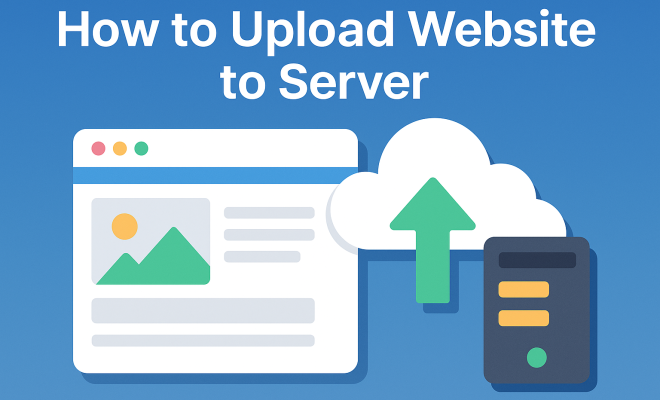
How to upload website to server
“`html
In the ever-evolving world of web development, knowing how to upload a website to a server is an essential skill. Whether you’re launching your first blog or setting up an online portfolio, the ability to effectively transfer files to a server can determine the success of your website. This comprehensive guide will take you through everything you need to know, from choosing the right server to finalizing the upload process successfully.
1. Understanding the Basics
Before jumping into the technicalities, it’s crucial to understand what a server is and its role in hosting a website. A server is a powerful computer that stores your website’s files and makes them accessible to the internet. When users enter your domain name in their browser, the server retrieves your website data and displays it for them.
There are various types of web hosting services available, including shared hosting, VPS, and dedicated servers. Each type has its pros and cons depending on your specific needs, such as site traffic, storage requirements, and budget constraints. Familiarizing yourself with these options can help you make an informed choice about where to upload your website to a server.
2. Choosing a Hosting Provider
Your hosting provider plays a significant role in how effectively you can upload a website to a server. Factors to consider include reliability, speed, support, and pricing. Popular providers like Bluehost, SiteGround, and HostGator offer various packages tailored to different needs.
When selecting a host, be sure to check for essential features such as uptime guarantees, customer support availability, and scalability options. A reliable host can provide you with the necessary tools and resources to ensure a smooth upload process and maintain your website’s performance.
Let’s explore some critical metrics you should assess when comparing providers:
- Uptime Guarantee: Look for a provider that promises at least 99.9% uptime. This indicates reliability and minimizes the risk of your site going offline unexpectedly.
- Load Speed: Fast load times greatly improve user experience and search engine rankings. Aim for a host with optimized data centers and content delivery networks (CDNs) to enhance speed.
- Support: 24/7 support is crucial, especially if you’re new to web hosting. Check for various support channels, including live chat, email, and phone support.
- Scalability: As your website grows, your hosting needs may change. Choose a provider that allows you to easily upgrade or downgrade your plan as needed.
3. Preparing Your Website Files
Once you have chosen a hosting provider, the next step is to prepare your website files. This typically includes HTML files, CSS for styling, JavaScript for interactivity, and any images or media files. Make sure your website is well-structured, and all files are organized into folders, as this will simplify the upload process.
Additionally, if you’re using a Content Management System (CMS) like WordPress or Joomla, ensure that your database files are exported correctly. This is crucial for dynamic websites that rely on databases to function. Having everything ready will not only make uploading easier but also help avoid any errors during the process.
To assist with organization, consider using a standardized naming convention for your files. For example, use lowercase letters and hyphens instead of spaces. This approach can help reduce errors related to file naming and enhance SEO.
4. Methods for Uploading Your Website
There are several methods to upload a website to a server. Each method has its advantages and might be more suitable depending on your technical expertise and the tools you have at your disposal. Let’s explore the most commonly used methods. (See: Web hosting service overview.)
- FTP/SFTP: File Transfer Protocol (FTP) and Secure File Transfer Protocol (SFTP) are the most popular methods for transferring files. You will need an FTP client, such as FileZilla or Cyberduck, to connect to your server. Simply enter your server’s IP address, username, and password to establish a connection and start dragging your files into the desired directory.
- cPanel: Many hosting providers offer cPanel, a web-based interface that allows you to manage your website. You can use the File Manager tool within cPanel to upload files directly from your browser. This method is user-friendly and doesn’t require any additional software.
- Command Line: For advanced users, using command line tools like SCP (Secure Copy Protocol) can be an efficient way to upload files. This method requires some familiarity with terminal commands but offers greater flexibility and speed.
5. Using FTP to Upload Your Website
To use FTP or SFTP, you first need to install an FTP client. FileZilla is highly recommended due to its user-friendly interface and robust features. Once installed, you’ll need to input your server credentials: host, username, password, and port (21 for FTP, 22 for SFTP).
After connecting to your server, you’ll see your local files on one side and your server files on the other. Navigate to the directory where you want your website files to reside (commonly in the “public_html” folder) and begin transferring files. Always verify that all files have been uploaded correctly by refreshing the server side view.
When using FTP, it’s important to keep an eye on the transfer status. Most FTP clients provide a detailed log of transferred files, which can help you identify any files that failed to upload. If you encounter errors, make sure to check your internet connection and ensure that there are no firewall settings blocking the transfer.
6. Uploading via cPanel
If your hosting provider uses cPanel, uploading files is a straightforward process. Log into your cPanel account and access the File Manager. From there, navigate to the appropriate directory, usually the “public_html” folder, where you want your website files to reside.
Click on the “Upload” button, select your files, and wait for the upload to complete. cPanel also allows you to create folders, rename files, and even edit files directly if you need to make quick adjustments. Once the upload is complete, remember to check your website’s URL to ensure everything appears as intended.
Another great feature of cPanel is the ability to manage databases through tools like phpMyAdmin, which is particularly useful if your website is dynamic and requires a database connection.
7. Verifying Your Upload
After you’ve successfully uploaded your website to a server, it’s essential to verify that everything is functioning correctly. Start by accessing your domain name in a web browser. If your website loads properly, great! If not, there could be several issues to troubleshoot.
Common problems include incorrect file paths, missing files, or issues with database connections. Use tools like browser developer tools to check for errors, and if necessary, revisit your FTP or cPanel to make corrections. Regular maintenance and updates can prevent future issues, keeping your website running smoothly.
It can also be beneficial to perform a cross-browser check to ensure your site displays well on different browsers and devices. Tools like BrowserStack can help you test your website’s responsiveness across various platforms.
8. Common Upload Issues and Solutions
Even experienced developers encounter problems when uploading a website to a server. Here are some common issues you might face and how to resolve them:
- Connection Timeouts: If you experience frequent disconnections while using FTP, check your internet connection and ensure your server settings are correct. Some hosts have timeout limits that may need adjustments.
- File Permissions: After uploading files, you may need to adjust file permissions to ensure they are accessible. Typically, files should have permission set to 644 and folders to 755.
- 404 Errors: If you encounter a 404 error, it usually means the server cannot find the requested file. Double-check the file paths and ensure that files were uploaded to the correct directory.
Understanding console logs can also provide insight into potential issues. If your website fails to load, the console may reveal errors like “404 Not Found” or “500 Internal Server Error,” which can guide your troubleshooting efforts.
9. Future Considerations
Once you’ve mastered the basics of how to upload a website to a server, there are some future considerations to keep in mind. Regular backups of your website files can safeguard against data loss. Many hosting providers offer automated backup solutions that can save you time and hassle. (See: CDC official website.)
Additionally, staying informed about web technologies and server updates is crucial. As the digital landscape evolves, knowing how to manage and update your website effectively will keep it relevant and secure against potential threats.
Consider setting up a staging environment to test changes before pushing them live. This can prevent issues on your main site and allow you to experiment with features or designs without risking downtime.
10. Advanced Techniques for Uploading Your Website
For those who are more experienced or looking to streamline their processes, there are advanced techniques you can employ when uploading your website to a server. These methods can enhance efficiency and reduce the chances of human error.
Version Control with Git: Using Git for version control can simplify the management of your website’s code. By pushing changes to a repository, you can deploy updates with greater ease and keep track of alterations over time. Many modern hosting providers support Git, allowing for seamless integration.
Automated Deployment Tools: Tools like Travis CI, CircleCI, or GitHub Actions can automate the deployment process. These tools can automatically upload your files to the server whenever you push updates to your Git repository, saving time and reducing the likelihood of mistakes.
Content Delivery Networks (CDNs): Utilize a CDN to improve your website’s load time and performance. CDNs store copies of your website in various locations around the world, allowing for faster access to site data. When you upload files to your primary server, the CDN can automatically sync your updates, providing an efficient way to manage content distribution.
11. FAQs about Uploading a Website to a Server
What is the best way to upload a website to a server?
The best method depends on your comfort level and the complexity of your website. For beginners, using cPanel is the easiest option, while more experienced users might prefer FTP or automated deployment tools.
How long does it take to upload a website to a server?
The time it takes to upload your website depends on the size of the files, your internet connection speed, and the method used. Smaller sites can often be uploaded in a matter of minutes, while larger sites may take longer.
Can I upload a website from my local machine directly to the server?
Yes, both FTP and cPanel allow you to upload files directly from your local machine to the server. Just ensure you have the correct credentials and permissions to access your hosting account.
What should I do if my website doesn’t appear after uploading?
If your website doesn’t load after uploading, check the following: Ensure that the files are in the correct directory, verify that your domain is pointed to the right server, and check for any .htaccess issues that might be affecting access. (See: New York Times technology section.)
Is it necessary to clear cache after uploading my website?
Yes, clearing your browser cache or using incognito mode can help you see the latest version of your website. Sometimes, outdated cache may cause the browser to display an older version of your site.
Should I use a secure method for file transfers?
Absolutely! Using SFTP instead of FTP provides an encrypted connection, making it much safer to transfer sensitive data. Always opt for secure methods when dealing with sensitive information.
How can I ensure my website is secure after uploading?
Implement SSL certificates, regularly update your website software, and ensure proper file permissions are set. It’s also wise to regularly scan for malware and vulnerabilities.
12. Additional Resources for Learning
If you want to dive deeper into the world of web development and file uploads, there are numerous resources available to you:
- Online Courses: Websites like Udemy, Coursera, and LinkedIn Learning offer courses on web development that cover server management, FTP usage, and more.
- Documentation: Most hosting providers have extensive documentation to help you understand their specific systems and how to navigate them effectively.
- Community Forums: Platforms such as Stack Overflow and Reddit have active communities where you can ask questions and share your experiences with others.
13. Real-World Examples
Let’s take a look at a few scenarios that illustrate the process of uploading a website to a server:
- Launching a Portfolio Site: A graphic designer created a portfolio using HTML and CSS. After choosing a hosting provider, they organized their files, uploaded them via FTP, and ensured everything was functioning correctly. With their site live, they were able to showcase their work to potential clients.
- Setting Up an E-commerce Store: An entrepreneur wanted to start an online store using WordPress. They used a managed WordPress hosting service that simplified the installation process. After uploading their theme and plugin files through cPanel, they quickly set up their product listings, making their store live within hours.
- Running a Blog: A blogger decided to shift from a free blogging platform to self-hosting. They exported their content and imported it into their new WordPress installation. After uploading the necessary files via SFTP, they checked their links and images, ensuring everything transferred smoothly.
14. Key Takeaways
As you embark on the journey of uploading a website to a server, remember these key points:
- Understand your hosting options and choose one that aligns with your needs.
- Prepare your website files meticulously to avoid common issues.
- Utilize the right methods for uploading based on your experience level.
- Regularly verify your uploads and keep an eye out for common errors.
- Stay informed about best practices and emerging technologies in web development.
With these insights, you’re now equipped to take on the task of uploading your website to a server confidently. Whether you’re a novice or an experienced developer, understanding the nuances of this process is key to establishing a successful online presence.
“`
Trending Now
Frequently Asked Questions
What is the best way to upload a website to a server?
The best way to upload a website to a server involves choosing the right hosting provider, understanding server types, and using FTP software or a control panel. Ensure you have all your files organized and follow the provider's guidelines for a smooth upload process.
How do I choose a hosting provider for my website?
When choosing a hosting provider, consider factors like reliability, speed, customer support, and pricing. Look for features such as uptime guarantees and scalability options to ensure your website performs well and can grow as needed.
What types of web hosting are available?
There are several types of web hosting available, including shared hosting, VPS (Virtual Private Server), and dedicated servers. Each type has its advantages and is suited for different needs based on website traffic, storage, and budget.
Why is it important to understand servers for web development?
Understanding servers is crucial for web development because they store and deliver your website’s files to users. Knowing how servers work helps you choose the right hosting solution and manage your website effectively.
What features should I look for in a web hosting service?
When selecting a web hosting service, look for features like uptime guarantees (at least 99.9%), reliable customer support, scalability options, and the ability to easily manage your files. These factors contribute to a successful and smooth website launch.
Have you experienced this yourself? We’d love to hear your story in the comments.