How to use FTP client
“`html
Using an FTP client can seem daunting at first, especially if you’re new to web development or file management. This FTP client tutorial will walk you through everything you need to know, from basic definitions to advanced features, ensuring you’re well-equipped to manage your files effectively. With the right understanding and practice, you’ll find that using an FTP client can streamline your workflow and make file transfers effortless.
1. What is an FTP Client?
File Transfer Protocol (FTP) is a standard network protocol used to transfer files from one host to another over the Internet or within a network. An FTP client is a software application that allows users to connect to an FTP server, upload files, download files, and manage file directories on that server. This process is essential for web developers, IT professionals, and anyone who needs to handle large quantities of data efficiently.
FTP clients come in various forms, including desktop applications, web-based interfaces, and command-line tools. Each type has its pros and cons, but they all serve the same fundamental purpose: facilitating the transfer of files between computers. Understanding the differences between these clients can help you choose the one that best suits your needs.
2. Choosing the Right FTP Client
With so many FTP clients available, selecting the right one can be overwhelming. Some popular choices include FileZilla, Cyberduck, WinSCP, and Transmit. Each of these clients has unique features and interfaces that cater to different user preferences. When choosing an FTP client, consider factors like your operating system, ease of use, and specific features you may need.
For instance, FileZilla is a widely-used open-source option that offers a user-friendly interface and supports multiple platforms. Meanwhile, Cyberduck is favored by Mac users for its simplicity and integration with cloud storage services. If you frequently work with Windows, WinSCP might be the best choice for its robust scripting capabilities. Assess your requirements and test out a few clients to find the best fit for your workflow.
3. Setting Up Your FTP Client
Once you’ve selected an FTP client, the next step is to set it up for use. Start by downloading and installing the software on your machine. After you launch the application, you will need to configure it to connect to your FTP server. This typically involves entering the server’s address, your username, and your password. If you’re connecting to a secure server, you may also need to select a specific protocol, such as SFTP or FTPS.
Make sure to save your settings for future connections. Most FTP clients allow you to save connection profiles, making it quick and easy to access your server again. If you’re unsure about the server address or your login credentials, check with your hosting provider or system administrator for the correct information.
4. Understanding File Operations
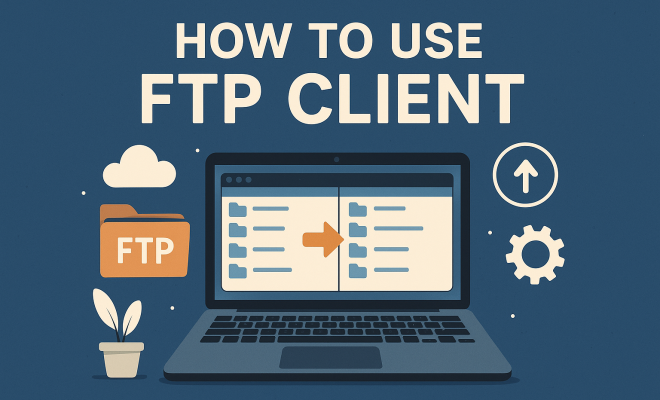
With your FTP client configured, you can start transferring files. The user interface typically displays two panels: one for your local files and one for the remote server’s files. To upload a file, simply drag it from your local panel to the remote one. Conversely, to download a file, drag it from the remote panel to your local system.
In addition to uploading and downloading files, your FTP client allows you to perform various file operations. You can create folders, rename files, delete items, and set permissions. Familiarizing yourself with these operations will significantly enhance your efficiency when managing files on the server. Don’t hesitate to explore the menus and shortcuts offered by your client to streamline your workflow.
5. Security Features to Consider
Security should always be a top priority when transferring files. To safeguard your data, ensure that you use an FTP client that supports secure protocols like SFTP (SSH File Transfer Protocol) or FTPS (FTP Secure). These protocols encrypt the data being transferred, protecting it from unauthorized access.
Additionally, consider enabling features like two-factor authentication if your FTP client supports it. This adds an extra layer of security, requiring a second form of verification in addition to your username and password. Regularly updating your FTP client and maintaining strong, unique passwords will further enhance your security while using FTP. (See: Wikipedia page on File Transfer Protocol.)
6. Common Troubleshooting Tips
Even with a great FTP client, you may encounter occasional issues. Common problems include connection failures, timeout errors, and permission issues. If you can’t connect, double-check your login credentials and server address. Make sure your internet connection is stable and that there are no firewall settings blocking access to the FTP server.
Timeout errors can often be resolved by adjusting your connection settings. Many FTP clients let you set timeout durations — increasing this may solve the problem. If you’re receiving permission errors, ensure you have the correct user permissions for the files or directories you’re trying to access. If problems persist, consulting the documentation for your specific FTP client can provide tailored troubleshooting steps.
7. Advanced Features for Power Users
Once you’ve mastered the basics, consider exploring some of the advanced features that many FTP clients offer. For example, batch uploads can save you time by allowing you to transfer multiple files simultaneously. Many clients also support synchronization features, which can automatically update files on your local system with their counterparts on the server.
For those who enjoy scripting or automation, advanced clients like WinSCP provide command-line interfaces and scripting capabilities. This allows for automated file transfers and more complex operations, significantly enhancing productivity. By leveraging these advanced features, you can take your file management to the next level and streamline your workflow even further.
8. FTP Client Use Cases
Understanding when and why to use an FTP client can make your workflow more efficient. Here are a few common scenarios where FTP clients come in handy:
- Web Development: Web developers often use FTP clients to upload website files to a server, making updates and changes easily accessible.
- Backup Solutions: FTP can be used to back up important files by transferring them to a secure server or cloud storage.
- Media Files: Photographers and videographers can upload large media files to clients or collaborators using FTP, reducing email limitations.
In each of these cases, the ability to transfer files securely and efficiently is paramount. Whether you’re working on a personal project or managing a business, mastering an FTP client can significantly improve your productivity.
9. Understanding FTP vs. SFTP vs. FTPS
When selecting an FTP client, you may encounter various protocols: FTP, SFTP, and FTPS. Understanding the differences between these can help you choose the most secure and efficient option.
FTP (File Transfer Protocol): This is the standard for file transfers but lacks encryption, which can expose your data to vulnerabilities.
SFTP (SSH File Transfer Protocol): This protocol is part of the SSH protocol suite and provides a secure channel over an unsecured network. It encrypts both commands and data, making it a better choice for secure file transfers.
FTPS (FTP Secure): FTPS adds a layer of security to the traditional FTP by using SSL/TLS to encrypt transfers. It’s suitable if you need to comply with certain regulatory standards while still using the FTP framework.
Deciding between these options will depend on your security needs and the nature of the files you’re transferring. For sensitive data, SFTP or FTPS are generally the preferred choices.
10. Real-World Examples of FTP Client Usage
To illustrate the practical use of FTP clients, here are some real-world examples that highlight their importance: (See: CDC's FTP usage guidelines.)
1. E-commerce Operations: E-commerce websites often use FTP clients to upload product images and descriptions to their servers. This ensures that their online store is updated with the latest inventory. For instance, a clothing retailer may update their site with new arrivals weekly using an FTP client, ensuring that customers have access to the latest merchandise.
2. Academic Research: Researchers might use FTP to share large datasets with peers or institutions. For example, a university department may share research findings and related materials securely with collaborators around the globe, streamlining the sharing process.
3. Digital Marketing: Marketing teams frequently upload high-resolution images and videos to their company’s FTP servers for website updates or campaign launches. This allows them to manage their digital assets efficiently without cluttering email inboxes.
These examples demonstrate how versatile and essential FTP clients are across various industries. They simplify file management and secure data transfers in professional settings.
11. Frequently Asked Questions (FAQ)
What is an FTP client used for?
An FTP client is primarily used to transfer files between your local computer and a remote server. It is essential for tasks like uploading web files, downloading backups, and managing data on servers.
Is FTP secure?
Standard FTP is not secure as it transmits data in plain text. For secure transfers, use SFTP or FTPS which encrypt the data during transfer.
Can I use an FTP client on my mobile device?
Yes, there are FTP client applications available for both Android and iOS, allowing you to manage file transfers directly from your smartphone or tablet.
What should I do if my FTP connection fails?
If your connection fails, check the following: your internet connection, FTP credentials, server address, and firewall settings. If everything seems correct but the problem persists, consult your FTP client’s documentation for troubleshooting steps.
Are there free FTP clients?
Absolutely! Options like FileZilla, WinSCP, and Cyberduck are popular free FTP clients that provide a range of features suitable for different user needs.
Can I automate FTP transfers?
Yes, many advanced FTP clients, like WinSCP, offer scripting capabilities that allow you to automate file transfers and other tasks, which can save you a ton of time. (See: ScienceDirect on File Transfer Protocol.)
How do I choose between SFTP and FTPS?
Choosing between SFTP and FTPS depends on your specific needs. SFTP is generally easier to configure and more secure, while FTPS may be necessary if you need compatibility with legacy systems. Assess your infrastructure and security requirements to make the best choice.
12. Additional Considerations When Using FTP Clients
While FTP clients are incredibly useful, there are several additional considerations to keep in mind when using them:
- Bandwidth Usage: File transfers can consume a lot of bandwidth, especially for large files. If you’re on a limited data plan or experiencing slow internet speeds, consider scheduling transfers during off-peak hours.
- File Naming Conventions: When uploading files, adhere to consistent naming conventions to maintain organization. Avoid special characters and spaces to prevent potential issues with file accessibility on different systems.
- Version Control: If you’re frequently updating files, consider implementing version control strategies to keep track of changes. This can involve creating backups of previous versions or using software designed for version control.
- File Size Limits: Be aware of file size limits imposed by your hosting provider or FTP client. If you’re trying to upload large files, check the maximum allowable size and adjust your approach accordingly.
- Local vs. Remote Management: Decide how you want to manage your files. Some users prefer to handle most of their file organization locally before uploading, while others may update files directly on the server. Find a method that works best for your workflow.
13. Comparative Analysis of Popular FTP Clients
Here’s a closer look at some of the most popular FTP clients, comparing their features, usability, and strengths:
| FTP Client | Platform | Key Features | Best For |
|---|---|---|---|
| FileZilla | Windows, Mac, Linux | Open-source, cross-platform, drag-and-drop interface | General use and beginners |
| Cyberduck | Windows, Mac | User-friendly, integrates with cloud services | Mac users and cloud storage integration |
| WinSCP | Windows | Powerful scripting and automation features | Advanced users and automation |
| Transmit | Mac | Fast transfers, excellent UI, cloud support | Mac users who need speed and efficiency |
This comparison can help you visualize your options, guiding you toward the best FTP client for your specific needs.
14. Future of FTP and File Transfers
As technology evolves, so does the landscape of file transfers. While FTP remains a staple, alternative solutions like cloud storage and file-sharing services are gaining traction. Services such as Google Drive, Dropbox, and OneDrive offer built-in sharing functionalities that might suit casual users better. However, FTP clients will likely continue to play a vital role in professional environments where bulk file transfers and security are paramount.
With the rise of WebDAV and cloud-based file management systems, it’s essential to stay informed about the latest trends. While FTP will remain relevant, understanding how these alternatives compare will be beneficial in adapting to changing workflows and technologies.
15. Wrapping It Up
Arming yourself with a comprehensive understanding of how to use an FTP client is invaluable, whether you’re a novice or an expert. This FTP client tutorial provided you with essential steps, tips, and considerations to make file transfers smooth and secure. With the right tools and knowledge, you’ll handle your file management tasks with confidence and efficiency. So go ahead, dive in, and make the most of your FTP client!
“`
Trending Now
- 7 Proven Strategies to Boost Your…
- Are You Missing Out? Top 10 Amazon AI Tools for Sellers in 2026
- our breakdown of why official development assistance is more crucial than ever for global stability
- our breakdown of why iran oil prices aren’t spiking: the market’s surprising reaction explained
- The Hidden Importance of Legal Disclaimers:…
Frequently Asked Questions
What is an FTP client?
An FTP client is a software application that enables users to connect to an FTP server for transferring files. It allows you to upload, download, and manage files and directories on the server, making it essential for web development and efficient data handling.
How do I choose the right FTP client?
When selecting an FTP client, consider factors like your operating system, ease of use, and required features. Popular options include FileZilla for its user-friendly interface, Cyberduck for Mac users, and WinSCP for Windows, each catering to different user preferences.
What are the different types of FTP clients?
FTP clients come in various forms, including desktop applications, web-based interfaces, and command-line tools. Each type serves the same purpose of facilitating file transfers but may vary in user experience and functionality depending on your needs.
Is FTP secure for file transfers?
Standard FTP is not secure as it transmits data in plain text. For secure file transfers, consider using SFTP (SSH File Transfer Protocol) or FTPS (FTP Secure), which encrypt your data during transmission to protect sensitive information.
Can I use an FTP client on a mobile device?
Yes, there are FTP client apps available for mobile devices that allow you to connect to FTP servers, upload and download files, and manage directories on the go. Look for apps compatible with your mobile operating system for easy access.
Agree or disagree? Drop a comment and tell us what you think.