Master SketchUp: Your Comprehensive Guide to 3D Design
“`html
Designing in three dimensions can seem daunting, but with SketchUp, it’s a whole lot easier than you might think. This powerful software has democratized 3D modeling, allowing everyone from seasoned architects to DIY enthusiasts to create stunning visualizations. Whether you’re planning to design a new home, craft furniture, or simply explore creative ideas, knowing how to use SketchUp effectively can make all the difference. In this comprehensive guide, we’ll delve into the essentials of using SketchUp, covering its background, core functionalities, and practical tips to maximize your experience.
1. Understanding SketchUp: A Brief Overview
SketchUp was initially developed by @Last Software in 2000 and has since evolved into one of the most user-friendly 3D modeling tools available. In 2006, Google acquired the software, contributing to its rapid growth and accessibility. Now a part of Trimble, SketchUp has a free version, SketchUp Free, which runs in your browser, and a professional version, SketchUp Pro, which offers more advanced features.
The software is renowned for its intuitive interface, allowing users to create models from simple shapes to complex architectural designs with relative ease. Its versatility makes it suitable for various fields, including architecture, interior design, landscaping, and even game design. And with a plethora of plugins and extensions available, SketchUp can be tailored to meet specific needs.
2. Getting Started: Installation and Setup
Before you can start using SketchUp, you need to get it installed. If you opt for SketchUp Free, simply visit the SketchUp website and sign up for an account. With SketchUp Pro, you’ll need to download the software from the same site. The installation process is pretty straightforward: just follow the prompts, and you’ll be up and running in no time.
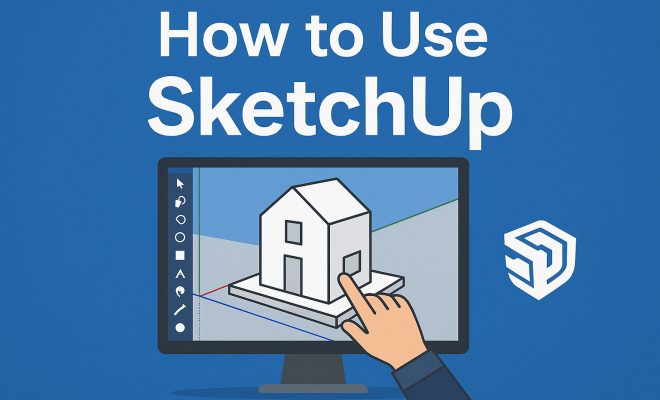
Once installed, you’ll be greeted by the SketchUp interface, which features a toolbar at the top, a model space in the center, and a default tray on the right. Familiarizing yourself with these elements is crucial to becoming efficient at using SketchUp. Don’t be overwhelmed; take your time to explore the interface, and you’ll soon find it intuitive.
3. The Basics: Navigation and Tools
Learning how to use SketchUp effectively starts with mastering the navigation tools. You can orbit around your model using the Orbit tool, zoom in and out with the Zoom tool, and pan across the workspace with the Pan tool. A mouse with a scroll wheel makes this process much smoother, allowing you to control the view with ease.
As for the tools themselves, SketchUp offers a variety of essential drawing and editing tools. The Line tool lets you create edges, while the Rectangle tool enables you to create flat surfaces. The Push/Pull tool is particularly powerful; it allows you to extrude 2D shapes into 3D objects effortlessly. Learning these basic tools can significantly boost your productivity and creativity.
4. Creating Your First Model
Now that you’ve got the basics down, let’s create your first model. Start simple — perhaps a basic rectangular box that represents a room. Use the Rectangle tool to draw a rectangle on the ground plane. Then, select the Push/Pull tool and pull the rectangle up to form a 3D cube. This simple exercise helps you grasp the fundamental principles of 3D modeling in SketchUp.
Once comfortable with shapes, experiment with adding more components. You can create walls, windows, and doors by combining different shapes. SketchUp’s Components library is an excellent resource for finding pre-made objects. Just drag and drop these components into your model, saving you time and effort.
5. Advanced Modeling Techniques
Once you’ve mastered the basics, it’s time to explore advanced techniques. One powerful method is the use of Groups and Components. Grouping elements helps keep your model organized and prevents accidental edits to multiple components. For instance, if you create a chair, grouping it allows you to move it around without affecting the rest of your model.
Another advanced technique is Layers and Tags. Using layers (or tags in more recent versions) lets you manage the visibility of different parts of your model. For example, you can hide furniture when working on the floor plan or vice versa, streamlining your workflow.
6. Applying Materials and Textures
To bring your model to life, you’ll want to apply materials and textures. SketchUp provides a comprehensive library of materials you can easily drag onto surfaces. Whether you’re designing a cozy living room or a sleek modern kitchen, choosing the right materials can greatly enhance the realism of your project. (See: Wikipedia page on SketchUp.)
To access the materials library, click on the Paint Bucket tool, and you’ll see a variety of options. You can also create your own materials by importing images to add unique textures. This customization allows for more personalized designs and can make your projects stand out.
7. Rendering and Presenting Your Model
Once you’ve created a model, you’ll want to present it effectively. SketchUp offers basic rendering capabilities, but for more photorealistic images, consider using plugins like V-Ray or Enscape. These tools can add advanced lighting effects, shadows, and materials, providing a more professional finish to your model.
For presentations, you can also create scenes within SketchUp to showcase different angles or views of your model. This feature allows you to walk clients or stakeholders through your design, offering a clearer understanding of your vision.
8. Learning Resources and Community Support
To enhance your skills in how to use SketchUp, take advantage of available resources. The SketchUp website offers an extensive knowledge base with tutorials, forums, and user guides. YouTube is another fantastic platform for finding video tutorials that can provide step-by-step guidance on specific techniques.
Engaging with the SketchUp community can also be invaluable. Online forums, social media groups, and local meetups provide opportunities to connect with other users. Sharing tips, asking for advice, and showcasing your work can help you grow and learn from others’ experiences.
9. The Future of SketchUp: Trends and Updates
As technology evolves, so does SketchUp. The software has continually improved, incorporating user feedback and technological advancements. Recent updates have focused on enhancing collaboration tools, allowing multiple users to work on a model simultaneously through the Cloud. This feature is particularly beneficial for teams working remotely.
Moreover, the integration of artificial intelligence and machine learning into design software is on the rise. Future versions of SketchUp may incorporate these technologies to further simplify the design process and enhance user experience. Keeping abreast of these trends ensures you’re always at the cutting edge of design technology.
10. Deep Dive: SketchUp for Different Fields
Understanding how to use SketchUp can vary greatly depending on your field of work. Let’s take a closer look at how different professionals leverage this powerful tool.
10.1 Architecture
Architects use SketchUp to create everything from conceptual designs to detailed building models. The ability to visualize projects in 3D allows architects to present their ideas clearly to clients and stakeholders. Many architects also benefit from the integration of plugins like SketchUp LayOut, which helps in creating construction documents directly from their models.
10.2 Interior Design
Interior designers appreciate SketchUp’s ease of use when it comes to visualizing space and planning layouts. With the help of the extensive materials library, designers can experiment with colors, textures, and furnishings before making a final decision. Some often use the 3D Warehouse to find specific furniture pieces or decor items to place within their designs.
10.3 Landscaping
Landscape architects utilize SketchUp for site planning, plant selection, and visualizing outdoor spaces. The software allows them to create detailed models of terrain, hardscapes, and planting designs, making it easier to communicate their vision to clients. Using the SketchUp for Web version, they can share designs with clients for immediate feedback.
10.4 Game Design
Game designers also find SketchUp useful for creating level designs and environmental models. Its ability to handle complex 3D shapes makes it a favorite among designers looking to prototype game environments quickly. Exporting models to game engines like Unity or Unreal further enhances the development pipeline.
11. Tips for Efficiency and Productivity
To make the most out of SketchUp, consider these tips that can enhance your efficiency: (See: New York Times article on 3D modeling.)
- Keyboard Shortcuts: Familiarize yourself with common keyboard shortcuts to speed up your workflow. For example, pressing ‘L’ for the Line tool or ‘P’ for the Push/Pull tool can save you time.
- Use the Outliner: The Outliner panel helps you keep track of all the components and groups in your model, making it easier to navigate complex designs.
- Regularly Save Your Work: Enable auto-save features if available, and manually save your projects frequently to avoid losing progress.
- Set Up Custom Toolbars: Customize your toolbars to include the tools you use most often, streamlining access right from the start.
12. Common Issues and Troubleshooting
Even with a user-friendly platform like SketchUp, users may encounter issues. Here are some common problems and their solutions:
12.1 Trouble with Navigation
If you find navigation difficult, ensure your mouse settings are properly configured. Sometimes adjusting the sensitivity can make a significant difference. Also, practicing navigation using keyboard shortcuts can enhance your control over the model.
12.2 Model Performance Issues
As models become more complex, performance may lag. To alleviate this, try hiding layers or groups that aren’t currently needed. You can also reduce the number of components in your model if performance becomes an issue.
12.3 Importing and Exporting Files
When importing or exporting files, ensure that you’re using compatible formats. If you encounter issues, check the documentation for any specific requirements or limitations based on the file type.
13. Frequently Asked Questions (FAQ)
13.1 What is the difference between SketchUp Free and SketchUp Pro?
SketchUp Free is a web-based version with basic features suitable for casual users, while SketchUp Pro comes with advanced tools, plugins, and offline access, making it ideal for professionals.
13.2 Can I use SketchUp on a tablet or a mobile device?
While SketchUp Free can be accessed via a browser on tablets, SketchUp Pro is designed primarily for desktop use. There are mobile apps available for viewing models, but they don’t offer full editing capabilities.
13.3 How long does it take to learn SketchUp?
Learning the basics of SketchUp can take a few hours to a couple of days, depending on your previous experience with similar software. Mastering advanced techniques may take weeks or months of practice.
13.4 Is there a community where I can ask questions and share my work?
Absolutely! SketchUp has an active online community, including forums and social media groups where users can connect, share tips, and ask for help.
13.5 What types of plugins are available for SketchUp?
There are thousands of plugins available to enhance SketchUp’s functionality, ranging from rendering and animation tools to additional modeling features and export options. Browse the Extension Warehouse for a comprehensive list.
14. Tips for Enhancing Your SketchUp Skills
As you become more familiar with how to use SketchUp, consider these additional tips to refine your skills:
14.1 Take Online Courses
Many platforms offer structured courses in SketchUp, ranging from beginner to advanced levels. Websites like Udemy, Coursera, and LinkedIn Learning provide comprehensive lessons that can accelerate your learning process and help you master even the most intricate features. (See: CDC on design and health.)
14.2 Participate in Challenges
Engaging in design challenges online can be a fun way to improve your skills and creativity. Websites often host competitions where you can create models based on specific themes or constraints, pushing you to step outside your comfort zone.
14.3 Study Other Projects
Explore the 3D Warehouse to see what other users have created. Analyzing existing models can give you insight into effective modeling techniques, material application, and presentation styles. Plus, you can use these models as a foundation for your own work, adapting and modifying them as needed.
14.4 Collaborate with Others
Finding a buddy or joining a group of SketchUp enthusiasts can provide motivation and inspiration. Collaborating on projects can expose you to diverse techniques and approaches, enhancing your overall understanding of the software.
15. Integrating SketchUp with Other Tools
To fully utilize the capabilities of SketchUp, you might want to consider how it integrates with other software:
15.1 SketchUp and CAD Software
Many professionals use SketchUp alongside CAD software like AutoCAD. You can import and export files between these platforms, allowing for detailed drawings and comprehensive model creation. This interoperability enhances your ability to create highly detailed designs and documentation.
15.2 Using SketchUp with Rendering Software
As mentioned earlier, plugins like V-Ray and Enscape elevate your rendering options. These tools allow you to produce high-quality visuals that can significantly impact client presentations. Understanding how to integrate these applications can be crucial for architects and designers who need to convey their ideas effectively.
15.3 Syncing with Project Management Tools
For teams working on larger projects, consider linking SketchUp with project management tools like Trello or Asana. This can help keep your team organized, track progress, and ensure everyone is on the same page regarding design updates and timelines.
16. Conclusion: Harnessing the Full Potential of SketchUp
With its intuitive interface and robust feature set, learning how to use SketchUp opens up a world of creative possibilities. Whether you’re a seasoned professional or just starting, the software can significantly enhance your design process. By leveraging its various tools, resources, and community support, you can create stunning models that bring your ideas to life.
“`
Trending Now
Frequently Asked Questions
What is SketchUp used for?
SketchUp is a versatile 3D modeling software used for various applications including architecture, interior design, landscaping, and game design. It allows users to create everything from simple shapes to complex structures, making it suitable for both professionals and DIY enthusiasts.
How do I install SketchUp?
To install SketchUp, visit the SketchUp website and choose between SketchUp Free or SketchUp Pro. For the free version, sign up for an account. For the Pro version, download the software and follow the straightforward installation prompts to get started.
Is there a free version of SketchUp?
Yes, SketchUp offers a free version called SketchUp Free, which runs directly in your browser. This version provides essential features for users who want to explore 3D modeling without the need for a paid subscription.
What are the key features of SketchUp?
SketchUp is known for its intuitive interface and powerful modeling capabilities. Key features include a comprehensive toolbar, a variety of drawing tools, the ability to create detailed 3D models, and access to numerous plugins and extensions that enhance its functionality.
Who owns SketchUp now?
SketchUp was initially developed by @Last Software and later acquired by Google in 2006. It is currently owned by Trimble, which has continued to develop the software, making it more accessible and user-friendly for a wide range of users.
Have you experienced this yourself? We’d love to hear your story in the comments.