How to fix smart TV not connecting to WiFi
“`html
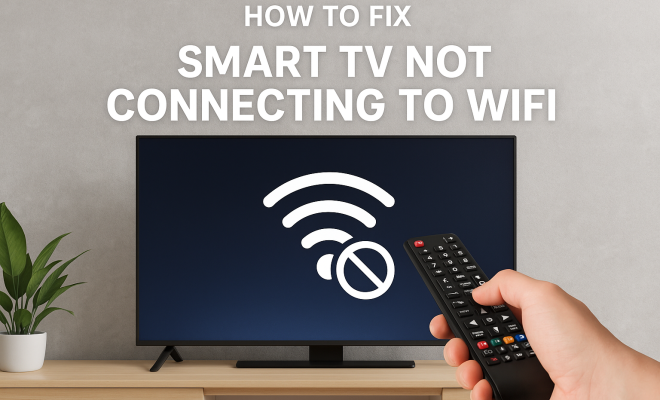
Is your smart TV refusing to connect to WiFi? You’re not alone. Many users face the frustrating challenge of fixing their smart TV WiFi connection at some point. Whether you’re trying to stream your favorite show or enjoy online gaming, a strong WiFi connection is essential. In this article, we’ll explore the common reasons behind these connection issues and provide practical steps to resolve them effectively.
1. Understanding Your Smart TV’s Network Settings
Before diving into troubleshooting, it’s crucial to grasp your smart TV’s network settings. Smart TVs connect to the internet via WiFi, enabling streaming apps and online features. Each brand and model has its unique interface, but most share similar fundamental principles. Start by accessing the network settings on your TV, which can usually be found under the ‘Settings’ or ‘Network’ menu.
Take a moment to check if your WiFi network appears in the list of available networks. If it does, ensure it’s selected, and verify that the password entered is correct. Remember, even a minor typo can lead to connection failure. If your network doesn’t show up, it could indicate a wider issue with your router or internet service.
2. Restarting Your Devices
Sometimes, the simplest solution is to restart your devices. By restarting your smart TV and router, you can often clear connectivity issues. Unplug your smart TV from the power source, wait for about 30 seconds, and then plug it back in. Follow this with your router – unplug it, wait, and then plug it back in. This brief pause allows the devices to reset and may resolve any temporary glitches affecting the WiFi connection.
After restarting, return to your smart TV’s network settings and try reconnecting to your WiFi. This process can help in refreshing the connection and might allow your TV to connect successfully. If this doesn’t work, don’t fret; there are still more steps to explore.
3. Checking Your Internet Connection
Your smart TV can’t connect if your internet service is down or unstable. Before proceeding with more complex troubleshooting, check your internet connection using another device, like your smartphone or computer. If you have no internet access, it’s time to contact your internet service provider.
If your internet connection appears fine, assess your WiFi strength in the location where your smart TV is situated. If you’re too far from the router, the signal may be weak. Consider moving either the router or the TV, or investing in a WiFi range extender to boost the signal. A strong WiFi connection is essential for a smooth viewing experience.
4. Updating Your Smart TV’s Firmware
Outdated firmware can lead to connectivity problems. Manufacturers regularly release updates to improve performance and fix bugs. To check if your smart TV needs an update, navigate to the settings menu and locate the ‘Support’ or ‘About’ section. If an update is available, follow the on-screen instructions to install it.
Updating your smart TV can not only fix existing WiFi connection issues but also enhance your device’s overall functionality. Remember, it’s best to keep your TV’s firmware up-to-date to benefit from the latest features and security enhancements. After updating, try connecting to your WiFi again. (See: Impact of technology on health.)
5. Adjusting Your Router Settings
Your router’s settings might be the culprit behind your smart TV’s WiFi issues. Access your router’s web interface by entering its IP address into a web browser. This address is often printed on the router itself. Once you’re in the router settings, check for any restrictions that could prevent your TV from connecting, such as MAC filtering or device limits.
Another area to examine is the WiFi channel. If too many devices are using the same channel, it can lead to congestion and connectivity problems. Consider switching to a less congested channel for better performance. Additionally, ensure your router is set to broadcast on both the 2.4 GHz and 5 GHz bands, as some smart TVs may prefer one over the other.
6. Resetting Your Smart TV to Factory Settings
If all else fails, a factory reset might be necessary to restore your smart TV’s functionality. Be aware that this will erase all your settings, installed apps, and personal preferences. To perform a factory reset, head to your TV settings menu and look for an option labeled ‘Reset’ or ‘Factory Reset.’
After completing the reset, go through the initial setup process again, including reconnecting to your WiFi. This step often resolves deeper software issues that could be hindering your TV’s ability to connect. If your smart TV still refuses to connect after a factory reset, it may be time to seek professional help.
7. Seeking Professional Assistance
When you’ve exhausted all DIY options with no resolution in sight, consulting a professional might be your best bet. This can be particularly relevant if your smart TV is under warranty, as repairs or replacements might be covered. Contact the manufacturer’s customer service or visit an authorized repair center for specialized assistance.
Don’t hesitate to explain the steps you’ve already taken to fix the smart TV WiFi connection. This information can expedite the troubleshooting process for the technician. In some cases, issues may stem from hardware problems that require expert intervention. Stay patient, and you’ll find a solution to get your smart TV back online.
8. Common Causes of WiFi Connection Issues
Understanding the common culprits behind WiFi connection problems can help you pinpoint the issue faster. Here are a few frequent offenders:
- Interference: Other electronic devices or physical barriers can cause signal interference. Microwaves, cordless phones, and thick walls can affect WiFi performance. Try to keep your router in a central location, away from such obstacles.
- Network Congestion: If multiple devices are connected to the same network, they may consume bandwidth, causing your smart TV to struggle with connectivity. Disconnecting some devices can often help.
- Router Firmware: Just like your smart TV, your router’s firmware may need an update. Check your router manufacturer’s website for instructions on how to update.
- ISP Issues: Sometimes, the problem lies with your Internet Service Provider. Outages or maintenance work can temporarily disrupt your connection. Keep an eye on your ISP’s service status page for updates.
9. Advanced Troubleshooting Steps
If basic fixes do not resolve your issues, you may need to try more advanced troubleshooting methods:
9.1 Using an Ethernet Cable
To determine if the issue lies with the WiFi signal, try connecting your smart TV directly to the router using an Ethernet cable. If the TV connects successfully, this suggests the problem is indeed with the WiFi connection rather than the TV itself. (See: Setting up your smart TV effectively.)
9.2 Change DNS Settings
Sometimes, changing your DNS settings can help. Instead of using your ISP’s default DNS, consider switching to a public DNS like Google’s (8.8.8.8 and 8.8.4.4) or Cloudflare’s (1.1.1.1). To do this, go to your smart TV’s network settings, select your network, and find the DNS settings option to manually input the new values.
9.3 Check for Network Configuration Issues
If your smart TV is configured for a different network standard (like IPv4 vs. IPv6), it might lead to connection issues. Review the network settings and adjust them if necessary. Sometimes, enabling or disabling certain configurations in the router settings can also address incompatibility.
10. Comparing Different Smart TV Brands
Different brands of smart TVs have varying levels of connectivity issues based on their build and software. Here are a few comparisons:
- Samsung: Known for its user-friendly interface, Samsung TVs generally have reliable WiFi connections. However, users have reported occasional issues with older models that may require firmware updates.
- Sony: Sony smart TVs often integrate well with other Sony devices but have been noted for slower WiFi speeds compared to others. Opting for a wired connection may yield better performance.
- LG: LG TVs are popular for their webOS platform, which offers robust connectivity options but sometimes struggles with initial WiFi setup, particularly in older models.
- Roku: Roku TVs are highly rated for their simplicity and ease of connection. Users often report fewer connectivity issues thanks to the streamlined software.
11. Statistics on Smart TV Usage and Connectivity
Understanding how users interact with their smart TVs can give you context for your issues. According to a recent survey:
- Approximately 80% of households in the U.S. own at least one smart TV.
- Over 60% of smart TV users report experiencing connectivity issues at least once a month.
- Among users experiencing WiFi connection issues, 45% have reported that their smart TV is unable to connect to the network during peak usage times.
12. FAQs about Fixing Smart TV WiFi Connection Issues
12.1 Why won’t my smart TV connect to WiFi even though my other devices do?
This could be due to various reasons such as incorrect network settings, compatibility issues, or the need for a firmware update on your TV. Ensure you’ve also checked the router’s settings for any restrictions.
12.2 How do I know if my smart TV is compatible with my router?
Most modern smart TVs are compatible with both 2.4 GHz and 5 GHz bands. Check your TV’s specifications and ensure your router is set to broadcast on the appropriate frequencies. If you have an older router, consider upgrading it for better compatibility.
12.3 What should I do if my smart TV keeps disconnecting from WiFi?
Regular disconnection could indicate a weak signal or interference. Try relocating your router or using a WiFi extender. Additionally, ensure your TV’s software is updated and check for any unusual settings in the router.
12.4 Is it possible to fix my smart TV WiFi connection issues without a technician?
Yes! Many users can resolve their issues by following the steps outlined above. However, if you’ve tried everything and your TV still won’t connect, it might be time to consult a professional.
12.5 What do I do if my smart TV shows a “Network Unavailable” message?
This message usually indicates that your TV cannot detect any available networks. You can start by ensuring that your router is powered on and functioning properly. If your other devices are connected, try rebooting your smart TV and checking network settings again.
12.6 Can a VPN affect my smart TV’s WiFi connection?
Yes, if you’re using a VPN on your router, it can impact your smart TV’s ability to connect. Make sure your VPN settings are compatible with your smart TV, or consider disabling it temporarily to see if the connection improves.
13. Staying Connected: Tips and Best Practices
To maintain a smooth WiFi connection for your smart TV, consider these best practices:
- Regularly Update Firmware: Keeping both your smart TV and router firmware updated can prevent many connectivity issues.
- Limit Connected Devices: Reduce the number of devices connected to your network to help maintain a strong signal for your TV.
- Monitor Network Traffic: Use apps or router features that allow you to view and manage your network traffic, ensuring your TV gets the bandwidth it needs.
- Invest in Quality Equipment: Consider upgrading to a high-quality router with advanced features for better connectivity and coverage.
14. Understanding Smart TV Compatibility with Internet Standards
Smart TVs are designed to be compatible with various internet connectivity protocols. To ensure your device can connect seamlessly, familiarize yourself with these standards:
- IPv4 vs. IPv6: Most smart TVs are equipped to handle IPv4, the traditional internet protocol. However, as networks transition to IPv6, ensure your router supports this newer protocol for optimal functionality.
- WiFi Standards: Familiarize yourself with the differences between WiFi 4, WiFi 5, and WiFi 6. Each upgrade offers improved speeds and connectivity features. If your smart TV supports WiFi 5 or 6, investing in a compatible router can significantly enhance your streaming experience.
15. Assessing Your Home Network Configuration
Your home network configuration plays a pivotal role in how well your smart TV can connect to WiFi. Evaluate the following:
- Router Placement: Ensure your router is positioned centrally and elevated for optimal signal distribution. Avoid placing it near heavy electronic devices or in enclosed spaces.
- Quality of Cables: If you’re using Ethernet cables, make sure they are of good quality and not excessively long, as this can degrade the signal strength.
- Network Bandwidth: If you have a high-speed internet plan, check if any bandwidth limitations are being imposed by your ISP. Upgrading your plan might be necessary for households with multiple streaming devices.
16. Final Thoughts on Fixing Smart TV WiFi Connection Issues
Getting your smart TV connected to WiFi shouldn’t feel like a daunting task. By understanding the underlying issues, utilizing systematic troubleshooting, and following best practices, you can enhance your viewing experience significantly. Remember to stay patient, and don’t hesitate to seek out professional help if needed. The world of streaming and smart home entertainment is just a strong WiFi connection away!
“`
Trending Now
Frequently Asked Questions
Why is my smart TV not connecting to WiFi?
There are several reasons why your smart TV might not connect to WiFi, including incorrect network settings, issues with the router, or temporary glitches. It's essential to check if your WiFi network appears in the list of available networks and ensure the password is entered correctly.
How do I reset my smart TV's WiFi connection?
To reset your smart TV's WiFi connection, access the network settings and disconnect from the current network. Then, restart your TV and router. After they power back on, reconnect your TV to the WiFi network by selecting it and entering the correct password.
What should I do if my smart TV won't find my WiFi network?
If your smart TV cannot find your WiFi network, ensure that your router is functioning correctly and broadcasting the signal. Check for any physical obstructions and make sure your TV is within range. Restarting both the TV and router can also help resolve this issue.
How can I troubleshoot my smart TV's internet connection?
To troubleshoot your smart TV's internet connection, start by checking the network settings for accuracy. Restart both your smart TV and router, and verify that your internet connection is stable. If problems persist, consider checking for software updates or resetting the TV's network settings.
What are common issues with smart TV WiFi connections?
Common issues with smart TV WiFi connections include incorrect passwords, network settings misconfigurations, router malfunctions, and interference from other devices. Restarting your devices and ensuring they are updated can often resolve these connectivity problems.
What did we miss? Let us know in the comments and join the conversation.