Install Ubuntu: A Comprehensive Guide for 2024
“`html
Ubuntu has become a go-to operating system for developers, tech enthusiasts, and anyone looking for a robust alternative to mainstream platforms like Windows or macOS. With its user-friendly interface and strong community support, it’s no wonder that many are eager to learn how to install Ubuntu on their systems. This guide aims to provide you with comprehensive insights into the installation process, troubleshooting tips, and the benefits of using Ubuntu.
1. What is Ubuntu?
Ubuntu is a free and open-source Linux distribution based on Debian. The first version was released in October 2004, and since then, it has rapidly evolved into one of the most popular Linux distributions worldwide. The name ‘Ubuntu’ comes from an African philosophy meaning ‘humanity to others,’ reflecting the software’s community-driven nature.
Users often choose Ubuntu for its stability, security, and vast repository of software. Unlike proprietary operating systems, Ubuntu offers flexibility and freedom, allowing users to customize their computing experience significantly. Whether you’re a software developer, a gamer, or simply looking for a reliable platform for everyday tasks, Ubuntu has something to offer.
2. Why Choose Ubuntu?
Many factors contribute to Ubuntu’s popularity. First and foremost, it’s free. You can download, install, and distribute it without any cost. This aspect makes it highly appealing for students and developers alike. Additionally, Ubuntu receives regular updates and security patches, ensuring that users have access to the latest features and protections against vulnerabilities.
Another major advantage is the strong community surrounding Ubuntu. If you encounter issues or have questions, there are countless forums, tutorials, and resources available to help you troubleshoot and learn. Finally, Ubuntu is known for its user-friendliness, featuring a straightforward interface that eases the transition from other operating systems.
3. Preparing for Installation
Before you dive into the installation process, it’s essential to prepare your system. First, you’ll need to check the system requirements. Ubuntu generally requires at least 2 GB of RAM, 25 GB of free hard disk space, and a 2 GHz dual-core processor. However, for optimal performance, especially if you plan to use resource-intensive applications, higher specifications are recommended.
Next, decide whether you want to install Ubuntu alongside your existing operating system or replace it entirely. If you’re new to Linux, a dual-boot setup allows you to experiment without losing access to your existing system. On the other hand, if you’re ready to commit to Ubuntu, a clean installation may be the way to go. Ensure you back up any important files before proceeding, as installation can lead to data loss if not done carefully.
4. Downloading Ubuntu
To start your journey in learning how to install Ubuntu, you need to download the installation ISO file. Navigate to the official Ubuntu website to find the latest version. Currently, the desktop version is recommended for most users, while server versions cater to those who need to manage systems remotely or run applications.
Once you select the appropriate version, you’ll have the option to download the file directly or use a torrent client for faster downloads. The ISO file is a complete image of the installation disk, making it suitable for use with various methods, including USB drives and virtual machines.
5. Creating a Bootable USB Drive
The next step in the installation process is creating a bootable USB drive. This method is preferred over using a DVD due to the faster read/write speeds and convenience. You’ll need at least an 8 GB USB drive. Tools such as Rufus for Windows, Etcher, or the built-in Startup Disk Creator on Ubuntu itself can help you create this bootable drive.
After downloading your preferred tool, insert the USB drive and open the software. Select the ISO file you downloaded, choose the USB drive as the target, and start the process. It generally takes a few minutes to complete, and once it’s done, your USB drive will be ready to install Ubuntu.
6. Booting from the USB Drive
Now that you’ve created a bootable USB drive, it’s time to boot your computer from it. You might need to change the boot order in your BIOS or UEFI settings to prioritize booting from the USB. Restart your computer and immediately press the appropriate key (usually F2, F12, DEL, or ESC) to access the boot menu. (See: Ubuntu operating system overview.)
Select your USB drive from the list and hit Enter. If everything goes smoothly, you’ll be greeted by the Ubuntu welcome screen. Here, you can choose to try Ubuntu without installing or proceed directly to the installation. If you’re testing the operating system, this option allows you to explore its features without making any changes to your hard drive.
7. Installing Ubuntu
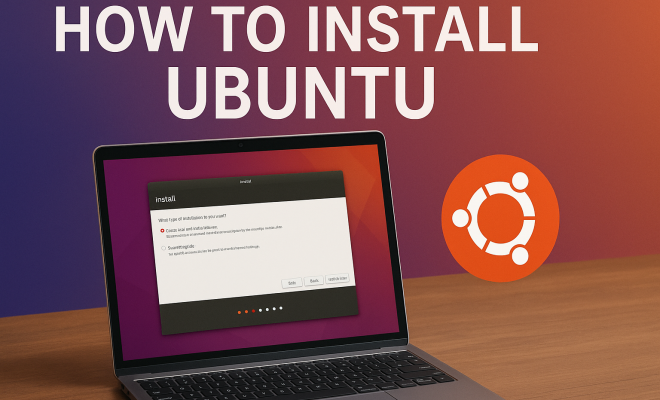
When you’re ready to install Ubuntu, click on the ‘Install Ubuntu’ option. The installation wizard will guide you through the process, starting with selecting your language and keyboard layout. Then, you’ll need to choose your installation type: either erase the disk and install Ubuntu or install it alongside another operating system.
For a clean installation, select the first option and be prepared for data loss if there are files on the disk. Follow the prompts to set your time zone, create a user account, and set your password. Be mindful of the options presented, as some can change how your system functions. After confirming your selections, the installation will begin, which may take anywhere from 10 to 30 minutes depending on your hardware.
8. Post-Installation Steps
Once Ubuntu is installed, the system will prompt you to restart your computer. Remove the USB drive when prompted, and allow the system to reboot. Upon booting, you will see the Ubuntu login screen. Log in with the credentials you set during installation.
After logging in, it’s a good idea to update your system. Open the terminal and run the command sudo apt update && sudo apt upgrade to ensure you have the latest software and security updates. Additionally, consider installing essential applications and drivers that you’ll need for your daily tasks. Ubuntu Software Center provides a user-friendly way to browse and install new software.
9. Common Troubleshooting Tips
Even with a straightforward process like installing Ubuntu, issues can arise. If your system fails to boot from the USB drive, double-check the boot order in BIOS/UEFI settings and ensure that the USB drive is properly created. If you encounter hardware compatibility issues, research whether your specific hardware is supported by Ubuntu. Community forums can be invaluable for finding solutions to specific problems.
Another common issue is with partitioning. If you choose to install Ubuntu alongside another OS, ensure that there is enough unallocated space on your disk. Should the installer fail to recognize partitions, you may need to use tools like GParted to manually manage your disk partitions. Remember, patience is key, and the robust Ubuntu community can often help troubleshoot your issues.
10. Exploring Ubuntu Features
Once you’ve successfully installed Ubuntu, you may want to explore the various features that make it a favorite among its users. The desktop environment, known as GNOME, provides a clean and intuitive interface. You can customize your desktop with different themes, icons, and extensions, allowing you to tailor the look and feel to your preferences.
Ubuntu comes pre-installed with a range of applications, such as Firefox for browsing, LibreOffice for document editing, and Rhythmbox for music. The Ubuntu Software Center offers a plethora of additional software for installation, from productivity tools to games, all easily accessible through a user-friendly interface.
One of the standout features of Ubuntu is its terminal, a powerful tool that allows users to execute commands directly. Learning some basic terminal commands can greatly enhance your efficiency and control over the operating system.
11. Differences Between Ubuntu and Other Linux Distributions
Ubuntu is often compared to other Linux distributions, such as Fedora, Arch Linux, and Debian. While they all share the core Linux kernel, they differ in package management systems, default software, and target audiences. For example, Fedora focuses on providing the latest cutting-edge software and technologies, making it appealing to developers and tech enthusiasts. In contrast, Arch Linux targets advanced users who prefer a minimal installation and greater control over their systems.
Debian, the foundation for Ubuntu, is known for its stability and is often used as a server operating system. While Ubuntu aims to be user-friendly and accessible, Debian might be more appealing to those who prioritize absolute stability over the latest features.
Understanding these differences can help you choose the right distribution based on your needs and technical skills. Whether you prioritize ease of use, latest features, or stability, there’s likely a distribution that suits your preferences.
12. Performance Optimization Tips for Ubuntu
While Ubuntu is generally efficient, there are several steps you can take to optimize performance. One effective method is to enable the “Zswap” feature, which compresses swap data to speed up performance during high memory usage. You can enable it by editing the GRUB configuration file.
Another tip is to use lightweight alternatives to resource-heavy applications. For instance, instead of using LibreOffice, you might consider lightweight text editors like “AbiWord” or “Gnumeric.” Additionally, managing startup applications can significantly reduce boot time and improve responsiveness.
Regularly cleaning up your system with tools like “BleachBit” can also help free up space by removing unnecessary files. Engaging with the community to find further tips can also yield excellent results, as seasoned users often share their insights for optimizing system performance.
13. Security in Ubuntu
Ubuntu is renowned for its security measures, starting with its default firewall, UFW (Uncomplicated Firewall), which is easy to configure and manage. Ensure it is enabled to provide an extra layer of defense against unauthorized access to your system.
Moreover, Ubuntu’s use of AppArmor enhances security further by restricting program capabilities based on defined security policies. Keeping your system and all installed applications updated is crucial for security; regularly running the update command helps to safeguard your files from vulnerabilities.
For those concerned about privacy, Ubuntu allows for customization of data collection settings during installation. You can choose to opt-out of sharing any data with Canonical, ensuring your usage remains private.
14. Frequently Asked Questions (FAQ)
What are the system requirements for Ubuntu?
Ubuntu generally requires at least 2 GB of RAM, a 2 GHz dual-core processor, and 25 GB of free hard disk space. For a smoother experience, especially with demanding applications, consider better hardware specifications.
Can I run Ubuntu on older hardware?
Yes, while the standard Ubuntu version may require more resources, there are lightweight variants like Xubuntu or Lubuntu designed specifically for older hardware or systems with limited resources.
What should I do if I encounter a black screen during boot?
A black screen may indicate a graphics driver issue. You can try booting into recovery mode and selecting the option to install proprietary drivers or opt for basic graphics drivers to see if that resolves the problem.
How can I install additional software on Ubuntu?
You can install software using the Ubuntu Software Center or through the terminal using the sudo apt install [software-name] command. Many popular applications are available directly from the Software Center.
Is Ubuntu suitable for gaming?
Yes, Ubuntu supports a growing number of games, and with tools like Steam, many popular titles can be played on Ubuntu. While some might require additional configuration, the community has made significant strides in improving gaming support.
Can I run Windows applications on Ubuntu?
Yes, you can run many Windows applications on Ubuntu using compatibility layers like Wine or virtual machines through software like VirtualBox. This can be particularly useful for users who rely on specific Windows software while enjoying the benefits of Ubuntu.
What are the differences between Ubuntu Desktop and Ubuntu Server?
Ubuntu Desktop is designed for personal computers and includes a graphical user interface, while Ubuntu Server is optimized for managing server environments without a graphical interface. The Server edition is great for web hosting, cloud services, and managing enterprise-level applications.
How often should I update Ubuntu?
It’s advisable to update Ubuntu regularly to ensure you have the latest security patches and features. You can set your system to check for updates daily or weekly, depending on your needs, and always perform updates when prompted.
Are there alternatives to Ubuntu?
Yes, there are many alternatives to Ubuntu, such as Fedora, Debian, Mint, and Arch Linux. Each has its strengths and weaknesses, so it’s worth exploring a few to see which one best fits your needs and preferences.
In summary, learning how to install Ubuntu can open up a world of possibilities for your computing experience. Whether you’re looking to learn programming, enjoy a robust gaming platform, or simply want a reliable system for daily tasks, Ubuntu is an excellent choice. By following the steps outlined in this guide, you’ll be well on your way to enjoying everything Ubuntu has to offer.
15. Advanced Installation Options
If you’re feeling adventurous, you might want to explore advanced installation options. For example, you can install Ubuntu in a virtual machine using software like VirtualBox or VMware. This allows you to run Ubuntu within another operating system, which can be useful for testing or development purposes without altering your primary OS setup.
To do this, you’ll need to set up your virtual machine by allocating sufficient resources (CPU, RAM, and disk space) and then boot it using the downloaded ISO file. This method enables you to experiment with Ubuntu while keeping your main operating system intact, making it a safe way to learn.
16. Community and Support
One of the standout qualities of Ubuntu is its supportive community. Forums like Ask Ubuntu, Ubuntu Forums, and various Reddit communities are filled with users ready to help newcomers. Engaging with these communities can provide insights not just on troubleshooting but also new ways to utilize Ubuntu effectively.
Additionally, numerous online resources, tutorials, and YouTube channels are dedicated to Ubuntu. Whether you’re looking for simple guides or in-depth technical discussions, the community’s wealth of knowledge allows you to deepen your understanding and skills.
17. Future of Ubuntu
As technology evolves, so does Ubuntu. Canonical, the company behind Ubuntu, is continuously working on new features and improvements. This includes enhancements in cloud computing, IoT, and AI integration, making Ubuntu a versatile choice for modern applications. Keeping an eye on the latest developments can help you anticipate future features and improvements in your Ubuntu experience.
With the rise of containerization technologies like Docker and Kubernetes, Ubuntu has positioned itself as a leader in facilitating development environments that are compatible with these modern computing paradigms. Understanding these future trends can better prepare you for leveraging Ubuntu’s full potential.
“`
Trending Now
Frequently Asked Questions
What is Ubuntu and why is it popular?
Ubuntu is a free and open-source Linux distribution based on Debian, known for its stability, security, and user-friendly interface. Its popularity stems from being cost-free, receiving regular updates, and having a strong community for support, making it ideal for developers and everyday users.
How do I install Ubuntu on my computer?
To install Ubuntu, download the ISO file from the official website, create a bootable USB drive, and boot your computer from the USB. Follow the on-screen instructions to complete the installation process, which includes partitioning your disk and setting up user accounts.
Can I run Ubuntu alongside Windows?
Yes, you can run Ubuntu alongside Windows by setting up a dual-boot configuration. This allows you to choose between the two operating systems at startup, giving you the flexibility to use both environments on the same machine.
Is Ubuntu suitable for beginners?
Absolutely! Ubuntu is known for its user-friendly interface and ease of use, making it a great choice for beginners. Its extensive documentation and active community support help new users navigate the transition from other operating systems smoothly.
What are the system requirements for Ubuntu?
The minimum system requirements for Ubuntu include a 2 GHz dual-core processor, 2 GB of RAM, and 25 GB of free hard drive space. However, for better performance, especially with graphical applications, a more powerful system is recommended.
What did we miss? Let us know in the comments and join the conversation.