Master Lightroom Mobile: Edit & Organize Photos Anywhere
“`html
1. What is Lightroom Mobile?
Lightroom Mobile is a powerful photo editing and organization app developed by Adobe. Designed for photographers on the go, it offers a range of features that allow users to edit, organize, and share their photographs directly from their mobile devices. Whether you’re an amateur capturing memories or a professional looking to perfect your portfolio, this app provides a robust set of tools that are surprisingly easy to use.
One of the standout features of Lightroom Mobile is its cloud-based system. This means that any edits you make on your mobile device can seamlessly sync with your desktop version, providing a cohesive workflow. This capability is particularly useful for photographers who often switch between devices during their editing processes. The ability to edit anywhere—from a scenic overlook to your living room—makes Lightroom Mobile an essential tool in a photographer’s arsenal.
2. Getting Started with Lightroom Mobile
To begin your journey with Lightroom Mobile, first, download the app from the App Store or Google Play. Once installed, you’ll need to create an Adobe ID account if you don’t have one already. This is crucial as it allows you to access your settings, presets, and edited photos across multiple devices.
Upon opening the app, you’ll be greeted with a clean, user-friendly interface. The main screen displays your photo library, and you can easily import images from your camera roll or directly from cloud storage. The app supports various file formats, so whether you’re working with RAW images or JPEGs, you can get started right away. Don’t forget to explore the settings menu to personalize your experience, adjusting preferences to suit your editing style.
3. Importing and Organizing Photos
Once you have your images uploaded, organizing them is key for efficient editing. Lightroom Mobile allows you to create albums, which can be a game changer for those with large photo collections. You can assign keywords, ratings, and flags to your images, making it easier to find specific photos later.
Another fantastic feature is the ability to create collections based on projects or themes. For instance, you might have separate collections for travel photos, family events, or professional shoots. To create an album, simply tap on the ‘+’ icon, name your new album, and start adding photos. This method of organization helps maintain a structured workflow, especially when you’re working with numerous images.
4. Essential Editing Tools in Lightroom Mobile
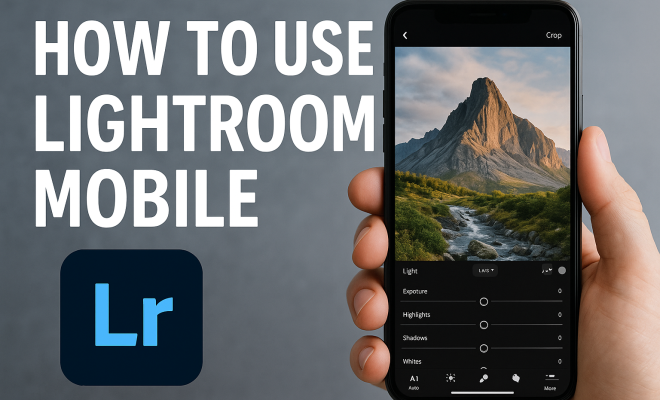
At the heart of Lightroom Mobile’s appeal is its editing functionality. The app provides a comprehensive set of editing tools that mimic those available in its desktop counterpart. You can adjust exposure, contrast, highlights, shadows, and more, giving you fine control over your images.
One standout feature is the ‘Selective Editing’ tool, which allows you to make adjustments to specific areas of your photo. Using brushes, gradients, or radial filters, you can enhance certain parts of the image without affecting the rest. This is particularly useful for landscape photography, where you might want to brighten up the sky or bring out details in the foreground.
5. Using Presets for Quick Edits
For those who want to speed up their editing process, Lightroom Mobile offers the ability to use and create presets. Presets are pre-defined sets of adjustments that can be applied to your photos with a single click. This feature is perfect for maintaining a consistent style across images, especially for social media feeds or professional portfolios. (See: Learn more about Adobe Lightroom.)
You can either use built-in presets provided by Lightroom or create your own by editing a photo and saving those adjustments as a preset. This is incredibly useful for photographers looking to develop their unique style. If you find a preset that perfectly captures the mood you’re after, you can easily apply it to multiple photos for a cohesive look.
6. Sharing Your Edits
After you’ve polished your photos, sharing them is just as easy as editing. Lightroom Mobile allows you to export your images directly to social media platforms like Instagram, Facebook, or Twitter. You can also save images to your device or share them via email.
Additionally, Lightroom Mobile has a feature called ‘Share to Lightroom Community,’ where you can showcase your work and connect with other photographers. This is a fantastic way to gain feedback, draw inspiration, and even discover new techniques from fellow users. The community aspect enhances your editing experience by fostering connections with others who share your passion for photography.
7. Advanced Techniques for Photographers
If you’re looking to take your editing skills to the next level, there are plenty of advanced techniques you can employ in Lightroom Mobile. For example, blending multiple exposures can help create stunning HDR images. This is achieved by taking several shots at different exposures and merging them in Lightroom.
Another advanced feature is the ‘Healing Brush,’ which can remove unwanted elements from your photos. With precision, you can click on an area you want to fix, and the app will automatically blend the surrounding textures to create a seamless edit. Learning to master these advanced techniques can elevate your photography and editing game significantly.
8. Staying Updated with Adobe Lightroom Mobile
Adobe frequently updates Lightroom Mobile, introducing new features and enhancements that improve user experience. Staying informed about these updates is essential for any dedicated user. You can check the Adobe website or follow their social media channels to learn about the latest features and tips.
Engaging with online tutorials and photography forums can also keep your skills sharp. Many photographers share their workflows and tips online, making it easier for newcomers to learn. By staying connected to the community and keeping an eye on updates, you can continuously improve your editing techniques and make the most of Lightroom Mobile.
9. Frequently Asked Questions
What devices can I use Lightroom Mobile on?
Lightroom Mobile is compatible with both iOS and Android devices. You can download it from the App Store for iOS devices or Google Play for Android devices. The application is optimized for smartphones and tablets, ensuring a smooth editing experience regardless of your device.
Do I need an Adobe subscription to use Lightroom Mobile?
While you can download and use Lightroom Mobile for free, some features, like premium presets and advanced editing tools, require a subscription to Adobe Creative Cloud. A subscription allows you to unlock the full potential of the app, including cloud storage for your edited photos and synchronization across devices.
Can I edit RAW files with Lightroom Mobile?
Yes, Lightroom Mobile supports RAW files, which is one of its most significant advantages for serious photographers. You can import RAW images directly from your camera or import them via cloud storage. The app allows you to edit these files with many tools similar to those found in the desktop version, offering extensive control over image quality and detail. (See: Review of Lightroom Mobile by NY Times.)
How does the synchronization feature work?
The synchronization feature allows all your edits and settings to be consistent across devices. When you edit a photo on your mobile device, those changes automatically sync to your desktop or other devices using Lightroom, provided you are logged into the same Adobe ID and have syncing enabled. This feature ensures your work is always up-to-date, regardless of which device you are using. Related reading: mobile app developer overview.
Are there any limitations to using Lightroom Mobile?
While Lightroom Mobile is powerful, it does have some limitations compared to its desktop counterpart. The mobile app may not support all the advanced features available in the desktop version, such as detailed layer adjustments and advanced masking options. However, for most photographers, the mobile version provides ample functionality for on-the-go editing.
Can I use Lightroom Mobile offline?
Yes, Lightroom Mobile allows you to edit photos offline, although some features may be limited without an internet connection. Once you’re back online, any edits you made will sync with the cloud, ensuring your changes are preserved. This is particularly useful for photographers who may find themselves in locations without reliable internet access.
10. Tips for Maximizing Your Lightroom Mobile Experience
To get the most out of your Lightroom Mobile experience, consider these tips:
- Experiment with Filters: Don’t just stick to presets. Take time to play with the different filters and sliders to create unique looks for your photos.
- Take Advantage of Tutorials: There are plenty of online resources and tutorials available to help you learn more about the app’s features and editing techniques. Websites like YouTube have numerous videos that can offer insights and tips from experts.
- Engage with the Community: Participate in online forums and social media groups dedicated to Lightroom. Sharing your work and getting feedback can help you grow as a photographer.
- Regularly Backup Your Edits: While Lightroom Mobile automatically syncs your work to the cloud, it’s wise to back up your edits manually from time to time, especially if you’re working on major projects.
- Practice, Practice, Practice: The more you use Lightroom Mobile, the more comfortable you’ll become with its functionalities. Try editing different types of photos to expand your skill set.
11. Exploring Lightroom Mobile’s Unique Features
Lightroom Mobile offers several unique features that set it apart from traditional photo editing apps:
- Live View Editing: This feature allows you to see your adjustments in real-time as you make changes to your photos. It’s especially helpful for fine-tuning sliders without having to reopen the image.
- Color Grading: With the Color Grading tool, you can manipulate shadow, midtone, and highlight colors separately, adding depth and creativity to your images.
- Integrated Lens Corrections: Lightroom Mobile automatically applies lens corrections based on the camera and lens used, helping to eliminate common distortions.
- AI Enhancements: The app uses Adobe’s Sensei AI technology to automatically suggest enhancements that can improve your photos, saving you time and effort.
12. Lightroom Mobile for Different Types of Photography
Lightroom Mobile is versatile and can be adapted to suit various photography genres. Here’s how it can cater to specific types of photography:
Portrait Photography
For portrait photographers, Lightroom Mobile offers tools to enhance skin tones, remove blemishes, and create a pleasing background blur. Using the Healing Brush and the Adjustment Brush, you can smooth out skin and brighten eyes. Many portrait shooters utilize presets for consistent skin tones across different photos, making editing quicker and more cohesive.
Landscape Photography
Landscape photographers can particularly benefit from selective edits, where they adjust the sky and foreground separately. The graduated filter allows you to apply a gradient effect, which can dramatically enhance sunsets or vivid skies. Coupling this with the Color Grading tool can create breathtaking landscapes that pop with color.
Street Photography
For street photographers aiming to capture the essence of urban life, Lightroom Mobile helps maintain a gritty, authentic feel while enhancing details and correcting exposure. The ability to quickly apply presets ensures a consistent style that reflects the vibrancy of street life, making editing seamless and efficient. (See: Adobe Lightroom in scientific discussions.)
Food Photography
Food photographers can use the app’s tools to make dishes look appetizing. Adjusting contrast, brightness, and color saturation can enhance the appeal of food images. Additionally, the app’s ability to crop images with precision can help create the perfect composition for sharing on social media.
13. Understanding the Importance of Photo Metadata
Metadata is crucial for organizing and managing your photos effectively. Lightroom Mobile allows you to add and edit metadata, including titles, captions, and keywords. This information helps you categorize and retrieve your images more easily in the future.
For professional photographers, including metadata is essential for copyright and licensing. When you share your photos, having the correct metadata can help ensure that your work is properly attributed and protected. Make it a habit to fill in this information when you’re editing in Lightroom Mobile.
14. Lightroom Mobile vs. Other Photo Editing Apps
There’s a plethora of photo editing apps available today. When comparing Lightroom Mobile to other popular apps, several factors stand out:
- Functionality: While apps like Snapseed and VSCO offer great editing features, Lightroom Mobile’s comprehensive toolkit is unmatched for serious photographers.
- Raw Editing: Not every mobile app supports RAW editing, but Lightroom Mobile excels in this area, allowing for better image quality and larger editing ranges.
- Cloud Integration: Lightroom Mobile’s seamless cloud integration sets it apart, as it ensures that your edits are available across all devices without hassle.
15. Conclusion: Your Lightroom Mobile Journey Awaits
With its robust features and user-friendly interface, Lightroom Mobile is a must-have for anyone serious about photography. Whether you’re casually snapping photos for fun or professionally capturing events, this app equips you with the tools needed to enhance your images on the go. By following this Lightroom mobile tutorial, you’re now set to organize, edit, and share your photos like a pro.
So, dive into your photo library, start experimenting with edits, and don’t hesitate to explore the app’s vast capabilities. Over time, you’ll develop your unique editing style, making your photos not just memorable but truly exceptional. Your journey with Lightroom Mobile is just beginning—embrace it!
“`
Trending Now
Frequently Asked Questions
What is Lightroom Mobile used for?
Lightroom Mobile is a photo editing and organization app by Adobe, designed for photographers on the go. It allows users to edit, organize, and share photos directly from their mobile devices, making it ideal for both amateur and professional photographers.
How do I get started with Lightroom Mobile?
To start using Lightroom Mobile, download the app from the App Store or Google Play, and create an Adobe ID account. Once installed, you can import images from your camera roll or cloud storage and begin editing with its user-friendly interface.
Can I use Lightroom Mobile on multiple devices?
Yes, Lightroom Mobile features a cloud-based system that allows your edits to sync across devices. This means you can start editing on your mobile device and continue on your desktop seamlessly, enhancing your workflow.
How do I organize photos in Lightroom Mobile?
In Lightroom Mobile, you can create albums to organize your photos effectively. This feature is particularly useful for managing large collections, allowing you to categorize images for easier access during the editing process.
Is Lightroom Mobile suitable for professional photographers?
Absolutely! Lightroom Mobile offers a robust set of editing tools and features that cater to professional photographers. Its ability to handle various file formats, including RAW images, makes it a powerful tool for high-quality photo editing on the go.
What's your take on this? Share your thoughts in the comments below — we read every one.