How to test webcam
“`html
In an era where video calls and virtual meetings have become the norm, ensuring your webcam is functioning correctly is more crucial than ever. Whether for professional meetings, online classes, or catching up with friends via video chat, knowing how to test webcam functionality can save you from awkward moments and technical glitches. Here’s a comprehensive guide covering the critical aspects of testing your webcam.
1. Understanding Your Webcam
Before diving into the testing process, it’s vital to understand what a webcam is and how it works. A webcam is a video camera that connects to a computer or network, enabling users to capture video and images. Most modern laptops come equipped with built-in webcams, while external webcams can be connected via USB. The quality of a webcam is determined by several factors, including resolution, frame rate, and lens quality.
There are various types of webcams available, ranging from basic models suitable for casual video chats to high-end options designed for professional streaming or video production. Familiarizing yourself with your specific model and its features will help you set expectations for your video quality and performance.
2. Basic Checks Before Testing
Before you start testing your webcam, there are a few basic checks you should perform. First, ensure that your webcam is properly connected to your computer or laptop. If you’re using an external webcam, verify that the USB cable is securely plugged in and that the device is recognized by your operating system.
Next, check your privacy settings. Many operating systems and applications have privacy settings that can disable webcam access for security reasons. Ensure that your webcam is not blocked by these settings to proceed with testing effectively. You can often find these settings in the device manager or privacy settings section of your operating system.
3. Using Built-in Operating System Tools
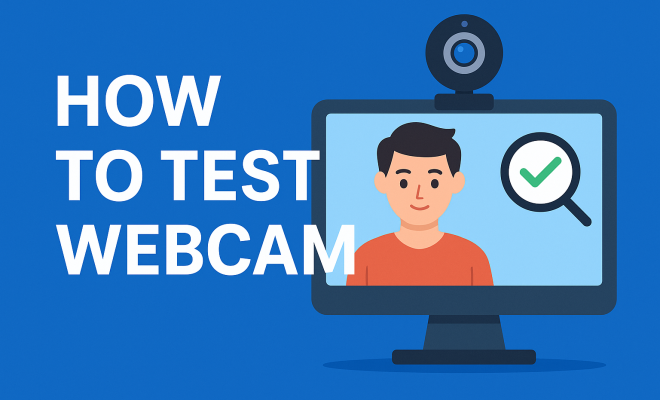
Most operating systems come with built-in tools that can help you test webcam functionality. For Windows users, simply open the Camera app. This handy application will show you a live video feed, allowing you to confirm whether your webcam is working. You can also adjust settings like brightness and contrast directly within this app.
If you’re using a Mac, open the Photo Booth application. Like the Camera app in Windows, Photo Booth displays the live feed from your webcam and includes some fun filters you can play around with. These built-in applications are quick, easy ways to check if your webcam is working without needing any third-party software.
4. Third-Party Webcam Testing Sites
For a more comprehensive test, consider using third-party webcam testing websites. These sites can provide additional functionality, such as checking the webcam’s resolution and frame rate. Popular options include Webcam Tests and Test My Cam.
Simply visit one of these sites, and they will request access to your webcam. Once granted, you’ll be able to see how your webcam performs in real time. These testing platforms often allow you to record a short video or take snapshots to evaluate the quality of your output further.
5. Audio Testing: Don’t Forget About Sound
While testing your webcam, it’s essential to consider the audio input as well. Many webcams come with built-in microphones, and ensuring your audio is clear is just as important as your video quality. When using the Camera app on Windows or Photo Booth on Mac, both applications allow you to test your microphone simultaneously.
During your test, speak naturally and observe if your voice is captured clearly without distortion or background noise. If you’re not satisfied with the audio quality, consider using an external microphone for a better experience during video calls. (See: Understanding what a webcam is.)
6. Adjusting Camera Settings for Optimal Performance
Once you’ve confirmed that your webcam is working, the next step is to adjust the settings for optimal performance. Depending on your operating system and webcam model, you may have access to various settings such as brightness, contrast, exposure, and even zoom.
Adjusting these settings can significantly enhance your video quality. For example, increasing brightness can help in poorly lit environments, while adjusting the contrast can provide a clearer image. Take some time to experiment with these settings to find the optimal configuration for your lighting conditions.
7. Common Webcam Issues and Troubleshooting
Even after testing, you might encounter issues with your webcam. Common problems include a black screen, poor video quality, or audio lag. If you see a black screen, ensure that no other applications are using the webcam, as only one program can access the camera at a time.
For poor video quality, check your internet connection if you are on a video call. A slow connection can lead to buffering issues affecting video quality. Additionally, ensure that your drivers are up-to-date. You can often find the latest drivers on the manufacturer’s website, which can resolve many performance-related issues.
8. Best Practices for Webcam Use
To ensure a smooth video calling experience, it’s wise to follow some best practices when using your webcam. First, ensure you have adequate lighting. Natural light works best, but if that’s not an option, invest in a ring light or softbox to enhance your video quality.
Additionally, always consider your background. A cluttered or distracting background can take attention away from you during video calls. Opt for a clean, simple backdrop, or even a virtual background feature available in many video conferencing tools. This can help maintain professionalism, especially in work-related meetings.
9. Advanced Webcam Features
Modern webcams often come with advanced features that enhance user experience. For instance, some models support 1080p video resolution or higher, which is crucial for achieving high-quality images. Additionally, features like autofocus and low-light correction can significantly improve your video quality.
Some webcams even come equipped with software that allows for additional settings like HDR, which enhances dynamic range and ensures that you look your best even in challenging lighting conditions. Familiarize yourself with the features of your specific webcam model to fully leverage its capabilities during video calls.
10. Regular Maintenance and Updates
Finally, to ensure your webcam continues to function optimally, regular maintenance is key. This includes cleaning the lens to remove any dust or smudges that can affect video quality. Use a microfiber cloth and a gentle cleaning solution to avoid scratches.
Moreover, keep your software and drivers updated. Webcam manufacturers often release updates that improve performance and address bugs. Regularly check for these updates on the manufacturer’s website to maintain a seamless experience.
11. Exploring Webcam Compatibility
When selecting a webcam, compatibility with your operating system and applications is paramount. Different operating systems may support various video formats and drivers, which can affect performance. For example, if you’re using a Windows-based machine, ensure your webcam is compatible with Windows 10 or higher to leverage all features without issues.
Additionally, if you’re using software such as Zoom or Skype, check the compatibility of your webcam with these platforms. Some webcams may have built-in features specifically designed to enhance video calls on particular applications, such as optimized background removal or integrated filters. (See: Video and computer use safety guidelines.)
12. Webcam Security Considerations
In today’s digital age, privacy is a significant concern. Webcams can be vulnerable to hacking, leading to unauthorized access. To safeguard against this, consider webcams that offer built-in privacy features, such as physical shutters that block the lens when not in use. This simple mechanism can prevent intruders from spying on you when the camera is not actively being used.
Additionally, make sure to use strong, unique passwords for your accounts and enable two-factor authentication wherever possible. Remember to monitor your webcam access settings regularly to ensure no suspicious applications have been granted permission without your knowledge.
13. The Importance of Internet Speed During Video Calls
Video quality during calls is highly dependent on your internet speed. A stable and fast connection is vital for smooth video streams. According to a report by the Federal Communications Commission (FCC), a download speed of at least 3 Mbps is recommended for standard-definition video, while high-definition video may require upwards of 5 Mbps.
Consider running a speed test on your internet connection before important video calls. Many websites, like Speedtest.net, can help you assess your upload and download speeds. If your results fall below the recommended thresholds, consider solutions such as upgrading your internet plan, using wired connections instead of Wi-Fi, or optimizing your network by reducing the number of connected devices during calls.
14. Webcam Accessories That Enhance Your Experience
Enhancing your video calling experience can sometimes require additional accessories. One popular option is a tripod for external webcams, allowing you to set the camera at the optimal height and angle. This not only improves the framing of your video but can also reduce any shaky footage caused by handling the webcam.
Another valuable accessory is a ring light or softbox, which provides even and flattering lighting, especially in dim environments. With the right lighting, you’ll look more professional and engaging on camera, contributing to better communication in a business context or a more enjoyable chat with friends.
15. FAQs About Webcam Testing
Q1: How can I test if my webcam is working on Windows?
A1: Open the Camera app on your Windows computer. If your webcam is functioning correctly, you’ll see a live video feed. You can also check under Device Manager to ensure the webcam is recognized.
Q2: What do I do if my webcam is not detected?
A2: If your webcam is not detected, check the connections if it’s an external webcam. For built-in webcams, ensure no applications are currently using it, and check your privacy settings to confirm webcam access is allowed.
Q3: Is it possible to test my webcam on mobile devices?
A3: Yes, various applications are available for both iOS and Android that allow you to test your device’s camera capabilities, including video and photo functions. You can use built-in camera apps or specific testing apps from your app store.
Q4: Can I use my smartphone as a webcam?
A4: Absolutely! Many applications allow you to use your smartphone as a webcam for your computer. Apps like DroidCam and EpocCam can connect your smartphone camera to your computer, providing a high-quality alternative to traditional webcams. (See: Tips for effective video chatting.)
Q5: What are the signs of a failing webcam?
A5: Common signs of a failing webcam include inconsistent video feed, distorted images, a black screen, and issues with audio. If you notice these problems, it may be time to troubleshoot further or consider a replacement.
16. Webcam Specifications You Should Know
Understanding the specifications of webcams can help in choosing the right one for your needs. Key features to consider include:
- Resolution: Webcam resolutions typically range from 720p (HD) to 1080p (Full HD) and even 4K. Higher resolutions provide clearer images, especially when you’re sharing your video on high-resolution screens.
- Frame Rate: This refers to how many frames per second (FPS) the webcam can capture. Standard video calls run smoothly at 30 FPS, but higher frame rates like 60 FPS can provide a more fluid experience, especially for gaming or high-motion video.
- Field of View (FOV): The FOV indicates how wide of an area the camera can capture. A wider FOV can be beneficial for group calls, allowing more people to fit into the frame without needing to adjust the camera.
- Low Light Performance: Some webcams have features designed to enhance video quality in low-light conditions. This is essential for users who may not always be in a well-lit environment.
When shopping for a webcam, consider which of these specifications are most important for your specific use cases, whether you’re using it for professional meetings, streaming, or casual chats.
17. Choosing the Right Webcam for Your Needs
When it comes to selecting a webcam, there are several factors to keep in mind based on your unique needs:
- Professional Use: For work-related video calls, a webcam that offers 1080p resolution with good low-light performance is ideal. Look for models that are widely recognized for their clarity and reliability, such as the Logitech C920.
- Streaming and Content Creation: If you’re looking to stream or create content, consider a webcam with higher frame rates and advanced features like background removal or green screen capability. The Razer Kiyo, for instance, includes a built-in ring light, making it a favorite among streamers.
- Casual Use: For occasional video calls with friends or family, a more basic model with 720p resolution may be sufficient. Many laptops come with built-in webcams that can handle casual video chatting without any additional purchases.
18. Understanding Webcam Drivers and Software
Each webcam requires specific drivers to function correctly with your computer. These drivers are software components that enable the operating system to communicate with the hardware. When you first connect your webcam, your computer should automatically install the necessary drivers. However, if you run into issues, you may need to visit the manufacturer’s website to download and install the latest drivers manually.
In addition to drivers, some webcams come with dedicated software that provides additional functionalities. This software can include options for adjusting video settings, applying effects, or even managing multiple cameras. Exploring these additional features can enhance your overall experience and allow for more customization during video calls.
19. Adapting Webcam Use in Different Environments
Video calls can take place in various environments, and adapting your setup can make a big difference. Consider the following:
- Home Office: Ensure your workstation is well-lit and free from distractions. A tidy background and good lighting can improve the overall professionalism of your calls.
- On-the-Go: If you’re traveling, portable external webcams can be a great option for maintaining quality during calls from different locations. Also, ensure you have a reliable internet connection, whether through hotel Wi-Fi or mobile data.
- Public Spaces: Be mindful of background noise and privacy in public settings. Using a pair of noise-canceling headphones with a built-in microphone can help improve audio quality and keep conversations private.
By following these steps, you can confidently test webcam functionality and ensure you’re ready for any video call or streaming session. Whether you’re connecting with colleagues, friends, or family, a well-tested webcam will make all the difference in your online communication experience.
“`
Trending Now
Frequently Asked Questions
How do I know if my webcam is working?
To check if your webcam is working, you can use built-in applications like Camera on Windows or Photo Booth on macOS. Simply open the application, and if the webcam is functioning correctly, you should see a live feed. Additionally, ensure that the webcam is properly connected and recognized by your operating system.
What should I check before testing my webcam?
Before testing your webcam, ensure it is securely connected to your computer, especially if it's an external device. Also, check your privacy settings to confirm that your webcam access is not blocked by the operating system or any applications.
How can I test my webcam online?
You can test your webcam online by visiting websites like Webcam Test or Online Mic Test. These sites allow you to see if your webcam is functioning properly without needing to download any software, providing a quick and easy way to verify its performance.
What are the common issues with webcams?
Common webcam issues include poor video quality, connectivity problems, and being blocked by privacy settings. Ensure your drivers are up-to-date, check the connections, and verify that no applications are preventing access to the webcam.
Can I use my smartphone as a webcam?
Yes, you can use your smartphone as a webcam by downloading specific apps like DroidCam or EpocCam. These apps allow your smartphone to connect to your computer via USB or Wi-Fi, enabling you to use its camera for video calls.
Have you experienced this yourself? We’d love to hear your story in the comments.