Set Up Your Google Home Device: A 2024 Guide
“`html
Google Home is more than just a smart speaker; it’s a gateway to a connected lifestyle. Whether you want to play music, control your smart devices, or get the latest news, setting up Google Home optimally can transform the way you interact with technology in your home. In this comprehensive guide, we will delve into the steps required to set up Google Home, explore its features, and provide tips to make the most out of your experience.
1. Understanding Google Home
Before diving into the setup process, it’s crucial to understand what Google Home is and how it integrates with your daily life. Launched in 2016, Google Home is a voice-activated assistant that responds to your commands and inquiries. It utilizes Google Assistant, allowing you to perform a variety of tasks through simple voice commands.
From playing your favorite music to controlling smart home devices, Google Home is designed to simplify tasks. The device supports various services, including Spotify, Netflix, and smart home products from a range of manufacturers. This makes Google Home a versatile hub for entertainment and home automation.
2. What You Need to Set Up Google Home
Getting started with Google Home requires a few essential items. First, you’ll need a Google Home device, which comes in several varieties like the Google Home Mini, Nest Hub, and Google Home Max. Each has unique features suited for different spaces and needs.
In addition to the device, you’ll also need a stable Wi-Fi connection, as the Google Home relies heavily on internet connectivity to function. Another important requirement is the Google Home app, available for both Android and iOS devices. This app will be your primary tool for setup and management of your Google Home.
3. Setting Up Your Google Home Device
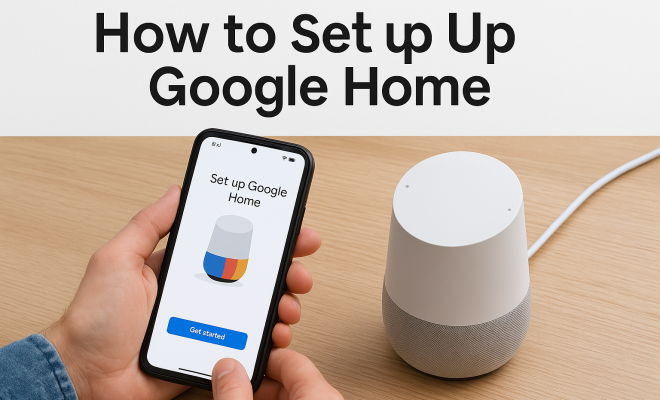
Now that you have everything in place, let’s walk through the steps to set up Google Home. Start by plugging in your Google Home device and waiting for it to power up. You will hear a sound indicating it’s ready for setup.
Open the Google Home app on your smartphone or tablet. If you don’t have the app, download it from your device’s app store. Once opened, ensure that Bluetooth is enabled on your device. The app will guide you through the setup process, detecting your Google Home device and prompting you to connect to your Wi-Fi network.
4. Connecting Google Home to Your Wi-Fi
During the setup process, one of the key steps is connecting your Google Home to your Wi-Fi network. This is crucial as it allows the device to access the internet for streaming music, fetching information, and controlling smart home devices.
When prompted in the Google Home app, select your Wi-Fi network from the list that appears and enter the password. Once connected, the app will confirm the successful connection, and your Google Home will be ready to respond to commands.
5. Personalizing Your Google Home Experience
Once you set up Google Home and connect it to Wi-Fi, you can start personalizing your experience. This includes setting up your voice profile, which allows Google Assistant to recognize your voice and provide tailored responses.
To create a voice profile, go to the Google Assistant section in the Google Home app. Here, you can follow prompts to teach Google Assistant your voice. Personalization also extends to preferences like music services and news sources, which you can configure in the settings of the app. (See: Google Assistant overview on Wikipedia.)
6. Linking Smart Home Devices
One of the standout features of Google Home is its ability to control a variety of smart home devices. To set up Google Home for controlling these devices, you need to link them through the Google Home app. This can include lights, thermostats, security cameras, and more.
In the app, navigate to the ‘Add’ button, then select ‘Set up device’. From there, you can choose either ‘Works with Google’ for compatible smart devices or ‘New devices’ for devices on your network. Follow the prompts to connect your smart devices, and you’ll be able to control them with voice commands through Google Home.
7. Exploring Features and Commands
Once you’ve set up Google Home, you’ll want to explore the range of features it offers. You can ask Google Home to play music, provide weather updates, or set reminders. The device also supports routines, which allow you to automate a series of actions with a single command. For example, saying “Good morning” can trigger your smart coffee maker, turn on the lights, and read you the daily news.
Familiarizing yourself with various commands can enhance your experience significantly. Simple inquiries like “What’s the weather today?” or “Play my workout playlist” can be executed seamlessly. Additionally, Google Home can answer questions, provide trivia, and even tell jokes, making it a fun companion.
8. Troubleshooting Common Issues
Even with the best technology, issues can arise. If you encounter problems when using Google Home, the first step is to check your Wi-Fi connection. A weak or intermittent connection can lead to issues with responsiveness. Restarting the device or resetting it may help as well.
To reset your Google Home, locate the mic mute button, which is typically found on the side of the device. Press and hold this button for about 15 seconds until you hear a confirmation. After resetting, you’ll need to set it up again through the Google Home app.
9. Keeping Your Google Home Updated
Finally, to ensure that your Google Home operates at its best, keeping it updated is essential. Google periodically releases updates that enhance functionality, add new features, and improve security. These updates are typically automatic, but checking the app regularly ensures you don’t miss out on any new capabilities.
To check for updates, open the Google Home app and look for any notifications about device updates. You can also explore the settings within the app to manage connected devices and preferences for optimal performance.
10. Advanced Features of Google Home
Once you’ve mastered the basics, take some time to explore the more advanced features of Google Home. For example, Google Home can manage multiple users, allowing family members to set up their voice profiles. This means everyone can get personalized responses based on their voice, making the experience more tailored and efficient.
Additionally, Google Home supports multi-room audio, enabling you to play music across several devices simultaneously. You could set the mood for a party or create a seamless audio experience throughout your home. You can group speakers together in the Google Home app and control the volume and playback from one central device.
11. Integrating Third-Party Applications
Google Home supports a wide range of third-party applications, expanding its capabilities beyond Google’s own services. Popular streaming services like Pandora, iHeartRadio, and YouTube Music can be linked to optimize your music experience. In addition, you can integrate productivity apps like Todoist or Any.do for task management through voice commands.
To set up these services, go to the ‘Settings’ section in the Google Home app, then select ‘Services’. Here, you can link your accounts and customize what Google Assistant can access. This integration allows you to manage your daily tasks, listen to your favorite news outlets, or control your entertainment with ease. (See: Technology and health communication by CDC.)
12. Using Google Home for Home Security
Home security is another significant aspect where Google Home shines. By linking compatible security cameras and alarm systems, you can monitor your home from anywhere. With a simple command, you can check camera feeds, receive alerts, or activate/deactivate alarms.
For instance, you can say, “Hey Google, show me the front door camera,” and get a live view on your connected smart screen or TV. Many users appreciate this feature for its convenience and the extra layer of safety it provides, particularly when they are away from home.
13. Statistics on Smart Home Adoption
The adoption of smart home technology has been on the rise. According to a report by Statista, the number of smart homes in the U.S. is expected to increase from 63 million in 2021 to around 78 million by 2025. This growth reflects a growing consumer demand for convenience, energy efficiency, and enhanced security.
Furthermore, a survey conducted by the Consumer Technology Association found that 70% of households with smart speakers are likely to purchase additional smart home devices within the next year. This trend indicates that more users are looking to create comprehensive smart home ecosystems, making the set up of Google Home even more valuable.
14. Google Home vs. Other Smart Speakers
When considering smart speakers, Google Home competes with other offerings like Amazon Echo and Apple HomePod. Each has its unique strengths. Google Home excels in search capabilities and integration with Google services, making it the go-to for those deeply embedded in the Google ecosystem. On the other hand, Amazon Echo might have a wider range of compatible devices and services due to its longer presence in the market.
The Apple HomePod, while providing exceptional sound quality, often appeals more to users within Apple’s ecosystem. Understanding these differences can help you make an informed decision about which device suits your needs best. Regardless of your choice, setting up Google Home can significantly enhance your smart home experience.
15. Frequently Asked Questions (FAQ)
Q1: Can I use Google Home without a smartphone?
A1: While it’s possible to set up Google Home using a computer, having a smartphone with the Google Home app installed makes the process much easier. The app allows for convenient management of settings and linked devices.
Q2: What if Google Home doesn’t respond to my voice?
A2: If your Google Home device isn’t responding, check the volume level and ensure that the microphone is not muted. You can also restart the device or check the internet connection for potential issues.
Q3: How many devices can I link to Google Home?
A3: Google Home supports linking to a vast number of smart devices, often exceeding hundreds, depending on compatibility with Google Assistant. This includes lights, cameras, speakers, and more.
Q4: Is Google Home safe to use?
A4: Google Home is designed with security in mind. You can manage privacy settings in the Google Home app and choose what data you share. Feel free to review and delete your voice commands through your Google account settings. (See: New York Times review of Google Home.)
Q5: How can I improve Google Home’s understanding of my voice?
A5: To improve voice recognition, ensure that you’ve set up a voice profile in the Google Home app. Speaking clearly and in a consistent tone can also help Google Assistant better understand your commands.
16. Setting Up Multi-User Functionality
One of the coolest features of Google Home is its ability to recognize different users thanks to voice recognition. This allows multiple family members to personalize their experience with Google Assistant. To set up this feature, each person needs to create their voice profile in the Google Home app. This involves repeating a few phrases so the device can learn to differentiate between voices. Once set up, Google Home can provide personalized responses based on who is speaking, including tailored music recommendations, calendar events, and personalized news briefings.
17. Using Google Home for Your Daily Routines
Automating your daily routines is one of the best ways to leverage your Google Home. You can set up routines that align with your morning, evening, and even work schedules. For instance, a “Good Morning” routine can turn on your lights, read the weather, and start your coffee maker all at once. Similarly, an “End of Day” routine can turn off the lights, lock your doors, and play relaxing music to help you wind down. These routines can be customized easily within the Google Home app, allowing you to choose which actions to include. This feature not only saves time but also creates a more comfortable living environment.
18. Enhancing Accessibility with Google Home
Google Home also plays a vital role in enhancing accessibility for individuals with disabilities. Voice commands allow those who may have difficulty using traditional interfaces to control their environment. For example, users can control lights, thermostats, and even entertainment systems just by speaking. Moreover, Google Assistant can read aloud texts, set reminders, or answer questions, making it incredibly useful for individuals with visual impairments or mobility challenges. This accessibility feature is an important consideration when setting up Google Home in a household that values inclusivity.
19. Google Home and Smart Energy Management
Another significant aspect of Google Home is its potential for energy management. By connecting energy-efficient smart devices, you can monitor and control your energy consumption. Google Home can help you understand which devices consume the most energy and suggest optimizations. For instance, smart thermostats can adjust based on your habits, learning when you’re home or away to save energy. Users have reported savings on their energy bills after integrating such features, making smart home technology a financially wise choice in the long run.
20. Finding Assistance and Support
If you run into issues or have questions about your Google Home, there’s a wealth of resources available. Google provides a dedicated support page with articles, troubleshooting tips, and community forums. If you prefer personalized help, you can reach out to Google Support via chat or phone. Remember that many issues can be resolved simply by resetting the device or refreshing the app, but don’t hesitate to seek help if needed.
In summary, setting up Google Home is a straightforward process that opens the door to a smarter home. By understanding its features, linking devices, and personalizing your experience, you can create a seamless environment that caters to your lifestyle. Embrace the convenience of voice-activated technology and explore how Google Home can simplify your everyday tasks.
“`
Trending Now
Frequently Asked Questions
What do I need to set up Google Home?
To set up Google Home, you need a Google Home device, a stable Wi-Fi connection, and the Google Home app, which is available for both Android and iOS. Different models like the Google Home Mini or Nest Hub offer various features to suit your needs.
How do I set up my Google Home device?
Begin by plugging in your Google Home device and waiting for it to power up. Then, use the Google Home app on your smartphone to follow the step-by-step setup instructions, which will guide you through connecting to Wi-Fi and personalizing your device.
What features does Google Home offer?
Google Home offers a range of features, including playing music, controlling smart home devices, providing news updates, and answering questions. It integrates with various services like Spotify and Netflix, making it a versatile hub for entertainment and home automation.
Is Google Home compatible with smart devices?
Yes, Google Home is compatible with many smart devices from various manufacturers. It allows you to control lights, thermostats, and other smart home products using simple voice commands, making it an effective tool for home automation.
Can I use Google Home without Wi-Fi?
No, Google Home requires a stable Wi-Fi connection to function properly. It relies on internet connectivity for voice commands, streaming music, and controlling smart devices, so a strong Wi-Fi network is essential for optimal performance.
Agree or disagree? Drop a comment and tell us what you think.