How to sideload apps on Firestick
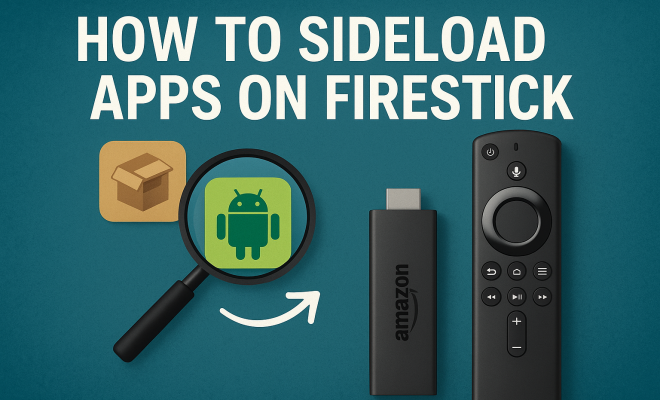
1. Understanding Sideloading
Sideloading is a term that often pops up in discussions about streaming devices, particularly the Amazon Firestick. But what does it really mean? In essence, sideloading refers to the process of installing applications on your device that are not available through the official app store. This can open up an extensive range of options for users looking to enhance their streaming experience.
While the Amazon Firestick comes pre-loaded with popular streaming services such as Netflix and Prime Video, you might find yourself craving more options. By sideloading apps, you can access a broader universe of content, including live TV, games, and even niche streaming platforms. Sideloading can feel a bit complex at first, but once you get the hang of it, it becomes an invaluable skill for any Firestick owner.
2. Why Sideload Apps on Firestick?
You might wonder why you’d want to sideload apps in the first place. The primary reason is choice; the Firestick’s app store, while extensive, does not contain every possible app available on the internet. By sideloading, you can install third-party applications that could provide features or services that the official store lacks.
Additionally, sideloading allows you to access content that may be region-locked or not available in your country. For instance, some streaming services or apps are only accessible in specific regions due to licensing agreements. By sideloading these applications, you can bypass these geographical restrictions and enjoy a more personalized streaming experience.
For example, if you’re a sports fan, you might want to sideload apps that provide live sports coverage not offered in your home country. Many users have had success using apps like Mobdro or Live NetTV, which could make it easier to catch live events without needing a cable subscription.
3. Preparing Your Firestick for Sideloading
Before you can sideload apps onto your Firestick, you must adjust some settings to allow installations from unknown sources. To do this, navigate to the settings menu on your Firestick. From there, select ‘My Fire TV’ (or ‘Device’), and then choose ‘Developer Options’.
You will see an option labeled ‘Apps from Unknown Sources’. Ensure that this is turned on. This step is crucial because it allows your Firestick to install applications that are not from the Amazon Appstore. While enabling this option can increase risk, having proper security measures (like a good antivirus) can mitigate many concerns.
It’s also a good idea to check for available updates for your Firestick. Ensuring you’re running on the latest firmware can further enhance the security and functionality of your device while sideloading.
4. Choosing the Right Apps to Sideload
Not all apps are created equal, and this holds especially true when it comes to sideloading. Some applications are more beneficial than others, depending on your streaming preferences. For example, popular apps like Kodi and Plex offer extensive libraries of content and customization options, making them excellent choices for sideloading.
Other apps worth considering include streaming services that are unavailable in your region, such as BBC iPlayer or various sports streaming applications. Always do your research to ensure the apps you choose are reputable and provide legitimate content. Reading reviews and user feedback can help you avoid malicious or poorly designed applications.
You may also want to explore other genres, such as gaming or education. For example, sideloading apps like Retroarch might allow you to enjoy classic video games on your Firestick. Similarly, educational apps can provide interactive learning experiences right from your TV. (See: Understanding sideloading.)
5. How to Sideload Apps Using Downloader
One of the easiest ways to sideload apps on your Firestick is by using the ‘Downloader’ app, a versatile tool that simplifies the process. First, download the Downloader app from the Amazon Appstore. After installation, go to the app and enter the URL of the app you wish to download.
Once you’ve input the URL, the Downloader app will fetch the application and start the installation process. Follow the on-screen instructions to complete the installation. After the app is installed, it should appear on your Firestick’s home screen or in your apps list, ready for use.
Using the Downloader app also allows you to save bookmarks for your frequently used apps, making future sideloading even more efficient. This can save you time and effort, especially if you’re experimenting with several different apps.
6. Using ADB to Sideload Apps
If you’re feeling more tech-savvy, you can also sideload apps using ADB (Android Debug Bridge). This method requires your computer and your Firestick to be on the same Wi-Fi network. First, enable ADB debugging in the settings as you did for unknown sources.
Next, install ADB on your computer. You can then use the command line to push the APK file of the app you want to sideload directly to your Firestick. This method offers greater control and precision, but it’s certainly not as user-friendly as using the Downloader app.
For those who want to dive deeper, you can also create scripts to automate the sideloading process, which can be particularly handy if you manage multiple Firesticks or frequently switch between different applications.
7. Common Issues and Troubleshooting
Even the best-laid plans can go awry, and sideloading apps on your Firestick is no exception. One common issue is the app not appearing after installation. This can often be resolved by restarting your Firestick or clearing the cache of the app.
Another frequent problem is compatibility issues. Some apps may not work as intended on the Firestick due to differences in hardware or software compatibility. Ensure that the app you’re trying to sideload is designed for use with Fire OS, the operating system that powers your Firestick. Checking forums or the app’s website can provide insights into whether it’s suitable for your device.
It’s also helpful to know how to uninstall apps should you encounter issues. Go to your Firestick settings, navigate to the ‘Applications’ section, and select ‘Manage Installed Applications’ to remove any problematic apps. This can free up space and help maintain the overall performance of your device.
8. Staying Safe While Sideloading
While sideloading opens up a world of possibilities, safety should always be your top priority. Use trusted sources for downloading apps, and consider using a VPN (Virtual Private Network) when accessing third-party content. A VPN helps protect your privacy by masking your IP address and encrypting your internet connection, making your online activities more secure.
Additionally, keep your Firestick’s software updated. Regular updates from Amazon can patch vulnerabilities and improve the overall performance of your device. Lastly, always read user reviews before downloading apps to gauge their reliability and safety.
As an added precaution, consider using a dedicated firewall or security software on your home network. This can add an extra layer of protection against potential threats from sideloaded applications.
9. The Legal Side of Sideloading
It’s important to understand the legal implications of sideloading apps on your Firestick. While sideloading itself is generally legal, the content you access through these applications might not be. Many users assume that sideloading allows them to access pirated content without repercussions, but this is a misconception that can lead to serious legal consequences. (See: Sideloading applications on devices.)
Always ensure that the apps you sideload are providing content legally. Services that offer user-generated content, like Kodi, can be completely legal, but plugins or add-ons that facilitate streaming copyrighted content without proper licensing can put you at risk.
Staying within the bounds of the law not only protects you but also supports content creators. Respecting copyright laws is essential for enjoying your streaming experience without legal troubles.
10. Exploring Popular Apps for Sideloading
Now that you understand the process and implications of sideloading, let’s take a look at some popular apps that users often install on their Firesticks. Each of these apps brings unique features and content that can greatly enhance your streaming experience.
- Kodi: A media center that allows you to organize and stream videos, music, and games. Its extensive library and customizable interface make it a top choice.
- Plex: Great for organizing your media files and streaming them to various devices. Plex serves as a personal cloud for your content.
- CyberFlix TV: This app provides a wide range of movies and shows, offering a similar experience to Netflix but with more variety.
- TeaTV: Another option for streaming movies and TV shows; it’s known for its user-friendly interface and extensive catalog.
- Live NetTV: This app allows users to watch live television channels from various genres, offering a free alternative to cable.
Each of these apps can be sideloaded to your Firestick and can significantly expand the content you have access to. Make sure to check the latest user reviews and community feedback for any updates or potential issues with compatibility.
11. Frequently Asked Questions (FAQ)
What does sideloading mean?
Sideloading refers to the process of installing applications on your device that are not available through the official app store. This allows users to access a wider range of applications and content.
Is it safe to sideload apps on Firestick?
Sideloading can be safe if you use trusted sources and take proper precautions, such as using a VPN and keeping your software updated. Always verify the legitimacy of the apps you choose to install.
Can I uninstall sideloaded apps?
Yes, you can uninstall sideloaded apps the same way you would remove any other app on your Firestick. Navigate to ‘Settings’, then ‘Applications’, and select ‘Manage Installed Applications’ to uninstall.
Will sideloading slow down my Firestick?
If you sideload too many apps or install poorly optimized applications, it may affect the performance of your Firestick. It’s advisable to only install apps that you will actively use and to uninstall any that you no longer need.
Are there any costs associated with sideloading apps?
Generally, sideloading apps is free, but some applications may have in-app purchases or subscriptions. Always check the details of each app for any potential costs involved.
What should I do if an app doesn’t work after sideloading?
If an app doesn’t work, try restarting your Firestick or clearing the app’s cache. You can also check for updates or user feedback specific to that application to see if there are known issues.
12. Advanced Sideloading Techniques
Once you’re comfortable with the basics of sideloading, there are a few advanced techniques that can help you optimize your experience. One such technique involves using Android emulators to run Android apps that are not originally designed for the Firestick. For instance, you can explore emulators that let you run certain apps that provide a unique viewing experience tailored specifically for mobile but can be adapted for your Firestick. (See: Firestick apps and sideloading.)
Another advanced method is to explore the use of custom launchers. A custom launcher can give your Firestick a completely new look and feel and can make accessing your sideloaded apps much easier. Some popular custom launchers include Wolf Launcher and Halogen. These tools allow you to rearrange your apps, customize backgrounds, and create a more personalized user interface.
You might also want to explore using automation tools like Tasker, which can help automate several tasks on your Firestick, including launching apps at specific times or even scheduling updates to your sideloaded applications. Although these methods require a bit more technical know-how, they can significantly enhance your sideloading experience.
13. Performance Tips for Sideloaded Apps
When you start adding more apps to your Firestick, it’s crucial to keep your device performing smoothly. Here are a few performance tips to consider:
- Manage Your Storage: Regularly check the storage on your Firestick. Too many applications can slow down your device. Uninstall apps you no longer use to free up space.
- Clear Cache Regularly: Cached data can build up over time, which can slow down app performance. Go into the settings and clear the cache of your apps periodically.
- Restart Your Device: If you notice performance issues, sometimes a simple restart of your Firestick can rectify many problems, refreshing the system’s memory.
- Use a Cooling Stand: If you’re using your Firestick for extended periods or running graphic-intensive applications, consider getting a cooling stand to prevent overheating.
These performance tips will help you maintain a smooth and enjoyable experience while using your sideloaded apps.
14. The Future of Sideloading on Firestick
The landscape of streaming is continuously evolving, and sideloading will remain a vital skill for Firestick users. As more streaming services become available, the demand for diverse content options will only grow. Sideloading gives you the flexibility to adapt to these changes, allowing you to access applications that may not be available through the official Amazon Appstore.
Additionally, as developers create new apps, the ability to sideload means you can try out the latest offerings that haven’t yet made it to the official store. This agility can keep your streaming experience fresh and relevant. The future of sideloading isn’t just about increasing your options; it’s about creating a personalized entertainment hub that caters to your unique preferences and needs.
15. Conclusion: Enjoying Your Sideloading Experience
As streaming continues to evolve, the ability to sideload apps on Firestick will remain a crucial skill for users wanting to maximize their streaming experience. Whether it’s accessing exclusive content, enhancing app functionality, or simply exploring new entertainment options, sideloading brings flexibility to your Firestick.
With the right preparation, tools, and knowledge, you can transform your Firestick into a powerhouse of content. As the landscape of streaming shifts, sideloading will undoubtedly continue to be a significant aspect of how users interact with their devices, offering personalized and enriched viewing experiences.
Trending Now
Frequently Asked Questions
What is sideloading on Firestick?
Sideloading on Firestick refers to the process of installing applications that are not available in the official Amazon app store. This allows users to access a wider range of content and features, enhancing their streaming experience beyond the pre-loaded services.
Why would I want to sideload apps on my Firestick?
Sideloading apps on your Firestick provides greater choice and access to third-party applications that may offer features or content unavailable in the official store. It also helps in bypassing geographical restrictions, allowing users to enjoy region-locked content.
Is it safe to sideload apps on Firestick?
While sideloading can be safe, it is important to only install apps from trusted sources to avoid potential security risks. Always research the app and its developer before downloading to ensure a safe streaming experience.
How do I prepare my Firestick for sideloading?
To prepare your Firestick for sideloading, you need to enable 'Apps from Unknown Sources' in the settings. This allows the installation of third-party applications that are not from the official app store, facilitating the sideloading process.
What are some popular apps to sideload on Firestick?
Popular apps to sideload on Firestick include Mobdro and Live NetTV, which offer access to live sports and other content not available through standard streaming services. These apps can significantly enhance your viewing options.
What did we miss? Let us know in the comments and join the conversation.