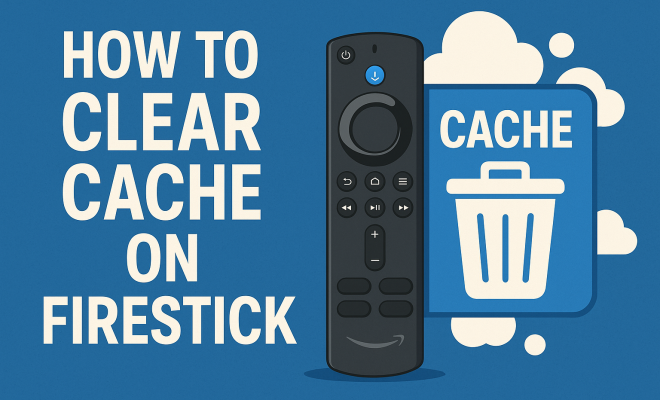
How to clear cache on Firestick
“`html
The Amazon Firestick has become a staple for many households, offering a seamless streaming experience for various platforms such as Netflix, Hulu, and Amazon Prime. However, like any device, it can slow down over time, often due to accumulated cache data. Knowing how to clear cache on Firestick can significantly improve your device’s performance, ensuring smoother streaming and faster app launches. In this comprehensive guide, we’ll explore the importance of clearing cache, step-by-step instructions on how to do it, and some additional tips for maintaining your Firestick’s efficiency.
1. Understanding Cache and Its Impact
Before diving into the process, it’s essential to understand what cache is and how it affects your Firestick. Cache is temporary data that apps store to speed up their performance. For instance, when you use an app, it saves certain information like images and videos in the cache, so it doesn’t have to download them again each time you open it. While this is beneficial for quick access, over time, the cache can become bloated, leading to slower app responsiveness and a cluttered device.
Excessive cache data can cause various issues on your Firestick, including freezing, crashing apps, and sluggish navigation. Therefore, regularly clearing cache on Firestick not only helps in optimizing app performance but also enhances the overall user experience. When you clear the cache, it removes these temporary files without affecting your personal data, making it a safe and effective maintenance task.
2. Why You Should Clear Cache on Firestick
There are several reasons why you might want to clear the cache on your Firestick. Firstly, if your device has been running slower than usual or apps are crashing frequently, clearing the cache can free up space and potentially solve these issues. Many users report improved performance and fewer glitches after performing this simple maintenance task.
Additionally, clearing cache can resolve streaming issues. If you experience buffering or lag while watching your favorite shows, it might be due to an overloaded cache. By clearing it, you can ensure that your Firestick runs smoothly, enhancing your viewing experience. Furthermore, this practice can help you deal with software updates more efficiently, as it removes outdated cached data that might conflict with newer versions of apps.
3. Steps to Clear Cache on Firestick
Clearing cache on Firestick is a straightforward process. Follow these step-by-step instructions to ensure your device is running optimally:
- Navigate to the Home Screen: Turn on your Firestick and go to the main menu.
- Access Settings: Scroll to the right and select the gear icon to enter the Settings menu.
- Select Applications: From the Settings menu, choose “Applications.” This will take you to the applications management section.
- Manage Installed Applications: Click on “Manage Installed Applications.” Here, you’ll see a list of all your installed apps.
- Choose the App: Scroll through the list and select the app you want to clear the cache for.
- Clear Cache: Once you’re in the app’s settings, you’ll see the option to “Clear Cache.” Click on it, and a confirmation message will appear. Confirm your choice to clear the cache.
- Repeat as Needed: You can repeat this process for other apps that may need cache clearing.
That’s it! You’ve successfully cleared the cache for your selected app(s). This process typically takes no more than a few minutes, making it an easy yet essential task for maintaining your Firestick.
4. Alternative Method: Use the Firestick Remote
If you prefer a quicker method or find navigating through the menu cumbersome, you can also use your Firestick remote to clear the cache. Here’s how:
- Press and Hold: Take your remote and press the “Home” button for about three seconds.
- Open Application Settings: Scroll to find the “Apps” option in the list that appears and select it.
- Access Installed Applications: Choose “Manage Installed Applications.”
- Select the Application: Find and select the app for which you wish to clear the cache.
- Clear Cache: Tap on “Clear Cache,” confirm, and you’re done!
This method is efficient and doesn’t require much navigation, making it user-friendly for those who prefer using their remote. Regardless of the method you choose, clearing cache on Firestick can help improve your overall streaming experience.
5. How Often Should You Clear Cache?
Determining how often to clear cache on Firestick depends on your usage habits. If you frequently install and uninstall apps or notice that your device is lagging, consider clearing cache every few weeks. For casual users, doing so every few months may suffice. The goal is to strike a balance between convenience and optimal performance.
Many tech enthusiasts recommend periodically checking the cache sizes for each app. If you find that some apps accumulate a significant amount of cache data quickly, it might be worth setting a reminder to clear them more frequently. Monitoring your device’s performance after each clearing session can also help you comprehend how cache affects your Firestick’s efficiency. (See: Understanding cache in computing.)
6. Benefits of Regular Cache Clearing
Regularly clearing cache on Firestick comes with multiple benefits. Firstly, it can enhance the speed and responsiveness of your apps. Users often find that apps launch faster and run more smoothly after clearing excess cache. This improvement can be particularly noticeable after watching heavy content or using graphics-intensive applications.
Additionally, by managing your cache effectively, you can free up storage space on your Firestick. With limited storage available on many Firestick models, cache can take up a considerable chunk of space over time. By regularly clearing it, you can ensure that your device has enough room for new apps and content, thus prolonging its lifespan and functionality. Lastly, keeping your cache clear can minimize the chances of encountering bugs or glitches that often arise from outdated or corrupted cached data.
7. Special Considerations for Streaming Apps
Streaming apps like Netflix, Hulu, and Amazon Prime often benefit greatly from a clear cache. Since these apps frequently update their content and interface, an overloaded cache can lead to compatibility issues. If you notice that a particular streaming app is crashing or not functioning correctly, clearing its cache should be one of your first troubleshooting steps.
Moreover, some streaming services cache information based on your viewing habits. If you find that content suggestions are becoming repetitive or irrelevant, a cache clear can reset these recommendations, allowing you to refresh your viewing options. Overall, maintaining a clear cache can enhance your experience with streaming services, ensuring that you get the most out of your subscriptions.
8. Using Third-Party Applications for Cache Management
For those who prefer a more automated approach to cache management, various third-party applications can assist in clearing cache on Firestick. Apps like “Clear Cache” or “Cache Cleaner” are specifically designed to help users manage their device’s cache efficiently. These apps often provide a user-friendly interface and the ability to clear cache for multiple applications in one go.
Using third-party tools can save time, especially if you have numerous apps installed. However, it’s important to choose reputable applications, as some may contain ads or unwanted features. Reading user reviews and ensuring compatibility with your Firestick model can help you select the best option for cache management.
9. Final Thoughts on Cache Management
Knowing how to clear cache on Firestick is a crucial skill for any user looking to maintain optimal performance. Regular cache clearing not only enhances your streaming experience but also extends the life of your device. By following the steps outlined in this guide, you can keep your Firestick running smoothly and free of unnecessary clutter.
Remember, whether you choose to clear cache manually or utilize third-party applications, the end goal remains the same: a faster, more responsive Firestick. Keeping your device in top shape allows you to enjoy your favorite shows and movies without interruptions, ensuring that your entertainment experience stays enjoyable and hassle-free.
10. Common Issues After Clearing Cache
While clearing the cache generally enhances performance, some users report certain issues following the process. One potential problem could be app-specific settings or preferences that may reset after clearing the cache. For instance, if you have customized settings or login information, you might need to re-enter these details after the cache has been cleared. This isn’t common but worth noting.
Another issue could be related to the initial startup of an app after you clear its cache. Some apps may take a little longer to load the first time after cache clearing because they are rebuilding their cache. This delay can be mistaken for performance issues, but it’s simply the app readjusting and should improve after a couple of launches.
If you find that your Firestick is still lagging after clearing the cache, it might be time to look into other troubleshooting methods such as uninstalling rarely used apps, freeing up storage space, or even resetting the device to factory settings as a last resort.
11. Advanced Troubleshooting: When Cache Clearing Isn’t Enough
In some cases, merely clearing the cache may not resolve persistent issues with your Firestick. If you’re still facing sluggish performance or frequent app crashes, consider these advanced troubleshooting steps: (See: Importance of device maintenance.)
- Uninstall Unused Apps: If your Firestick storage is close to full, consider removing apps that you no longer use. This can free up valuable space and improve overall performance.
- Clear Data: Along with clearing cache, you can also choose to clear the data for specific apps. This will remove all data including settings and preferences, so use this option cautiously.
- Update Your Firestick: Ensure that your Firestick is running the latest software version. Regular updates often contain important performance enhancements and bug fixes.
- Reset to Factory Settings: As a last resort, if you’re experiencing significant issues, you might consider resetting your Firestick to factory settings. Remember that this will erase all data and settings, so back up any important information first.
12. Statistics on Firestick Usage
Understanding how popular the Firestick is can give context to the importance of cache management. According to recent statistics, nearly 40% of U.S. homes own a streaming device, with Amazon Fire TV devices, including the Firestick, leading the market with a share of approximately 30%. This popularity means that millions of users are potentially facing performance issues due to cache accumulation.
Moreover, a survey indicated that 65% of Firestick users have experienced app crashes or slow performance, reinforcing the idea that regular maintenance, including cache clearing, is crucial for an optimal viewing experience. If you take into account that the average user spends around 3 hours daily streaming content, it’s clear that maintaining device efficiency is essential for a satisfying experience.
13. Expert Perspectives on Firestick Maintenance
Experts recommend that users adopt a regular maintenance routine for their Firestick, which includes more than just clearing cache. Tech analysts emphasize the importance of understanding how various apps work and interact with cache memory. For example, apps that you frequently use may require more frequent cache management compared to those that are seldom used.
Additionally, tech bloggers often highlight that users should not only focus on cache clearing but also be conscious of app permissions and data usage to maintain device health. Some experts suggest creating a monthly tech check-up routine that includes checking your Firestick’s app performance, running cache clearing, and uninstalling any apps that are no longer needed.
14. Frequently Asked Questions (FAQ)
1. What happens when I clear the cache on Firestick?
Clearing the cache removes temporary files that apps use to load data quickly. This helps in improving performance, but it might reset certain app settings or preferences.
2. Is it safe to clear cache on Firestick?
Yes, clearing the cache is a safe process. It does not delete any personal data or content; it only removes temporary files that can be recreated as needed.
3. How can I tell if my Firestick needs a cache clear?
If you notice that apps are lagging, crashing, or your Firestick is running slower than usual, it’s a good idea to clear some cache. Additionally, frequent buffering while streaming can also indicate a cache issue.
4. Can I automate cache clearing on my Firestick?
While there are third-party applications that can help automate cache clearing, the functionality can vary. Always choose reputable apps and read reviews before installation.
5. How do I clear cache on Firestick for all apps at once?
Unfortunately, Firestick does not currently offer a built-in option to clear the cache for all apps at once. You will need to clear the cache for each app individually.
6. Will clearing cache erase my downloaded movies or shows?
No, clearing the cache will not delete your downloaded content. It only removes temporary files related to how apps function. (See: How to speed up your devices.)
7. What other maintenance can I perform on my Firestick?
Besides clearing cache, you can uninstall unused apps, check for software updates, and reset the device to factory settings if performance issues persist.
8. Can I prevent my cache from accumulating quickly?
To mitigate rapid cache accumulation, regularly uninstall apps that you don’t use, and limit the number of streaming services you subscribe to simultaneously.
9. What are some signs that my Firestick is running out of storage?
When your Firestick is low on storage, you might notice frequent app crashes, buffering issues, and slow navigation. The device may also display warnings about low storage, prompting you to clear space.
10. Does restarting my Firestick help with cache issues?
Yes, restarting your Firestick can help clear temporary cache files and refresh the system. It can also resolve minor glitches and improve performance. It’s a good idea to restart your device periodically.
11. Are there specific apps that need more frequent cache clearing?
Streaming apps often require more frequent cache clearing due to their nature of constantly updating content and recommendations. Apps like YouTube, Netflix, and Hulu may benefit from more regular cache management compared to simple utility apps.
12. How do I check how much cache is stored on my Firestick?
To check the cache size, go to Settings > Applications > Manage Installed Applications, select the app, and you’ll see the amount of cache it has stored. This can help you decide which apps need their cache cleared sooner.
By understanding how to clear cache on Firestick, you can ensure a smoother, faster streaming experience. With a little maintenance, your Firestick can continue to serve you well for your entertainment needs.
“`
Trending Now
Frequently Asked Questions
How do I clear cache on my Firestick?
To clear cache on your Firestick, go to 'Settings', then 'Applications', and select 'Manage Installed Applications'. Choose the app you want to clear the cache for, and click on 'Clear Cache'. This will help improve app performance and speed up your device.
Why is my Firestick so slow?
A slow Firestick can be caused by excessive cache data, which clogs up the device and affects app performance. Regularly clearing the cache can help resolve these issues, leading to smoother navigation and faster app launches.
What happens when you clear cache on Firestick?
When you clear the cache on your Firestick, temporary files stored by apps are removed. This action does not delete personal data but can enhance app performance and reduce glitches, resulting in a better streaming experience.
Is it safe to clear cache on Firestick?
Yes, clearing the cache on your Firestick is safe. It removes temporary files that can slow down your device while preserving your personal data and settings, making it an effective maintenance step.
How often should I clear cache on my Firestick?
It's a good practice to clear the cache on your Firestick every few weeks, especially if you notice sluggish performance or frequent app crashes. This helps maintain optimal performance and ensures a smoother streaming experience.
What did we miss? Let us know in the comments and join the conversation.