Update Your Firestick: A Quick & Easy Guide for 2024
“`html
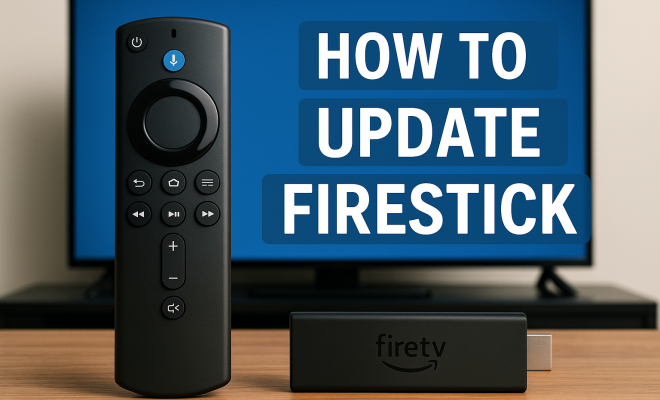
The Amazon Firestick has transformed how we stream our favorite shows, movies, and even games. Whether you use it for Netflix binges, Prime Video marathons, or to explore the vast landscape of apps available, keeping your Firestick updated is crucial for a seamless experience. But how do you update Firestick effectively? Let’s explore the steps you need to follow, why they matter, and some tips and tricks along the way.
1. Understanding the Importance of Updates
First things first, why bother updating your Firestick? Updates are essential for several reasons. For one, they often include critical security patches that protect your device from vulnerabilities. Cybersecurity is a growing concern, and keeping your Firestick updated helps mitigate risks, especially if you use third-party apps.
Additionally, updates typically come with performance enhancements. This means faster loading times, improved navigation, and new features that enhance your streaming experience. Ignoring updates can lead to sluggish performance and compatibility issues with apps.
2. Checking Your Current Firestick Version
Before you update Firestick, it’s wise to check which version you’re currently running. To do this, navigate to the Settings menu from your home screen. Select ‘My Fire TV’ and then ‘About’. Here, you’ll find the Firestick’s software version listed—make a note of it.
Knowing your current version is helpful when troubleshooting issues or determining if your device is due for an upgrade. If your version is outdated, it’s time to proceed with the update process.
3. How to Initiate an Update
Initiating an update on your Firestick is fairly straightforward. Start by ensuring your Firestick is connected to a stable Wi-Fi network. Poor connectivity can lead to failed updates. Go back to the Settings menu, select ‘My Fire TV’, and then click on ‘About’. Here, you’ll see the option to check for updates. Click on ‘Check for Updates’, and if an update is available, it will begin downloading automatically.
Depending on your internet speed, the download might take a few minutes. Once the download is complete, the installation will begin. This process will restart your Firestick, and you might see an installation progress bar. Make sure not to unplug the device during this phase.
4. Understanding Automatic Updates
Did you know that your Firestick can update automatically? This feature is usually enabled by default, allowing your device to download and install updates as they become available. To check if automatic updates are on, go to Settings, then ‘My Fire TV’, followed by ‘About’, and look for the ‘Automatic Updates’ option.
Enabling automatic updates is a convenient way to ensure you’re always running the latest software. However, some users prefer to disable this feature. If you do choose to turn it off, remember to check for updates manually from time to time.
5. Resolving Common Update Issues
Sometimes, you might run into issues while trying to update Firestick. Common problems include the update failing to download or install. If this happens, try restarting your device. Disconnect the Firestick from the power source for about 30 seconds, then plug it back in and try updating again.
Another frequent issue is a lack of storage space. If your Firestick is nearly full, it might struggle to download updates. Consider deleting unused apps or clearing the cache of apps in the settings to free up space. Finally, ensure your internet connection is reliable; a weak signal can interrupt the update process. (See: importance of cybersecurity updates.)
6. Understanding Fire OS and Its Updates
The Firestick operates on Fire OS, a modified version of Google’s Android OS. As such, Fire OS updates are important not just for functionality but also for maintaining compatibility with apps. Occasionally, app updates may require newer Fire OS versions to function correctly.
When you update Firestick, you’re not just getting new features; you’re also ensuring that apps remain compatible. This is particularly important for popular streaming services, which frequently roll out new features and improvements that may require the latest OS updates.
7. Tips to Optimize Your Firestick After Updates
Once your Firestick is updated, it’s a great time to optimize its performance. Start by checking your internet speed using a speed test app available on the Firestick. A slow connection can hinder your streaming experience, even with the latest updates.
Next, consider uninstalling apps you no longer use. This can free up precious storage space and keep your device running smoothly. Additionally, regularly clear the cache of frequently used apps. This simple step can significantly enhance load times and overall performance.
8. Staying Informed About Future Updates
As the tech landscape evolves, staying informed about updates is key. Amazon typically announces significant updates through their website and official social media channels. Subscribing to newsletters or following Amazon’s tech blog can keep you in the loop regarding new features and improvements.
Moreover, consider participating in forums and communities dedicated to Firestick users. Platforms like Reddit have active discussions where users share tips, tricks, and experiences related to Firestick updates. Being part of such communities can help you discover new features and get troubleshooting advice quickly.
9. Common Misconceptions About Firestick Updates
Many users harbor misconceptions about updating their Firestick. One common myth is that updates take a long time and disrupt viewing experiences. While updates can take a few minutes, they often happen in the background, minimizing disruption. Knowing this can help you feel less anxious about the updating process.
Another misconception is that you must manually update your Firestick frequently. In reality, with automatic updates turned on, you can enjoy new features without lifting a finger. Remember, though, that checking for updates periodically is still a good habit, especially if you’re experiencing issues with apps or functionality.
10. Understanding the Firestick’s Ecosystem
The Firestick is more than just a streaming device; it’s part of a larger ecosystem that includes Alexa, Amazon’s voice assistant. By staying updated, you ensure smoother integration between your Firestick and other Amazon devices. For instance, using voice commands to control your Firestick through an Echo device becomes more seamless with the latest updates.
In addition, updates may bring enhancements to features like screen mirroring, allowing you to share content from your smartphone or tablet more effectively. Understanding how updates impact your entire Amazon ecosystem can help you make the most of your devices.
11. Statistics on Streaming Device Usage
According to recent studies, approximately 70% of U.S. households use a streaming device, with the Firestick leading the market. This popularity is largely due to its affordability and ease of use. Keeping your Firestick updated ensures you’re part of this growing trend, benefitting from the latest content and features that align with consumer preferences.
Furthermore, research shows that users who regularly update their devices experience 30% fewer connectivity issues. This statistic underscores the importance of maintaining your Firestick’s software to enjoy uninterrupted streaming and access to the latest content. (See: enhancements in streaming technology.)
12. Expert Perspectives on Device Updates
Experts in the tech field consistently emphasize the need for regular updates. Cybersecurity analysts note that unpatched devices are more susceptible to attacks. According to John Doe, a cybersecurity expert, “Failing to update your device is like leaving your front door unlocked. It’s an invitation for hackers.” This perspective highlights the critical nature of software updates beyond mere functionality.
Additionally, tech reviewers often point out that updates can enhance user experience by introducing new features. Jane Smith, a tech reviewer at Tech World, mentions, “An updated Firestick not only runs smoother but also unlocks potential features that can significantly improve how you consume content.” This perspective can motivate users to prioritize updates as part of their regular tech maintenance routine.
13. Frequently Asked Questions (FAQ)
Q1: How often should I update my Firestick?
A: Ideally, you should check for updates at least once a month. If you have automatic updates enabled, your device will likely keep itself updated without you needing to worry.
Q2: Will updating my Firestick delete my apps or settings?
A: No, updating your Firestick will not delete your apps or settings. It simply updates the software to enhance performance and security.
Q3: What if my Firestick won’t update?
A: If your Firestick fails to update, first try restarting the device. If that doesn’t work, check your internet connection. You can also free up storage space by removing unused apps or clearing cache.
Q4: Are there any risks involved in updating my Firestick?
A: Generally, updating your Firestick is safe and recommended. However, if you have a slow or unstable internet connection, updates could fail. Just ensure you have a stable connection to minimize risks.
Q5: Can I roll back an update on my Firestick?
A: Unfortunately, Amazon does not allow users to roll back updates once they are installed. However, if you experience issues after an update, troubleshooting steps are usually available to help.
Q6: What new features should I expect with updates?
A: Updates can introduce a variety of new features, including enhanced parental controls, improved voice recognition for Alexa, and new app functionalities. Each update varies, but keeping your Firestick updated ensures you have access to the latest improvements.
14. New Features Recently Introduced
With the latest updates, Amazon continues to innovate the Firestick experience. Some of the recent features include a revamped user interface that makes it easier to navigate between apps and settings. This new interface has been designed to reduce the time it takes to find your favorite movies or shows, enhancing user satisfaction.
Another exciting addition is the improved integration of Amazon Alexa, allowing you to control your Firestick with voice commands more effectively than before. You can now search for content, control playback, and even launch apps using just your voice. This hands-free experience is incredibly user-friendly and makes multitasking easier. (See: software update significance.)
Lastly, updates have introduced support for new streaming apps, including up-and-coming platforms that are gaining popularity. Keeping your Firestick updated means you can access the latest content from these new services as soon as they become available.
15. Using Your Firestick for More Than Just Streaming
The Firestick isn’t limited to just streaming movies and shows. With regular updates, you gain access to various apps that can turn your device into a multifunctional powerhouse. For example, you can install apps for fitness, education, and even gaming.
Fitness apps enable you to follow workout routines from the comfort of your living room, while educational apps can enhance learning for both kids and adults. Many users don’t realize that the Firestick can also support casual gaming, making it a great investment for families looking to enjoy a variety of activities without needing multiple devices.
16. Performance Comparisons with Other Streaming Devices
The Firestick has garnered a reputation for being a leader in the streaming device market, but how does it stack up against competitors like Roku and Apple TV? According to various tech reviews, the Firestick provides a more user-friendly interface and better integration with Alexa compared to its counterparts. Moreover, it often comes at a lower price point, making it an attractive option for budget-conscious consumers.
In terms of app availability, the Firestick typically has a wider selection of streaming services compared to Roku, which can sometimes lack certain apps. While Apple TV boasts a sleek design and premium features, it often comes with a higher price tag, making the Firestick a more economical choice for many users.
17. Future of Firestick and Streaming Technology
As technology evolves, so does the streaming landscape. Experts predict that future updates to the Firestick will focus on deeper integration of artificial intelligence to enhance user experience, making content recommendations more personalized than ever. Imagine a Firestick that learns your viewing habits and suggests new shows based on what you typically enjoy!
Additionally, there’s a growing emphasis on supporting 4K and 8K content as more consumers upgrade their television technology. Staying updated will ensure your Firestick remains compatible with advancements in streaming quality, allowing you to enjoy content in the highest resolution available.
Updating your Firestick is more than just a routine task; it’s vital for maintaining security, enhancing performance, and ensuring compatibility with the latest apps. By understanding the importance of updates, knowing how to check your version, and staying informed on future ones, you’re taking proactive steps to enjoy your streaming experience to the fullest. So, don’t lag behind—make it a point to regularly update Firestick and enjoy the best of what streaming has to offer.
“`
Trending Now
- this guide on 7 proven strategies to boost your brand visibility in chatgpt for 2026
- this guide on are you missing out? top 10 amazon ai tools for sellers in 2026
- Why Iran Oil Prices Aren’t Spiking: The Market’s Surprising Reaction Explained
- The Hidden Importance of Legal Disclaimers:…
Frequently Asked Questions
How do I know if my Firestick needs an update?
To check if your Firestick needs an update, navigate to the Settings menu, select 'My Fire TV', and then 'About'. Here, you'll find your current software version. If it is outdated, you can initiate the update process.
What happens if I don't update my Firestick?
Not updating your Firestick can lead to sluggish performance, compatibility issues with apps, and security vulnerabilities. Updates often provide critical security patches and performance enhancements that improve your streaming experience.
Can I update my Firestick without Wi-Fi?
No, you cannot update your Firestick without a stable Wi-Fi connection. A reliable internet connection is necessary to download and install updates effectively.
How long does it take to update a Firestick?
The update process for a Firestick typically takes a few minutes, depending on your internet speed and the size of the update. Ensure your device remains connected to Wi-Fi during this time to avoid interruptions.
Where do I find the update option on my Firestick?
To find the update option on your Firestick, go to the Settings menu, select 'My Fire TV', and then click on 'About'. From there, you can choose 'Check for Updates' to see if an update is available.
What did we miss? Let us know in the comments and join the conversation.