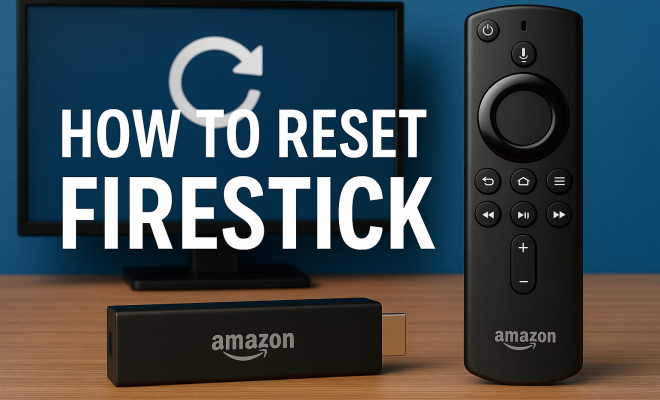
How to reset Firestick
“`html
In the realm of streaming devices, Amazon’s Firestick has carved out a significant niche, thanks to its affordability, extensive app library, and user-friendly interface. However, like any technology, it may encounter glitches, slow performance, or unresponsiveness over time. Knowing how to reset your Firestick can be a game-changer, bringing your device back to optimal performance. This article will guide you through everything you need to know about resetting your Firestick, including methods, troubleshooting tips, and related insights to enhance your streaming experience.
1. Understanding the Firestick
The Amazon Firestick is a compact streaming media player that connects to your TV’s HDMI port, offering access to various streaming services like Netflix, Hulu, and Amazon Prime Video. Launched in 2014, the Firestick has seen several iterations, each improving upon the last. The Fire TV Stick Lite, 4K, and 4K Max versions come with different features, including voice control through Alexa and enhanced streaming quality. Its simplicity and versatility make it an attractive option for cord-cutters looking to enjoy a plethora of content.
Despite its convenience, users may occasionally face issues stemming from software bugs, network connectivity problems, or out-of-date applications. Resetting the Firestick can help resolve these problems, providing a fresh start similar to rebooting a computer. Knowing how to reset your Firestick is essential for maintaining a smooth streaming experience.
2. Why You Might Need to Reset Your Firestick
There are several reasons you might find yourself needing to reset your Firestick. Common issues include sluggish performance, freezing apps, or problems connecting to Wi-Fi. Sometimes, you might experience error messages that hinder your viewing experience. Resetting the device often resolves these problems by clearing out any corrupted data or settings that have accumulated over time.
Additionally, if you’re planning to sell or give away your Firestick, performing a reset is crucial. It ensures that your personal data and account information are removed, providing a clean slate for the new user. Thus, knowing how to reset your Firestick not only helps troubleshoot issues but also protects your privacy.
3. Performing a Soft Reset
A soft reset is akin to restarting your Firestick without losing any data or settings. This method is useful for minor glitches that don’t require a full reset. To perform a soft reset, simply unplug the Firestick from the power source, wait for about 60 seconds, and then plug it back in. This action can clear temporary glitches and refresh the device without erasing your personal settings or applications.
Soft resets are particularly effective for resolving issues like buffering or minor app crashes. If you’re watching a show and notice that the screen freezes, a soft reset might be all you need to get things back on track. It’s a quick and easy solution that can save you time and frustration.
4. How to Perform a Factory Reset
If soft resets aren’t doing the trick, you might need to perform a factory reset. This is a more aggressive approach that restores the Firestick to its original settings, erasing all installed apps, settings, and data. To initiate a factory reset, follow these simple steps:
- From the Firestick home screen, navigate to the Settings menu.
- Select My Fire TV.
- Choose Reset to Factory Defaults.
- Confirm your choice when prompted.
After the reset is complete, your Firestick will restart and present you with the initial setup screen, just like the day you bought it. It’s crucial to remember that you will have to re-enter your account details and reinstall your favorite apps following a factory reset. (See: Wikipedia article on Amazon Fire TV.)
5. Resetting Without the Remote
What if you can’t find your remote? No worries! You can still reset your Firestick without it. To do this, you can use the physical buttons on the device itself. Here’s how:
- Locate the Power and Volume Down buttons on the side of the Firestick.
- Press and hold both buttons together for about 10 seconds.
- Once the device begins to reset, release the buttons.
This method is particularly useful for those who have lost their remote or are experiencing remote connectivity issues. Additionally, it’s a handy trick to have in your back pocket if you ever find yourself in a pinch.
6. Troubleshooting After Resetting Your Firestick
After you reset Firestick, it’s essential to ensure everything is functioning correctly. Some users may encounter issues during the setup process, such as problems connecting to Wi-Fi or downloading apps. If you can’t connect to your Wi-Fi, double-check your network credentials and ensure that your router is functioning properly.
Additionally, ensure that your Firestick is running the latest software. You can check for updates by going to Settings > My Fire TV > About > Check for Updates. Keeping your device updated ensures you have the latest features and security patches, which can help prevent future problems.
7. Alternatives to Resetting Your Firestick
Before resorting to a full reset, there are several alternatives you can explore to troubleshoot issues. For example, clearing the cache of specific apps can resolve performance issues without a complete reset. To clear the cache, navigate to Settings > Applications > Manage Installed Applications, select the app, and choose Clear Cache.
Another alternative is to use the Fire TV App, available for both Android and iOS. This app serves as a remote control and can simplify navigation, especially if your physical remote is lost or damaged. It also allows you to perform some settings adjustments without needing the original remote.
8. Understanding the Risks of Resetting Your Firestick
While resetting your Firestick can solve many issues, it’s crucial to understand the potential risks. A factory reset erases all data, meaning you will need to go through the setup process again, including reinstalling apps and logging in to accounts. If you have subscriptions or purchases tied to your Firestick, ensure you have the necessary login information readily available.
Additionally, some users may find that after resetting their devices, certain preferences or settings do not carry over, leading to a reconfiguration of their viewing experience. Keeping a note of your favorite settings or apps can save you time when you’re restoring your setup.
9. Maximizing Your Firestick Experience After Resetting
Once you’ve reset Firestick, there are several steps you can take to ensure your device performs at its best. This includes optimizing settings and personalizing your streaming experience. Here are a few tips:
- Reinstall Essential Apps: After resetting, consider prioritizing the most critical apps. This might include streaming services, games, or utility applications that enhance your streaming experience.
- Customize Your Home Screen: Firestick allows you to customize your home screen, making it easier to access your favorite content. Pin your preferred apps to the front for quick access.
- Utilize Alexa Features: If your Firestick supports Alexa, don’t miss out. You can use voice commands to search for shows, control playback, and manage other smart devices in your home.
- Explore Parental Controls: If you have children, consider setting up parental controls. This feature can prevent access to unsuitable content and provide peace of mind.
- Enable Data Monitoring: Amazon allows you to monitor data usage on your Firestick, which can help you identify which apps consume the most data, letting you optimize your streaming experience.
10. Common Firestick Issues Requiring a Reset
Understanding the most common issues that might necessitate a reset can help you diagnose problems more effectively. Some frequent challenges include:
- Wi-Fi Connectivity Issues: Users often find their Firestick struggles to maintain a stable connection to Wi-Fi, leading to interruptions during streaming. A reset can sometimes resolve these network issues.
- App Crashes: Frequent crashing of specific apps can hinder your viewing experience. Resetting the Firestick can clear out corrupted files that might be causing the issue.
- Unresponsive Remote: If your Firestick remote becomes unresponsive, resetting the device may reboot the system and restore functionality.
- Frequent Buffering: If you notice buffering during streaming, it could indicate a need for a reset. However, consider checking your internet speed and connection first.
- Audio Issues: Sometimes, users report problems with audio lag or distortion. A reset may help realign audio settings and fix these problems.
11. Expert Tips for Maintaining Your Firestick
Experts recommend several best practices to maintain your Firestick’s performance. Here are a few savvy tips to keep your device running smoothly: (See: CDC guidelines on technology and health.)
- Regularly Clear Cache: Make it a habit to clear the cache of apps that you frequently use. This can prevent the buildup of temporary files that may slow down your device.
- Monitor Storage Space: Keep an eye on your Firestick’s storage. If it’s running low, consider deleting unused apps or content to free up space.
- Keep the Device Updated: Just as with any tech, software updates are crucial. They often include performance improvements and new features that can enhance your experience.
- Use a VPN: If you’re using your Firestick for streaming content that may be restricted in your region, consider a VPN for better access and security.
- Limit Background Processes: Some apps run in the background and consume resources. Regularly check which apps are running and close unnecessary ones to free up memory.
12. FAQ: Resetting Your Firestick
Here are some of the most frequently asked questions about resetting your Firestick:
How often should I reset my Firestick?
There’s no set schedule for resetting your Firestick. It’s generally recommended only when you experience significant issues or plan to sell or give away the device.
Will I lose all my apps when I factory reset my Firestick?
Yes, a factory reset will erase all your installed apps and settings. You’ll need to reinstall your apps and log back into your accounts after the reset.
Can I reset my Firestick remotely?
Unfortunately, you cannot perform a reset remotely. You need to access the device physically or use the Fire TV app if the remote is lost.
What should I do if my Firestick won’t reset?
If your Firestick isn’t responding to reset commands, ensure it’s plugged in correctly and receiving power. If necessary, you may need to perform a hard reset by unplugging it for several minutes and attempting again.
Is there a difference between a soft reset and a factory reset?
Yes, a soft reset simply restarts the device without deleting any data, while a factory reset erases all settings, apps, and data, returning the device to its original state.
What are the most common reasons for a Firestick to lag?
Common reasons for lagging include poor internet connection, outdated software, and background apps consuming resources. Restarting your Firestick or resetting it can help mitigate these issues.
Are there any advantages to keeping my Firestick updated?
Absolutely! Keeping your Firestick updated not only improves performance but can also provide new features, security enhancements, and bug fixes that enhance your overall streaming experience.
Can I back up my Firestick data before resetting?
Currently, there isn’t a built-in feature to backup your Firestick settings and data. It’s best to manually note your favorite apps and settings prior to performing a reset. (See: New York Times review of Fire TV Stick.)
Learning how to reset Firestick is an invaluable skill for any user. Whether you’re dealing with performance issues or preparing to hand over your device, knowing the steps can save you time and hassle. A reset can often breathe new life into your Firestick, getting you back to enjoying your favorite shows and movies in no time.
With the right approach, you can troubleshoot common issues effectively, ensuring your device runs smoothly. Remember to explore alternatives to resetting and keep your Firestick updated to maximize your streaming experience. By staying informed and prepared, you’ll enjoy seamless entertainment for many binge-watching sessions to come.
13. Exploring Advanced Features of Firestick
Once your Firestick is reset and running smoothly, you might want to explore some advanced features that can enhance your streaming experience even further. Here are a few to consider:
- Screen Mirroring: This feature allows you to display content from your smartphone or tablet directly onto your TV. It’s perfect for sharing photos or videos with friends and family.
- Amazon Alexa Integration: Use voice commands for more than just control; you can ask Alexa for movie recommendations, check the weather, and even control other smart devices in your home.
- Subtitles and Closed Captions: For better accessibility, you can enable subtitles or closed captions on supported apps, making it easier to follow along with your favorite shows and movies.
- Parental Control Settings: As mentioned earlier, setting up parental controls can help restrict access to certain content, ensuring a family-friendly environment.
- VPN for Privacy and Access: Use a Virtual Private Network to access geo-restricted content and maintain privacy while streaming. This is especially useful for users who travel frequently.
14. Comparing Firestick with Other Streaming Devices
While the Firestick is a popular choice, it’s worth comparing it to other streaming devices like Roku, Apple TV, and Chromecast. Each has its unique features and benefits:
- Amazon Firestick: Offers extensive app options, Alexa integration, and voice control, making it user-friendly and versatile.
- Roku: Known for its straightforward interface and a wide variety of channels, Roku devices often come with a more extensive free content library.
- Apple TV: This device integrates seamlessly with other Apple products and offers exclusive features like AirPlay, but it comes at a higher price point.
- Chromecast: Uses your mobile device as a remote and is well-suited for users who prefer streaming from their phones or tablets, though it lacks a dedicated interface.
Each option has its strengths, so consider your streaming habits and preferences before making a decision or while evaluating if a reset is necessary for your Firestick.
Choosing the right streaming device can significantly enhance your overall viewing experience, so keep these comparisons in mind as you explore new content and features.
“`
Trending Now
Frequently Asked Questions
How do I reset my Firestick?
To reset your Firestick, go to 'Settings' on the home screen, select 'My Fire TV', then choose 'Reset to Factory Defaults'. Confirm the reset, and your device will return to its original settings, resolving issues like slow performance or freezing apps.
Why is my Firestick not working properly?
Common issues with Firestick include sluggish performance, freezing apps, or connectivity problems. These can often be resolved by resetting the device, which clears out corrupted data and settings that may be causing the issues.
What happens when I reset my Firestick?
Resetting your Firestick restores it to factory settings, erasing all downloaded apps, settings, and personal data. This can help resolve persistent issues, giving your device a fresh start for optimal performance.
Can I reset my Firestick without a remote?
Yes, you can reset your Firestick without a remote by using the Fire TV app on your smartphone. Connect the app to your Firestick and navigate to 'Settings' to perform the reset.
How often should I reset my Firestick?
You should consider resetting your Firestick if you experience consistent performance issues, such as freezing or slow loading times. Regular maintenance, including occasional resets, can help keep your device running smoothly.
What did we miss? Let us know in the comments and join the conversation.