Boost Laptop Speed: How to Add More RAM Easily
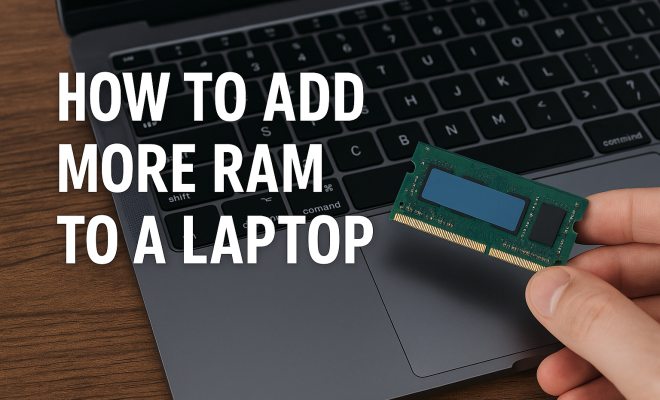
“`html
1. Understanding RAM and Its Importance
Random Access Memory (RAM) is a crucial component of your laptop’s performance. It’s the workspace where your computer stores data that is actively being used. When you add RAM to your laptop, you’re effectively giving it more ‘counter space’ to handle tasks, run applications, and manage multiple processes simultaneously. This is particularly important for users who engage in resource-intensive activities such as gaming, video editing, or running virtual machines.
Without sufficient RAM, your laptop may struggle to keep up with your demands, leading to slowdowns, freezing, or crashing. Increasing your RAM not only enhances multitasking capabilities but can also significantly improve application load times and overall system responsiveness.
2. Checking Your Current RAM Configuration
Before you rush to add RAM to your laptop, it’s vital to assess your current memory configuration. This includes determining how much RAM you currently have, the type of RAM your laptop supports, and whether there are free slots available. You can check this by accessing the System Information on Windows or ‘About This Mac’ on macOS.
On Windows, right-click the Start menu, select ‘System’, and under ‘Device specifications’, you’ll see your installed RAM. For macOS users, click the Apple icon, select ‘About This Mac’, and the RAM information will be displayed under the ‘Memory’ tab. Knowing this information will guide you in making the right purchase and installation decisions.
3. Determining Compatibility and Specifications
Once you know how much RAM your laptop currently has, the next step is to determine its compatibility. Not all RAM is created equal, and various laptops require specific types of memory. Look for specifications such as DDR (Double Data Rate) version, speed (measured in MHz), and form factor (SODIMM for laptops).
Most laptops utilize DDR4 RAM, though older models may still use DDR3. You can find this information in your laptop’s manual or manufacturer’s website. Additionally, tools like Crucial’s Memory Advisor can help identify compatible modules for your specific laptop model. Ensuring compatibility is crucial, as using the wrong type of RAM can cause your laptop to malfunction.
4. Where to Purchase RAM
Now that you are aware of the specifications needed to add RAM to your laptop, you’ll need to find a reliable vendor. RAM can be purchased through various channels, including online retailers like Amazon or Newegg, or through local computer hardware stores.
When purchasing RAM, consider going for reputable brands like Corsair, Kingston, or Crucial, as these companies have a strong track record for quality and reliability. Be sure to check for warranty options as well, as a good warranty can provide peace of mind should you encounter issues with the new memory.
5. Preparing for Installation
Before you start the installation process, preparation is key. Begin by creating a backup of your data. Although adding RAM is typically a safe process, it’s always best to be cautious. You’ll also want to gather the necessary tools, which usually include a small Phillips screwdriver and an anti-static wrist strap to prevent damage from static electricity.
Make sure your laptop is powered off and completely unplugged. If it has a removable battery, take that out as well. This preparation helps eliminate any electrical hazards and protects your equipment while you work.
6. Step-by-Step Installation Process
Now for the exciting part: installing the RAM! Start by carefully opening the back panel of your laptop. This often involves unscrewing a series of screws. Consult your laptop’s manual for specific instructions on how to do this properly. Once you have access to the internal components, locate the RAM slots, which are usually easily identifiable.
If you’re adding RAM to an empty slot, simply align the notches in the RAM module with the keys in the slot and press down firmly until it clicks into place. If you’re replacing existing RAM, gently push the clips at either side of the module to release it before inserting the new one in the same manner. After everything is securely in place, reattach the back panel and screws.
7. Rebooting and BIOS Configuration
After installation, it’s time to boot up your laptop. Upon startup, enter the BIOS/UEFI settings (often accessed by pressing F2, Delete, or Esc during startup) to ensure that the system recognizes the new RAM. In the BIOS menu, navigate to the memory tab to verify that the total RAM reflects the amount you installed. (See: Understanding Random Access Memory.)
If the RAM is not detected, double-check that it’s properly seated in the slots. If everything looks good in the BIOS, you can exit and boot into your operating system. The system should now utilize the additional RAM, leading to improved performance.
8. Verifying the Installation
Once your laptop is up and running, it’s time to confirm that the RAM addition was successful. On Windows, right-click on ‘This PC’, select ‘Properties’, and look under the ‘System’ section to see the updated RAM amount. macOS users can do the same from the ‘About This Mac’ section.
If the new RAM is recognized, you can also run performance benchmarks to see the difference in speed and responsiveness. Programs like PassMark or UserBenchmark can help you quantify the improvement in performance, providing insight into how much the RAM upgrade has enhanced your laptop’s capabilities.
9. Maintenance and Future Upgrades
After you add RAM to your laptop, it’s essential to maintain it for optimal performance. Regularly monitor your system’s performance and check for software updates that could further enhance efficiency. If you find your laptop beginning to slow down again, consider additional upgrades, whether it’s further increasing the RAM or opting for a solid-state drive (SSD) to speed up data access.
Keep in mind that while RAM upgrades are one effective way to boost performance, maintaining a clean operating system and managing startup programs can also significantly impact the overall speed of your laptop. By staying proactive with upgrades and maintenance, you can ensure that your laptop continues to meet your performance needs for years to come.
10. Common Myths About RAM Upgrades
Many misconceptions surround RAM upgrades that can lead to confusion. One common myth is that adding more RAM will automatically make a laptop faster. While it’s true that more RAM allows for better multitasking and can improve performance in specific scenarios, it doesn’t directly speed up tasks that are CPU-bound or reliant on storage speed. Understanding when a RAM upgrade is beneficial is crucial.
Another myth is that all laptops can be upgraded easily. Some ultrabooks and modern laptops have soldered RAM, meaning it’s not upgradeable at all. Always check the specifications and documentation for your model before attempting any upgrades.
11. Performance Improvements After Upgrading RAM
Many users report significant performance improvements after upgrading their RAM. For instance, a user who regularly runs virtual machines may find that increasing RAM from 8GB to 16GB results in a much smoother experience. Tasks like running multiple applications simultaneously or editing large files can become more manageable with the right amount of memory.
In benchmarks, systems with upgraded RAM often show a marked improvement in load times and responsiveness, particularly in memory-intensive applications like Adobe Premiere Pro or gaming software. For gamers, having enough RAM is crucial for ensuring that games run smoothly without lag, especially with modern titles that demand more resources.
12. Statistics on RAM Usage
According to recent studies, around 60% of users experience performance issues due to inadequate RAM. In a world where applications are becoming increasingly resource-hungry, having enough RAM can be a game-changer. For example, reports indicate that users who upgraded from 4GB to 8GB of RAM saw a performance increase of up to 50% when using memory-intensive applications.
Additionally, a survey conducted by TechRadar found that 68% of gamers reported that insufficient RAM was the primary cause of lag during gameplay. These statistics highlight the importance of not just upgrading RAM, but ensuring that the amount is adequate for your specific use case.
13. Expert Perspectives on RAM Upgrades
Experts in the field often emphasize the importance of RAM in overall system performance. Chris Ziegler, a well-known tech analyst, states, “Investing in RAM is one of the easiest ways to enhance your system’s performance without breaking the bank.” This sentiment is echoed by many IT professionals who recommend RAM upgrades as a first step in troubleshooting slow computers.
Moreover, tech enthusiasts frequently share their experiences on forums and social media. Many advocate for an upgrade to 16GB as a sweet spot for gamers and professionals working with demanding software. Anecdotal evidence suggests that this upgrade can lead to a smoother experience and fewer crashes.
14. FAQ About Adding RAM to Laptops
1. How do I know if my laptop can have more RAM installed?
Check the specifications of your laptop model on the manufacturer’s website or consult the user manual. You should find information on the maximum amount of RAM supported and the number of available slots. (See: Importance of Ergonomics in Computing.)
2. What if my laptop has no free RAM slots?
If your laptop has no free slots, you will need to replace your existing RAM. Ensure that you choose a RAM module that matches the specifications of the existing one for optimal compatibility.
3. Can I mix different brands of RAM?
Generally, it’s best to use RAM from the same manufacturer with identical specifications (speed, latency, and capacity) to avoid compatibility issues. Mixing different brands can lead to instability or reduced performance.
4. Will adding RAM void my laptop’s warranty?
This varies by manufacturer. Some brands allow upgrades without voiding the warranty, while others have stricter policies. It’s best to consult your warranty terms or contact the manufacturer beforehand.
5. What happens if I add the wrong type of RAM?
Using incompatible RAM can cause your laptop to malfunction, leading to issues such as failure to boot, crashes, or performance instability. It’s crucial to ensure compatibility before making a purchase.
6. How much RAM should I add to my laptop?
This depends on your usage. For basic tasks, 8GB is often sufficient, while gamers and professionals may benefit from 16GB or more, particularly when using memory-intensive applications.
7. Is it difficult to install RAM myself?
For many laptops, adding RAM is a straightforward process that can be completed with basic tools and some patience. There are numerous video tutorials and guides available to help you through the process.
8. What if my laptop doesn’t recognize the new RAM?
If your system doesn’t recognize the new RAM, double-check that it’s properly seated in the slots. If that doesn’t work, consult the motherboard’s compatibility list or contact the manufacturer for assistance.
9. Can I use used or refurbished RAM?
While you can technically use used or refurbished RAM, it’s important to ensure it functions properly. Buying from reputable sources with a warranty can mitigate potential risks.
10. How can I monitor my RAM usage after upgrading?
Use built-in tools like Task Manager on Windows or Activity Monitor on macOS to monitor RAM usage. This will help you assess if the upgrade meets your performance needs effectively.
15. Why Adding RAM is Essential for Gaming
If you’re a gamer, you probably know that performance is crucial to your experience. Many modern games require a significant amount of RAM to run smoothly. For example, titles like Call of Duty: Warzone or Cyberpunk 2077 recommend at least 16GB of RAM for optimal performance. If you’re still gaming on 8GB, you might find yourself facing stutters, longer load times, and overall sluggishness during gameplay.
Moreover, upgrading RAM can improve your gaming experience by allowing you to multitask while playing. For instance, you can stream your gameplay on platforms like Twitch while maintaining high-quality graphics settings in your game. Without sufficient RAM, this might not be possible, as your system may struggle to allocate resources evenly between the game and the streaming software.
16. The Impact of RAM on Productivity Software
For professionals using productivity software like Microsoft Office, Adobe Creative Suite, or data analysis tools, more RAM can significantly enhance your workflow. Systems running applications like Excel with large datasets or Adobe Photoshop with high-resolution images demand more memory. A lack of sufficient RAM can lead to slow response times and crashes, hindering productivity.
For example, a graphic designer using Adobe Illustrator might find that their design software becomes sluggish when working with multiple layers and effects. Upgrading from 8GB to 16GB can dramatically improve the handling of these tasks, making the software feel more responsive and allowing for a smoother creative process. (See: RAM in Computer Science.)
17. Understanding RAM Types and Their Differences
When considering a RAM upgrade, it’s important to understand the different types of RAM available. The most common types are DDR4 and DDR3. DDR4 has become the standard for modern laptops, offering faster speeds and improved energy efficiency compared to DDR3.
For instance, DDR4 RAM typically operates at speeds ranging from 2133 MHz to 4266 MHz, while DDR3 usually caps out around 2133 MHz. This means that if your laptop supports DDR4, upgrading to this type of RAM can yield significant performance gains, especially in memory-intensive tasks.
Additionally, RAM comes in different capacities, commonly ranging from 4GB to 32GB or more. Understanding your needs is essential in determining how much RAM to add and what type to choose. For gamers and creatives, opting for higher capacity and speed will provide the best performance, particularly when multitasking or running multiple applications.
18. Future Trends in RAM Technology
As technology continues to evolve, so does RAM. Emerging trends indicate that future generations of RAM, such as DDR5, are on the horizon. DDR5 promises even greater speeds and efficiencies, potentially doubling the bandwidth of DDR4. This could result in noticeable performance improvements for gamers, content creators, and those using demanding applications.
Furthermore, the increasing use of artificial intelligence and machine learning in software applications means that the demand for memory will continue to rise. Investing in RAM upgrades today can help future-proof your laptop for the next generation of applications and software, ensuring that it remains capable of meeting your demands.
19. Budgeting for Your RAM Upgrade
When planning to add RAM to your laptop, it’s essential to budget appropriately. Prices for RAM can fluctuate based on factors such as capacity, speed, and manufacturer. Generally, you can expect to spend anywhere from $30 to $100 for a single RAM stick, depending on these factors.
To make the most out of your investment, consider shopping during sales events or checking multiple retailers for the best deals. Additionally, keep an eye on warranty options. Higher-quality RAM may come with a higher initial cost but can save you money in the long run through durability and reliability.
20. Additional Resources and Guides
If you’re ready to dive into the world of RAM upgrades, there are numerous resources available online that can guide you through the entire process. Websites like Tom’s Hardware and TechSpot offer in-depth reviews and comparisons of different RAM brands and types.
YouTube is also an excellent platform for visual learners. Many tech enthusiasts provide step-by-step guides on how to add RAM to various laptop models, making the process even more accessible. Forums and community boards, such as Reddit, can also offer support and answer any questions you may have throughout your upgrade journey.
“`
Trending Now
Frequently Asked Questions
What is RAM and why is it important for my laptop?
RAM, or Random Access Memory, is essential for your laptop's performance as it serves as the workspace for actively used data. More RAM allows your laptop to handle multiple tasks simultaneously, improving multitasking, application load times, and overall responsiveness, especially for resource-intensive activities like gaming and video editing.
How can I check my laptop's current RAM?
To check your laptop's current RAM, access System Information on Windows by right-clicking the Start menu and selecting 'System'. For macOS, click the Apple icon and select 'About This Mac'. This will display your installed RAM under 'Device specifications' or the 'Memory' tab.
What should I consider before adding RAM to my laptop?
Before adding RAM, assess your current configuration by checking how much RAM you have, the type of RAM supported, and available slots. Compatibility is crucial, so identify the DDR version, speed in MHz, and form factor (SODIMM for laptops) that your model requires.
Can I mix different types of RAM in my laptop?
Mixing different types of RAM can lead to compatibility issues and reduced performance. It's best to use RAM modules that match in type, speed, and capacity. Check your laptop's specifications to ensure that the new RAM is compatible with the existing one for optimal performance.
What are the benefits of upgrading my laptop's RAM?
Upgrading your laptop's RAM can significantly enhance performance by improving multitasking capabilities, reducing application load times, and increasing overall system responsiveness. This is particularly beneficial for users who engage in demanding tasks like gaming, video editing, or running multiple applications simultaneously.
What’s your take on this? Share your thoughts in the comments below — we read every one.