How to connect Firestick to WiFi without remote
“`html
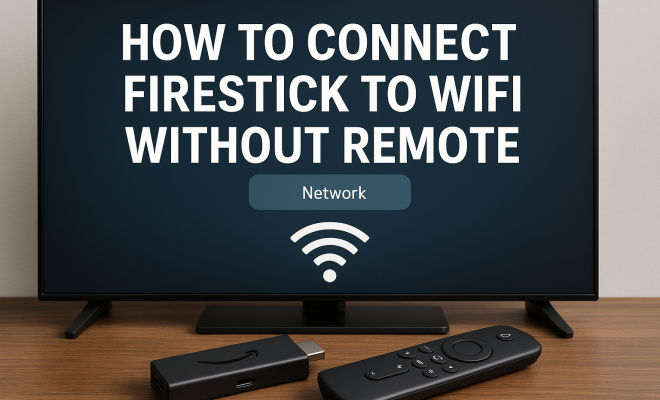
If you’ve ever found yourself in a situation where you need to connect Firestick to WiFi without remote, you know how frustrating it can be. Whether your remote is lost, broken, or just out of battery, there are several effective methods to get your streaming device back online without it. Here, we’ll explore seven practical approaches that will help you restore your Firestick’s functionality. So, let’s get started!
1. Use the Fire TV App
One of the easiest ways to control your Firestick without the physical remote is through the Fire TV app. This app is available for both Android and iOS devices and functions as a virtual remote. First, ensure your smartphone is connected to the same WiFi network as your Firestick. If you haven’t set up the Firestick yet, you may need to use a different method initially.
Once you have the app installed, launch it and sign in with your Amazon account. The app will detect your Firestick, allowing you to navigate through its interface. From here, you can access settings to connect to a new WiFi network. This method is user-friendly and makes it easy to bypass the need for a physical remote.
2. Connect via a USB Keyboard
If you have a USB keyboard handy, you can also connect it to your Firestick using an OTG (On-The-Go) cable. This method is particularly useful if your Firestick is already set up but needs to be connected to a new WiFi network. Simply plug the USB keyboard into your Firestick and navigate through the menu using the keyboard.
Once connected, you can access the settings to change your WiFi network. Type in your new WiFi password using the keyboard, and you’ll be back online in no time. This is a great workaround if you’re looking for a quick solution without having to purchase a new remote.
3. Use HDMI-CEC Enabled TV Remote
Another surprising method to connect your Firestick to WiFi without remote is by utilizing your HDMI-CEC compatible TV remote. HDMI-CEC (Consumer Electronics Control) is a feature that allows devices connected via HDMI to control each other. If your TV supports this feature and it’s enabled in the settings, you can operate your Firestick using your TV remote.
With this method, once you power on your TV and select the HDMI input where your Firestick is connected, you can use the TV remote to navigate the Firestick interface. This can include accessing the settings to connect to WiFi. Keep in mind that not all TVs have this feature, so double-check your device’s capabilities before relying on this method.
4. Use AOTG (Android On-The-Go) Feature
If you own an Android smartphone, you may be able to utilize the AOTG feature to connect Firestick to WiFi without remote. This method is very similar to using a USB keyboard. You will need a USB OTG cable to connect your Android phone to the Firestick. Once connected, you can use your phone to navigate the Firestick’s menus.
This method involves implementing a third-party app that can mirror your smartphone’s screen on the TV. Once your phone’s screen is displayed, you can use it to access your Firestick settings and change the WiFi connection. While it requires a bit more setup than other methods, it’s a practical solution if you have the right tools at hand. (See: Centers for Disease Control and Prevention.)
5. Connect via Amazon Alexa
If you own an Amazon Echo device or other Alexa-enabled devices, you can control your Firestick using voice commands. This works well if your Firestick is already linked to your Alexa account. Simply say, “Alexa, connect to [Your WiFi Network]” and Alexa will handle the rest.
This method is a convenient hands-free option, especially if you regularly use voice commands with your smart home devices. If your Firestick isn’t set up to work with Alexa yet, you will need another method to connect it to WiFi initially.
6. Reset Your Firestick
Sometimes, starting over is the best approach. If you cannot connect Firestick to WiFi without remote, you might consider resetting the device. To perform a factory reset, you can press and hold the “Back” and “Right” buttons on the Firestick device for about ten seconds. This will reset the device to its original settings.
After the reset, you’ll need to set up your Firestick from scratch, which includes connecting it to your WiFi network. With the device reset, you can then use one of the previously mentioned methods to connect it to your new WiFi network. Keep in mind that a full reset will erase all your settings and preferences, so resort to this option only as a last resort.
7. Use a CEC-Compatible Device
In addition to using your TV remote, you can try connecting your Firestick with other CEC-compatible devices, such as soundbars or AV receivers. This can be a great alternative if your TV remote isn’t compatible with HDMI-CEC or if you have lost it entirely. Just like with your TV, these devices can send commands to the Firestick through the HDMI connection.
Once connected, you can use the CEC device to navigate through the Firestick settings and connect to a WiFi network. This is a practical option, especially if you have a home theater setup with multiple devices and want a unified control experience.
Current Relevance of Firestick Connectivity
As more people rely on streaming services for entertainment, the need to connect Firestick to WiFi without remote has become increasingly relevant. With numerous users experiencing issues with lost or broken remotes, understanding various methods to connect the device can save time and frustration. Firestick users are often seeking ways to enhance their streaming experience, and knowing alternative connection methods ensures that they can access their favorite shows and movies seamlessly.
In a world where convenience and ease of access are paramount, being able to control your Firestick without a remote is a crucial skill for any user. These methods not only allow you to troubleshoot your current situation but also empower you to make more informed choices about your home entertainment setup.
Exploring the Fire TV App Further
Beyond just being a remote control, the Fire TV app offers various features that can enrich your streaming experience. For instance, the app allows you to type on your smartphone instead of navigating through an on-screen keyboard. This can be especially helpful when searching for titles or entering passwords, which can be tedious with a traditional remote. You can also browse the content library, manage your apps, and access parental controls directly from your mobile device.
Additionally, users can employ the app’s voice search feature, which can be a game-changer for those looking to find content quickly. Simply tap the microphone icon and say what you want to watch, and the app will display relevant results. For users who have a large collection of streaming accounts, the Fire TV app can also help you switch seamlessly between services, making it easier to manage everything under one roof.
Statistical Insight on Streaming Device Usage
The popularity of streaming devices like the Firestick has grown exponentially in recent years. According to a report by Statista, as of early 2023, over 70% of U.S. households use a streaming device, with Fire TV devices capturing a significant share of that market. This trend illustrates the increasing reliance on streaming technology for entertainment. (See: New York Times technology articles.)
Notably, DataReportal’s 2023 digital report showed that approximately 67% of the U.S. population are active video streamers. This surge in usage further emphasizes the need for alternatives to traditional remotes, especially since many users often misplace or damage remote controls. The Firestick’s accessibility features cater to a diverse user base, making it crucial for users to know how to connect without their remotes.
Expert Perspectives on Smart Home Integration
Integrating Firestick into your smart home ecosystem can significantly enhance your viewing experience. Experts in smart home technology suggest that users explore compatibility with devices such as smart speakers, smart displays, and other IoT (Internet of Things) devices. For instance, using your Firestick in conjunction with smart home systems like Google Home or Apple HomeKit allows for voice control across multiple platforms, simplifying your overall experience.
Tech analysts recommend setting up routines through smart home devices that can automate your entertainment settings. For instance, saying “Movie time” to your smart speaker could dim the lights, adjust the thermostat, and turn on your Firestick to a pre-selected streaming service. This integration not only makes accessing your Firestick easier but also creates a more immersive viewing environment.
Challenges with Firestick Remotes
While the Firestick offers a lot of flexibility in how you can control it, the issue with the remote itself is often overlooked. Many users may not realize how frequently remote controls can become lost or damaged. A survey indicated that about 30% of users misplace their remotes at least once a month. When you consider that some users have multiple remotes in their homes, it’s no wonder that finding the right one can present a challenge.
Additionally, battery life is another common concern. Remotes that run on AA or AAA batteries can be prone to quick depletions, especially if they’re used frequently or left on. Users may find themselves scrambling to replace batteries just when they want to enjoy a show. This highlights the importance of knowing alternative methods to maintain control over your Firestick.
Future Trends in Streaming Technology
As technology continues to evolve, the future of streaming devices like the Firestick seems promising. Innovations such as voice recognition, enhanced artificial intelligence integration, and improved connectivity options are on the horizon. For instance, upcoming Firestick models may introduce more sophisticated voice commands and automation features that further eliminate the need for a traditional remote.
Additionally, as more households adopt smart home devices, we can expect to see seamless integration between streaming devices and home automation systems. This means that controlling your Firestick could eventually be as easy as walking into a room and having the device turn on automatically based on your preferences.
Frequently Asked Questions
1. Can I connect my Firestick to WiFi without the remote or app?
While the most straightforward methods involve using the Fire TV app or a physical keyboard, you can also use other compatible devices, like an HDMI-CEC remote. However, without these devices, it may be challenging to connect without first resetting your Firestick.
2. What if my Firestick is factory reset? How do I connect it to WiFi?
After a factory reset, you will need to set up your Firestick from scratch. Use one of the methods outlined above (like the Fire TV app or USB keyboard) to connect to your WiFi network. (See: Wikipedia on streaming devices.)
3. Is there a way to control my Firestick without using WiFi?
Controlling the Firestick without WiFi limits its functionality significantly. You won’t be able to stream content, but you can navigate the menu if the device has previously cached content. However, for a proper setup, you will need a WiFi connection.
4. What if my smartphone does not support the Fire TV app?
If your smartphone doesn’t support the Fire TV app, consider using a USB keyboard or an HDMI-CEC enabled TV remote. Alternatively, borrowing a compatible device from a friend or family member can also be a quick solution.
5. Are there third-party apps that can help control my Firestick?
Yes, there are third-party remote apps available in app stores that can serve as an alternative to the Fire TV app. However, their effectiveness can vary, so it’s advisable to read user reviews and ensure they are trustworthy before downloading.
6. What do I do if my Firestick is unresponsive?
If your Firestick appears to be unresponsive, try unplugging it from the power source for about 10 seconds and then plugging it back in. This can help reset the device. If it still doesn’t work, consider performing a factory reset if you can access the settings through another method.
7. Can I use my Firestick with a mobile hotspot?
Yes, you can connect your Firestick to a mobile hotspot. Just make sure your hotspot is active and your Firestick detects it as a WiFi network. You’ll have to enter the hotspot’s password just like any other WiFi network.
Conclusion
Connecting your Firestick to WiFi without a remote may seem challenging at first, but with these seven practical solutions, you can easily regain control. Whether you opt for using the Fire TV app, a USB keyboard, or even voice commands via Alexa, you’ll find that staying connected is just a few steps away. So next time you’re faced with a remote dilemma, remember this guide to ensure uninterrupted streaming!
“`
Trending Now
Frequently Asked Questions
How can I connect my Firestick to WiFi without a remote?
You can connect your Firestick to WiFi without a remote by using the Fire TV app on your smartphone, connecting a USB keyboard via an OTG cable, or utilizing an HDMI-CEC enabled TV remote. These methods allow you to navigate the Firestick interface and change the WiFi settings easily.
Can I use my phone as a remote for Firestick?
Yes, you can use your smartphone as a remote for Firestick by downloading the Fire TV app available for both Android and iOS. Make sure your phone is connected to the same WiFi network as the Firestick, and you can control it just like a physical remote.
What is HDMI-CEC and how does it work with Firestick?
HDMI-CEC (Consumer Electronics Control) is a feature that allows devices connected through HDMI to control each other. If your TV supports HDMI-CEC, you can use your TV remote to navigate your Firestick, making it a convenient way to connect to WiFi without needing the Firestick remote.
Is it possible to connect Firestick to WiFi with a USB keyboard?
Yes, you can connect your Firestick to WiFi using a USB keyboard. Simply connect the keyboard using an OTG cable, then navigate through the Firestick menu to update your WiFi settings and enter your new password.
What should I do if I lost my Firestick remote?
If you've lost your Firestick remote, you can use the Fire TV app on your smartphone, connect a USB keyboard, or utilize your HDMI-CEC enabled TV remote to control the device and connect it to WiFi. These alternatives provide effective solutions until you can replace the remote.
What did we miss? Let us know in the comments and join the conversation.