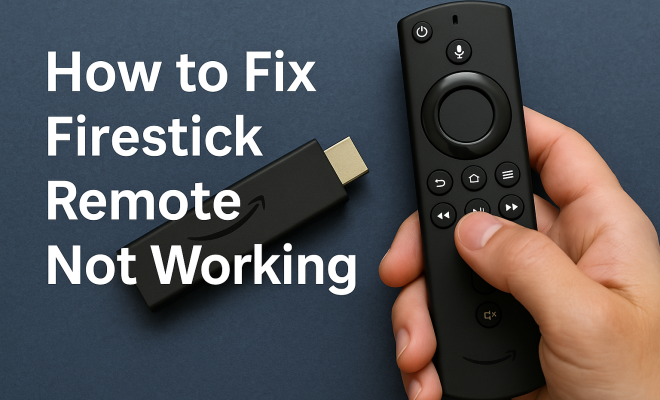
How to fix Firestick remote not working
“`html
If you’re frustrated because your Firestick remote isn’t working, you’re not alone. Many users face this issue, and while it can be irritating, most problems have straightforward solutions. In this guide, we’ll explore the most effective ways to fix your Firestick remote and get you back to enjoying your favorite shows and movies in no time.
1. Check Your Batteries
One of the first things you should do when your Firestick remote isn’t responding is to check the batteries. Believe it or not, this is one of the most common reasons for remote issues. A weak or dead battery can lead to intermittent signals or total unresponsiveness.
To address this, start by replacing the old batteries with fresh ones. Ensure you’re using quality batteries—preferably alkaline or lithium. Insert them correctly, paying attention to the polarity markers (+ and -) in the battery compartment. Once you’ve replaced the batteries, try using the remote again to see if the problem persists.
2. Reset the Remote
Sometimes, resetting the remote can solve issues that merely changing batteries cannot. Resetting can help clear any glitches or temporary issues that may be causing the remote to malfunction.
To reset your Firestick remote, press and hold the ‘Home’ button for about 10 seconds. Then, unplug your Fire TV Stick from the power source for about 30 seconds. Once done, plug it back in and try to pair the remote again by holding the ‘Home’ button for another 10 seconds. This method often clears up small bugs and gets the remote working again.
3. Pair Your Remote Again
If your Firestick remote still isn’t functioning, it might need to be paired again. Sometimes, the connection between the Firestick and the remote can be disrupted.
To re-pair your remote, hold down the ‘Home’ button for about 10 seconds while pointing the remote at your Fire TV Stick. A notification should pop up on your screen indicating that the remote is pairing. If this doesn’t work, try removing the batteries and then reinserting them before attempting to pair again.
4. Check for Interference
Another aspect to consider is potential interference from other devices. Wireless devices and even physical barriers can disrupt the signal between your Firestick and remote.
Ensure that there are no obstructions between your remote and the Firestick, like furniture or electronic devices. Also, try to minimize wireless interference by moving other devices (like routers, microwaves, or Bluetooth devices) away from the Firestick. If you suspect interference, you can also try moving your Firestick to a different HDMI port or adjusting its position.
5. Check the Firestick Device
If you’ve tried everything with the remote and it still won’t work, the issue might lie with the Firestick itself. Sometimes, the device may need a reset or might be experiencing its own technical issues. (See: Overview of remote control technology.)
To reset your Firestick, go to ‘Settings’ > ‘My Fire TV’ > ‘Reset to Factory Defaults.’ Keep in mind that this will erase all your downloaded apps and settings, so only do this as a last resort. After resetting, try using the remote again and see if the problem is resolved.
6. Use the Fire TV App
If your remote is still unresponsive, a temporary solution is to download the Fire TV app on your smartphone. This app can serve as a virtual remote, allowing you to navigate your Firestick until you fix the physical remote.
Available for both iOS and Android, the Fire TV app lets you control your device, use voice commands, and even type using your smartphone’s keyboard, which can be much easier than using the physical remote. To use the app, ensure your smartphone is connected to the same Wi-Fi network as your Firestick.
7. Update Your Firestick Software
Software updates are essential for optimal performance and can resolve bugs that may affect your remote’s functionality. If your Firestick is out of date, it might cause connectivity issues with the remote.
To check for updates, navigate to ‘Settings’ > ‘My Fire TV’ > ‘About’ > ‘Check for Updates.’ If an update is available, download and install it. After updating, test your remote again to see if the issues have been resolved.
8. Inspect for Physical Damage
Physical damage to your remote can also lead to malfunctions. Inspect it carefully for any signs of wear and tear or damage, such as cracks or broken buttons. If the remote has suffered a drop or exposure to liquids, it might need replacing.
If you find any damage, it might be time to consider purchasing a new remote. You can find official Firestick remotes online or at electronics retailers. Be sure to check compatibility with your specific Firestick model before buying.
9. Contact Amazon Support
If you’ve exhausted all the troubleshooting options, it might be time to seek help from Amazon Support. They can provide more in-depth solutions and advice tailored to your specific situation.
When contacting support, ensure you have relevant information handy, like your device model and a description of the issue. In some cases, they may even offer a replacement if your remote is still under warranty.
10. Consider Upgrading Your Remote
If you find the standard Firestick remote doesn’t meet your needs, consider upgrading to the Alexa Voice Remote. This enhanced remote includes voice control features, allowing you to search for content or control smart home devices with simple voice commands.
While this option incurs some cost, many users find it worth it due to its added features and improved functionality. Plus, it can often address some common remote issues by simply providing a more reliable control experience. (See: Youth Risk Behavior Surveillance System.)
11. Common Causes of Firestick Remote Issues
Understanding the underlying causes of Firestick remote issues can help you anticipate and prevent future problems. Here are some common culprits:
- Battery Drain: As mentioned, old batteries are often the first suspect. Regularly check and replace them to avoid interruptions.
- Signal Interference: Other wireless devices can interfere with the remote’s signal. This can be particularly problematic in homes with many smart devices.
- Environmental Factors: Humidity and temperature fluctuations might affect the remote’s performance. Keeping your devices in stable environments can help.
- Hardware Malfunction: Sometimes, physical components of the remote can wear out over time, leading to unresponsive buttons or connectivity issues.
12. Statistics on Firestick Usage and Issues
Firestick is one of the most popular streaming devices, with millions of users worldwide. According to a recent survey, approximately 40% of U.S. households own a Fire TV Stick or similar device. However, issues with remotes are common:
- About 30% of users reported having experienced problems with their Firestick remote at least once.
- Over 50% of those who had issues were able to resolve them by replacing batteries or resetting the device.
- Only around 10-15% of users needed to contact Amazon support for help with ongoing remote issues.
13. Comparing Remote Control Options
If you’re considering upgrading your remote, you have several options. Here’s a comparison of the standard Firestick remote and the Alexa Voice Remote:
| Feature | Standard Firestick Remote | Alexa Voice Remote |
|---|---|---|
| Voice Control | No | Yes |
| Shortcut Buttons | Limited | Dedicated buttons for Netflix, Prime Video, etc. |
| Remote App Control | Yes | Yes |
| Price | Lower | Higher |
Choosing the right remote can significantly impact your Firestick experience. The Alexa Voice Remote might be the better choice if you frequently use voice commands or enjoy quick access to your favorite apps.
14. Frequently Asked Questions (FAQ)
1. Why isn’t my Firestick remote working even with new batteries?
If your remote isn’t working with new batteries, try resetting the remote or the Firestick itself. Ensure there’s no obstruction between the remote and the device, and check for potential interference from other wireless devices.
2. How do I reset my Firestick remote?
To reset your Firestick remote, hold the ‘Home’ button for 10 seconds, unplug the Firestick from power for 30 seconds, then plug it back in and re-pair the remote.
3. Can I use my Firestick without the physical remote?
Yes! You can use the Fire TV app on your smartphone as a remote. Just ensure your phone is on the same Wi-Fi network as your Firestick.
4. What should I do if my Firestick remote is physically damaged?
If your remote shows signs of physical damage, like broken buttons or cracks, it’s often best to replace it. Look for compatible remotes online or at retail stores.
5. How can I tell if my Firestick needs a software update?
You can check for updates by navigating to ‘Settings’ > ‘My Fire TV’ > ‘About’ > ‘Check for Updates.’ If an update is available, it will prompt you to download it. (See: New York Times article on Fire TV Stick.)
6. Is it worth upgrading to the Alexa Voice Remote?
If you use voice commands frequently or appreciate having shortcut buttons for popular apps, upgrading can enhance your experience. Users often find it worth the investment for the added functionality.
15. Maintenance Tips for Your Firestick Remote
Once you’ve fixed your Firestick remote, maintaining it can help prevent future issues. Here are some tips to keep your remote in top shape:
- Regularly Replace Batteries: Don’t wait for the remote to stop working. Change the batteries every few months, or sooner if you notice performance issues.
- Keep It Clean: Dust and debris can get into the buttons and cause them to stick or malfunction. Use a soft, slightly damp cloth to wipe down the remote.
- Avoid Dropping It: If you tend to toss your remote around, consider investing in a protective case. This can help prevent damage from accidental drops.
- Store It Properly: When not in use, keep your remote in a designated spot where it won’t get lost or damaged by other items.
16. Advanced Troubleshooting Steps
If you’ve tried everything and your remote is still not working, you might want to dive deeper into troubleshooting. Here are some advanced steps to consider:
- Check Your TV Settings: Sometimes, the issue may not be with the remote or the Firestick but with your TV settings. Ensure that your TV’s HDMI-CEC settings are enabled to allow communication between devices.
- Update your TV Firmware: Just like your Firestick, your TV may require updates. Check your TV manufacturer’s website for any updates that might resolve compatibility issues.
- Factory Reset the Firestick: If all else fails, you may need to factory reset the Firestick itself. Remember, this will erase all your settings and installed apps, so proceed with caution.
17. User Experiences: Fixing Firestick Remote Issues
Many users have shared their experiences with fixing their Firestick remote. Here are a few anecdotes that exemplify the variety of solutions:
- Mary’s Battery Mishap: Mary thought her remote was broken until she realized she had installed the batteries backward. A simple fix led to hours of seamless streaming!
- John’s Reset Revelation: John was on the verge of buying a new remote when he learned about the reset option. After a quick reset, his remote worked like new. He now advocates for troubleshooting before purchasing.
- Lisa’s Upgrade Success: Lisa upgraded to the Alexa Voice Remote, and she couldn’t be happier. Not only does she enjoy the voice control feature, but she also appreciates the dedicated app buttons that make navigation quicker.
18. When to Consider a Replacement
Even with all the troubleshooting, there may come a time when a replacement is the best option. Here are signs that it might be time to buy a new remote:
- Consistent Connectivity Issues: If you frequently experience problems with multiple resets and battery changes, it may be a sign of a failing remote.
- Physical Damage: As mentioned, any visible damage may warrant replacement, especially if it affects button performance.
- Age of the Remote: If your remote is several years old and you’ve encountered repeated issues, newer models with updated technology may provide a better experience.
19. Emerging Alternatives to the Firestick Remote
With technology evolving, there are a few emerging alternatives to the traditional Firestick remote that could enhance your streaming experience:
- Smart Home Integration: Many users are integrating their Firestick with smart home systems, allowing for voice command control through devices like Amazon Echo or Google Home.
- Universal Remotes: Consider investing in a universal remote that can control multiple devices, including your Firestick, TV, and sound system.
- Customizable Remote Apps: Some third-party apps allow even greater customization and function similar to a remote, offering unique features and interfaces.
In summary, when you need to fix your Firestick remote, start with the basics—check the batteries, reset the remote, and look for interference. If those steps don’t resolve the problem, consider using the Fire TV app or reach out to Amazon Support. With these strategies, you’ll be well on your way to enjoying uninterrupted streaming again.
“`
Trending Now
Frequently Asked Questions
Why is my Firestick remote not working?
There are several reasons your Firestick remote may not be working. Common issues include dead or weak batteries, a need to reset the remote, or the remote needing to be paired again with the Fire TV Stick. Checking these factors can often resolve the problem.
How do I reset my Firestick remote?
To reset your Firestick remote, press and hold the 'Home' button for about 10 seconds. Then, unplug your Fire TV Stick from the power source for 30 seconds. Plug it back in and try to pair the remote again by holding the 'Home' button for another 10 seconds.
How do I pair my Firestick remote?
To pair your Firestick remote, hold down the 'Home' button for about 10 seconds while pointing it at your Fire TV Stick. A notification should appear on your screen indicating that the remote is pairing. If it doesn’t connect, try resetting the remote first.
What batteries does the Firestick remote use?
The Firestick remote typically uses two AAA batteries. It's recommended to use quality batteries, such as alkaline or lithium, to ensure optimal performance and avoid issues related to weak power supply.
What should I do if my Firestick remote is still not working?
If your Firestick remote is still not working after replacing the batteries, resetting, and re-pairing, you may want to try using the Fire TV app on your smartphone as a temporary remote or consider contacting Amazon support for further assistance.
Agree or disagree? Drop a comment and tell us what you think.