Set Up Your Roku Device: A Comprehensive 2023 Guide
“`html
In an age where streaming has become the norm for consuming entertainment, the Roku device stands out as a user-friendly option that caters to a multitude of viewers. Whether you’re a casual watcher, a binge-watcher, or a family with diverse viewing preferences, knowing how to set up Roku can transform your living room into a personalized entertainment hub. This guide will walk you through every step, from unboxing to navigating your new device like a pro.
1. Understanding Roku: A Brief Background
Roku has redefined how we access media in our homes since its inception in 2002. Originally a device focused on Netflix streaming, it has evolved into a versatile platform that supports thousands of channels, including Hulu, Amazon Prime Video, YouTube, and many more. Its open platform allows users to customize their viewing experience, making it a leader in the streaming device market. In fact, as of early 2023, Roku boasts over 70 million active accounts, highlighting its widespread popularity.
Roku devices come in various models, from the affordable Roku Express to the high-end Roku Ultra, each tailored to different needs and budgets. Understanding the unique features of your chosen model is essential for maximizing your streaming experience. For instance, some models support 4K resolution and Dolby Atmos sound, while others focus on delivering a basic streaming experience. Therefore, before we delve into how to set up Roku, it’s important to choose the right device that fits your viewing habits.
2. Unboxing and Initial Setup
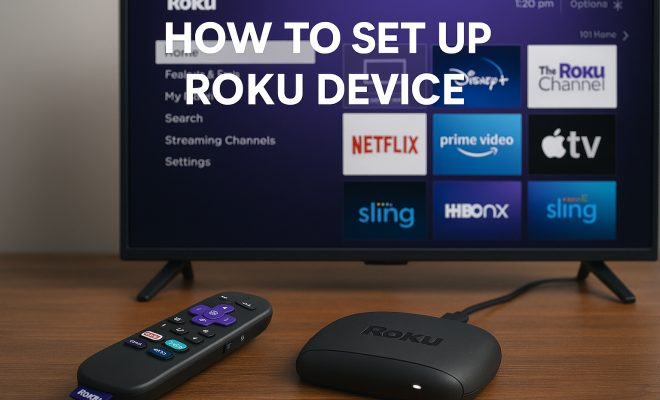
Once you’ve selected your Roku device, the first step is to unbox it. Inside the package, you’ll find the Roku streaming device, a remote control, batteries for the remote, an HDMI cable, and power adapter. In some cases, you may also receive a quick-start guide. It’s crucial to read the guide as it will help familiarize you with the components.
To start setting up your Roku, follow these steps:
- Connect to Your TV: Plug the Roku streaming device into your TV’s HDMI port. Most modern TVs have multiple HDMI ports; you can choose any available port. Make sure to remember which port you used, as you’ll need to select it on your TV later.
- Power the Device: Connect the power adapter to the Roku device and plug it into an electrical outlet. Ensure the device is powered on, indicated by a small light on the front of the Roku.
- Switch Input Source: Using your TV remote, switch to the HDMI input where your Roku is connected. You should see the Roku logo appear on the screen, indicating that your device is ready for setup.
3. Connecting to Wi-Fi
Now that your Roku is powered on and connected to your TV, the next step in learning how to set up Roku is to connect to your Wi-Fi network. Roku requires a stable internet connection to stream content. Here’s how to do it:
- Select Network: On the Roku welcome screen, select your language, then proceed to the network setup. Roku will search for available Wi-Fi networks.
- Input Credentials: Choose your Wi-Fi network from the list and enter your Wi-Fi password. Make sure to enter it correctly, as this step is crucial for establishing a connection.
- Connection Test: After entering your password, Roku will attempt to connect to the network. If successful, you’ll see a confirmation message.
If you encounter any issues connecting to Wi-Fi, try restarting your router or moving closer to it for a stronger signal. Additionally, if you have a dual-band router, connecting to the 5GHz network may provide faster streaming speeds.
4. Activating Your Roku Device
Once your Roku is connected to the internet, the device will prompt you to activate it. This is a crucial step in ensuring that you can access all the features and channels available. Here’s how to activate your Roku:
- Roku Account Creation: You’ll need a Roku account to activate your device. If you already have one, simply sign in. If not, you can create a new account directly from your TV using the on-screen instructions.
- Activation Code: After signing in, Roku will display an activation code on your TV screen. Go to the Roku activation website on a computer or mobile device, enter the code, and follow the prompts to complete the activation process.
- Confirmation: Once activated, your Roku will update its software, which may take a few minutes. After this, you’ll receive a confirmation message that your device is ready for use.
This activation step is essential as it syncs your device with your Roku account, allowing you to install channels, manage your preferences, and access personalized content recommendations.
5. Choosing and Adding Channels
Now that your device is activated, it’s time to explore the vast array of channels available on Roku. One of the reasons many users turn to Roku is its extensive channel lineup, which includes free, premium, and subscription-based options. Here’s how to set up Roku with your favorite channels: (See: Roku's history and development.)
- Roku Channel Store: Navigate to the Roku Channel Store using the remote. You can browse through categories such as Movies & TV, News, Sports, and more. Popular channels include Netflix, Hulu, Amazon Prime Video, Disney+, and YouTube.
- Adding Channels: To add a channel, highlight it and select “Add Channel”. Some channels may require subscriptions, while others are free. If you opt for a subscription-based service, you’ll need to sign in or create an account.
- Organizing Your Channels: After adding your favorite channels, you can arrange them on your home screen for easy access. Simply highlight a channel, press the * button on your remote, and select “Move Channel” to reposition it.
Keep in mind that new channels are regularly added, so periodically checking the Channel Store can uncover hidden gems that suit your viewing preferences.
6. Setting Up Streaming Services
As you explore channels, you may want to dive deeper into specific streaming services. Services like Netflix, Hulu, and HBO Max offer extensive libraries, but each requires separate subscriptions. Here’s how to set up these services on your Roku:
- Sign-Up Process: For most services, you can either sign up directly through the Roku device or via the service’s website. If you choose to sign up directly on Roku, you’ll be guided through the process on your TV.
- Log In: If you already have an account with a streaming service, select the service from your Roku home screen and enter your credentials. Use the on-screen keyboard to input your username and password.
- Manage Subscriptions: To avoid confusion, keep track of your subscriptions and payment details. You can manage them through the individual service’s website as well as your Roku account.
Remember that many of these services offer free trials, so it’s a great opportunity to explore their content libraries before committing to a subscription.
7. Optimizing Your Roku Experience
Once you’ve set up your Roku and added your favorite channels, the next step is to optimize your experience. This means personalizing settings to enhance your viewing pleasure:
- Adjusting Display Settings: Navigate to Settings > Display type to ensure your Roku is set to the optimal resolution for your TV. This is crucial for enjoying 4K content if you have a compatible TV.
- Audio Settings: If you’re using a sound system or a soundbar, adjust the audio settings under Settings > Audio. You can choose options like stereo or surround sound based on your setup.
- Parental Controls: If kids will be using your Roku, consider setting up parental controls. This feature allows you to restrict access to certain content based on ratings, ensuring a family-friendly environment.
Additionally, consider setting up the Roku mobile app on your smartphone. This app enhances your Roku experience by allowing you to control your device remotely, use voice search, and even cast content directly from your phone to your TV.
8. Troubleshooting Common Issues
Even with a smooth setup process, you may encounter a few bumps along the way. Here are some common issues and their solutions:
- No Signal: If your TV displays a “No Signal” message, first check that the Roku is powered on and properly connected to the HDMI port. If everything seems fine, try switching HDMI ports or using a different cable.
- Wi-Fi Connectivity Issues: If your Roku loses connection to Wi-Fi, try restarting your router and the Roku device. Also, ensure that your Wi-Fi password is entered correctly.
- Slow Streaming: If streaming is buffering frequently, consider running a speed test on your internet connection. If speeds are inadequate, you might want to upgrade your internet plan or switch to a wired Ethernet connection for improved stability.
If you continue to experience issues, Roku’s support website offers a wealth of resources, including user forums and troubleshooting guides.
9. Staying Updated and Expanding Your Options
Roku continuously updates its software to improve user experience and add new features. It’s important to keep your device updated to take advantage of these enhancements. Here’s how to ensure you stay current:
- Automatic Updates: By default, Roku devices are set to update automatically. However, you can check for updates manually by going to Settings > System > System update.
- Explore New Features: Keep an eye on new features and channels introduced by Roku. They regularly add functionalities like voice search capabilities and personalized recommendations based on your viewing habits.
- Consider Additional Hardware: If you find yourself streaming often, consider investing in additional accessories such as a Roku soundbar or a Roku TV for an integrated experience.
Staying engaged with the latest Roku developments ensures you’re making the most of your streaming device and enjoying the best possible viewing experience.
10. Frequently Asked Questions (FAQ)
What kind of TV do I need to use Roku?
Roku works with most modern televisions that have an HDMI port. Whether you have an HD, 4K, or even some older models, Roku can typically be connected easily. Just ensure your TV has an available HDMI port.
Can I use Roku without a subscription?
Yes! While many channels on Roku require subscriptions, there are plenty of free channels available. Roku also offers free content on its own channel, dubbed “The Roku Channel,” which features movies, TV shows, and live TV options. (See: impact of streaming on entertainment consumption.)
How do I reset my Roku device?
If you encounter persistent issues or want to start fresh, you can reset your Roku device. To do this, go to Settings > System > Advanced system settings > Factory reset. You can also press and hold the reset button on the device itself, usually located on the back or bottom of the unit.
Can I use the Roku app as a remote control?
Absolutely! The Roku mobile app is available for both iOS and Android devices. It allows you to control your Roku device, search for content using voice commands, and even cast your phone’s media to your TV.
What is Roku Channels versus The Roku Channel?
Roku Channels is a term used to describe the wide variety of channels available on Roku. “The Roku Channel,” on the other hand, is Roku’s own channel that offers free movies and TV shows. It also serves as a hub for premium subscriptions available through the platform.
How do I get help if I have issues with my Roku?
If you face any technical difficulties, Roku’s support website is very comprehensive. You’ll find troubleshooting guides, user forums, and contact information for customer support to assist with any issues you might have.
Can I use Roku outside of the United States?
Yes, Roku devices are available in many countries, but not all features may be accessible everywhere. Availability of channels can vary by region, as content licensing can restrict access to certain services.
11. Comparing Roku to Other Streaming Devices
When considering how to set up Roku, it’s important to understand how it stacks up against other popular streaming devices like Amazon Fire TV, Apple TV, and Google Chromecast. Here’s a breakdown:
Amazon Fire TV
Amazon’s Fire TV devices offer similar functionalities with the addition of Alexa voice integration. If you’re heavily invested in Amazon’s ecosystem, Fire TV might be a more appealing option. However, Roku generally provides a more user-friendly interface and broader access to various streaming platforms without favoritism toward Amazon Prime.
Apple TV
Apple TV is known for its premium experience and seamless integration with other Apple products. If you’re an Apple user, the Apple TV ecosystem can be very convenient. However, it comes at a higher price point compared to most Roku devices, making Roku a more budget-friendly choice for average consumers.
Google Chromecast
Chromecast allows you to stream content from your devices directly to your TV, making it a good choice if you prefer using your smartphone or computer as a remote. However, it lacks a standalone interface like Roku, which means you need to rely on another device to control the streaming experience. (See: Roku's market position and user statistics.)
Overall, Roku tends to shine in its versatility, ease of use, and extensive channel offerings, making it an excellent choice for most people looking for a straightforward streaming solution.
12. Advanced Features and Tips
Once you’re well-versed in the basics of how to set up Roku, here are some advanced features and tips to enhance your streaming experience:
- Private Listening: If you want to watch something late at night without disturbing others, use the private listening feature available through the Roku mobile app. Simply connect your headphones to your device and enjoy your show.
- Screen Mirroring: You can mirror your smartphone or tablet to your Roku device. This feature is handy for sharing photos, videos, or presentations on a bigger screen. Check your device settings to enable this feature.
- Voice Search: Utilize voice search by pressing the microphone button on your Roku remote. This makes it easier to find specific shows, movies, or channels without scrolling through menus.
- Using Roku with Voice Assistants: Roku devices are compatible with Amazon Alexa and Google Assistant. You can use voice commands to control your Roku with these smart home devices, making it even more convenient.
- Custom Themes: For a personalized experience, explore the options for custom themes and screensavers available in the Roku settings. This adds a touch of your personality to the interface.
13. Exploring Roku’s Content Ecosystem
Roku offers a vast content ecosystem that’s worth exploring. From live TV options to niche streaming services, the platform caters to diverse interests. For instance, you can access major news networks like CNN and Fox News for live updates, or dive into sports channels like ESPN for live games.
Additionally, Roku features various niche channels that focus on specific genres such as horror, documentary, or international films. Channels like the Criterion Channel or Shudder cater to niche audiences and can greatly expand your viewing options. With over 5,000 channels available, it’s easy to discover content that fits your interests.
Another exciting avenue is free streaming options. Besides “The Roku Channel,” platforms like Pluto TV and Tubi offer a mix of movies, TV shows, and live programming at no cost. This allows you to enjoy content without needing subscriptions, broadening your entertainment choices without breaking the bank.
14. Roku Remote Control Features
Your Roku remote is more than just a device to change channels. It’s equipped with features to enhance your streaming experience:
- Shortcut Buttons: Some Roku remotes come with shortcut buttons for popular streaming services like Netflix, Hulu, and Disney+. This allows you to jump straight to your favorite content without navigating through the menus.
- Voice Control: With voice-enabled remotes, you can search for movies or shows simply by speaking. This feature makes it easy to find content without typing on the on-screen keyboard.
- Remote Finder: If you misplace your remote, certain Roku models have a remote finder feature that makes it easier to locate it. Simply press a button on the Roku device, and the remote will emit a sound, helping you find it quickly.
Final Thoughts
Learning how to set up Roku doesn’t have to be daunting. With a straightforward unboxing, activation, and channel setup process, you can easily transform your TV into a versatile streaming machine. Whether you’re catching up on your favorite series or discovering new shows, Roku brings a world of entertainment to your fingertips. As you explore the vast options available, you’ll find that the possibilities are virtually limitless. So go ahead, start your streaming journey today!
“`
Trending Now
Frequently Asked Questions
How do I set up my Roku device?
To set up your Roku device, first unbox it and connect it to your TV using the provided HDMI cable. Then, plug in the power adapter and turn on your TV. Follow the on-screen instructions to connect to your Wi-Fi network and create or sign in to your Roku account.
What do I need to set up a Roku?
To set up a Roku device, you will need the Roku streaming device, a remote control (with batteries included), an HDMI cable, a power adapter, and a stable Wi-Fi connection. It's also helpful to have a TV with an available HDMI port.
Can I use Roku without a subscription?
Yes, you can use Roku without a subscription. While many streaming channels require their own subscriptions, Roku itself is free to use. You can access a variety of free channels and content without paying for a subscription.
How do I connect my Roku to Wi-Fi?
To connect your Roku to Wi-Fi, navigate to the 'Settings' menu on your Roku home screen. Select 'Network,' then 'Set up connection.' Choose 'Wireless' and select your Wi-Fi network from the list. Enter your Wi-Fi password when prompted to connect.
What is the difference between Roku models?
Roku models vary in features such as resolution support and additional functionalities. For instance, the Roku Ultra supports 4K resolution and Dolby Atmos sound, while the Roku Express is more budget-friendly but offers basic streaming capabilities. Choose a model based on your viewing preferences.
What did we miss? Let us know in the comments and join the conversation.