
How to factory reset Chromecast
“`html
Having trouble with your Chromecast? Whether it’s not connecting, streaming issues, or just responding sluggishly, a factory reset can breathe new life into your device. In this guide, we’ll walk you through how to factory reset Chromecast in a straightforward way, covering everything from the reasons for resetting to step-by-step instructions.
1. Understanding Chromecast
Chromecast, developed by Google, is a digital media player that allows you to stream content from your devices to your TV. It connects to your TV via HDMI and works with various services, including Netflix, YouTube, and Spotify, enabling users to watch content on their television from their smartphones, tablets, or computers. Since its launch in 2013, Chromecast has evolved through several iterations, with enhanced features like 4K streaming and audio casting capabilities.
Despite its ease of use, users may encounter issues over time, such as connectivity problems or the inability to cast content. When these issues become persistent, a factory reset can often resolve them. This process erases all settings and data, returning your Chromecast to its original condition.
2. Reasons to Factory Reset Chromecast
There are several reasons you might find yourself needing to factory reset your Chromecast. First and foremost, if you’re experiencing connection issues—whether it’s difficulty linking your Chromecast to Wi-Fi or problems maintaining a stable connection—a reset may be the quickest fix. Additionally, if you’re planning to give away or sell your device, a factory reset is essential to protect your personal information.
Moreover, software glitches and app-related problems can occur, which might hinder your streaming experience. By performing a factory reset, you can often eliminate bugs that might have developed over time, ensuring a smoother experience moving forward. Essentially, it’s a way to troubleshoot and resolve issues that seem insurmountable otherwise.
3. Preparation Before Resetting
Before jumping into the factory reset process, it’s crucial to prepare appropriately. First, ensure that your Chromecast device is powered on and connected to your TV. You’ll also want to have access to the Google Home app on your mobile device, as this can simplify the reset process. If you can’t access the app, you can also reset via the physical device itself.
Another important preparation step is to gather any necessary information that you might need post-reset, such as your Wi-Fi credentials. After a reset, you will need to reconnect your Chromecast to your Wi-Fi network, so having this information handy will save you some time and hassle.
4. How to Factory Reset Chromecast via Google Home App
The Google Home app provides a user-friendly method for factory resetting your Chromecast. To do this, follow these steps: Open the Google Home app on your mobile device. Ensure you are logged in with the same Google account that you used during the initial setup of your Chromecast. Find your Chromecast device on the main screen and tap on it.
Once you’re in the Chromecast settings, tap on the gear icon to access the device settings. Scroll down until you find the option labeled “Factory Reset” or “Remove Device”. Tap on it, and then confirm that you want to factory reset your Chromecast. Your device will initiate the reset process, which usually takes a few minutes.
5. Factory Resetting Chromecast Using the Physical Device
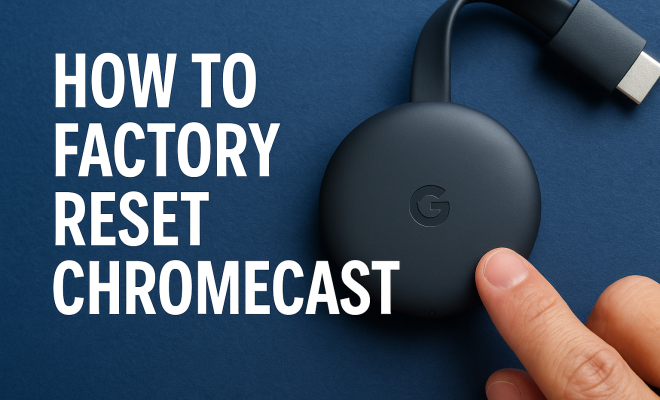
If you don’t have access to the Google Home app or prefer a more hands-on approach, you can perform a factory reset directly on the Chromecast device. To do this, make sure your Chromecast is plugged into the TV and powered on. Locate the small button on the Chromecast device; it’s typically situated near the power port. (See: Learn more about Chromecast technology.)
Press and hold the button for about 25 seconds, or until the LED light starts flashing orange and then turns white. Once the light changes to white, you can release the button. This indicates that your Chromecast is resetting and will return to its factory settings shortly. This method is particularly useful if your device is unresponsive or if you encounter issues with the app.
6. Post-Reset Setup Process
Once your Chromecast has been successfully reset, you’ll need to go through the initial setup process again. This involves reconnecting the device to your Wi-Fi network and setting up your preferred streaming apps. Open the Google Home app, and tap on “Add” to set up a new device. Follow the prompts to connect your Chromecast to your home network.
After connecting to Wi-Fi, you’ll have the opportunity to set up your streaming accounts like Netflix, Hulu, or Disney+. This step is crucial as it allows you to get back to streaming your favorite content quickly. Keep in mind that any settings or accounts saved previously will be lost, so this is a fresh start for your Chromecast.
7. Common Issues After Factory Reset
After performing a factory reset on your Chromecast, some users report common issues they might encounter. One of the most frequent problems is difficulty reconnecting to Wi-Fi. If this happens, double-check that you’re entering the correct password. Wi-Fi networks can sometimes have hidden issues like interference, so moving the router closer to the Chromecast may help.
Another issue may involve casting from your devices. Ensure that your mobile device or tablet is connected to the same Wi-Fi network as your Chromecast. This is a common oversight, and the solution is simple: just connect them to the same network and try casting again. If problems persist, you may want to power cycle your device and router to refresh the connections.
8. Alternatives to Factory Resetting
While a factory reset can solve many issues with your Chromecast, it’s not the only option at your disposal. Sometimes, smaller fixes can alleviate problems without the need for a complete reset. For instance, you could try rebooting your Chromecast by unplugging it from the power source for about 30 seconds and then plugging it back in.
Additionally, keeping your Chromecast’s software updated is essential for optimal performance. Google regularly releases updates that fix bugs and improve functionality, so ensuring that your device is running the latest version can often mitigate issues without needing a reset. Check for updates via the Google Home app under the device settings.
9. When to Seek Professional Help
If you’ve tried resetting your Chromecast and still face issues, it may be time to consider seeking professional help. This could involve contacting Google Support or visiting a local electronics repair shop if the device shows signs of hardware issues. Signs that you might need help include persistent error messages, failure to connect to Wi-Fi, or if the device is not powering on at all.
Additionally, keep in mind that if your Chromecast is still under warranty, contacting support may be the best course of action. They can guide you through further troubleshooting steps and assist you with repairs or replacements if necessary.
10. Understanding Your Chromecast’s LED Indicators
The LED indicators on your Chromecast can tell you a lot about its current status. Knowing what these lights mean can help you troubleshoot issues without needing to reset your device right away. For example, a solid white light indicates that your Chromecast is powered on and connected to Wi-Fi. If the LED is flashing orange, it suggests that your Chromecast is in the process of a factory reset. Understanding these indicators allows you to quickly assess whether your device is experiencing problems or is functioning normally.
11. Enhancing Your Chromecast Experience
Once you have successfully reset your Chromecast, consider enhancing your streaming experience with some additional features and accessories. For instance, using a higher-quality HDMI cable can improve signal transmission, especially if you’re streaming in 4K. Additionally, a Chromecast audio device can allow you to cast music to your speakers, giving you a more comprehensive multimedia experience. (See: Technology and health considerations.)
Another useful feature is the integration with Google Assistant. If you have a smart home setup, you can control your Chromecast using voice commands, which can be a fun and convenient way to manage your entertainment. Simply say things like, “Hey Google, play Stranger Things on Netflix,” to start your show instantly.
12. Statistics on Chromecast Usage
Understanding the popularity of Chromecast can give you perspective on how widely it’s being used and how it fits into the market landscape. As of 2023, Google reported that Chromecast has sold over 55 million units worldwide since its launch. A survey indicated that nearly 40% of people who stream content at home use a device like Chromecast, highlighting its significance in modern media consumption. With the rise of smart TVs, Chromecast remains a viable option for those looking to upgrade their viewing experience, especially as it offers a cost-effective solution for streaming without needing to invest in a new television.
13. FAQs About Factory Resetting Chromecast
What happens when I factory reset my Chromecast?
A factory reset will erase all your settings, including Wi-Fi credentials and saved accounts, returning the device to its original state. You will need to set it up again as if it were new.
Can I reset my Chromecast without the Google Home app?
Yes, you can reset your Chromecast using the physical button on the device itself. Just press and hold the button until the LED light flashes orange and then white.
How often should I factory reset my Chromecast?
There’s no set frequency for resetting your Chromecast. It’s usually recommended only when you are experiencing persistent issues that other troubleshooting steps have not resolved.
Will factory resetting my Chromecast delete my Google account?
No, factory resetting your Chromecast only removes settings and data from the device itself. Your Google account remains intact and can be accessed from any other device.
What should I do if my Chromecast still doesn’t work after a reset?
If your Chromecast doesn’t work after a factory reset, check for potential hardware issues, ensure that your Wi-Fi is functioning correctly, and consider reaching out to Google Support for further assistance.
14. The Evolution of Chromecast Technology
Since its debut, Chromecast has undergone significant enhancements, evolving from a simple streaming stick to a robust home entertainment solution. The introduction of Chromecast Ultra brought 4K streaming capabilities, allowing users to enjoy their favorite shows and movies in stunning detail. Additionally, the Chromecast with Google TV has integrated a full-fledged operating system, enhancing how users interact with various streaming apps.
This evolution isn’t just about hardware; the software has also improved drastically. New features like Ambient Mode allow users to display art or weather updates when the device is idle, transforming the Chromecast into a stylish addition to home decor. Such advancements signify Google’s commitment to enhancing user experience and keeping up with technological trends. (See: Read a review of Chromecast.)
15. Comparing Chromecast to Other Streaming Devices
When considering a streaming device, it’s essential to compare options. Chromecast is often compared with devices like Amazon Fire Stick, Roku, and Apple TV. Each has its unique features and strengths. For instance, while Chromecast excels in integrating with Google services and offering seamless casting from devices, Roku is praised for its user-friendly interface and extensive channel selection.
Apple TV, on the other hand, provides a more immersive ecosystem for users heavily invested in Apple products, integrating smoothly with iPhones and iPads. Meanwhile, Amazon Fire Stick shines with its Alexa integration, allowing voice control over a wide range of functions. Ultimately, the best choice will depend on individual preferences, ecosystem investments, and desired features.
16. User Experiences: Success Stories
Many users have shared their success stories after performing a factory reset on their Chromecast devices. One user, after dealing with persistent casting failures, found that the reset not only cleared the bugs but also improved the overall connection speed. They noted that streaming was significantly smoother, allowing for an uninterrupted viewing experience.
Another user highlighted that after a reset, they could finally connect their Chromecast to a new Wi-Fi network that had been previously troublesome. Their experience emphasizes that factory resets can serve as a fresh start, allowing the device to re-establish connections that may have been impacted by prior settings. Such testimonials underline the effectiveness of this simple but powerful troubleshooting step.
17. Tips for Maintaining Your Chromecast
After performing a factory reset and setting up your Chromecast, it’s important to maintain it for optimal performance. Regularly checking for software updates is key; ensure you’re running the latest firmware to benefit from improvements and bug fixes. Additionally, consider regularly cleaning the device and ensuring it’s well-ventilated to prevent overheating, which can lead to performance issues.
Moreover, if you notice slow streaming but have a strong Wi-Fi signal, it may be worth exploring your network settings. For example, configuring your router’s Quality of Service (QoS) settings can help prioritize streaming traffic, leading to a better experience. These small maintenance steps can keep your Chromecast running smoothly for years to come.
In summary, knowing how to factory reset Chromecast can be a lifesaver for those frustrating moments when streaming doesn’t go as planned. Whether you choose to reset via the Google Home app or directly on the device, this process can restore functionality and set you back on track to enjoying your favorite shows and movies.
“`
Trending Now
Frequently Asked Questions
How do I perform a factory reset on my Chromecast?
To factory reset your Chromecast, press and hold the button on the device until the LED light flashes orange, then release it. The LED will eventually blink white, indicating the reset process has started. Wait for the device to reset completely before setting it up again.
Why would I need to factory reset my Chromecast?
You may need to factory reset your Chromecast if you're experiencing persistent connectivity issues, glitches in streaming, or if you're planning to sell or give away the device. A reset clears all settings and personal data, restoring it to its original state.
What happens when you factory reset a Chromecast?
A factory reset on your Chromecast erases all settings, including Wi-Fi connections and any personalized configurations. It returns the device to its original factory state, which can help resolve issues and improve performance.
Can I factory reset Chromecast without the app?
Yes, you can factory reset your Chromecast without the app by using the physical reset button on the device. Simply press and hold the button until the LED light changes colors, indicating the reset process has begun.
Will a factory reset fix streaming issues on my Chromecast?
A factory reset can often resolve streaming issues on your Chromecast by clearing out any software glitches or corrupted settings that may be causing problems. It's a recommended troubleshooting step if you're facing persistent issues.
What’s your take on this? Share your thoughts in the comments below — we read every one.

