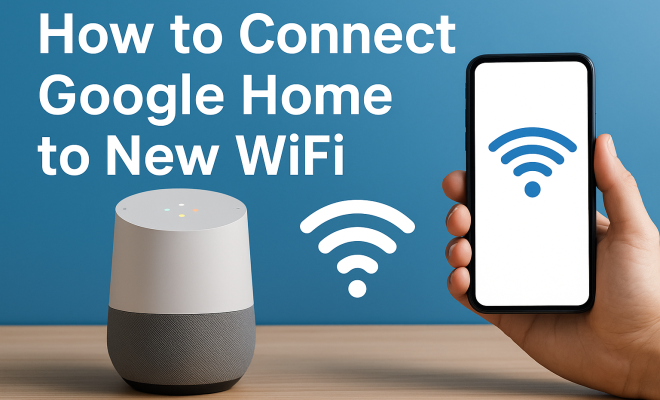
How to connect Google Home to new WiFi
“`html
Introduction: In a world where smart technology is becoming the centerpiece of our homes, connecting devices like Google Home to WiFi is essential for a seamless smart home experience. Whether you’ve just moved into a new place or upgraded your internet, knowing how to connect Google Home to WiFi can save you time and ensure your smart assistant is up and running in no time. Let’s explore the process step-by-step, along with troubleshooting tips and best practices.
1. Why Connecting Google Home to WiFi Matters
Google Home acts as a hub for controlling various smart devices, playing music, providing information, and much more. However, without a proper connection to WiFi, these functionalities become limited. A stable WiFi connection is crucial for Google Home to access the internet and perform tasks effectively. For instance, when you ask Google Home to play your favorite playlist or control your smart lights, it relies entirely on a reliable internet connection.
Moreover, connecting your Google Home to WiFi allows it to receive updates and new features. Google frequently rolls out enhancements that improve performance and add new capabilities to its smart devices. If you’re not connected, you’ll miss out on these valuable updates, potentially leaving your device underperforming compared to others.
2. Preparing to Connect Google Home to WiFi
Before diving into the connection process, a few preparations can make the experience smoother. First, ensure you have your WiFi network name (SSID) and password handy. You’ll need these to connect Google Home to WiFi successfully. Also, make sure your phone or tablet is connected to the same WiFi network that you want Google Home to join, as the setup process is facilitated through the Google Home app.
Additionally, it’s wise to check the placement of your Google Home device. For optimal performance, place it within range of your WiFi router — ideally, in an open area away from walls and obstructions. Poor placement can lead to connectivity issues, which can affect performance and responsiveness.
3. Steps to Connect Google Home to WiFi
Connecting Google Home to WiFi is a straightforward process that involves several steps. Here’s how to do it:
- Step 1: Open the Google Home app on your smartphone or tablet.
- Step 2: If you haven’t already set up your Google Home, tap on the plus (+) icon to add a new device. If you’re reconnecting to a new WiFi network, select the device you want to configure.
- Step 3: Choose ‘Set up device’, and then select ‘New device’. The app will search for nearby Google Home devices.
- Step 4: Once your device is detected, continue following the prompts in the app. You’ll be asked to choose the WiFi network you want to connect to.
- Step 5: Enter the WiFi password when prompted and tap ‘Connect’.
- Step 6: Wait for the device to connect. You should hear a confirmation sound indicating a successful connection.
Once connected, you’ll see a confirmation message in the app. From here, you can start using your Google Home to its full potential!
4. Troubleshooting Common Connection Issues
Sometimes, despite your best efforts, you might encounter issues when trying to connect Google Home to WiFi. Here are a few common problems and their solutions:
- Device Not Found: If the Google Home app can’t find your device, ensure it’s powered on and within range of your WiFi router. A quick reset of the device might also help.
- Invalid Password: Double-check the WiFi password you entered. Remember, it’s case-sensitive, so ensure the letters are correctly capitalized.
- Weak Signal: If your Google Home is too far from the router, connectivity may be inconsistent. Try moving it closer to the router or consider a WiFi extender.
If you continue to experience issues, resetting the Google Home device to factory settings could be the last resort. This process will erase all existing settings, allowing you to start fresh. (See: impact of technology on health.)
5. Reconnecting Google Home to a Different WiFi Network
Maybe you’ve moved houses or switched internet providers. Whatever the reason, you’ll need to reconnect Google Home to a new WiFi network. The procedure is nearly identical to the initial setup. Open the Google Home app, select your device, and navigate to settings. From there, you can choose ‘WiFi’ and opt to change the network. You’ll follow the same steps as before to select the new network and enter the password.
It’s important to note that if your Google Home is still linked to the previous network, it might not appear in the app. If that’s the case, performing a factory reset will allow you to set it up with the new WiFi network.
6. Maintaining a Stable Connection
Once you connect your Google Home to WiFi, maintaining a stable connection becomes your next priority. Here are some practical tips to ensure your device remains connected:
- Regularly Update Your Google Home: Keep your device updated through the Google Home app to benefit from the latest features and improved connectivity.
- Optimize Your WiFi Network: Use a dual-band router to take advantage of both 2.4GHz and 5GHz bands. The 5GHz band usually offers faster speeds, while the 2.4GHz band has a longer range.
- Limit Interference: Other devices operating on the same frequency can interfere with your connection. Position your router away from microwaves, cordless phones, and other electronics.
By following these practices, you can ensure that your Google Home device remains connected and functional even as your home network changes.
7. Google Home Features that Depend on WiFi
Understanding the features that rely on WiFi can help you appreciate why connecting Google Home to WiFi is vital. Here are some key functionalities that depend on a stable internet connection:
- Voice Commands: When you ask Google Home to perform tasks, it processes your request via the internet, making WiFi connectivity crucial for responsiveness.
- Streaming Services: Whether it’s Pandora, Spotify, or YouTube, your Google Home can stream music and videos directly from the internet, which requires a solid WiFi connection.
- Smart Home Integration: Google Home acts as a controller for various smart home devices, such as lights, thermostats, and security systems, all of which need internet access to communicate.
Without a proper connection, these features become limited, which can hinder your overall experience with the device.
8. Future-Proofing Your Google Home Connectivity
As technology evolves, so do the requirements for connectivity. To future-proof your Google Home experience, consider investing in faster internet plans and upgrading your router. Look for routers that offer mesh networking capabilities if you have a larger home, as they can provide consistent coverage throughout.
Additionally, keep an eye on upcoming technology trends that might affect connectivity, such as WiFi 6 and advanced smart home integrations. As these technologies roll out, they can enhance the performance and reliability of your Google Home, ensuring you stay ahead of the curve.
9. Understanding WiFi Networks: Types and Best Practices
Understanding the different types of WiFi networks can help you make informed decisions when connecting your Google Home. There are several types of WiFi networks, including:
- Single-Band Networks: Operating on a single frequency, these networks can get congested, especially with multiple devices connected. This might affect the performance of your Google Home.
- Dual-Band Networks: These networks operate on both 2.4GHz and 5GHz bands. Dual-band routers can help distribute the load effectively, which is beneficial for smart devices like Google Home.
- Mesh Networks: These systems use multiple nodes throughout your home to provide seamless coverage. If you have a large home or face dead zones, investing in a mesh network can significantly improve performance.
Whichever network type you choose, ensure that your router is updated with the latest firmware to maximize security and performance. A well-maintained router can make a world of difference in your smart home experience.
10. Best Practices for Secure WiFi Connections
Security is paramount when it comes to your home network. A secured WiFi network protects your devices, including Google Home, from unauthorized access. Here are some best practices to enhance your WiFi security: (See: Google Home and smart home technology.)
- Change Default Credentials: Many routers come with default usernames and passwords that are easy to guess. Change these immediately upon setup.
- Enable WPA3 Security: If your router supports it, enable WPA3 encryption to add an extra layer of security.
- Use a Strong Password: Create a complex WiFi password that combines letters, numbers, and symbols to make it harder for others to access your network.
- Regularly Monitor Connected Devices: Regularly check which devices are connected to your network. If you see any unfamiliar devices, take immediate action.
- Update Your Router’s Firmware: Regular firmware updates can fix vulnerabilities and improve your network’s overall security.
By following these practices, you can protect not only your Google Home but also all the other smart devices in your home.
11. Frequently Asked Questions (FAQ)
1. Why is my Google Home not connecting to WiFi?
There could be several reasons for this, including issues with the WiFi password, poor signal strength, or the device being too far from the router. Check your password and ensure that your device is within range.
2. How can I improve the WiFi signal for my Google Home?
Try moving your Google Home closer to the router, using a WiFi extender, or upgrading to a mesh WiFi system for better coverage throughout your home.
3. What should I do if my Google Home keeps disconnecting from WiFi?
This could be due to network congestion or interference from other devices. Ensure that your router is functioning optimally and consider limiting the number of devices connected to your network.
4. Can I connect multiple Google Home devices to the same WiFi?
Yes, you can connect multiple Google Home devices to the same WiFi network. Just make sure each device is set up individually through the Google Home app.
5. Do I need to reconnect Google Home to WiFi after a power outage?
Usually, your Google Home should reconnect automatically if the WiFi network is available. If it doesn’t, you may need to go through the reconnection process.
6. How do I reset Google Home if I’m having ongoing issues?
To reset your Google Home, press and hold the microphone mute button on the device for about 15 seconds. This will trigger the reset process.
7. Can I connect Google Home to a 5GHz network?
Yes, newer models of Google Home support connections to both 2.4GHz and 5GHz networks. Connecting to a 5GHz network can offer faster speeds, but ensure that your Google Home is within range, as the 5GHz signal has a shorter reach.
8. What to do if Google Home is connected but not responding?
If your Google Home is connected to WiFi but not responding to commands, try restarting the device. You can also check your internet connection using another device to ensure that the issue isn’t with your network. (See: smart home technology research.)
9. How can I check if my Google Home is connected to the internet?
Open the Google Home app and select your device. You should see a status indicating whether it is connected to the internet. Alternatively, try asking Google a simple question; if it responds, it’s online.
10. Will connecting Google Home to WiFi affect my internet speed?
Connecting Google Home to WiFi should not significantly affect your internet speed unless your network is already congested. Each device connected to your network utilizes bandwidth, so if you have many devices streaming or downloading simultaneously, there may be a slight decrease in speed.
11. How do I know if my Google Home device needs a software update?
Your Google Home will typically notify you through the app if an update is available. You can also check for updates manually in the Google Home app under your device settings.
12. Enhancing Your Smart Home Experience
Connecting Google Home to WiFi is just the tip of the iceberg when it comes to creating a fully integrated smart home. Here are some tips on how to enhance your experience:
- Use Routines: Google Home allows you to set up routines that can automate multiple actions at once. For example, a “Good Morning” routine can turn on your smart lights, adjust the thermostat, and read you the daily news.
- Explore Third-Party Integrations: Google Home works with various third-party applications and devices. Explore compatible devices like smart locks, cameras, and kitchen appliances to expand your smart home ecosystem.
- Voice Match Feature: If multiple people use the same Google Home device, consider setting up Voice Match. This feature recognizes individual voices and can provide personalized responses and actions based on who is speaking.
With these enhancements, you can maximize the utility of your Google Home device and truly create a smart home environment that caters to your lifestyle.
Final Thoughts: Knowing how to connect Google Home to WiFi is just the beginning of enjoying a smarter home. With the right setup and maintenance tips, you can make the most out of your device, ensuring it remains a vital part of your daily life. By understanding troubleshooting techniques, optimizing your network, and staying informed about technological advancements, you’re well on your way to a seamless and connected smart home experience.
“`
Trending Now
Frequently Asked Questions
How do I connect my Google Home to a new WiFi network?
To connect your Google Home to a new WiFi network, open the Google Home app on your phone or tablet. Ensure your device is connected to the new WiFi, then select your Google Home device and follow the prompts to update its WiFi settings.
Why won't my Google Home connect to WiFi?
If your Google Home won't connect to WiFi, check that your device is within range of the router, ensure you have entered the correct WiFi password, and verify that your phone is connected to the same network during setup.
What should I do if my Google Home keeps disconnecting from WiFi?
If your Google Home keeps disconnecting from WiFi, try restarting both your Google Home device and your router. Additionally, check for any firmware updates in the Google Home app and ensure that your WiFi signal is strong and stable.
Can I connect Google Home to a 5GHz WiFi network?
Yes, Google Home supports 5GHz WiFi networks. However, ensure that your router is set to broadcast both 2.4GHz and 5GHz signals, as some devices may perform better on the 2.4GHz band due to range considerations.
How do I find my WiFi password for Google Home setup?
To find your WiFi password, check the back or bottom of your router for a sticker, or access your router's settings through a web browser using its IP address. You can also find it in your device settings if you previously connected to that network.
What did we miss? Let us know in the comments and join the conversation.