Reset Google Home: A Complete Troubleshooting Guide
“`html
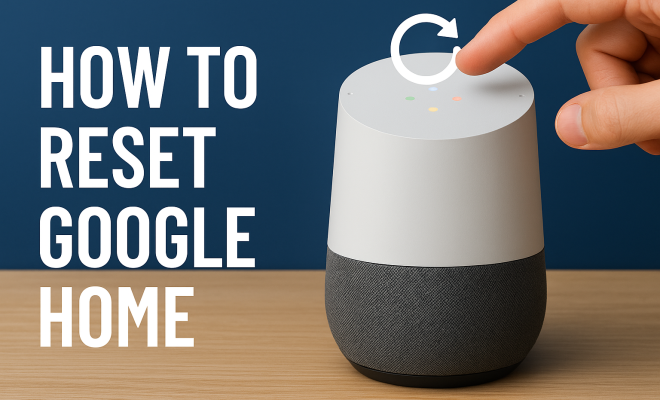
As our homes become smarter, devices like Google Home have become essential gadgets that assist in our daily lives. However, there may come a time when you need to reset Google Home to resolve issues, change ownership, or start fresh. In this comprehensive guide, we’ll walk you through the process of resetting your Google Home, its importance, and tips on troubleshooting common problems. Let’s get started!
1. Understanding Google Home: What is It?
Google Home is a voice-activated smart speaker powered by the Google Assistant. It allows users to perform a myriad of tasks such as playing music, controlling smart home devices, setting reminders, or answering questions — all through voice commands. Launched in November 2016, it has since evolved through software updates and new hardware variants, such as the Google Home Mini and Google Nest Hub. Its ability to integrate seamlessly into a smart home ecosystem makes it a staple for many tech enthusiasts.
However, like any technology, Google Home can encounter issues. From connectivity problems to software glitches, these difficulties may prompt you to reset Google Home. Resetting is often the first step in troubleshooting, as it can restore default factory settings and eliminate software conflicts.
2. When Should You Reset Google Home?
Knowing when to reset Google Home can save you time and frustration. Here are a few scenarios where a reset might be necessary:
- Connectivity Issues: If your Google Home struggles to connect to Wi-Fi or frequently drops connections, a reset can often help.
- Ownership Change: If you’re passing your device to someone else, a reset ensures that all personal information is cleared.
- Software Glitches: When your device is unresponsive or certain functions stop working, a reset can often restore normal functionality.
- Factory Reset for Upgrades: If you plan to upgrade to a newer model, resetting your current device can help prepare it for sale or disposal.
Recognizing these signs early can prevent prolonged troubleshooting and get your Google Home back to working order quickly.
3. Preparing for Your Reset: What to Do Beforehand
Before you start the reset process, it’s essential to take a few preparatory steps to ensure a smooth transition:
- Note Down Your Settings: Make a note of your current settings, including Wi-Fi networks, linked accounts, and routines. This will make reconfiguration easier after the reset.
- Backup Your Data: If you have routines, alarms, or music preferences set up, consider backing up any important data if possible. While most settings will be lost during a reset, some data might be recoverable.
- Check Compatibility: Ensure you have the Google Home app downloaded on your smartphone or tablet, as you’ll need it to set up the device again post-reset.
By taking these preparatory steps, you can make the reset process more efficient and less stressful.
4. How to Reset Google Home: Step-by-Step Guide
Resetting your Google Home is a straightforward process, whether you have the original Google Home, Mini, or another variant. Here’s a step-by-step guide:
For Google Home:
1. Locate the microphone switch on the back of the device. Turn it off; you’ll see the lights on the front change to indicate the microphone is disabled.
2. Press and hold the Factory Reset button, which is located on the bottom of the device. Hold this button for about 15 seconds until you hear Google Assistant confirm that it’s resetting.
3. Wait for the speaker to reset itself. This may take a few minutes, and you’ll know it’s ready when you hear a greeting message.
For Google Home Mini:
1. On the bottom of the Mini device, locate the small circular button. This is the reset button.
2. Press and hold the button for around 15 seconds until you hear a confirmation that the device is resetting. (See: Google Home overview on Wikipedia.)
3. Release the button and allow the device a few moments to complete the reset process.
For Google Nest Hub:
1. Locate the volume buttons on the back of the Nest Hub.
2. Press and hold both volume buttons simultaneously for about 10 seconds. You’ll hear a confirmation message indicating the device is resetting.
3. Wait until it finishes the reset process, which could take a few moments.
After resetting your device, you’ll need to set it up again, just like you did when you first purchased it.
5. Post-Reset Setup: Setting Up Google Home Again
Once you’ve successfully reset Google Home, it’s time to set it up as if it were brand new. Follow these steps:
- Open the Google Home App: Launch the app on your smartphone or tablet. Ensure you’re using the same Google account that you want to link with your device.
- Add Device: Tap on the ‘+’ sign or ‘Add’ option, then select ‘Set up device.’ Choose ‘New devices’ to begin the setup process.
- Select Your Home: Choose the home where you want to set up the device. This is important if you have multiple homes configured.
- Connect to Wi-Fi: When prompted, select your Wi-Fi network and enter the password to connect.
- Customize Settings: Follow prompts to customize settings based on your preferences, including voice settings, linked services, and personal preferences.
Once everything is set, your Google Home device should be ready to assist you just as before!
6. Common Issues After Resetting: What to Watch For
Even after a reset, you might encounter some common issues. Being aware of these can help you address them quickly:
- Wi-Fi Connectivity: If your Google Home fails to connect to Wi-Fi post-reset, double-check the password you entered and make sure your internet connection is active.
- Account Issues: Ensure you’re signed into the correct Google account, as linked services rely on this.
- Voice Recognition Problems: Sometimes, voice recognition might be off initially. It may take a few interactions for the device to adapt to your voice.
If you encounter these issues, revisiting settings or re-linking accounts may resolve them.
7. Troubleshooting Tips for Google Home
If problems persist even after a reset, here are some troubleshooting tips that can help:
- Check Device Compatibility: Ensure that any smart home devices you’re trying to connect are compatible with Google Home.
- Update the App: Keep your Google Home app updated to the latest version for optimal performance.
- Reboot Your Device: Sometimes, a simple reboot of your Google Home or your router can resolve connectivity issues.
- Factory Reset Again: If all else fails, consider performing another factory reset and setting up from scratch.
These tips can help you troubleshoot effectively, ensuring your Google Home experience remains smooth.
8. Maintaining Your Google Home: Best Practices
To prevent the need for frequent resets, consider adopting some best practices for maintaining your Google Home:
- Regular Updates: Ensure your Google Home firmware and the Google Home app are updated regularly for new features and security enhancements.
- Wi-Fi Management: Maintain a stable Wi-Fi connection. Consider upgrading your router if you experience frequent drops.
- Clear Cache: Regularly clear the app cache on your smartphone to avoid performance issues.
- Monitor Device Interaction: Be aware of how many devices are connected to your Google Home, as overloading may cause performance lags.
These practices can help prolong the life of your Google Home and enhance its performance.
9. Alternative Methods to Reset Google Home: Beyond Button Pressing
If you’re having trouble with the physical reset process, there are alternative methods available to reset Google Home: (See: Smart home technology and health.)
- App-Based Reset: In the Google Home app, locate your device, tap on the settings icon, and look for the option to reset device.
- Voice Command Reset: For some models, you might be able to use voice commands to initiate a reset, though this is less common.
- Factory Reset via Google Assistant: If your device is responsive, you can say, “Hey Google, factory reset” (for Google Nest models) to begin the resetting process, though it’s not available for all devices.
These alternative methods can provide flexibility if the physical buttons are unresponsive or difficult to access.
10. Advanced Troubleshooting Techniques: When Basic Solutions Fail
If you’ve tried the basic troubleshooting steps and your Google Home is still acting up, there are some advanced techniques you might consider:
- Network Configuration Changes: Sometimes, your router settings could be the issue. Change the frequency band (2.4GHz or 5GHz) or disable MAC address filtering to see if connectivity improves.
- Factory Reset Your Router: If none of your devices are connecting properly, consider resetting your router to factory settings, which can sometimes resolve broader network issues.
- Utilizing Google Support: Don’t hesitate to reach out to Google Support for assistance. They can provide additional troubleshooting steps specific to your issue.
- Community Forums: Joining online forums can be helpful. Many users share their experiences and solutions that could be beneficial for your situation.
These advanced techniques can provide additional avenues for resolving persistent issues with your Google Home.
11. Statistics and Usage Trends: The Popularity of Google Home
The rise of smart speakers has changed how users interact with technology in their homes. As of 2023, it’s estimated that over 150 million homes have at least one smart speaker, with Google Home devices representing a significant share of that market. According to research from Statista, Google Home holds approximately 30% of the smart speaker market in the U.S.
This popularity can be attributed to Google’s commitment to integrating useful features, providing regular software updates, and enhancing user privacy controls. The growing trend of voice-activated technology is expected to continue, with analysts predicting that the smart speaker market will reach $35 billion by 2025.
Understanding these statistics can help you appreciate the broader context of your device and its capabilities.
12. Expert Perspectives: What Tech Experts Say About Smart Speakers
Experts in technology frequently discuss the advantages and challenges of using smart speakers like Google Home. Here are some insights:
- Convenience and Accessibility: Many experts emphasize the convenience of having a voice-activated assistant for tasks like managing home automation, accessing information quickly, and simplifying daily routines.
- Privacy Concerns: While smart speakers provide benefits, privacy remains a significant concern. Experts recommend users regularly review their privacy settings and be aware of data collection practices associated with their devices.
- Future Developments: Analysts predict that future iterations of Google Home will integrate even more advanced AI capabilities, making interactions more personalized and improving the overall user experience.
These perspectives can help you navigate the evolving landscape of smart technologies.
13. Frequently Asked Questions (FAQ)
What does resetting Google Home do?
Resetting Google Home restores the device to its factory settings, removing all personal data and configurations. This can resolve issues or prepare the device for a new user.
Can I reset Google Home remotely?
No, resetting Google Home cannot be done remotely. You must physically press the reset button on the device or use the app to initiate the reset process.
Will resetting Google Home delete all my settings?
Yes, a factory reset will erase all settings, preferences, and linked accounts. You will need to set it up again as if it were new.
How often should I reset Google Home?
There’s no set frequency for resetting Google Home. You should only reset it when you’re experiencing significant issues that basic troubleshooting cannot resolve.
What happens to my data when I reset Google Home?
When you reset Google Home, all personal data linked to that device is deleted. This includes routines, linked services, and account information. (See: New York Times article on Google Home.)
I reset Google Home, but it’s still not working. What next?
If resetting didn’t resolve the issue, try advanced troubleshooting techniques, check for software updates, or contact Google Support for further assistance.
14. Resetting Google Home: The Importance of Regular Maintenance
In addition to knowing how to reset your Google Home, understanding the importance of regular maintenance can extend the lifespan of your device. Here are some key maintenance tips to consider:
- Keep Software Updated: Regularly check for firmware updates for your Google Home. Updates often include new features and security patches that protect your device from vulnerabilities.
- Clean Your Device: Dust and dirt can accumulate on your Google Home, potentially affecting its performance. Use a soft cloth to clean the surface regularly. Be careful not to let moisture enter any openings.
- Monitor Power Supply: Ensure your power supply is functioning correctly. If you notice intermittent issues, inspect the cable for damage or consider replacing it.
- Check Connectivity: Regularly test your Wi-Fi connection to ensure it’s stable. Consider using a Wi-Fi extender if your device is far from the router.
By practicing these maintenance tips, you can reduce the frequency of resets and keep your Google Home working efficiently for years.
15. Real-life Use Cases: How Google Home Transforms Daily Life
Understanding how Google Home fits into daily routines can provide insights into its capabilities. Here are some real-life use cases:
- Morning Routines: Many users start their day by asking Google Home to provide news updates, weather forecasts, and traffic conditions. This hands-free access to information can streamline your morning prep.
- Home Automation: Google Home serves as a hub for smart home devices. Users can control lights, thermostats, and security systems using simple voice commands, enhancing convenience and energy efficiency.
- Entertainment: Whether it’s playing your favorite playlist, controlling a TV, or finding a good movie to watch, Google Home integrates seamlessly with various entertainment services, providing a centralized hub for leisure activities.
- Cooking Assistance: Users often rely on Google Home for cooking help, from finding recipes to setting timers. Simply asking for a recipe can make cooking less stressful and more enjoyable.
These examples illustrate the versatility of Google Home and how it can enhance various aspects of daily life.
16. Future of Smart Speakers: What Lies Ahead
The future of smart speakers like Google Home looks bright, with advancements in technology paving the way for more intelligent and responsive devices. Here are some expected trends:
- Enhanced AI Capabilities: As artificial intelligence continues to evolve, we can expect Google Home to offer more personalized responses, adapting to user preferences and habits over time.
- Increased Interoperability: Future updates may lead to improved compatibility with a broader range of smart home devices, making it easier to integrate various technologies into a cohesive system.
- Focus on Privacy and Security: As concerns around privacy grow, manufacturers are likely to implement more robust data protection measures, giving users greater control over their information.
- Expanded Voice Recognition: Ongoing improvements in natural language processing will enhance voice recognition capabilities, making it easier for Google Home to understand and respond accurately to complex commands.
As these trends develop, users can look forward to an even more integrated and responsive smart home experience.
17. Conclusion: Empowering Your Smart Home Experience
Resetting your Google Home is a vital skill that can empower you to troubleshoot issues, change ownership, and refresh your device’s functionality. By following the steps outlined in this guide, you can confidently reset Google Home whenever necessary. Remember to always keep your device updated and practice good maintenance habits to enhance performance and longevity.
As smart home technology continues to evolve, your ability to manage and troubleshoot your devices will only become more critical. Embrace these skills, and enjoy the convenience and efficiency that Google Home brings to your everyday life!
“`
Trending Now
Frequently Asked Questions
How do I reset my Google Home device?
To reset your Google Home device, locate the reset button on the device. For most models, press and hold the button for about 15 seconds until the device begins the reset process. Alternatively, you can use the Google Home app to factory reset the device from the settings menu.
What happens when I reset my Google Home?
Resetting your Google Home restores it to factory settings, which means all personal information, settings, and data will be erased. This is helpful if you're experiencing issues, changing ownership, or preparing the device for sale.
Why would I need to reset my Google Home?
You may need to reset your Google Home if you encounter connectivity issues, experience software glitches, or if you’re transferring ownership of the device. A reset can help resolve many common problems and ensure a fresh start.
Can I reset my Google Home without the app?
Yes, you can reset your Google Home without using the app. Simply locate the physical reset button on the device, press and hold it for about 15 seconds until you hear a confirmation sound, indicating that the reset process has begun.
Will resetting Google Home remove all my data?
Yes, resetting Google Home will erase all your personal data, settings, and preferences stored on the device. This is crucial when you want to ensure that your information is not accessible to the next user.
What’s your take on this? Share your thoughts in the comments below — we read every one.