How to connect smart bulb to Alexa
“`html
1. Understanding Smart Bulbs
Smart bulbs are more than just light sources; they represent a key component of the modern smart home ecosystem. These bulbs offer an array of features, from adjusting brightness and color to being controlled via smartphone apps and voice assistants like Amazon Alexa. The versatility and convenience of smart bulbs make them a popular choice for homeowners looking to upgrade their living spaces.
Typically, smart bulbs operate over Wi-Fi or Bluetooth, allowing them to be easily integrated into smart home systems. With the ability to create schedules, set moods, and even respond to voice commands, smart bulbs can enhance comfort and energy efficiency in your home. But how do you connect smart bulbs to Alexa to fully utilize these features? Let’s explore.
2. Choosing the Right Smart Bulb
Before diving into the connection process, it’s crucial to select the right smart bulb that fits your needs. Various brands like Philips Hue, LIFX, and Wyze offer unique features and functionalities. For instance, Philips Hue is known for its extensive range of lighting options and color choices, while LIFX boasts brighter bulbs without the need for a hub.
Consider factors such as compatibility, brightness, color range, and price when making your decision. Ensure the bulb you choose is compatible with Alexa to allow for seamless integration. Checking user reviews and expert recommendations can also help you make an informed choice.
For the environmentally conscious, look for smart bulbs that are energy-efficient. Many modern smart bulbs are LED-based, consuming significantly less power than traditional incandescent bulbs. According to the U.S. Department of Energy, LED bulbs use at least 75% less energy and last 25 times longer than incandescent lighting. This not only reduces your environmental footprint but can also lower your electricity bills over time.
Another aspect to consider is the color spectrum your smart bulb offers. RGBW (Red, Green, Blue, and White) bulbs allow you to choose from a wider palette, letting you create specific moods for different occasions. If you enjoy hosting gatherings, versatility in color can make a significant difference in your ambiance.
3. Preparing Your Smart Bulb
Once you’ve selected your smart bulb, the next step is preparation. Start by installing your smart bulb in the desired light fixture and ensuring it’s powered on. Many smart bulbs require a stable Wi-Fi connection, so make sure your home network is up and running.
Before you connect your smart bulb to Alexa, download the manufacturer’s app (such as the Philips Hue app or the LIFX app) on your smartphone. This step is essential as it allows you to configure your smart bulb, create an account, and connect to your home Wi-Fi network. Follow the in-app instructions to set up the bulb to ensure it’s ready for Alexa integration.
Some smart bulbs also offer features like proximity sensors and motion detection. If you’re interested in home security, consider smart bulbs that can light up automatically when someone enters the room, adding an extra layer of safety to your environment.
It’s also wise to take note of the placement of your smart bulb. For instance, if you want to control outdoor lights, ensure that they’re rated for outdoor use and placed within the range of your Wi-Fi network. This consideration can prevent connectivity issues down the line. (See: Smart bulb overview on Wikipedia.)
4. Connecting Your Smart Bulb to Alexa
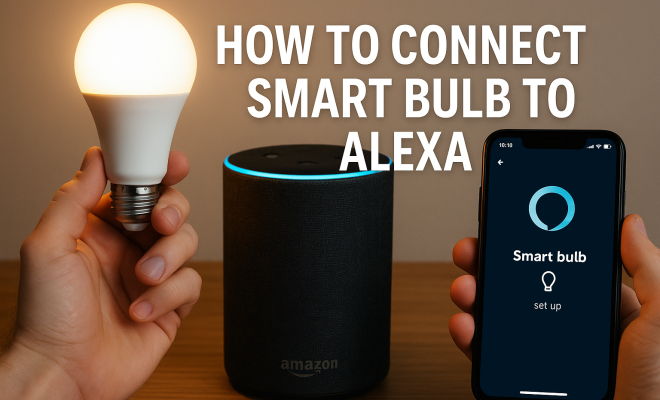
Now comes the thrilling part: connecting your smart bulb to Alexa. After setting up your bulb in its respective app, open the Amazon Alexa app on your smartphone. Ensure your Alexa-enabled device is online and connected to the same Wi-Fi network as your smart bulb.
In the Alexa app, navigate to the “Devices” tab, then tap on the “+” icon to add a new device. Choose “Light” and select the brand of your smart bulb. The app will then guide you through the connection process, which usually involves enabling the bulb’s skill and linking your account with the bulb’s manufacturer. Once you’ve linked the accounts, Alexa will discover your smart bulb, making it ready for voice commands.
It’s important to note that some bulbs may require an additional hub for connectivity. For instance, Philips Hue bulbs typically need the Hue Bridge for optimal performance and feature access. Thus, always check the requirements before getting started to avoid any unnecessary complications.
If you’re looking to enhance your experience, consider using Alexa routines to automate tasks. For example, you can create a routine that dims your smart bulb when you start a movie, allowing you to set the perfect atmosphere with minimal effort.
5. Setting Up Voice Commands
With your smart bulb now connected to Alexa, it’s time to explore the exciting world of voice commands. You can control your smart bulb using simple phrases like “Alexa, turn on the living room light” or “Alexa, set the bedroom light to blue.” These commands enhance convenience, allowing you to manage your lighting without needing to physically interact with the switch.
Moreover, you can create routines that integrate multiple commands. For instance, you can set a morning routine that turns on your smart bulb gradually while reading the news or playing your favorite music. The possibilities are endless, and experimenting with different commands can help you maximize your smart home experience.
For added functionality, consider grouping multiple smart bulbs together. For example, you could say “Alexa, turn on all the lights,” which is particularly useful for larger homes. You can also name your smart bulbs according to their location or purpose—like “Kitchen Light” or “Nightstand Lamp”—for easier management.
Additionally, using a combination of smart bulbs can create dynamic lighting effects. Imagine programming your lights to flash in sync with your favorite songs or adjusting them based on the time of day. These creative uses can turn your home into a lively space.
6. Troubleshooting Common Connection Issues
Connecting smart bulbs to Alexa can sometimes lead to frustrating hiccups. If your smart bulb isn’t responding to Alexa commands, there are a few troubleshooting steps you can take. First, ensure the bulb is powered on and connected to Wi-Fi. If the connection appears fine, try rebooting your Alexa device and the smart bulb.
Another common issue is the need to re-link the skill in the Alexa app. Go to the “Skills & Games” section, find the skill associated with your smart bulb, and disable and re-enable it. This process can often resolve connectivity issues. If problems persist, consulting the manufacturer’s support resources can provide specific guidance based on the model.
Sometimes, the issue might stem from Wi-Fi interference. If you have many smart devices connected to your network, try prioritizing your smart bulbs or upgrading your router. A mesh Wi-Fi system can also help eliminate dead zones in your home, ensuring a stable connection for all devices.
You might also want to check for firmware updates for both your smart bulb and your Alexa device. Sometimes, connectivity issues can be resolved simply by ensuring that both devices are running the latest software. (See: Healthy lighting information from CDC.)
7. Advanced Features and Customization
Once you’re comfortable with the basics, explore the advanced features offered by your smart bulb and Alexa. Many smart bulbs allow for color customization, brightness adjustment, and even integration with other smart devices. For example, you can sync your smart bulb with your smart thermostat or security system for enhanced automation.
Additionally, some smart bulbs come with built-in scheduling tools. You can set specific times for the lights to turn on or off, or even create custom lighting scenes for entertaining. These features not only add convenience but can also improve your home’s energy efficiency.
Consider utilizing the “Away Mode” feature, which can randomly turn your lights on and off while you’re away, creating the illusion that someone is home. This can enhance your home security while also making it appear lived-in. Furthermore, some smart bulbs offer energy monitoring capabilities, allowing you to track your energy usage and make adjustments to ensure efficiency.
Don’t forget to explore integration with other smart home platforms. Many smart bulbs can work with IFTTT (If This Then That), which allows you to create customized commands and automations that can enhance your smart home setup.
8. Staying Updated on Smart Home Technology
The smart home technology landscape is constantly evolving, with new products and features being introduced regularly. Keeping up to date with the latest innovations can help you get the most out of your smart bulbs and Alexa integration. Following technology blogs, joining online forums, and subscribing to newsletters can be excellent ways to stay informed.
Consider exploring additional smart home devices that can work alongside your smart bulb, such as smart switches, sensors, and cameras. By expanding your smart home ecosystem, you can create an interconnected environment that enhances both convenience and security.
In addition, many manufacturers offer regular firmware updates for their devices. These updates may introduce new features, improve performance, or address security vulnerabilities. Always ensure that your smart bulb and its associated app are updated to the latest version to benefit from these enhancements.
Engaging with the community of smart home enthusiasts can provide insights into optimal setups and troubleshooting techniques. Online forums and social media groups can be a treasure trove of information where users share their experiences and solutions.
9. Frequently Asked Questions (FAQ)
How do I connect my smart bulb to Alexa?
To connect your smart bulb to Alexa, first ensure it is properly installed and set up using the manufacturer’s app. Then, open the Amazon Alexa app, navigate to “Devices,” tap the “+” icon, select “Light,” and choose your smart bulb brand. Follow the prompts to link the account and discover the device.
Can I use multiple smart bulbs with Alexa?
Yes! You can connect multiple smart bulbs to Alexa. You can group them by rooms or types for more straightforward control. For example, you can create a “Living Room” group that includes all lights in that area and control them with a single command. (See: New York Times on smart home devices.)
What if my smart bulb isn’t responsive?
If your smart bulb isn’t responding to Alexa commands, check if it’s powered on and connected to Wi-Fi. Restart the bulb and your Alexa device, and ensure the correct skill is enabled in the Alexa app. If issues persist, consult the manufacturer’s troubleshooting guide.
Can I change the color of my smart bulb using Alexa?
Absolutely! Most smart bulbs support color changes via Alexa commands. You can use phrases like “Alexa, set the living room light to red” or “Alexa, change the bedroom lamp to green.” Just make sure the bulb supports color features.
Are smart bulbs energy-efficient?
Many smart bulbs are LED-based, which means they use significantly less energy than traditional incandescent bulbs. They can reduce your energy consumption by as much as 75% and last up to 25 times longer, making them a cost-effective and environmentally friendly choice.
Can I integrate smart bulbs with other smart home devices?
Yes, smart bulbs can be integrated with various other smart home devices, such as smart thermostats, security cameras, and motion sensors. This allows for seamless automation and enhanced functionality, helping you create a fully connected environment.
What happens if I lose my Wi-Fi connection?
If your Wi-Fi connection is lost, your smart bulbs may not respond to Alexa commands. Many smart bulbs require a stable connection to operate fully. In such cases, the bulbs will often revert to a default state, usually remaining on or off depending on their last command. You’ll need to reconnect them once your Wi-Fi is restored.
Can I control my smart bulbs remotely?
Yes, if your smart bulb is connected to Wi-Fi, you can control it remotely via the manufacturer’s app. This means you can turn lights on or off, change colors, and set schedules from anywhere, as long as you have internet access.
10. Conclusion: Embrace the Future of Smart Lighting
Connecting your smart bulb to Alexa opens up a world of possibilities for enhancing your home environment. From simple voice commands to complex automation routines, the integration of smart lighting can significantly improve your quality of life. By following the steps outlined in this guide, you’ll be well on your way to enjoying a smart, efficient, and fully connected home.
“`
Trending Now
Frequently Asked Questions
How do I connect my smart bulb to Alexa?
To connect your smart bulb to Alexa, first ensure the bulb is compatible with Alexa. Install the bulb and its corresponding app on your smartphone. Follow the app's instructions to connect the bulb to your Wi-Fi network, then enable the skill for the bulb brand in the Alexa app and discover devices to finish the setup.
What smart bulbs are compatible with Alexa?
Many smart bulbs are compatible with Alexa, including popular brands like Philips Hue, LIFX, and Wyze. When choosing a bulb, make sure to check its specifications and compatibility with Alexa to ensure seamless integration and control via voice commands.
Do I need a hub to connect smart bulbs to Alexa?
It depends on the smart bulb you choose. Brands like Philips Hue require a hub for connectivity, while others like LIFX do not. Always check the product specifications to determine if a hub is necessary for your chosen smart bulb.
Can I control smart bulbs with voice commands?
Yes, once your smart bulb is connected to Alexa, you can control it using voice commands. You can adjust brightness, change colors, and turn the bulb on or off simply by speaking to your Alexa-enabled device.
What are the benefits of using smart bulbs?
Smart bulbs offer numerous benefits, including energy efficiency, convenience, and customization. They allow you to control lighting remotely, set schedules, and create moods with various colors and brightness levels, ultimately enhancing comfort and reducing energy costs.
Have you experienced this yourself? We’d love to hear your story in the comments.