How to set default printer Windows
“`html
Whether you’re working from home, managing an office, or just want to simplify your printing tasks, knowing how to set default printer Windows can make a significant difference. The default printer is the one your computer automatically selects when you hit Print, saving you time and the hassle of choosing a printer each time. This article will guide you through everything you need to know about setting and managing your default printer in Windows.
1. Understanding Default Printers
Before diving into the steps to set a default printer, it’s essential to understand what a default printer is. Essentially, it’s the printer your computer will automatically use when you send a document to print. This setting can be a huge time saver, especially if you frequently print from multiple devices or locations.
In Windows, you can choose a default printer based on your current network or location, which means you don’t have to switch between printers every time you change your environment. This feature is particularly useful for those who work in different offices or use multiple printers in a single workplace.
2. Why Set a Default Printer?
The primary advantage of setting a default printer is convenience. Imagine working on a project and needing to print several documents. Without a default printer, you’d have to select your printer each time, which can become tedious. Setting a default printer streamlines this process, allowing for a more efficient workflow.
Moreover, if you regularly use different printers based on your tasks—like a color printer for graphics and a black-and-white printer for standard documents—having a default printer configured can save you from potential mishaps where documents might print on the wrong machine.
3. How to Set Default Printer in Windows 10
Setting a default printer in Windows 10 is straightforward. Follow these simple steps:
- Click on the Start menu and select Settings (the gear icon).
- In the Settings window, choose Devices and then click on Printers & Scanners.
- Here, you’ll see a list of printers connected to your device. Find the printer you want to set as default.
- Click on the printer’s name, and then select Manage.
- Finally, click on Set as default.
That’s it! Your selected printer is now your default printer. You’ll see a check mark next to it in the list, indicating it’s set as the default.
4. Setting Default Printer in Windows 11
The process for setting a default printer in Windows 11 is quite similar to Windows 10 but with a few interface changes. Here’s how to do it: (See: Understanding printers in computing.)
- Open the Start menu and click on Settings.
- Select Devices, then navigate to Printers & Scanners.
- Scroll to find the printer you wish to set as default.
- Select the printer, and you’ll see a button that says Manage. Click it.
- Finally, hit Set as default.
Windows 11 may also automatically set a default printer based on your most recent use, but you can override this feature by manually selecting your preferred device.
5. Coping with Multiple Printers
If you’re in a situation where you regularly switch between multiple printers, Windows has tools to help manage these preferences. You can enable the option that automatically sets your default printer based on the one you last used at your current location. This is beneficial for users who work in environments with several printers.
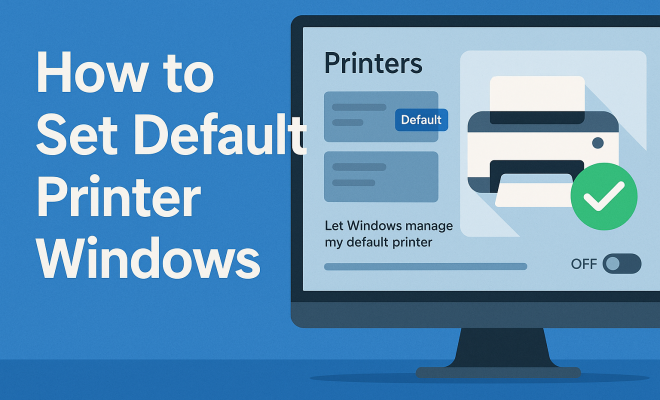
To enable this feature, navigate to the Printers & Scanners settings as mentioned earlier, and toggle the Let Windows manage my default printer option to On. This way, Windows will keep track of which printer you used last and set it as default each time you switch locations.
6. Managing Printer Settings for Optimal Performance
Setting a default printer is just the beginning. You should also familiarize yourself with various printer settings to ensure optimal performance. This includes managing print quality, paper size, and other preferences that can impact your printing experience.
To access advanced settings, go to the Devices section in Settings, select your printer, and click on Printer properties. Here, you can adjust settings such as print quality, duplex printing, and more. Depending on your needs, tuning these settings can help you save on ink and paper and achieve better results in your prints.
7. Troubleshooting Printer Issues
Sometimes, even after setting your default printer, you may still face issues. If your printer isn’t responding or prints incorrectly, there are a few troubleshooting steps you can take:
- Ensure the printer is turned on and connected to your network or computer.
- Check for any error messages on the printer display.
- Restart your computer and the printer to reset any temporary issues.
- Update your printer drivers, as outdated drivers can cause communication problems between your computer and printer.
- If you continue facing issues, remove the printer from your list in Windows and then add it back again to reset the connection.
By following these steps, you can resolve most common printer issues and ensure a smoother printing experience.
8. Exploring Third-Party Printer Management Tools
If you find managing multiple printers cumbersome, consider using third-party printer management software. These tools can streamline your printer setup and provide additional features that Windows may not offer.
Software like PrinterLogic and PaperCut can help manage print jobs, monitor usage, and even save costs through effective print strategies. These solutions are particularly useful in larger office environments where multiple printers are in play, offering a centralized way to manage printing tasks.
9. Staying Updated on Printer Technology
Finally, as printing technology evolves, so do the options available for managing printers. Keep yourself informed about new features in Windows updates that may enhance your printing experience. Windows frequently rolls out updates that can improve printer management functionalities, efficiency, and security. (See: Importance of printer settings.)
Moreover, staying updated on the latest printer models and their features can also help you make better decisions about your printing setup. For instance, some newer printers come with Wi-Fi Direct, allowing you to print directly from your devices without needing to connect to a network.
10. Understanding Printer Types
When setting a default printer, it’s also vital to recognize the different types of printers available. Depending on your printing needs, different types of printers may be more or less suitable. Here’s a breakdown of common printer types:
- Inkjet Printers: Ideal for high-quality images and photos. These printers use liquid ink cartridges and are often favored by photographers and graphic designers. They can handle a variety of paper types.
- Laser Printers: Great for high-volume printing, especially text documents. They use toner rather than ink and are known for their speed and efficiency. Businesses often prefer laser printers for their cost-effectiveness over time.
- All-in-One Printers: As the name suggests, these multifunctional devices can print, scan, copy, and sometimes even fax. They are ideal for home offices or small workspaces where space might be limited.
- Dot Matrix Printers: While less common today, dot matrix printers are still used in specific industries for their ability to print multi-part forms. They operate by striking an ink-soaked ribbon against paper.
11. Printer Connectivity Options
Understanding the connectivity options available for your printer is crucial for efficient printing. Here are the typical connection methods:
- USB Connection: This is the traditional method of connecting a printer directly to a computer. It’s straightforward but limits mobility and placement.
- Wi-Fi: Wireless printers allow you to print from anywhere within your network. This is especially convenient for multiple users and devices.
- Bluetooth: Ideal for printing from mobile devices, Bluetooth-connected printers provide flexibility and ease of use, especially for on-the-go printing.
- Network Printing: In an office setting, printers often connect to a network, allowing multiple users to share the same printer. This setup usually requires a network administrator to configure.
12. Common Printer Problems and Solutions
Even with the best setup, you might encounter issues with your printer from time to time. Here’s a list of common problems and their solutions:
- Printer Not Responding: This can happen if the printer is turned off or improperly connected. Check the power supply and the connection, and restart the printer if needed.
- Paper Jams: Paper can jam in the printer due to various reasons, such as using the wrong paper type or overloading the tray. Remove the jammed paper carefully, and ensure the paper is compatible with the printer.
- Print Quality Issues: If your prints are streaked or faded, it may be time to replace the ink cartridges or clean the printer heads. Most printers have a built-in maintenance tool for this.
- Slow Printing: If your printer is slow, check the print settings. High-quality settings often take longer to process. Switching to draft mode can improve speed for less critical documents.
13. Frequently Asked Questions (FAQ)
How do I know if my printer is set as the default?
You can check by going to the Printers & Scanners settings in Windows. Your default printer will have a checkmark next to it in the list of printers.
Can I have multiple default printers in Windows?
No, you can only set one printer as the default at a time. However, you can enable Windows to manage your default printer based on your most recent use.
What should I do if my default printer is not available?
If your default printer is not available, check its connection, ensure it is powered on, and verify that it is connected to the network. You may also need to reinstall the printer drivers. (See: Benefits of default printer settings.)
Can I change my default printer frequently?
Yes, you can change your default printer as often as you like. Just follow the same steps to set a new default printer whenever necessary.
What are the benefits of using a network printer?
Network printers allow multiple users to connect and print from various devices without needing to connect via USB. This saves time and reduces clutter, making them perfect for office environments.
14. Advanced Printing Techniques
Once you have a handle on setting your default printer and managing multiple devices, you might explore advanced printing techniques to maximize efficiency:
- Print Scheduling: Some printers allow you to schedule print jobs, which can be beneficial for larger projects or when you want to avoid peak usage times.
- Mobile Printing: Many modern printers support mobile printing through apps or cloud services, letting you print directly from your smartphone or tablet.
- Eco-Friendly Printing: Use features like duplex printing to save paper and adjust print quality settings to minimize ink usage. Keep an eye on your printer’s consumption statistics to identify areas for improvement.
- Remote Printing: With the rise of remote work, consider utilizing cloud printing services that let you send print jobs to your home printer from anywhere.
15. Printer Security Considerations
As we rely more on printers, ensuring their security is essential — particularly in a workplace setting. Here are some considerations to keep in mind:
- Secure Network: Ensure your printer is connected to a secure network. Avoid using public Wi-Fi for printing sensitive documents.
- Update Firmware: Regularly update your printer’s firmware to patch any vulnerabilities. Manufacturers often release updates that enhance security.
- Password Protection: Use password protection for printers that support it, preventing unauthorized users from accessing your printer.
- Monitor Usage: Keep track of who is printing what. In larger organizations, software can help monitor print jobs and identify unusual activity.
16. Future of Printer Technology
The future of printing technology promises exciting advancements. Here’s what to keep an eye on:
- 3D Printing: The ability to print three-dimensional objects is becoming more widespread, with applications in industries from manufacturing to healthcare.
- Smart Printers: These devices will integrate with smart home technologies, allowing for advanced automation and integration with other devices.
- Sustainable Practices: As environmental concerns grow, the industry is focusing on developing more eco-friendly printers and sustainable printing practices.
- Cloud Printing Solutions: The shift towards cloud computing will enhance collaboration, allowing users to print documents stored in the cloud from anywhere.
17. Conclusion
Mastering how to set default printer Windows is a fundamental skill that can greatly enhance your productivity. With these tips and insights, you’re well-equipped to manage your printers effectively, whether in a home office or a larger corporate environment. Take the time to configure your settings properly and explore various options available to make the most out of your printing tasks. By understanding your printer’s capabilities and leveraging technology, you can create a seamless printing experience that meets your unique needs.
“`
Trending Now
Frequently Asked Questions
How do I set my default printer in Windows 10?
To set your default printer in Windows 10, click on the Start menu, select Settings (the gear icon), then navigate to Devices and Printers. From there, you can choose your preferred printer and set it as the default.
What is the purpose of a default printer?
A default printer is the printer that your computer automatically selects when you print a document. This saves time and effort by eliminating the need to choose a printer each time you print, especially useful if you use multiple printers.
Can I have different default printers for different locations in Windows?
Yes, Windows allows you to set different default printers based on your current network or location. This feature is particularly beneficial for users who frequently switch between different work environments or printers.
Why is my printer not set as the default?
If your printer is not set as the default, it could be due to changes in your printer settings or if another printer is currently designated as the default. You can easily change this in the Devices and Printers section of your Windows settings.
How can I change my default printer in Windows?
To change your default printer in Windows, go to Settings, select Devices, then Printers & Scanners. From the list of available printers, select the one you want to set as default and click on 'Manage' to set it as your default printer.
Agree or disagree? Drop a comment and tell us what you think.