How to ping IP address
“`html
Pinging an IP address is a fundamental networking tool that can help diagnose connectivity issues, monitor network performance, and enhance your overall understanding of a network’s health. Whether you’re a casual user, an IT professional, or a network engineer, knowing how to ping an IP address is crucial for effective troubleshooting and network management. In this comprehensive guide, we’ll delve into the intricacies of pinging an IP address, covering its background, practical applications, command usage, and troubleshooting techniques.
1. What is Ping?
The term “ping” originates from sonar technology, where it refers to the sound signal used to detect objects underwater. In networking, ping is a command that sends packets of data to a specific IP address and waits for a response. This process helps determine whether a computer or device is reachable over the network. The command is especially useful for troubleshooting network connectivity issues, allowing users to verify the reachability of devices.
Developed in 1983 by Mike Muuss, the ping utility is included in almost every operating system today, including Windows, macOS, and Linux distributions. When executed, the ping command sends Internet Control Message Protocol (ICMP) Echo Request messages to the target IP address and receives Echo Reply messages in return. The results provide valuable information about the time it takes for packets to travel to the destination and back, helping diagnose potential issues.
2. Why Ping an IP Address?
Pinging an IP address serves multiple purposes in network management. Understanding these can enhance your network troubleshooting skills. Here are a few key reasons why you might want to ping an IP address:
- Connectivity Testing: Check if a device is reachable on the network.
- Latency Measurement: Measure the round-trip time taken for packets to travel to the destination and back.
- Packet Loss Detection: Identify if any packets are lost during transmission, which can indicate network issues.
- Network Performance Monitoring: Continuously monitor network performance to ensure consistent connectivity.
These aspects not only help in troubleshooting problems but also contribute to maintaining a robust and efficient network environment.
3. How to Ping an IP Address: Step-by-Step Instructions
Pinging an IP address is simple and can be done through the command line interface (CLI) on various operating systems. Here’s a step-by-step guide for Windows, macOS, and Linux:
Ping in Windows
1. Open the Command Prompt: You can do this by searching for “cmd” in the Start menu.
2. Type the ping command followed by the IP address you want to test. For example, to ping Google’s DNS server, type: ping 8.8.8.8.
3. Press Enter. You’ll see results showing the response time and whether packets were lost.
Ping in macOS
1. Open the Terminal application (found in Applications > Utilities).
2. Type in your ping command, e.g., ping 8.8.8.8.
3. Press Enter. To stop the continuous pinging, press Control + C.
Ping in Linux
1. Access the terminal window.
2. Input your ping command, like ping 8.8.8.8.
3. Press Enter and use Control + C to terminate the command when you’ve gathered enough information.
These simple steps enable users to ping any reachable IP address effortlessly, providing insights into their network’s performance.
4. Understanding Ping Results
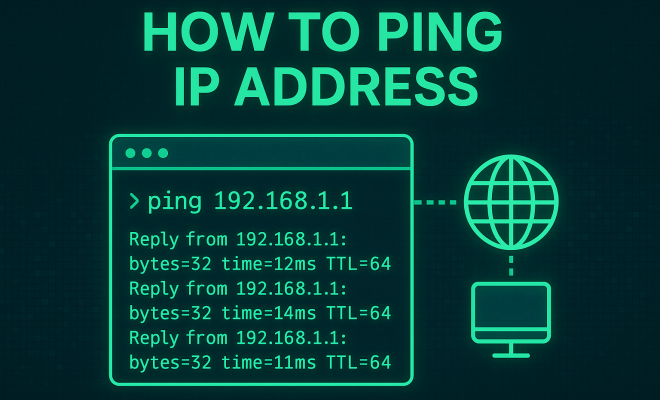
After executing the ping command, you’ll receive various outputs that shed light on the IP address’s status. Here’s how to interpret ping results effectively:
- Reply from [IP address]: Indicates that the target IP address is reachable and responding to ICMP requests.
- Time=xx ms: Shows the round-trip time, measured in milliseconds, which reflects the latency between your device and the target IP address.
- TTL=[value]: Time to Live (TTL) indicates the number of hops the packet can take before being discarded. A lower TTL value often suggests that the destination is further away.
- Request timed out: This message signifies that the target device did not respond within the allotted time, which could indicate connectivity issues.
By understanding these components, you can accurately determine a network’s health and pinpoint potential problems.
5. Common Issues You Might Encounter When Pinging an IP Address
While pinging is generally straightforward, certain issues can arise, leading to confusion or misdiagnosis. Here are some common problems and their potential causes: (See: Ping networking utility on Wikipedia.)
- No Response: If you receive no reply, it could be due to a firewall blocking ICMP packets, the device being turned off, or incorrect IP address input.
- High Latency: Prolonged response times may indicate network congestion or poor routing paths within the network.
- Packet Loss: This can signify network instability caused by hardware issues, poor connections, or interference.
Understanding these problems can significantly improve your troubleshooting efficacy, allowing you to make informed decisions about resolving connectivity issues.
6. Ping Variants and Advanced Usage
The basic ping command can be adapted for more advanced functions, allowing users to customize their tests based on their needs. Here are some common flags and options you can use with the ping command:
- -c [count]: In Linux and macOS, this option allows you to limit the number of echo requests sent. For example,
ping -c 4 8.8.8.8sends four pings. - -t: In Windows, this option makes the ping command run continuously until stopped manually, useful for monitoring.
- -l [size]: This option allows you to specify the size of the packets sent. For instance,
ping -l 1500 8.8.8.8sends a 1500-byte packet. - -I [interface]: This flag is used in Linux to specify which network interface to use for the ping request.
These advanced options give you greater control over your ping tests, making it easier to diagnose specific issues within your network.
7. Using Ping for Network Monitoring
Pinging an IP address isn’t just a troubleshooting tool; it can also be effectively used for ongoing network monitoring. By setting up continuous ping tests, you can keep an eye on the health and performance of critical network devices:
1. **Automated Monitoring:** Tools like Nagios, Zabbix, or PRTG can automate ping tests, alerting you when devices go offline or experience high latency.
2. **Historical Data Analysis:** Regularly pinging a device and logging the results can provide historical data to analyze trends over time, which is invaluable for capacity planning and performance assessment.
3. **Remote Monitoring:** With the rise of remote work, using ping tests to ensure connectivity to remote servers or services has become essential. Tools can help you monitor the status of IP addresses from different geographic locations.
These practices can bolster your network’s reliability and performance, allowing you to proactively manage any issues that may arise.
8. Alternatives to Ping
While ping is a valuable tool, it’s not the only one at your disposal for testing network connectivity. Here are some alternatives that can provide additional insights:
- Traceroute: This tool helps you understand the path that packets take to a specific IP address, identifying where delays or failures might occur along the route.
- Telnet: Useful for testing specific ports on a device, telnet can help you determine if services are running and accessible.
- PathPing: A hybrid between ping and traceroute, PathPing provides information about packet loss and latency at each hop along the way.
- Netstat: This command gives you a snapshot of active connections and open ports, helping to identify potential network issues.
Incorporating these tools alongside ping can give you a more comprehensive overview of your network’s performance and health.
9. Current Relevance of Ping in Networking
Even in the age of advanced networking technologies, ping remains relevant. With the increasing complexity of networks, especially in cloud environments, understanding basic connectivity checks is essential for IT professionals. The ability to quickly diagnose issues can save significant time and resources, allowing teams to maintain productivity.
Moreover, as IoT (Internet of Things) devices proliferate, the need for reliable and quick connectivity checks becomes even more paramount. Pinging these devices can ensure they are reachable, confirming their functionality within a broader network.
Ultimately, the skill to ping an IP address and interpret the results remains a cornerstone of networking expertise, reinforcing its importance in both professional and personal contexts.
10. Deep Dive: The Science Behind Ping
To truly appreciate the function of ping, it’s essential to understand the underlying science and technology that enable it. The ping command relies heavily on the Internet Control Message Protocol (ICMP), which is a core part of the Internet Protocol suite. ICMP is used for sending error messages and operational information indicating success or failure when communicating with another IP address. (See: CDC on network diagnostics.)
When you send a ping, what you’re really doing is generating an ICMP Echo Request message. This message is sent over the internet to the intended IP address. The receiving device acknowledges the request by sending back an ICMP Echo Reply message. This process is not only fundamental for checking connectivity but also for understanding network performance and reliability.
One interesting aspect of ping is that it can also be affected by various factors such as network congestion, routing configurations, and even the physical distance between devices. For example, in a scenario where two devices are located continents apart, the round-trip time (RTT) will generally be much higher than if the devices were on the same local network.
11. Real-World Applications of Pinging IP Addresses
In the real world, pinging an IP address is more than a mere diagnostic tool; it forms the backbone of many critical network operations. Here are some scenarios where pinging plays a crucial role:
- Network Troubleshooting: Technicians often use ping to diagnose network issues, such as when a user cannot access the internet or specific applications. By pinging various network nodes, they can pinpoint where the issue lies.
- Server Monitoring: Data centers often employ ping checks to monitor server health. If a server fails to respond to ping requests, it can trigger alerts for further investigation.
- Cloud Services Management: For businesses relying on cloud services, ensuring that their cloud resources are reachable via ping is essential for maintaining service level agreements (SLAs).
- User Experience Optimization: Companies use ping tests to optimize the routing of data, ensuring that applications respond quickly to user requests, which is crucial for maintaining customer satisfaction.
These applications emphasize the importance of ping beyond simple connectivity tests, showcasing its role in maintaining and enhancing the overall integrity of network systems.
12. Exploring the Limitations of Ping
While ping is a powerful tool, it’s not infallible. Understanding its limitations can help you avoid misdiagnosing network issues. Here are a few limitations to consider:
- ICMP Filtering: Many networks employ security measures that block ICMP requests to prevent potential attacks. This means that a ping test might fail even if the target IP address is online and functioning properly.
- Overhead: Continuous pinging can generate unnecessary network traffic, which might affect performance, especially on congested networks or low-bandwidth connections.
- Not a Complete Diagnostic Tool: While ping can indicate whether a device is reachable, it doesn’t provide detailed information about the type of failure. Additional tools may be necessary to diagnose more complex issues.
Identifying these limitations helps IT professionals choose when and how to use ping effectively, integrating it with other diagnostic tools for a more comprehensive approach.
13. Frequently Asked Questions (FAQ)
What does it mean if a ping fails?
A failed ping can indicate several problems, including network connectivity issues, incorrect IP address, or firewall settings that block ICMP packets.
How can I tell if a device is offline using ping?
If a device does not respond to ping requests after multiple attempts, it’s likely offline or unreachable due to network issues.
Can I ping a domain name instead of an IP address?
Yes, you can ping a domain name, and the ping command will resolve it to the corresponding IP address before sending the requests.
How can I measure latency using ping?
The time displayed next to each response (e.g., Time=xx ms) indicates the latency for that ping request, giving you insight into how long it takes to reach the target IP address.
Is there a limit to the number of pings I can send?
While there’s no inherent limit to the number of pings you can send, continuously sending ping requests can cause network congestion and may be limited by network policies or hardware.
What should I do if I consistently get high latency results?
High latency can be caused by network congestion, routing issues, or even physical distance. You may want to investigate network traffic, check for misconfigured routers, or use other diagnostic tools.
How do firewalls affect ping tests?
Firewalls can block ICMP packets, which means that even if a device is online, it may not respond to ping requests. Adjusting firewall settings may be necessary to allow ping tests to function correctly. (See: New York Times article on ping usage.)
What is the difference between a successful ping and a request timed out?
A successful ping means that the target device responded within the expected time frame, while a timeout indicates that no response was received, which could suggest a connectivity issue.
What are some best practices when using ping?
To get the most accurate results from your ping tests, consider the following best practices:
1. **Test from Multiple Locations:** If possible, ping the target IP address from different networks to get a broader view of connectivity.
2. **Use Consistent Packet Sizes:** Keeping the packet size consistent across tests can help you better compare results.
3. **Log Results:** Maintain a log of your ping results over time to track changes in performance or connectivity issues.
4. **Combine with Other Tools:** Use ping in conjunction with tools like traceroute or netstat for a more comprehensive analysis of network health.
How can I automate ping tests?
You can automate ping tests using scripts or network monitoring tools. On Windows, you can use PowerShell or batch files, while Linux users can write shell scripts. Additionally, tools like Nagios or PRTG can provide automated alerts based on ping responses.
What should I do if my ping results vary significantly?
Fluctuating ping results can indicate various issues, including network congestion or hardware malfunctions. It’s a good idea to check for devices using excessive bandwidth, inspect cables and connections, and consult your ISP if the issue persists.
In summary, understanding how to effectively ping an IP address and interpret the results is essential for network troubleshooting and management. With the knowledge gained from this guide, you should be well-equipped to utilize ping as part of your toolkit for maintaining a reliable and efficient network.
14. The Future of Networking and Ping Tools
As technology continues to evolve, so do the tools and methods used for network management. The future of networking may see enhancements in ping tools that provide even more detailed analytics, real-time monitoring capabilities, and automated responses to connectivity issues.
With the rise of artificial intelligence and machine learning, future ping utilities may leverage predictive analytics to anticipate network failures before they occur. This proactive approach could revolutionize how we monitor and maintain network integrity, reducing downtime and enhancing user experience.
Moreover, as 5G technology spreads, the reliance on effective ping tools to monitor latency and connectivity will become even more critical. Ensuring seamless connectivity across a growing number of devices will require robust and precise tools to analyze and respond to network conditions in real-time.
Ultimately, while the basic function of ping remains unchanged, its role in a rapidly advancing technological landscape is set to expand, making it more integral than ever to the management and optimization of modern networks.
“`
Trending Now
- our breakdown of 7 proven strategies to boost your brand visibility in chatgpt for 2026
- Are You Missing Out? Top 10…
- this guide on why official development assistance is more crucial than ever for global stability
- the complete explanation
- The Hidden Importance of Legal Disclaimers: What You Need to Know
Frequently Asked Questions
What is the purpose of pinging an IP address?
Pinging an IP address is used to test connectivity, measure latency, and detect packet loss on a network. It helps determine if a device is reachable and provides insights into network performance, making it a key tool for troubleshooting.
How do you ping an IP address?
To ping an IP address, open your command line interface and type 'ping' followed by the IP address you want to test. For example, 'ping 192.168.1.1'. The command sends data packets and waits for a response, displaying the results.
What does a ping command do?
The ping command sends Internet Control Message Protocol (ICMP) Echo Request messages to a specified IP address and waits for Echo Reply messages. This process helps assess the reachability of a device and measures the time taken for packets to travel.
What information can you get from a ping test?
A ping test provides information on whether a device is reachable, the round-trip time for packets, and any packet loss during transmission. This data is essential for diagnosing network issues and evaluating performance.
Is pinging an IP address safe?
Yes, pinging an IP address is generally safe and a common network diagnostic tool. However, excessive pinging can be perceived as a network attack, so it's important to use it responsibly and avoid flooding a device with requests.
Have you experienced this yourself? We’d love to hear your story in the comments.