How to flush DNS using command prompt
“`html
Introduction: In the realm of internet browsing and networking, the Domain Name System (DNS) plays a crucial role. It’s the backbone of how we access websites, translating human-readable domains into numerical IP addresses. However, sometimes this process can become bogged down, leading to issues like slow loading times, outdated information, or even complete inability to reach certain sites. A common yet often overlooked solution is to flush DNS using command prompt, a simple yet effective method for refreshing your DNS cache. This article will guide you through everything you need to know about flushing your DNS, including its importance, how to do it, and troubleshooting.
1. What is DNS and Why Does It Matter?
DNS, or Domain Name System, is often likened to a phone book for the internet. When you type a website address into your browser, your computer sends a request to a DNS server to convert that URL into an IP address. This process allows your device to connect to the correct server and display the website you want to see. Without DNS, navigating the internet would be a tedious task of memorizing numerical addresses.
Understanding how DNS operates is vital for troubleshooting internet issues. When you visit a website, your computer retains that address in its DNS cache to speed up future requests. However, if the IP address of the website changes—due to server migrations or updates—your computer may continue to rely on outdated information, leading to errors or delays. This is where the flush DNS command prompt comes in handy.
2. What Does Flushing DNS Mean?
Flushing DNS refers to the process of clearing the DNS cache on your device. This is necessary to remove outdated or corrupted entries that could be causing connectivity issues. When you flush the DNS using command prompt, you’re instructing your computer to discard its cache and fetch fresh DNS information from the server.
This action can resolve a variety of problems, such as being unable to load certain websites, slow browsing speeds, or encountering error messages like “DNS server not responding.” Regularly flushing your DNS cache can keep your browsing experience smooth and efficient.
3. When Should You Flush Your DNS?
There are several scenarios where flushing your DNS would be beneficial. For instance, if you’ve recently changed your network settings or switched your internet service provider, these changes may not be reflected immediately due to cached DNS entries. Flushing your DNS can help your system recognize and adapt to these changes promptly.
Additionally, if you’re experiencing persistent website loading issues, it may be a sign that your DNS cache is stale. A good rule of thumb is to perform a DNS flush whenever you notice that a previously accessible website is unreachable or if your browsing speed has noticeably decreased.
4. How to Flush DNS Using Command Prompt
Flushing your DNS using command prompt is a straightforward process that can be completed in just a few steps. Here’s how:
- Press the Windows key on your keyboard, type “cmd”, and hit Enter. This will open the Command Prompt.
- In the Command Prompt window, you may need to run it as an administrator. Right-click on the Command Prompt icon and select “Run as administrator”. This ensures you have the necessary permissions to execute the command.
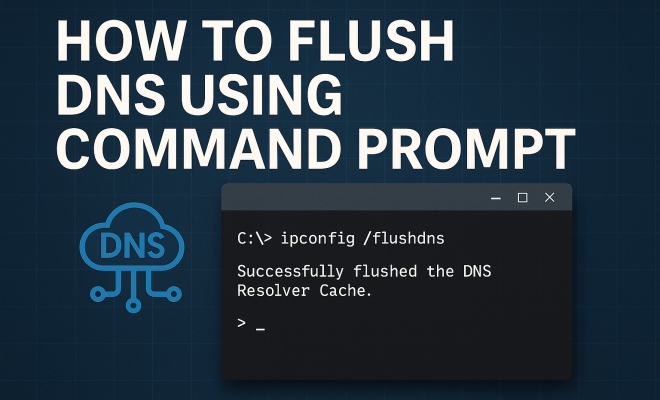
- Type the command ipconfig /flushdns and hit Enter. You should see a message confirming that the DNS resolver cache has been successfully flushed.
And that’s it! Your DNS cache is now cleared, and your system will begin retrieving fresh DNS data the next time you access websites.
5. Common Errors While Flushing DNS
While flushing DNS is a relatively safe operation, you may occasionally encounter errors. Some common issues include:
- “Access Denied” Error: This typically occurs if the Command Prompt isn’t run with administrative privileges. Make sure you follow the steps to run it as an administrator.
- “Could not flush the DNS Resolver Cache” Error: This can happen if there’s an underlying network issue or if another program is interfering. Restarting your device often resolves this problem.
- General Connectivity Problems: If flushing DNS doesn’t resolve your issues, consider checking your network settings or contacting your ISP for further assistance.
Being aware of these potential pitfalls can save you time and frustration when attempting to flush your DNS. (See: Wikipedia page on Domain Name System.)
6. Flushing DNS on Different Operating Systems
While the process described earlier pertains to Windows, it’s important to note that DNS flushing differs slightly across operating systems. Here’s a brief overview:
- MacOS: Open the Terminal and enter sudo killall -HUP mDNSResponder to flush the DNS cache. You may be prompted for your administrator password.
- Linux: The command can vary depending on the distribution, but generally, you can use sudo systemd-resolve –flush-caches or sudo /etc/init.d/nscd restart.
- Android: On mobile devices, you might need to clear the app’s cache or restart your device, as there is no direct command prompt functionality.
- iOS: Similar to Android, you can either restart your device or toggle Airplane mode to refresh your DNS settings.
This variety emphasizes the importance of understanding the tools at your disposal, regardless of the platform you’re using.
7. Other Methods to Troubleshoot DNS Issues
Flushing DNS is just one aspect of troubleshooting network issues. Here are additional strategies you can implement to resolve DNS-related problems:
- Changing DNS Servers: Sometimes your ISP’s DNS servers might be slow or unreliable. Switching to public DNS services like Google DNS (8.8.8.8, 8.8.4.4) or Cloudflare DNS (1.1.1.1) can improve your browsing experience.
- Reset Network Settings: If flushing DNS doesn’t help, consider resetting your network settings. This can resolve deeper configuration issues.
- Clear Browser Cache: If you’re still having trouble accessing websites, it might not be a DNS issue at all. Clearing your browser’s cache can often solve the problem.
Having a toolbox of methods at your disposal can make troubleshooting far less daunting.
8. Maintaining a Healthy DNS Cache
Regularly flushing your DNS cache is only part of maintaining optimal internet performance. Here are some tips to keep your DNS functioning smoothly:
- Frequent Flushing: If you notice slow browsing speeds or connectivity issues, consider flushing your DNS cache on a regular basis—perhaps once a month.
- Stay Updated: Keeping your operating system and network drivers up to date can prevent many underlying issues that affect DNS performance.
- Be Cautious with Software: Some third-party software can interfere with DNS settings. Be diligent about what you install on your device.
A proactive approach to maintaining your DNS cache can significantly enhance your overall internet experience.
9. Advanced DNS Troubleshooting Techniques
If you frequently face DNS issues, consider diving deeper into advanced troubleshooting methods. Here are some techniques that can help:
- Using nslookup: This command-line tool allows you to query the DNS to find out if a domain name resolves correctly. Open your command prompt and type nslookup example.com to check the IP address associated with a domain. This can help determine if the issue lies with your DNS cache or the DNS servers themselves.
- Network Monitoring Tools: Programs like Wireshark can analyze the DNS traffic and identify delays or failures in communications between your device and the DNS server.
- Checking Hosts File: Sometimes, local entries in your system’s hosts file can override DNS settings. Ensure that the website you are trying to access is not incorrectly referenced there. This file is usually located in C:\Windows\System32\drivers\etc\hosts on Windows systems.
Utilizing these advanced methods can help you diagnose and solve more complex DNS-related problems effectively.
10. Statistics on DNS Performance
Understanding how DNS performance affects internet speed can provide insights into the importance of flushing your DNS regularly. According to research, DNS resolution times can significantly impact page load speeds. Studies show that:
- Average DNS resolution times for an optimal user experience should be under 50 milliseconds.
- Delays of just 100 milliseconds can lead to a 7% reduction in conversion rates for online businesses.
- Over 50% of users will abandon a webpage that takes more than 3 seconds to load.
These statistics highlight how crucial it is to maintain a well-functioning DNS cache and the potential impact of DNS issues on overall internet usage.
11. Real-Life Examples of DNS Issues
To illustrate the significance of flushing your DNS cache, consider these real-life scenarios:
- A Small Business Owner: After changing hosting providers, a local shop noticed that their website was down for many customers. By flushing their DNS, they resolved the issue, allowing customers to access their updated site without delay.
- A Remote Worker: A remote worker experienced slow internet speeds which hindered productivity. By flushing their DNS cache, they were able to speed up access to essential cloud applications, enhancing their work efficiency.
- Gaming Issues: Gamers often face latency issues when DNS caches become stale. Flushing the DNS can help in reducing lag and maintaining a stable connection to gaming servers.
These examples underscore how flushing the DNS command prompt can resolve various connectivity issues faced by both individuals and businesses.
12. Frequently Asked Questions (FAQ)
1. What is the difference between flushing DNS and changing DNS servers? (See: CDC resource on DNS issues.)
Flushing DNS clears the cache on your device that stores IP addresses for domain names, while changing DNS servers involves switching to a different DNS service provider, which can offer faster or more reliable resolution.
2. How often should I flush my DNS?
It’s generally recommended to flush your DNS cache whenever you experience connectivity issues or after you make changes to your network settings. Regular flushing can help keep your browsing smooth.
3. Can flushing DNS improve internet speed?
Yes, if your DNS cache is stale or corrupted, flushing it can lead to faster DNS resolution times, enhancing your overall internet speed.
4. Are there any risks associated with flushing DNS?
No, flushing your DNS cache is a safe operation and does not pose any risks to your system. It simply clears outdated information.
5. What should I do if flushing DNS doesn’t solve my issue?
If flushing your DNS cache does not resolve your issues, consider checking your network settings, running network diagnostics, or contacting your ISP for further assistance.
13. How DNS Flushing Affects Security
Flushing your DNS cache can also play a role in your digital security. When malicious websites change IP addresses, your system might still attempt to connect to the old, compromised address stored in your DNS cache. Regularly flushing your DNS can help you avoid potential security threats by ensuring your system connects only to the latest and verified addresses.
Additionally, some malware might manipulate your DNS settings to redirect your traffic to fake websites. Although flushing DNS is not a foolproof method to eradicate malware, it can be a part of the larger strategy of maintaining security hygiene. It’s essential to combine it with antivirus programs and regular system scans. (See: New York Times article on DNS.)
14. Understanding DNS Propagation
DNS propagation refers to the time it takes for updates to DNS records to be recognized across the internet. When you flush your DNS, you might be dealing with issues related to DNS propagation, especially if you’ve recently made changes to your domain’s settings. Depending on the time-to-live (TTL) settings of your DNS records, it can take from a few minutes to 48 hours for changes to be fully recognized worldwide.
If you’re a website owner, understanding this process is crucial. For instance, if you’ve switched hosting providers or updated your DNS records, users may still be directed to the old server until propagation is complete. This is where flushing your DNS becomes essential, as it can help speed up the process for your local machine, allowing you to see changes more quickly.
15. Tools and Software for DNS Management
While flushing DNS via the command prompt is effective, there are various tools available that can help manage DNS settings and troubleshoot issues more efficiently. Here are a few recommended tools:
- DNS Benchmark: This tool allows you to test the performance of your current DNS servers and compare them with others to find the fastest option.
- DNS Jumper: A lightweight utility that lets you switch DNS servers quickly, making it easy to test different options without going into network settings each time.
- GRC’s DNS Nameserver Spoofability Test: This tool assesses the security of your DNS servers and checks if they are vulnerable to exploitation.
Using these tools can simplify your DNS management process and enhance your browsing experience.
16. Future of DNS and Its Evolution
DNS technology continues to evolve, with new protocols and innovations emerging to address security and performance issues. For example, DNS over HTTPS (DoH) and DNS over TLS (DoT) are modern protocols aimed at improving privacy and security by encrypting DNS queries.
Understanding these advancements is critical for users who want to ensure their internet activities remain private. As more services adopt encrypted DNS methods, flushing your DNS cache will also involve considerations about whether your current DNS provider supports these protocols.
Keeping abreast of such developments can prepare you for the future of internet browsing and help you maintain an efficient and secure online environment.
17. Final Thoughts
Understanding how to flush DNS using command prompt can prove invaluable in ensuring a seamless browsing experience. Whether you’re dealing with slow internet or access issues, this simple command can often be the first step toward resolution. By staying informed about DNS and regularly flushing your cache, you’ll be better equipped to tackle any internet challenges that come your way. In an age where online presence is paramount, mastering these small yet powerful tools can make a big difference in your digital life.
“`
Trending Now
Frequently Asked Questions
What is the command to flush DNS?
To flush DNS using Command Prompt, open the Command Prompt as an administrator and type 'ipconfig /flushdns' followed by pressing Enter. This command clears the DNS cache, allowing your system to fetch fresh DNS information.
Why would I need to flush my DNS?
Flushing your DNS is necessary to resolve issues like slow loading websites, outdated information, or connection errors. It clears the cached DNS entries and ensures your device retrieves the latest IP addresses from DNS servers.
How often should I flush my DNS?
You should consider flushing your DNS whenever you encounter connectivity issues, such as being unable to access a website or experiencing slow loading times. Regular flushing is not typically necessary, but it's a useful troubleshooting step.
Does flushing DNS improve internet speed?
Flushing DNS can potentially improve internet speed by removing outdated or corrupted DNS entries. This ensures that your device retrieves the most current information from DNS servers, which can lead to faster website loading times.
Can flushing DNS fix website not found errors?
Yes, flushing DNS can fix 'website not found' errors. By clearing the DNS cache, your device will discard outdated addresses and request updated information, which may resolve connectivity issues with specific websites.
What’s your take on this? Share your thoughts in the comments below — we read every one.