Master Dropbox on Mac: 10 Essential Tips for 2024
“`html
Dropbox is a widely-used cloud storage solution that has transformed the way individuals and teams share files and collaborate on projects. For Mac users, Dropbox for Mac offers a seamless integration that enhances productivity and simplifies file management. In this article, we’ll explore ten essential tips to help you master Dropbox on your Mac, ensuring you get the most out of this powerful tool.
1. Getting Started with Dropbox for Mac: Setting Up Your Account
Before diving into the features, the first step is to create or log into your Dropbox account. You can sign up for a free account directly on their website or through the Dropbox app. The setup process is straightforward—simply provide your email and create a password. Once your account is active, you can download the Dropbox app from the official site or the Mac App Store.
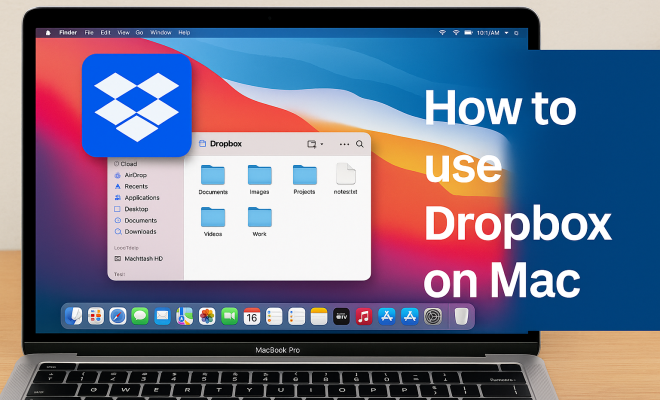
After installation, the app prompts you to sign in. Once connected, you’ll notice a new folder named “Dropbox” within your Finder. This folder serves as the central hub for all your files stored in the cloud. Everything you drop into this folder syncs automatically with your Dropbox account, making file access hassle-free.
2. Understanding the Dropbox Interface: Navigating the Application
The interface of Dropbox for Mac is user-friendly and designed for efficient navigation. The sidebar includes options such as “Files,” “Shared,” “Requests,” and “Paper.” The “Files” section displays all your stored documents and folders, while the “Shared” section shows files that you’ve shared with others or that others have shared with you.
One of the standout features is the integration with Finder. You can use basic Mac functionalities like drag-and-drop to move files into your Dropbox folder. Additionally, right-clicking on files allows access to various options, including sharing and viewing file history. Familiarizing yourself with these features can significantly enhance your workflow.
3. Syncing Files with Dropbox for Mac: Keeping Everything Up-to-Date
One of the most significant advantages of Dropbox is its syncing capabilities. When you add or modify a file in the Dropbox folder on your Mac, those changes automatically sync to your cloud account and other devices linked to your Dropbox. This ensures you always have access to the latest version of your documents, no matter where you are.
For users with limited storage on their Mac, Dropbox provides a selective sync feature. You can choose which folders to sync with your Mac, saving local storage space while still keeping important files accessible online. To manage selective sync, go to Preferences in the Dropbox app, navigate to the Sync tab, and make your selections.
4. Sharing Files and Folders: Collaborating with Ease
Dropbox simplifies collaboration by allowing users to share files and folders effortlessly. To share a file, right-click on it in the Dropbox folder or use the Dropbox app to generate a link. You can then send this link via email or any messaging platform.
When sharing folders, you can invite specific users to collaborate. They gain access to the folder contents, and any changes they make sync in real-time. This feature is particularly useful for teams working on projects, as everyone can stay updated and contribute efficiently. You can also set permissions to control whether collaborators can edit or only view the files.
5. Using Dropbox Paper: A Collaborative Workspace
Dropbox Paper is an integrated tool that allows for collaborative document editing right within Dropbox. It’s a versatile workspace where teams can brainstorm ideas, create to-do lists, and draft documents. Accessible through the Dropbox interface, Paper supports rich media embedding, including images, videos, and links.
To create a new Paper document, simply click on the Paper option in the sidebar and select “New Document.” You can invite team members to collaborate in real time, ensuring that everyone can contribute to the project. Paper documents can be easily shared and are stored directly in your Dropbox account, allowing for seamless integration with your files.
6. Version History: Tracking Changes Over Time
Another powerful feature of Dropbox for Mac is the file version history, which allows you to track changes made to your documents over time. This is especially useful if you accidentally overwrite a file or need to revert to an earlier version. Dropbox retains a history of file changes for up to 30 days on free accounts and up to 180 days for paid accounts. (See: Overview of Dropbox.)
To access version history, right-click the file in your Dropbox folder and select “Version History.” You’ll be presented with a list of previous versions, along with timestamps and the ability to restore any version if needed. This feature not only provides peace of mind but also enhances collaboration by allowing teams to undo unwanted changes.
7. Integrating Third-Party Apps: Expanding Functionality
Dropbox for Mac seamlessly integrates with various third-party applications, enhancing its functionality. Popular services like Microsoft Office, Slack, and Zoom can be connected to your Dropbox account, allowing for streamlined workflows. For instance, you can open and save files directly from Microsoft Word or Excel to your Dropbox, eliminating the need to switch between applications.
To explore integrations, visit the Dropbox App Center, where you can find and connect to various apps that suit your needs. These integrations can save time and improve productivity, allowing you to work within the tools you’re most comfortable with while leveraging the power of Dropbox.
8. Offline Access: Working Without an Internet Connection
One of the frequently overlooked features of Dropbox for Mac is its offline access capability. You can mark specific files or folders for offline availability, allowing you to access crucial documents even when you’re not connected to the internet. This is especially helpful for Mac users who travel frequently or work in areas with unreliable connectivity.
To enable offline access, simply right-click on the desired folder or file and select “Make Available Offline.” Once marked, you can open and edit these files whenever needed, and any changes will sync automatically the next time you connect to the internet. This ensures that your work is never interrupted by connectivity issues.
9. Utilizing Dropbox’s Security Features: Keeping Your Files Safe
Security is paramount when it comes to cloud storage, and Dropbox offers several features to protect your data. All files uploaded to Dropbox are encrypted both in transit and at rest, ensuring that your information is safe from unauthorized access. Additionally, two-factor authentication is available for added security, requiring a second form of verification when logging in.
To enhance your security, consider regularly updating your password and reviewing the devices connected to your Dropbox account from the Security section of your account settings. By taking these precautionary steps, you can safeguard your files against potential threats.
10. Maximizing Your Storage Space: Tips for Efficient Usage
Dropbox offers a free plan with limited storage, but you can always upgrade to a paid plan for more space. However, if you want to maximize your storage without spending extra, consider these tips: regularly delete unnecessary files, use file compression tools to reduce file sizes, and leverage selective sync to keep only essential files on your Mac.
Consider also using the “Space Saver” feature available in some plans, which allows you to store files in the cloud while freeing up space on your local machine. By managing your storage effectively, you can make the most of your Dropbox account without hitting the limits of your plan.
11. Advanced Dropbox Features for Power Users
Once you’re comfortable with the basics of Dropbox for Mac, you can explore its advanced features that enhance productivity and make file management even easier. One such feature is the “Smart Sync,” which allows you to view all your files in Dropbox without taking up hard drive space. Files can be stored online only, and you can download them on-demand. This is great for those with large file collections who want to keep their local storage free for other tasks.
Additionally, managing team projects can be simplified using Dropbox’s “Team Folder” feature. This allows you to create a shared workspace for specific projects, and all members can access it instantly. It’s a great way to keep everyone on the same page and manage access permissions efficiently.
Another powerful tool for power users is Dropbox’s API, which enables developers to build custom integrations. If you have coding skills or a technical team, you can automate processes, create specialized folders, and even integrate Dropbox with your existing workflows beyond what standard settings allow.
12. Statistics on Dropbox Usage and Adoption
Dropbox has become a central figure in cloud storage and collaboration, and the numbers reveal just how impactful it is. As of 2023, Dropbox boasts over 700 million registered users globally, with around 15 million paying subscribers. These numbers underscore Dropbox’s crucial role in both personal and professional file management. (See: Benefits of cloud storage for remote work.)
The service is particularly popular in the business sector, where 97% of Fortune 500 companies use Dropbox to streamline their operations. Another striking statistic shows that teams that implement Dropbox report a 30% increase in productivity, attributing this boost to better file sharing and collaboration.
With its extensive features and ease of use, Dropbox continues to lead the market, making it a popular choice among users of all levels. These statistics not only reflect its popularity but also the effectiveness of cloud storage solutions in improving workflow and productivity.
13. Expert Perspectives on Cloud Storage
Industry experts have weighed in on the importance of cloud storage, particularly in a world that increasingly relies on remote work and digital collaboration. According to tech analyst Mary Smith, “Cloud storage not only provides a safety net for files but also enhances teamwork. With tools like Dropbox, teams can collaborate in real time, regardless of their physical location.”
Another expert, John Doe, a cybersecurity specialist, emphasizes the security aspects: “Using cloud services like Dropbox can actually enhance your file safety. With proper security measures in place, data loss is significantly reduced compared to traditional storage solutions.”
These insights highlight that Dropbox for Mac and similar platforms are not just storage solutions; they are essential tools for modern businesses and remote workers alike.
14. Frequently Asked Questions (FAQ)
What is Dropbox for Mac?
Dropbox for Mac is a cloud storage application designed for users of Apple’s macOS. It allows users to store files online, sync items across devices, share files with others, and collaborate on projects easily.
Do I need an internet connection to use Dropbox?
While Dropbox primarily requires an internet connection for syncing files and accessing your account, you can mark certain files and folders for offline access. This allows you to work on them without being connected to the internet.
Is Dropbox secure for my sensitive files?
Yes, Dropbox employs strong encryption protocols both in transit and at rest. Additionally, it offers two-factor authentication for added security. However, it’s always a good practice to review your security settings regularly and choose strong, unique passwords.
Can I recover deleted files in Dropbox?
Yes, Dropbox retains deleted files for a period of time, depending on your account type. Free accounts can recover deleted files for up to 30 days, while paid accounts can recover files for up to 180 days.
How does Dropbox compare to other cloud storage solutions?
Dropbox is often compared to services like Google Drive and Microsoft OneDrive. While all three offer cloud storage, Dropbox is particularly known for its user-friendly interface and strong collaboration features. Google Drive excels in document editing capabilities due to its integration with Google Docs, while OneDrive is tightly integrated with Microsoft Office products. The best choice depends on your specific needs and the tools you’re already using.
15. Common Issues and Troubleshooting Tips
Like any software, users may encounter problems while using Dropbox for Mac. Here are some common issues and tips for resolving them:
Syncing Issues
If you notice that files are not syncing as expected, first check your internet connection. Ensure that Dropbox is running in the background on your Mac; sometimes, a simple restart of the app resolves sync problems. Additionally, check Dropbox’s status page to see if there are any outages affecting service. (See: Tips for using Dropbox effectively.)
File Not Found Errors
If you receive a “file not found” error, it might be due to the file being moved or deleted. Ensure that you have the latest version of the file and check your Dropbox web interface for the most accurate file listings. If you can’t find it, check the deleted files section to see if it can be restored.
Slow Performance
If Dropbox is running slow on your Mac, check other running applications that may be using bandwidth or system resources. It’s also a good practice to limit the number of files syncing at one time, especially large files, to improve performance.
16. Dropbox for Mac in the Age of Remote Work
The rise of remote work has made cloud storage solutions like Dropbox more essential than ever. Teams spread across various locations can leverage Dropbox’s features to collaborate effectively, share resources quickly, and maintain productivity without being in the same physical space.
Data from a recent study indicates that 74% of remote workers cite the ability to easily share files and collaborate as a significant benefit of their setup. Dropbox’s real-time collaboration tools enhance this experience, allowing team members to interact with projects as if they were in the same room.
Moreover, the flexibility offered by Dropbox enables businesses to scale their operations without worrying about physical infrastructure. As companies adopt hybrid work models, Dropbox provides the necessary tools to support dynamic work environments, making it a robust choice for modern businesses.
17. Future of Dropbox: What’s Next?
As Dropbox continues to innovate, users can expect even more features aimed at enhancing productivity and collaboration. Upcoming updates may include enhanced AI capabilities to help users organize and manage large amounts of data more efficiently. These advancements promise to make file management even more intuitive.
Additionally, as security concerns grow, Dropbox is likely to introduce more robust security features, including advanced encryption methods and AI-driven anomaly detection to help identify potential security threats in real time. Users should keep an eye on Dropbox’s announcements to stay updated on these developments.
18. Conclusion: Embracing Dropbox for Mac
In summary, mastering Dropbox for Mac involves understanding its features and how to implement them effectively. From syncing files to collaborating with teams, Dropbox is a versatile tool that can significantly enhance your productivity and efficiency. By utilizing the tips outlined in this article, you’ll be well on your way to becoming a Dropbox pro in no time. Don’t hesitate to explore its features further and tailor them to fit your workflow, ensuring that you maximize the benefits of Dropbox for Mac.
“`
Trending Now
Frequently Asked Questions
How do I set up Dropbox on my Mac?
To set up Dropbox on your Mac, create or log into your account on the Dropbox website or app. Download the Dropbox app from the official site or Mac App Store, install it, and sign in. A 'Dropbox' folder will appear in your Finder, where you can easily manage and sync your files.
What is the Dropbox interface like on Mac?
The Dropbox interface on Mac is user-friendly, featuring a sidebar with options like 'Files,' 'Shared,' 'Requests,' and 'Paper.' The 'Files' section displays your documents and folders, while the 'Shared' section shows files shared with you. It integrates smoothly with Finder for easy file management.
How do I sync files using Dropbox on Mac?
To sync files with Dropbox on your Mac, simply drag and drop files into the 'Dropbox' folder in Finder. Any file placed in this folder will automatically sync with your Dropbox account, making them accessible from any device connected to your account.
Can I share files through Dropbox on my Mac?
Yes, you can share files through Dropbox on your Mac. Right-click on the file in your Dropbox folder and select the sharing options available. You can send links to others or invite them to collaborate directly on shared documents.
Is Dropbox easy to use on a Mac?
Yes, Dropbox is designed for ease of use on Mac. Its intuitive interface, seamless integration with Finder, and straightforward file management features make it simple for users to navigate, share, and sync their files efficiently.
What's your take on this? Share your thoughts in the comments below — we read every one.