How to check IP address using CMD
“`html
In an increasingly digital world, knowing how to check IP address CMD can be a vital tool for anyone. Whether you’re troubleshooting issues, configuring your network, or simply curious about your device’s online identity, understanding how to access your IP address using the Command Prompt is essential. In this guide, we’ll walk you through seven insightful steps to check your IP address using CMD, along with tips, background information, and practical insights.
1. Understanding IP Addresses
Before diving into the practical steps, it’s crucial to understand what an IP address is and why it matters. An IP address (Internet Protocol address) is a unique identifier for a device on a network. It serves two main functions: identifying the host or network interface and providing the location of the device in a network. Think of it as your device’s home address on the internet.
There are two types of IP addresses: IPv4 and IPv6. IPv4 addresses consist of four numbers separated by periods, such as 192.168.1.1. However, as the internet expands, IPv4 addresses are running out, leading to the adoption of IPv6, which offers a significantly larger address space using hexadecimal numbers. Regardless of type, knowing your IP address is essential for effective network management and online activity.
2. Accessing Command Prompt
The first step to check your IP address using CMD is to open the Command Prompt. This tool can be accessed in various ways depending on your operating system. For Windows, you can simply type “cmd” in the search bar and press Enter. Alternatively, you can use the Run dialog by pressing Win + R, typing “cmd,” and hitting Enter.
Once you have the Command Prompt open, you’ll be presented with a black window with a blinking cursor. This is your gateway to executing commands. It’s straightforward but incredibly powerful, allowing users to interact with their operating system directly.
3. Using the ipconfig Command
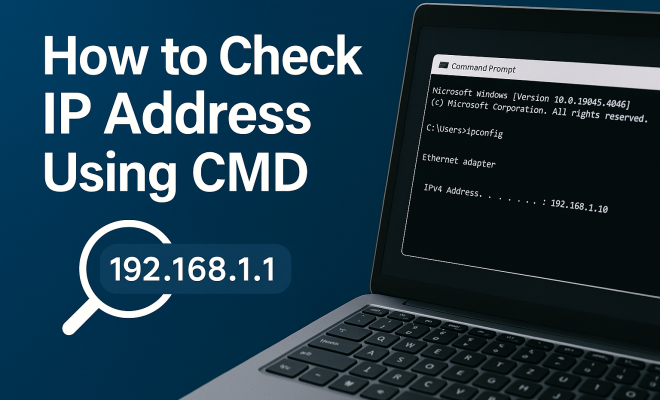
To check IP address CMD, you’ll want to use the ipconfig command. This command is designed to display all current TCP/IP network configurations and can help you see your IP address quickly. Simply type ipconfig into the Command Prompt and press Enter.
Upon executing this command, you’ll see a list of network adapters and their configurations. Look for the section related to your active network connection, which will typically be labeled as “Ethernet adapter” for wired connections or “Wireless LAN adapter” for Wi-Fi connections. Your IP address will be displayed next to the “IPv4 Address” entry. This is the address you’ll use to identify your device on the network.
4. Understanding the Output of ipconfig
The output from the ipconfig command provides a wealth of information beyond just your IP address. Alongside your IPv4 address, you’ll also see details like the subnet mask and default gateway. The subnet mask defines the network portion of your IP address, while the default gateway is crucial for routing traffic to other networks, including the internet.
The default gateway is typically the IP address of your router. By understanding these components, you can better grasp how your device communicates within your network and beyond. Depending on your network type (home, office, etc.), this information can also be essential for troubleshooting connectivity issues.
5. Checking Public IP Address
While the ipconfig command helps you check your local IP address, you may also want to find your public IP address — the one that the outside world sees. To do this via CMD, you can use the nslookup command in conjunction with a reliable DNS service.
Type nslookup myip.opendns.com resolver1.opendns.com in the Command Prompt and press Enter. This command queries OpenDNS for your public IP address. Alternatively, you can also find your public IP by simply typing “what is my IP” into a search engine, but using CMD can be a more straightforward method for tech-savvy users.
6. Using Tracert for Network Troubleshooting
Another useful CMD command related to IP addresses is tracert (short for trace route). This command allows you to trace the path packets take from your device to a specified destination, revealing the IP addresses of each hop along the way. To use it, type tracert followed by a domain name, such as tracert www.google.com. (See: Understanding IP addresses on Wikipedia.)
The output will display each network hop, its IP address, and the time it took to reach each hop. This information is invaluable for diagnosing network issues. If you’re experiencing slow connections or interruptions, a tracert can help you pinpoint where things may be going awry, whether it’s your local network or beyond.
7. Security Considerations
While learning to check IP address CMD is beneficial for network management, it’s equally important to consider security implications. Publicly sharing your IP address can expose you to various types of cyber threats, such as hacking attempts or DDoS attacks. Always be cautious about sharing your IP address online.
To enhance security, consider using a VPN (Virtual Private Network), which masks your real IP address and encrypts your internet traffic. This not only protects your privacy but also can help you access region-restricted content. Understanding your IP address’s role in your network security can significantly contribute to your overall online safety.
8. Common Issues When Checking IP Address
While checking your IP address via CMD is generally straightforward, you may encounter a few common issues. One frequent problem is receiving an error message when trying to execute the ipconfig command, which could indicate that the Command Prompt is not running with administrative privileges. To resolve this, right-click on the Command Prompt icon and select “Run as administrator.”
Another common issue is not being connected to a network. Make sure your device is connected to a Wi-Fi network or has an Ethernet cable plugged in. Without an active connection, the ipconfig command will not display any IP address. In case you’re still having trouble, consider restarting your device or checking your network settings.
9. Advanced CMD Commands Related to IP Address
In addition to the ipconfig and tracert commands, several other CMD commands can help you manage and troubleshoot your IP address and network connections. Here are some noteworthy commands:
9.1. ping
The ping command is useful for checking the connectivity status between your device and another IP address or domain name. By typing ping www.example.com, you can see if the target is reachable and how long it takes for your packets to travel to the destination and back. This can help diagnose network issues or verify if a server is online.
9.2. netstat
The netstat command displays active connections and listening ports on your device. This information can help you identify which applications are communicating over the network and whether there are any unauthorized connections that need attention. You can run it by typing netstat -a in CMD.
9.3. route
The route command allows you to view and manipulate the local IP routing table. By using route print, you can see the routes currently configured on your device. This is particularly useful for troubleshooting complex networking issues.
10. Comparing IPv4 vs. IPv6
As we mentioned earlier, there are two types of IP addresses: IPv4 and IPv6. Let’s delve deeper into the differences between these two protocols and why they matter.
IPv4, which has been in use since the early days of the internet, utilizes a 32-bit address scheme, allowing for a total of approximately 4.3 billion unique addresses. This was adequate in the beginning, but with the explosive growth of the internet, IPv4 addresses have become scarce.
IPv6 was developed to address this limitation. It uses a 128-bit address scheme, which can provide an astronomical number of addresses (around 340 undecillion). This vast address space not only solves the shortage issue but also brings several enhancements, such as improved routing efficiency and security features like IPsec.
As the adoption of IPv6 increases, understanding how to check your IP address in both formats may become crucial for network managers and individuals alike. (See: Importance of network management.)
11. Real-World Applications of Checking IP Address
Knowing how to check your IP address can have several real-world applications, especially for IT professionals and everyday users dealing with network issues. Here are some scenarios:
- Remote Work: If you’re working remotely, understanding your IP address can help troubleshoot connectivity issues with your company’s VPN or network.
- Gaming: Gamers often need to configure port forwarding on their routers, which requires knowing both their local and public IP addresses.
- Home Networking: Managing multiple devices on a home network requires awareness of each device’s IP address for tasks like assigning static IPs or troubleshooting connectivity issues.
12. Frequently Asked Questions (FAQ)
Here are some common questions users may have about checking their IP addresses using CMD:
12.1. What is the difference between a public IP address and a local IP address?
A public IP address is assigned by your Internet Service Provider (ISP) and is used to communicate with devices outside your local network. In contrast, a local IP address is assigned to devices within your home or office network and is used for internal communication.
12.2. Can I change my IP address using CMD?
Yes, you can change your local IP address using the netsh command in CMD. For example, you can type netsh interface ip set address “Local Area Connection” static 192.168.1.100 255.255.255.0 to set a static IP address. However, changing your public IP usually requires resetting your router or contacting your ISP.
12.3. Why should I use a VPN to hide my IP address?
A VPN masks your real IP address by routing your internet traffic through a server in a different location. This not only enhances your security and privacy but can also allow you to access content that may be restricted in your geographical area.
12.4. Is there a way to check my IP address without using CMD?
Absolutely! You can check your IP address by visiting various websites, such as whatismyip.com or using search engines to query “what is my IP.” These methods are user-friendly and require no technical skills.
12.5. What should I do if my IP address is not showing in CMD?
If your IP address isn’t displaying when you run the ipconfig command, ensure that your network interface is enabled. Check your cable connection for wired devices or ensure you’re connected to Wi-Fi. If the problem persists, consider resetting your network adapter or troubleshooting your network connection settings.
13. Advanced Troubleshooting Techniques
For those who want to take their network management skills to the next level, here are a few advanced troubleshooting techniques you can employ alongside the basic commands we’ve discussed:
13.1. Using PowerShell for Network Diagnostics
PowerShell is a more powerful command-line tool available on Windows that can provide even more detailed information about your network configuration and status. Commands like Get-NetIPAddress and Test-NetConnection can help you gather more in-depth data about your IP configuration and connectivity status compared to Command Prompt.
13.2. Checking DHCP Configurations
If your IP address is assigned dynamically (via DHCP), understanding how DHCP works can help you troubleshoot IP address issues. You can check the DHCP lease and status using the ipconfig /all command which offers insights into whether you’re getting your IP address from a DHCP server and the lease duration.
13.3. Identifying Network Conflicts
If multiple devices in your network are assigned the same IP address, it can lead to connection problems. Use the arp -a command to view the ARP table, which maps IP addresses to MAC addresses. This can help you identify devices with conflicting IPs and resolve issues quickly. (See: Internet Protocol topics on ScienceDirect.)
14. Understanding Network Types and Their IP Addressing
Different types of networks (home, office, public) can affect how IP addresses are assigned and managed. Here’s a brief overview:
14.1. Home Networks
In a home network, devices typically connect through a router that assigns local IP addresses to each device. These addresses are usually in the private IP address range (e.g., 192.168.x.x). Understanding how to manage these addresses can help in setting up services like file sharing or gaming.
14.2. Corporate Networks
Corporate networks often use more complex configurations, including subnetting to optimize address use and improve security. Knowing how to check and manage IP addresses in larger networks can be crucial for IT departments to maintain performance and security.
14.3. Public Networks
When connecting to public Wi-Fi, your device is assigned a temporary public IP address. Be cautious when using public networks since they can be less secure, increasing the risk of unauthorized access to your data. Awareness of your IP address in these situations can remind you to employ additional security measures.
15. Future of IP Addressing
As we continue to rely on the internet for more of our daily activities, the future of IP addressing looks promising. The transition from IPv4 to IPv6 is already underway, with many businesses and individuals adopting IPv6 to accommodate more devices and improve internet security.
Moreover, emerging technologies like the Internet of Things (IoT) will significantly increase the number of devices connected to the internet, making understanding IP addresses and management techniques even more critical. Staying informed about these changes can help you adapt and maintain efficient network operations.
16. Conclusion: Empowering Yourself with CMD
Knowing how to check IP address CMD empowers you to take control of your network environment and troubleshoot effectively. From accessing your local and public IP addresses to diagnosing network paths using the tracert command, CMD is an invaluable tool for anyone looking to enhance their technical skills.
In a world where cybersecurity and connectivity are of utmost importance, mastering these skills can lead to a more secure and efficient online experience. So, the next time you need to check your IP address, remember that with just a few commands, you can gain critical insights into your network. Happy networking!
“`
Trending Now
Frequently Asked Questions
How do I find my IP address using CMD?
To find your IP address using CMD, open the Command Prompt by typing 'cmd' in the search bar or using the Run dialog (Win + R). Once open, type 'ipconfig' and press Enter. This command will display your IP address along with other network information.
What is the ipconfig command in CMD?
The 'ipconfig' command in CMD is a network utility that displays the current IP address, subnet mask, and default gateway for all network interfaces on your device. It is essential for diagnosing network issues and managing IP settings.
What is an IP address and why is it important?
An IP address, or Internet Protocol address, is a unique identifier assigned to each device on a network. It is crucial for routing internet traffic and identifying devices, making it essential for effective network management and online activity.
Can I check my IP address without CMD?
Yes, you can check your IP address without CMD by visiting websites like 'whatismyip.com' or by checking the network settings on your device. However, using CMD provides detailed network information quickly.
What are the differences between IPv4 and IPv6?
IPv4 and IPv6 are two versions of IP addresses. IPv4 consists of four numbers separated by periods (e.g., 192.168.1.1) and is running out of available addresses. IPv6 uses hexadecimal numbers and offers a vastly larger address space to accommodate the growing number of devices connected to the internet.
Agree or disagree? Drop a comment and tell us what you think.