Master Motherboard Installation: A Comprehensive PC Building Guide
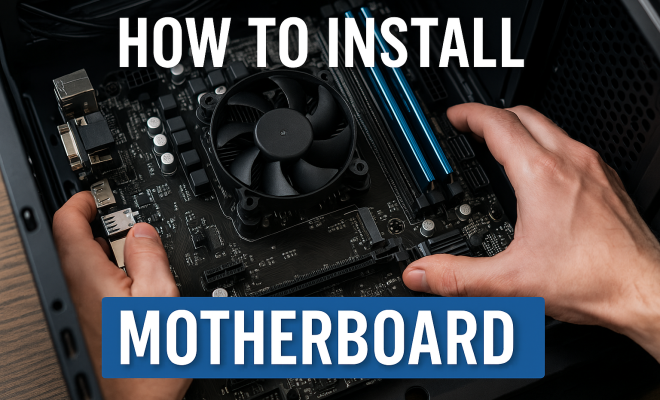
“`html
Building a PC can seem daunting at first, especially when it comes to the intricacies of hardware installation. One of the most critical components of your computer is the motherboard, often referred to as the heart of your system. Understanding how to install a motherboard properly is essential for ensuring your PC runs smoothly and efficiently. In this comprehensive guide, we’ll walk you through the entire process, providing practical insights and tips to help you become a confident builder.
1. Understanding the Motherboard
Before diving into the installation process, it’s important to understand what a motherboard is and its key functions. The motherboard is a large printed circuit board that connects all the components of your computer. It holds the CPU, RAM, and provides connectors for other peripherals like graphics cards, storage devices, and power supplies. Essentially, the motherboard acts as the backbone of your system, enabling communication between all hardware components.
Motherboards come in various sizes, commonly referred to as form factors. The most popular include ATX, Micro-ATX, and Mini-ITX. Each form factor has its size, number of expansion slots, and compatibility with cases. Therefore, before purchasing a motherboard, you must ensure it matches your case and meets your needs in terms of features and compatibility.
2. Gathering Your Tools and Components
Before learning how to install a motherboard, you need to gather the right tools and components. Here’s what you’ll need:
- Motherboard: Choose a motherboard compatible with your CPU and RAM.
- CPU: Make sure it fits the socket type of your motherboard.
- RAM: Check the motherboard’s specifications for RAM compatibility.
- Power Supply Unit (PSU): Your PSU must have the necessary connectors for the motherboard.
- Case: Ensure your case is compatible with the motherboard’s form factor.
- Screwdriver: A Phillips-head screwdriver will typically suffice.
- Anti-static wrist strap: This is crucial for protecting your components from static electricity.
Once you’ve gathered your tools and components, find a clean, well-lit workspace. It’s advisable to work on a non-static surface to prevent any damage to sensitive electronic parts.
3. Preparing the Case
The first step in the installation process is preparing your case. If you’re using a new case, remove any packaging materials and ensure the interior is clean. Most cases come with standoffs pre-installed, which keep the motherboard elevated and prevent short circuits. However, if your case doesn’t have standoffs or they are not in the correct locations for your motherboard, you’ll need to install them yourself.
To install standoffs, simply screw them into the appropriate holes based on your motherboard’s form factor. Be sure to reference the motherboard manual for the exact alignment of the mounting holes. This step is crucial because proper mounting ensures your motherboard has the correct support and reduces the risk of damage during installation.
4. Installing the CPU
With the case prepped, it’s time to install the CPU onto the motherboard. Begin by locating the CPU socket, often covered by a protective cap. Remove the cap and align the CPU with the socket, ensuring the notches on the CPU match the notches in the socket. Carefully place the CPU into the socket without forcing it. Once seated correctly, secure it in place by lowering the lever that locks it down.
After installing the CPU, apply thermal paste if it’s not pre-applied on the cooler. This paste helps transfer heat from the CPU to the cooler effectively. A small pea-sized amount in the center of the CPU is usually sufficient. Next, you can attach the CPU cooler, which is essential for keeping your CPU temperature in check. Follow the cooler’s manual for proper installation instructions, as methods can vary between models.
5. Installing RAM Modules
Now that the CPU is in place, the next step is to install the RAM. Locate the RAM slots on the motherboard, which are typically next to the CPU socket. If there are clips on the sides of the slots, push them down to open the slot. Align your RAM module with the notch in the slot and press down firmly until the clips snap back into place. (See: Understanding the motherboard.)
For optimal performance, you should install the RAM in dual-channel configuration. Check your motherboard manual to see which slots to use for dual-channel setup. Typically, you’ll want to place RAM sticks in alternating slots to maximize data transfer rates, which can significantly improve performance in memory-intensive tasks.
6. Placing the Motherboard in the Case
With the CPU and RAM installed, it’s now time to place the motherboard into the case. Gently lower the motherboard into the case, aligning it with the standoffs you previously installed. Carefully check that all ports, such as USB and audio ports, are accessible through the back panel. Once correctly positioned, use screws to secure the motherboard to the standoffs. Avoid over-tightening, as this can damage the motherboard.
After securing the motherboard, connect the power supply cables. Most motherboards require a 24-pin ATX power connector and a 4 or 8-pin CPU power connector. Ensure that you connect these cables securely to provide adequate power to your components.
7. Connecting Peripherals and Finalizing Installation
With the motherboard installed, it’s time to connect peripherals. Start by connecting storage devices (SSD or HDD), and graphics cards, if applicable. Each of these components will have specific slots or connectors on the motherboard. For example, SSDs often use M.2 slots, while HDDs connect through SATA ports. Make sure to consult the motherboard manual for the correct ports and connections.
Next, connect case fans and any additional components such as USB headers or front-panel connectors. Pay attention to polarity when connecting fans and LED strips, as reversing them can affect functionality. Finally, double-check all connections and ensure everything is seated properly before closing the case.
8. Testing Your Build
Before you power up your new PC, it’s wise to conduct a quick check. Ensure that all cables are connected properly and that there are no leftover screws or components lying around. If possible, perform a “test boot” by connecting the power supply and turning on the system. Look for the motherboard’s POST (Power-On Self-Test) screen, which indicates that the system has booted successfully.
If the system fails to boot, double-check all connections and seating of components. Common issues include improperly seated RAM or CPU and missing power connections. Remember, troubleshooting is a part of the building process, and patience is key.
9. Installing the Operating System
Once your system has successfully booted, it’s time to install the operating system. This process usually involves using a USB drive or DVD with installation media. Enter the BIOS/UEFI settings by pressing the designated key during startup (often Del or F2). From the BIOS, set your boot priority to the USB drive or DVD to begin the installation process.
Follow the on-screen prompts to complete the OS installation. Once installed, remember to update drivers and perform necessary software installations to ensure optimal performance. Your newly built PC is now ready to be customized to your liking!
10. Common Mistakes to Avoid When Installing a Motherboard
Even experienced builders can make mistakes. Here’s a list of common pitfalls to watch out for: (See: Computer safety and ergonomics.)
- Incompatible Components: Always double-check the compatibility of your CPU, RAM, and motherboard. Each motherboard has specific supported components, and choosing the wrong ones can lead to failure to boot.
- Neglecting Static Precautions: Failing to use an anti-static wrist strap or working on a non-static surface can damage sensitive components. Always ground yourself before handling hardware.
- Forgetting Power Connections: It’s easy to overlook connecting the CPU power connector or the 24-pin ATX connector. Ensure all necessary cables are plugged in securely.
- Incorrect RAM Placement: Installing RAM in the wrong slots can lead to suboptimal performance. Make sure to follow your motherboard’s guidelines for dual-channel setups.
- Over-tightening Screws: Securing your motherboard is essential, but overtightening screws can damage the board. Tighten them gently until they are snug.
11. Understanding Motherboard Features and Specs
Different motherboards come with various features that can enhance your build. Here are some specifications to consider when selecting a motherboard:
- Chipset: The chipset determines how many USB ports, PCIe lanes, and other features your motherboard will support. Higher-end chipsets offer more capabilities and performance.
- Expansion Slots: Look for the number of PCIe slots available for graphics cards and other expansion cards. More slots allow for greater customization and upgrades in the future.
- RAM Support: The maximum memory capacity and RAM speed supported by the motherboard can significantly impact performance. Choose a motherboard that can accommodate your planned RAM configuration.
- Storage Options: A motherboard with multiple M.2 slots and SATA ports will allow for better storage flexibility, supporting both SSDs and traditional HDDs.
- Networking Features: Integrated networking options like Wi-Fi or Bluetooth can save you from buying additional hardware. Check for the latest standards for better performance.
12. Cooling Solutions for Your Build
Heat management is an essential aspect of PC building, particularly for high-performance systems. Here are some cooling options to consider:
- Air Cooling: Most builders opt for air coolers due to their balance of performance and cost. Brands like Noctua and Cooler Master offer excellent air coolers for various CPU sizes.
- Liquid Cooling: For high-end builds or overclocking, liquid cooling solutions can offer superior temperature management. AIO (All-In-One) coolers are popular for their ease of installation.
- Case Fans: Ensure your case has adequate airflow by installing case fans. Consider using a combination of intake and exhaust fans to optimize cooling efficiency.
13. Upgrading Your Motherboard
If you’re looking to upgrade your existing motherboard, consider these tips:
- Check Compatibility: Ensure your new motherboard is compatible with your current CPU, RAM, and case. Research your components before making a purchase.
- Backup Data: Always back up your data before upgrading. Depending on how you proceed, you may need to reinstall your OS, which can erase data.
- Clean the Build: Take the opportunity to clean your case and components while upgrading. Dust buildup can hinder cooling and performance.
14. Frequently Asked Questions (FAQ)
Q1: What tools do I need to install a motherboard?
You’ll need a Phillips-head screwdriver, an anti-static wrist strap, and possibly tweezers for handling small screws. Having some cable ties on hand for management is also helpful.
Q2: How long does it take to install a motherboard?
The entire installation process can vary depending on your experience and the complexity of your build, but it generally takes 1-3 hours. Taking your time ensures you don’t make mistakes.
Q3: Can I install a motherboard without an anti-static wrist strap?
While technically possible, it’s not recommended. An anti-static wrist strap prevents static electricity from damaging sensitive components. If you don’t have one, make sure to touch a grounded metal object frequently to discharge any static.
Q4: Should I install the power supply before the motherboard?
It’s usually easier to install the power supply first for better access to the cable management area. However, some builders prefer to install the motherboard first to get a better feel for the layout.
Q5: What’s the difference between BIOS and UEFI?
BIOS (Basic Input/Output System) is the traditional firmware interface for PCs, while UEFI (Unified Extensible Firmware Interface) is a more modern version that offers faster boot times and supports larger hard drives. Most newer motherboards feature UEFI.
Q6: How do I know if my motherboard is faulty?
Common signs of a faulty motherboard include failure to boot, random crashes, or hardware not being recognized. If troubleshooting doesn’t resolve the issue, it may be time to consider replacement. (See: Building your own computer.)
15. Additional Tips for a Successful Build
While the steps outlined provide a solid foundation, here are some additional tips to enhance your motherboard installation experience:
- Read the Manual: Always keep the motherboard manual nearby. It contains vital information about component placement, power connections, and troubleshooting tips.
- Label Cables: When connecting various cables, consider labeling them for easy identification later. This can save time and frustration during troubleshooting or upgrades.
- Plan Your Build Layout: Visualize how you want your cables to route and components to sit before you start assembling. A well-planned layout can improve airflow and aesthetics.
- Take Breaks: Don’t rush through the build. If you’re feeling fatigued or frustrated, take a break. A fresh perspective can help you avoid mistakes.
- Stay Updated: Check for BIOS updates after your motherboard installation. Manufacturers regularly release updates that improve compatibility and performance.
16. Real-World Examples of Motherboard Installations
Seeing real-world examples can help demystify the process even further. Many online communities and video platforms feature detailed walkthroughs of motherboard installations.
- YouTube Tutorials: Numerous tech enthusiasts share their experiences and guide viewers through their builds step-by-step. Channels like Linus Tech Tips and Gamers Nexus provide insightful content.
- Reddit Communities: Subreddits like r/buildapc and r/pcmasterrace are excellent places to ask for advice, share your progress, or view others’ builds for inspiration.
- Forums: Websites like Tom’s Hardware and PCPartPicker offer forums where users discuss builds, share tips, and troubleshoot issues.
17. The Importance of Component Compatibility
Before you even think about how to install a motherboard, understanding component compatibility is crucial. Here’s a closer look at why this matters:
Each motherboard is designed to work with specific CPUs, RAM speeds, and types. For example, some motherboards only support DDR4 RAM, while others may have started supporting DDR5. If you mistakenly buy incompatible hardware, you’ll either face boot issues or worse, damage components during installation.
Make use of tools like PCPartPicker to check compatibility options. It allows you to build a virtual PC and get alerts if you select an incompatible part. This can save you a lot of time and hassle in the long run.
18. Conclusion: Embracing the DIY Spirit
Learning how to install a motherboard is a gateway to understanding and controlling your computing environment. As you gain more experience, you’ll start to appreciate the nuances that go into building a PC. Each successful build increases your confidence, knowledge, and ultimately, your satisfaction with the system you’ve created.
Building a PC isn’t just about the hardware; it’s about the experience and the journey. Enjoy the process, and don’t hesitate to seek help from the vibrant online community whenever needed. Every question is valid, and the gathering of knowledge will only enhance your future builds.
“`
Trending Now
Frequently Asked Questions
What tools do I need to install a motherboard?
To install a motherboard, you'll need a compatible motherboard, CPU, RAM, power supply unit (PSU), case, and a Phillips-head screwdriver. Ensure that all components are compatible with each other and that the motherboard fits the case's form factor.
How do I know if a motherboard is compatible with my CPU?
Check the motherboard's specifications for the socket type and ensure it matches your CPU. Additionally, verify that the motherboard supports the CPU model and its features, such as supported RAM types and speeds.
What is the function of a motherboard in a computer?
The motherboard serves as the central hub that connects all components of a computer, including the CPU, RAM, graphics cards, and storage devices. It facilitates communication between these parts, making it essential for the system's operation.
What are the different motherboard form factors?
Common motherboard form factors include ATX, Micro-ATX, and Mini-ITX. Each form factor varies in size, the number of expansion slots, and compatibility with cases, so it’s important to choose one that meets your build requirements.
Can I install a motherboard without prior experience?
Yes, you can install a motherboard without prior experience by following a comprehensive guide. Familiarize yourself with the components, gather the necessary tools, and take your time to ensure each connection is secure for a successful installation.
What did we miss? Let us know in the comments and join the conversation.