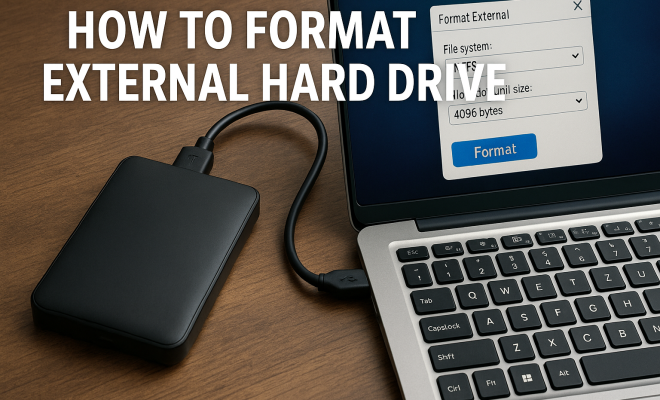
How to format external hard drive
“`html
When it comes to managing digital storage, knowing how to format external hard drive is a crucial skill. Whether you’re looking to free up space, change file systems, or troubleshoot issues, understanding the process can save you time and frustration. In this article, we’ll break down the key steps to format an external hard drive, the various file systems available, and important considerations you should keep in mind.
1. Understanding External Hard Drives
External hard drives are portable storage devices that connect to your computer via USB, Thunderbolt, or other interfaces. They offer a convenient way to expand your storage capacity without needing to upgrade your internal drives. These devices can be used for backups, data transfer, or simply to store large media files. However, before using them, you’ll want to ensure they are properly formatted for your operating system.
Formatting prepares the drive by creating a file system that the operating system can read. This process also erases all the data on the drive, so it’s critical to back up any important files before you begin. Understanding the different file systems available—like NTFS, FAT32, and exFAT—can help you choose the right one for your needs.
2. Why You Might Need to Format
There are several scenarios where formatting your external hard drive becomes necessary. One common reason is switching between operating systems. For instance, if you initially formatted your drive for Windows using NTFS and then want to use it on a Mac, you may need to reformat it to FAT32 or exFAT, which are compatible with both systems.
Another reason might be to clear unwanted files and refresh the drive’s performance. Over time, external hard drives can accumulate clutter, which may slow down the read/write speeds. Formatting can help restore performance by clearing out any fragmented data and optimizing the file system.
3. Backing Up Your Data
Before proceeding with formatting your external hard drive, it’s essential to back up any data you want to keep. Formatting will erase everything on the drive, and once it’s done, recovering lost files can be difficult or impossible. Use another storage device or a cloud service to ensure your important files are safely stored before you start.
To back up your data, simply copy and paste the files from your external drive to another location. If your drive contains a large amount of data, consider using backup software that can automate the process and provide additional features like incremental backups or file versioning.
4. Choosing the Right File System
When you format an external hard drive, one of the most important decisions you’ll make is selecting the right file system. Here are the most common options:
- NTFS (New Technology File System): Best suited for Windows users, it supports large files and drives over 32GB. It has security features like file permissions.
- FAT32 (File Allocation Table 32): Works on both Windows and macOS, but has a maximum file size limit of 4GB. It’s ideal for smaller drives and compatibility with older systems.
- exFAT (Extended File Allocation Table): Designed to handle large files and drives, making it suitable for external drives that will be used across different operating systems.
Choosing the appropriate file system depends on your usage needs and the devices you will connect the drive to. If you primarily use Windows, NTFS might be the best choice, while exFAT is recommended for a mixed environment.
5. Formatting on Windows
If you’re using a Windows computer, formatting an external hard drive can be done quickly through the File Explorer. Here’s how: (See: External hard drive overview.)
- Connect your external hard drive to the computer.
- Open File Explorer and locate your drive in the left sidebar.
- Right-click on the drive and select Format.
- Choose the file system from the dropdown menu, set the allocation unit size if needed, and check the box for Quick Format.
- Click Start to begin the formatting process.
Windows will provide a warning that all data will be lost. Once confirmed, the process should take just a few moments. After it’s done, your drive will be ready to use!
6. Formatting on macOS
For Mac users, the process is slightly different but equally straightforward. To format your external hard drive on macOS, follow these steps:
- Connect the external hard drive to your Mac.
- Open Disk Utility by searching for it in Spotlight or finding it in Applications > Utilities.
- Select your external hard drive from the list on the left.
- Click Erase at the top of the window.
- Select the format (such as exFAT or Mac OS Extended) and provide a name for the drive.
- Click Erase to begin the process.
Disk Utility will format the drive, and once the process is complete, the drive will be ready for use.
7. Troubleshooting Common Issues
Even with clear instructions, formatting an external hard drive can lead to issues. Here are a few common problems and how to address them:
- Drive Not Recognized: If your computer doesn’t recognize the drive, check the cable and ports. Try connecting to a different USB port or using a different cable.
- Formatting Errors: If you receive an error while trying to format, the drive may be corrupted. Use disk management tools to check for errors or repair the drive.
- Slow Performance: A drive may appear slow due to fragmentation or a cluttered file system. If you experience slow read/write speeds, consider reformatting to a different file system.
By understanding these potential issues, you can take proactive steps to ensure a smooth formatting experience.
8. Understanding File Systems in Depth
To help you better understand how to format external hard drive, it’s worth diving deeper into the characteristics of the different file systems available. Each system has its own strengths and weaknesses that can significantly affect performance and compatibility.
NTFS
NTFS is the default file system for modern Windows operating systems. As a journaling file system, it keeps track of changes in a way that helps protect against data corruption. This feature is useful for both everyday users and IT professionals, as it ensures that even if a power failure occurs, the integrity of the files can still be maintained. Additionally, NTFS supports larger files and volumes than FAT32, making it an excellent choice for handling large media files or extensive databases.
FAT32
FAT32 is one of the oldest file systems that is still in use today. It is universally supported across all modern operating systems, which is why many users opt for FAT32 when they need a format that can be used interchangeably between Windows, macOS, and even Linux. However, its limitations are apparent, particularly with the 4GB maximum file size and 2TB maximum volume size. This can be problematic for users who work with high-definition video files or large backups.
exFAT
exFAT bridges the gap between NTFS and FAT32, offering features that make it suitable for flash drives and external hard drives used across different platforms. It supports larger files and is optimized for flash memory, making it a popular choice for users who need compatibility between Windows and macOS with the ability to manage large files. For example, video files recorded in 4K resolution may exceed the 4GB limit of FAT32, making exFAT a more practical option.
9. Performance Considerations
When selecting a file system for your external hard drive, consider how performance might be impacted. Here are a few performance factors to keep in mind:
Read/Write Speed
The read and write speeds can differ significantly between file systems. NTFS generally offers better performance for large file transfers on Windows, whereas exFAT may provide faster performance with smaller files transferred across different platforms. Conducting speed tests under specific conditions can help you identify which file system works best for your needs. (See: CDC on computer safety and ergonomics.)
Fragmentation
Different file systems handle fragmentation in varied ways. NTFS includes built-in mechanisms to reduce fragmentation, which can be beneficial for users who frequently add and delete files. In contrast, FAT32 may become fragmented more quickly, leading to slower access times. Regularly defragmenting your NTFS volumes can help maintain optimal performance.
10. FAQs about Formatting External Hard Drives
What happens if I format a drive with data on it?
Formatting a drive erases all data on it. If you have not backed up your files, they will be permanently lost. Always ensure you have a backup before proceeding.
Can I format a drive to use it on both Windows and Mac?
Yes, formatting your drive to exFAT will allow it to be used on both Windows and macOS systems. This format supports larger files, making it versatile for various applications.
Is Quick Format sufficient?
A Quick Format is usually adequate for most users as it creates a new file system without thoroughly checking for bad sectors. However, if you suspect the drive has issues, a full format is recommended as it scans the drive for errors.
How do I know what file system to choose?
Your choice of file system should depend on how you intend to use the drive. If you only use Windows, NTFS is likely your best bet. If you plan to share the drive between different operating systems, go for exFAT.
Can I recover files after formatting?
It’s challenging but not impossible. Once formatted, the original data is not immediately erased, and recovery software may help retrieve some files. However, the success rate typically decreases the longer you use the drive after formatting.
11. Best Practices for Maintaining Your External Hard Drive
To make the most out of your external hard drive, following some best practices can help ensure longevity and optimal performance. Here are some tips to keep in mind:
Regularly Check for Errors
Just like any other storage device, external hard drives can develop bad sectors or file system errors over time. Regularly running disk check utilities (like CHKDSK on Windows or Disk Utility on macOS) can help identify and resolve issues before they become serious problems.
Safely Eject the Drive
When you’re done using your external hard drive, always eject it safely. This helps prevent data corruption, as it ensures that all read/write operations are completed before disconnecting. On Windows, you can do this by right-clicking the drive icon in File Explorer and selecting ‘Eject.’ On macOS, you can click the eject icon next to the drive in Finder.
Keep the Drive in a Safe Environment
Physical conditions play a significant role in the longevity of external hard drives. Avoid exposing your drive to extreme temperatures, humidity, or physical shocks. Storing it in a protective case can add an extra layer of security. (See: Scientific articles on external hard drives.)
12. Advanced Formatting Options
Besides the basic formatting options discussed, some advanced users might want to consider additional formatting techniques:
Partitioning the Drive
You might find it useful to partition your external hard drive into separate sections. This can help you manage different types of data more efficiently. For instance, you could have one partition for backups and another for media storage. Both Windows and macOS provide tools to partition drives during the formatting process, making it easier to tailor your storage to your needs.
Encryption
If you’re concerned about data security, consider encrypting your external hard drive during the formatting process. Tools like BitLocker on Windows or FileVault on macOS provide encryption options that help protect sensitive information stored on your drive. This is especially useful if you plan to use the drive for work or to store personal data.
13. Common Misconceptions About Formatting
There are several myths surrounding the formatting of external hard drives that can lead to confusion. Here are a few clarifications:
Formatting Makes Data Irrecoverable
One common misconception is that formatting makes it impossible to recover data. While it does erase the file allocation table, the data can often still be retrieved using specialized software until it is overwritten. Knowing this can save you from panic if you accidentally format a drive without a backup.
Formatting is the Same as Deleting Files
Another misconception is that formatting a drive is just like deleting files. While both actions remove access to data, formatting resets the entire file system, making it necessary to rebuild the file structure. This is why a backup is crucial before formatting.
In summary, knowing how to format external hard drive is an essential skill for any computer user. Whether it’s for clearing out clutter, switching operating systems, or simply ensuring optimal performance, these steps will guide you through the process. Take care to back up your data and choose the right file system, and you’ll be well on your way to managing your external storage effectively.
“`
Trending Now
Frequently Asked Questions
What is the best file system for an external hard drive?
The best file system for an external hard drive depends on your needs. NTFS is ideal for Windows users, while FAT32 and exFAT are better for cross-platform compatibility with both Windows and Mac. FAT32 has a 4GB file size limit, whereas exFAT supports larger files, making it a great option for media storage.
How do I format an external hard drive on Windows?
To format an external hard drive on Windows, connect the drive, open 'This PC', right-click on the drive, and select 'Format'. Choose your desired file system, adjust the allocation unit size if needed, and click 'Start'. Remember to back up any important data before formatting, as it will erase all files on the drive.
Can I use an external hard drive on both Windows and Mac?
Yes, you can use an external hard drive on both Windows and Mac by formatting it with a compatible file system like exFAT. Unlike NTFS, which is Windows-specific, exFAT allows for seamless file sharing between different operating systems without restrictions on file size.
What happens when you format an external hard drive?
When you format an external hard drive, it prepares the drive by creating a new file system, effectively erasing all existing data. This process can help improve performance by clearing out fragmented files and optimizing storage, making it essential to back up any important data beforehand.
Why would I need to format my external hard drive?
You may need to format your external hard drive to switch file systems for compatibility with different operating systems, to clear out unwanted files, or to improve performance. Formatting can help refresh the drive by removing clutter and optimizing its file system for better read/write speeds.
Have you experienced this yourself? We’d love to hear your story in the comments.