10 Proven Ways to Extend Your WiFi Range Today
“`html
In our increasingly connected world, having a reliable WiFi connection is essential. Whether you’re streaming your favorite show, participating in a video call, or working from home, a strong WiFi signal is a must. If you find yourself frustrated by dead spots or weak signals in certain areas of your home or office, you’re not alone. Many people are on the lookout for effective ways to extend WiFi range. In this article, we’ll explore 10 proven strategies that can help you achieve better connectivity and a more robust internet experience.
1. Position Your Router Strategically
One of the simplest yet most effective methods to extend WiFi range is to ensure your router is positioned correctly. The placement of your router can significantly affect the quality of your WiFi signal. Ideally, your router should be in a central location within your home, elevated off the ground, and away from walls and obstructions.
For best results, try to place your router in an open area, such as on a shelf or high furniture instead of a closed cabinet. Additionally, avoid placing it near electronic devices such as microwaves or cordless phones, which can interfere with the signal. If you live in a multi-story home, placing the router on the second floor can help distribute the signal more evenly across both levels.
2. Update Router Firmware
Router manufacturers regularly release firmware updates to improve performance, security, and overall functionality. Keeping your router’s firmware up to date can help enhance your WiFi signal and stability. Check the manufacturer’s website or your router’s management interface for any updates.
To update your router, log in to its settings through a web browser, usually by entering an IP address such as 192.168.1.1. Navigate to the firmware update section and follow the prompts. Regular updates not only improve performance but also help protect your network from vulnerabilities.
3. Change WiFi Channel or Band
Most modern routers operate on either the 2.4 GHz or 5 GHz band, with each band having its own channels. The 2.4 GHz band provides broader coverage but is more susceptible to interference, while the 5 GHz band offers faster speeds over shorter distances. If you’re experiencing connectivity issues, it may be beneficial to switch to a less congested channel or band.
To do this, log into your router settings and look for the wireless settings section. There, you can experiment with different channels to find the one that provides the best performance in your environment. Tools like WiFi analyzers can help you identify which channels are being used the most in your area, enabling you to choose the least crowded option.
4. Use WiFi Extenders
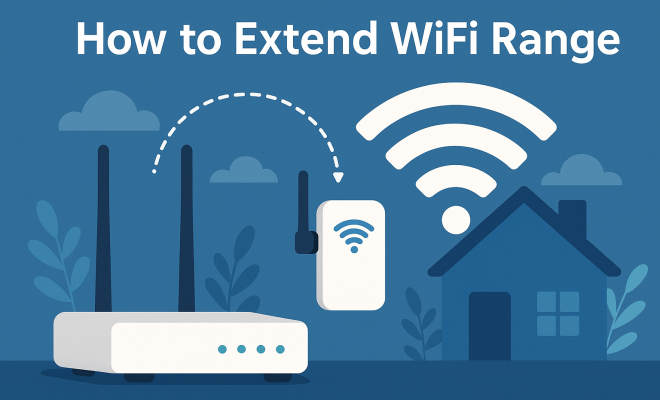
If you have a large home or areas where the signal is particularly weak, consider investing in a WiFi extender. These devices work by repeating the existing signal from your router to extend its range. Many models are easy to install and can significantly enhance WiFi coverage in hard-to-reach spots.
When choosing a WiFi extender, ensure it’s compatible with your existing router and supports the same WiFi standards (like 802.11ac or 802.11n) for optimal performance. Place the extender halfway between your router and the area where the signal is weak for the best results.
5. Upgrade Your Antennas
Many routers come with detachable antennas. If your router has this feature, consider upgrading to higher-gain antennas. These antennas can boost the strength and directionality of your WiFi signal, improving coverage in specific areas of your home.
When replacing antennas, choose ones that match the specifications of your router and consider directional antennas if you want to enhance coverage in a particular direction. This can be especially useful for large spaces or outdoor areas.
6. Reduce Interference from Other Devices
WiFi signals can be disrupted by interference from various electronic devices and even physical barriers. To minimize interference, try to keep your router away from electronic devices that can cause disruption, such as microwaves, Bluetooth devices, and baby monitors. (See: CDC on air quality and electronics.)
Physical barriers like walls, floors, and furniture can also weaken WiFi signals. If possible, relocate your router to minimize the number of obstacles the signal has to pass through. In a multi-story home, installing the router on a higher floor can help improve coverage on the lower levels.
7. Utilize a Mesh WiFi System
For those who require extensive coverage, a mesh WiFi system might be the best investment. Unlike traditional routers and extenders, mesh systems use multiple nodes placed throughout your home to create a seamless WiFi network. This eliminates dead zones and provides consistent coverage across larger spaces.
Setting up a mesh WiFi system is generally straightforward and can be managed through a dedicated app. These systems not only extend WiFi range but also improve network reliability and performance across multiple devices, making them ideal for smart homes.
8. Limit Connected Devices
Another factor that can impact your WiFi performance is the number of devices connected to your network. Each device consumes bandwidth, which can lead to slower speeds and weaker signals. To ensure optimal performance, consider limiting the number of connected devices, especially during high-usage periods.
If you have many devices connected, try disconnecting those that aren’t in use or schedule usage for non-peak hours. For homes with high internet demand, like families with multiple streaming devices, upgrading to a higher-speed internet plan may also be beneficial.
9. Consider Wired Connections
While WiFi is convenient, many devices can benefit from a direct, wired connection. Ethernet cables provide a stable connection that’s free from the interference and signal loss that can occur with wireless signals. For devices that require constant, high-speed connections, such as gaming consoles or desktop computers, consider using Ethernet.
Implementing wired connections can help alleviate some of the bandwidth pressure on your WiFi network, ensuring that devices relying on wireless connectivity still receive a strong signal. If you want to extend WiFi range while maintaining performance, combining wired and wireless connections may be the ideal solution.
10. Regularly Monitor Your Network
Finally, regularly monitoring your network can help you identify any issues affecting your WiFi performance. Using network management tools or apps can provide insights into which devices are connected, how much bandwidth they are using, and any potential problems affecting your network.
Taking the time to analyze and understand your network’s performance can help you make informed decisions about upgrades, placements, or settings adjustments. Staying proactive about your WiFi health ultimately leads to a better online experience.
11. Network Configuration Settings
Adjusting the configuration settings of your router can also have a significant impact on your WiFi range. Many routers provide options for tweaking transmit power, bandwidth, and Quality of Service (QoS). Increasing the transmit power can help extend your signal, while QoS settings prioritize bandwidth for specific devices, ensuring they get the speed they need without being affected by other devices.
To access these settings, log into your router’s web interface and navigate to the advanced settings menu. Look for options like “Transmit Power” and “QoS.” Keep in mind that while increasing power can help extend range, it may also lead to increased interference with neighboring networks, so it’s important to find a balanced setting.
12. Invest in a High-Quality Router
If your current router is outdated, investing in a high-quality model that supports the latest standards (like WiFi 6) can provide a significant boost in performance. Modern routers are designed to handle multiple devices more efficiently and offer better coverage and speed compared to older models. Look for routers with features like beamforming, which focuses the WiFi signal in the direction of connected devices, improving range and speed.
When shopping for a new router, consider your specific needs. For example, if you have a smart home with numerous devices, a router with strong multi-user capabilities can handle simultaneous connections effectively. Reading user reviews and expert comparisons can help you choose the best router for extending your WiFi range. (See: New York Times on extending Wi-Fi range.)
13. Understanding WiFi Standards
Knowing the different WiFi standards can also guide your efforts to extend WiFi range. The most common standards are 802.11n, 802.11ac, and the newest, 802.11ax (WiFi 6). Each standard offers improvements in speed, efficiency, and range. For instance, WiFi 6 is designed to perform well even in congested environments, making it ideal for homes with many devices.
Keep in mind that both your router and connected devices need to support the same WiFi standard to benefit from its features. If you’re planning upgrades, consider replacing old devices to take full advantage of the latest technologies and ensure optimal performance throughout your network.
14. Setting Up a Guest Network
If your WiFi network is often congested with guests connecting devices, setting up a separate guest network can help manage bandwidth more effectively. This way, your primary network remains stable and faster for your primary devices. Guest networks can often be set up through your router’s settings and can limit access to certain resources to keep your network secure.
When creating a guest network, set a strong password and consider using a different SSID (network name) to distinguish it from your main network. This setup not only extends your WiFi usability but also protects your primary network from unauthorized access.
15. Powerline Adapters
Powerline adapters are another option worth considering for extending WiFi range. These devices use your home’s electrical wiring to transmit internet signals. By plugging a powerline adapter into an outlet near your router and connecting it via Ethernet, you can then place another adapter in a different room to create a wired connection or extend WiFi coverage in that area.
Powerline adapters are particularly useful in homes with thick walls or multiple floors, where traditional WiFi signals struggle to reach. They can be a straightforward solution if you want to bypass issues with WiFi range without running Ethernet cables through your home.
16. Building a Stronger WiFi Network: FAQs
How can I tell if my WiFi range needs to be extended?
If you frequently experience slow internet speeds, dropped connections, or dead zones in your home, these are signs that you may need to extend your WiFi range. You can use speed test websites or apps to assess the strength of your connection throughout your home.
What is the best WiFi extender for large homes?
The best WiFi extender for large homes often depends on the specific layout and square footage of your space. Look for extenders that support dual-band connectivity, have good reviews regarding range and speed, and are compatible with your existing router. Popular brands include TP-Link, Netgear, and Linksys.
Can trees or landscaping affect my WiFi signal?
Yes, trees and landscaping can affect your WiFi signal. Dense foliage can absorb or block signals, especially at the 2.4 GHz frequency. If you’re experiencing weak signals outdoors, consider trimming trees or repositioning your router to achieve better coverage.
Is it worth investing in a mesh WiFi system?
If you have a large home with multiple floors or dead zones, investing in a mesh WiFi system can be worth it. They provide consistent coverage and eliminate dead spots by using multiple nodes to create a single network throughout your home.
What are some common mistakes to avoid when trying to extend WiFi range?
Common mistakes include placing the router in a corner or enclosed space, neglecting firmware updates, and not considering the impact of physical obstructions. Additionally, not utilizing the correct channel or band can hinder your efforts to extend WiFi range effectively.
17. The Role of WiFi 6 in Extending Your WiFi Range
As the newest WiFi standard, WiFi 6 (802.11ax) introduces technologies that significantly enhance performance, especially in busy environments. With increased capacity and efficiency, WiFi 6 can handle more devices simultaneously without sacrificing speed or reliability. This is particularly beneficial for homes with multiple users streaming, gaming, or working from home.
One of the standout features of WiFi 6 is Orthogonal Frequency Division Multiple Access (OFDMA), which allows multiple devices to share the same channel, increasing overall network capacity. This means that, even if you have multiple devices connected at once, each can still maintain a stable connection. If you’re looking to extend your WiFi range and future-proof your network, investing in a WiFi 6 router could be a game-changer.
18. Outdoor WiFi Solutions
If you enjoy spending time outside—whether in your backyard, patio, or garden—you might want to consider outdoor WiFi solutions. Outdoor access points are designed to withstand the elements and provide strong coverage in outdoor spaces. These devices can be mounted on walls or poles, allowing you to extend WiFi range beyond the confines of your home.
For effective outdoor coverage, place the access point in a strategic location, ideally higher up and with minimal obstructions. Some outdoor access points can even create a separate network for outdoor devices, ensuring that your indoor connections remain stable and unaffected.
19. Using Quality Ethernet Cables
When you do decide to go the wired route, the quality of your Ethernet cables can make a difference. Cat5e, Cat6, and Cat6a cables are capable of supporting high-speed internet connections. Using better-quality cables can reduce latency and improve overall performance, especially for devices that require high bandwidth, like gaming consoles or streaming devices.
Additionally, ensuring that cables are not excessively long or coiled can help maintain signal integrity. If you’re running cables through walls or ceilings, consider using wall plates for a clean installation and to minimize exposure to potential interference.
20. WiFi Analyzers: Tools for Optimization
WiFi analyzers are essential tools for anyone looking to extend their WiFi range. These apps can scan your network and provide insights into signal strength, channel congestion, and network performance. By utilizing these tools, you can make informed decisions about where to place your router, which channels to select, and how to optimize your network settings.
Some popular WiFi analyzer apps include NetSpot, WiFi Analyzer (for Android), and Acrylic WiFi (for Windows). Each of these tools offers various features to help troubleshoot issues and enhance your WiFi experience.
In conclusion, extending your WiFi range doesn’t have to be a daunting task. By implementing these strategies, you can significantly improve your connectivity and enjoy a seamless online experience throughout your home or office. Whether it’s repositioning your router, investing in extenders, or utilizing a mesh system, the right approach depends on your specific needs and environment. So, take control of your WiFi today and ensure you’re getting the most out of your internet connection.
“`
Trending Now
Frequently Asked Questions
How can I extend my WiFi range at home?
You can extend your WiFi range by strategically positioning your router in a central, elevated location, away from obstructions and electronic devices. Additionally, keeping your router's firmware updated and changing the WiFi channel or band can also enhance your signal strength.
What is the best position for a WiFi router?
The best position for a WiFi router is centrally located in your home, elevated off the ground, and free from walls or obstructions. Placing it on a shelf or high furniture can help distribute the signal evenly throughout your space.
How often should I update my router's firmware?
You should update your router's firmware regularly, as manufacturers release updates to improve performance and security. Check for updates every few months or whenever you experience connectivity issues to ensure optimal operation.
What can interfere with my WiFi signal?
Common interference sources for WiFi signals include walls, large furniture, and electronic devices such as microwaves and cordless phones. Keeping your router away from these items can help improve signal strength and reduce dead spots.
How do I change my WiFi channel?
To change your WiFi channel, log in to your router's settings through a web browser by entering its IP address. Navigate to the wireless settings section, where you can select a different channel. Experimenting with different channels can help reduce interference and improve your connection.
Agree or disagree? Drop a comment and tell us what you think.