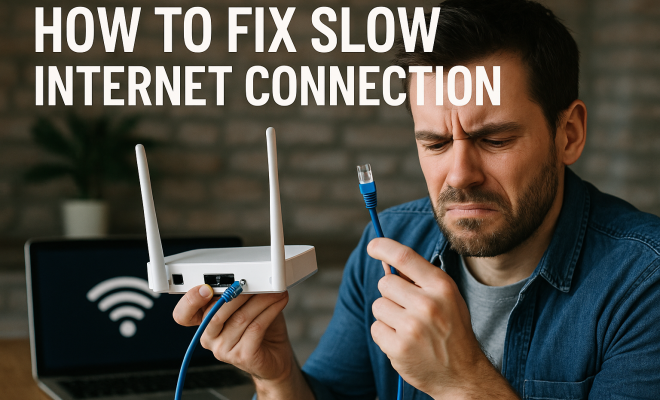
How to fix slow internet connection
“`html
Experiencing a slow internet connection can be frustrating, especially when you’re trying to stream your favorite show, work from home, or connect with friends and family. In today’s digital age, a reliable internet connection is crucial for both personal and professional activities. If you’re dealing with sluggish speeds, you’re not alone. Fortunately, there are effective methods to tackle this issue. Here’s a comprehensive guide on how to fix slow internet connection issues, complete with actionable insights.
1. Understand Your Internet Plan
Before diving into troubleshooting, it’s essential to know what internet speed you’re actually paying for. Most ISPs (Internet Service Providers) advertise speeds in megabits per second (Mbps), but many factors can affect whether you’re actually receiving those speeds. Check your plan details by logging into your ISP account or reviewing your bill. You might be surprised to discover that you’re on a slower plan than you need.
Once you’ve determined your plan’s speed, use an online speed test tool, like Speedtest.net, to measure your current speeds. Compare the results with your advertised speeds. If the results are significantly lower, it might be time to troubleshoot your connection. Knowing your plan is the first step to fixing slow internet connection issues.
2. Restart Your Router
The simplest fix often goes overlooked: restarting your router. Just like any electronic device, routers can benefit from a quick reboot. Power cycling your router helps clear temporary glitches and refreshes the connection. To do this, unplug the router from the power source, wait for about 30 seconds, and plug it back in. Once the lights stabilize, check your internet speed again.
In some cases, restarting your modem as well can help. If you have a separate modem and router, unplug both devices. After waiting, plug the modem back in first, followed by the router. This sequence allows the modem to establish a fresh connection with your ISP before re-establishing your internal network.
3. Optimize Your Wi-Fi Signal
If you’re relying on Wi-Fi, your connection’s performance may vary based on signal strength and interference. First, check the placement of your router. Ideally, it should be positioned in a central location, away from obstructions such as walls or large furniture that can block the signal. If possible, elevate the router on a shelf or mount it on the wall.
Consider switching to a less congested Wi-Fi channel. Most routers operate on 2.4GHz and 5GHz bands, with the 2.4GHz band being more prone to interference. Use your router’s settings to switch channels and test different options. Additionally, using a Wi-Fi extender can help improve coverage in larger homes or areas where the signal is weak.
4. Check for Network Congestion
Have you noticed that your internet slows down during specific times of the day? This could be due to network congestion, especially during peak hours when multiple users are online. If your home has several devices connected to the network — smartphones, tablets, smart TVs, or gaming consoles — they could be hogging bandwidth.
To counteract this, consider scheduling heavy downloads or streaming outside peak hours. If bandwidth is consistently an issue, upgrading your internet plan to a higher speed can also provide a more stable experience. Additionally, implementing Quality of Service (QoS) settings in your router can prioritize bandwidth for specific devices or applications.
5. Update Your Hardware
Older hardware can significantly impact your internet speeds. If your router is several years old, it may not support the latest Wi-Fi standards or handle multiple devices efficiently. Look for a dual-band or tri-band router if you have many devices connected at once. These routers distribute bandwidth more effectively, improving overall performance.
Furthermore, ensure that your devices have the latest software updates installed. Outdated firmware can lead to slow speeds and connectivity issues. Regularly check for updates on both your router and connected devices to ensure optimal performance. (See: Internet Use and Ergonomics.)
6. Limit Background Applications
Many applications run in the background, consuming precious bandwidth. These can include automatic updates, cloud storage synchronization, or video streaming services. Take a moment to check which applications are running on your devices and limit those that aren’t necessary during critical tasks.
On Windows, the Task Manager can help identify bandwidth-hogging applications. On Mac, you can use Activity Monitor for the same purpose. Once you identify the culprits, close or pause those applications to free up bandwidth and potentially fix slow internet connection issues.
7. Secure Your Network
One often-overlooked factor is network security. If your Wi-Fi is unsecured, unauthorized users may be tapping into your connection, significantly slowing speeds. Make sure you’re using a strong password and the latest security protocols, like WPA3.
To check who is connected to your network, log into your router’s admin panel. Most routers have a section that shows connected devices. If you find unfamiliar devices, it’s time to change your password. Regularly changing your Wi-Fi password can help keep your connection secure and optimized.
8. Contact Your ISP
If you’ve tried all the above solutions and still experience slow speeds, it may be time to contact your Internet Service Provider. There could be issues on their end, such as outages or maintenance that impact your connection. Additionally, they can provide insights into your service history and check for problems specific to your line.
Don’t hesitate to ask your ISP about potential upgrades to your plan or additional services that may improve your speed. Many ISPs offer promotions or packages that can provide better performance at a competitive price.
9. Consider Wiring Over Wireless
If your devices are located close enough to your router, consider using an Ethernet cable instead of relying on Wi-Fi. Wired connections typically offer faster speeds and more stable connections. For gaming, streaming, or working from home, a wired connection can minimize latency and packet loss, significantly enhancing your online experience.
To set up a wired connection, plug one end of the Ethernet cable into your router and the other into your device. Most computers and gaming consoles have Ethernet ports. This simple change can often resolve persistent connectivity issues and is worth considering if wireless isn’t performing as expected.
10. Understanding Latency and Jitter
When discussing internet speeds, it’s also important to understand latency and jitter, as they play crucial roles in your online experience. Latency refers to the delay before data transfer begins following an instruction, measured in milliseconds (ms). Jitter, on the other hand, indicates the variability in packet delay, which can lead to inconsistent performance during streaming or gaming.
High latency can be particularly frustrating in online gaming or video conferencing. Ideally, latency should be under 20ms for optimal performance. If you’re facing high latency issues, check your router’s settings and ensure Quality of Service (QoS) is enabled, which prioritizes time-sensitive applications. If necessary, consider upgrading to a lower-latency internet plan or using wired connections for demanding tasks.
11. Utilize a VPN for Improved Stability
While it may seem counterintuitive, using a Virtual Private Network (VPN) can sometimes improve connection stability, especially if you’re experiencing throttling from your ISP. A VPN encrypts your data, potentially helping you avoid bandwidth limitations imposed by your service provider. However, it’s important to choose a high-quality VPN service, as a poorly configured VPN can lead to slower speeds.
Before using a VPN, you may want to test your speeds both with and without it. This way, you can determine if it helps enhance your connection. Some VPNs also provide features specifically designed to reduce latency and optimize streaming, making them worthwhile to explore. (See: Understanding Internet Speed.)
12. Perform Regular Maintenance and Monitoring
Just as you would regularly maintain your car, your home network also needs some TLC. Set a schedule for routine checks on your internet speed and network performance. Monitoring tools are available that can help keep track of bandwidth usage by device, which can be especially useful for families with multiple devices connected.
Use these insights to identify any unusual spikes in usage that could indicate problems or unauthorized access. By making it a habit to review your network performance regularly, you can catch issues early and take preventive measures before they escalate into bigger problems.
13. Common Causes of Slow Internet Connection
Understanding what might be causing your slow internet connection is crucial for effective troubleshooting. Here are some common culprits:
- ISP Throttling: Some ISPs intentionally slow down your connection based on usage patterns or during peak times.
- Physical Obstructions: Walls, floors, and even furniture can obstruct Wi-Fi signals, leading to a weaker connection.
- Outdated Devices: Devices that don’t support the latest standards may struggle to maintain optimal speeds.
- Network Interference: Other electronic devices, such as microwaves or cordless phones, can interfere with Wi-Fi signals.
14. Advanced Troubleshooting Techniques
If your internet connection remains slow despite basic troubleshooting, you may need to dig a little deeper:
- Change DNS Settings: Sometimes, changing your DNS server to a public option like Google DNS (8.8.8.8) or Cloudflare DNS (1.1.1.1) can enhance speed and reliability.
- Factory Reset Your Router: If the router is malfunctioning, a factory reset can restore it to its original settings, potentially fixing ongoing issues.
- Use a Wi-Fi Analyzer: Download an app to analyze your Wi-Fi network. These tools can help identify the best channels and detect interference.
15. Future-Proofing Your Internet Connection
With technology continually evolving, it’s essential to future-proof your internet connection. Here are several strategies to ensure your home network remains robust:
- Invest in Mesh Networking: If you have a large home, consider investing in a mesh Wi-Fi system. These systems provide seamless coverage and can be expanded easily as needed.
- Upgrade Your Internet Plan: Research new plans available in your area. As more devices require connectivity, having a higher-speed plan can help maintain performance.
- Plan for Smart Devices: If you’re integrating smart home devices, ensure your network can handle the additional connectivity demands.
16. Understanding Data Caps and Their Impact
Many ISPs impose data caps that limit the amount of data you can use on your internet plan each month. Exceeding these caps can result in throttled speeds. Understand your plan’s data limits and track your monthly usage to avoid potential slowdowns. You can often find usage trackers in your ISP’s app or website. If your usage regularly exceeds the cap, consider switching to an unlimited plan if available.
17. FAQ
Q1: What should I do if my internet speed is consistently slower than promised?
A1: Start by running a speed test to confirm your speeds. If they are consistently lower than what you’re paying for, contact your ISP to report the issue. They may need to check for issues on their end or recommend a plan that’s better suited to your needs.
Q2: Can multiple devices connected to my Wi-Fi slow down the internet?
A2: Yes, having too many devices connected at once can hog bandwidth and lead to slower internet speeds. Consider disconnecting devices not in use or upgrading to a router that can handle more connections effectively.
Q3: How can I know if someone is stealing my Wi-Fi?
A3: Log into your router’s admin panel to view connected devices. If you see unfamiliar devices, change your password immediately and consider enabling MAC address filtering for added security.
Q4: What is the difference between bandwidth and speed?
A4: Bandwidth refers to the maximum amount of data that can be transmitted over your internet connection at a time, while speed indicates how fast that data is delivered. You can think of bandwidth as the width of a highway and speed as how fast cars can travel on it.
Q5: Is upgrading my plan the only solution to slow internet?
A5: Not necessarily. Before upgrading, try the troubleshooting steps mentioned above. Often, fixing configurations, optimizing your network, or upgrading hardware can resolve issues without needing to switch plans.
Q6: How can I improve streaming performance?
A6: To enhance streaming performance, consider reducing the number of devices connected to your network during streaming, using a wired connection, or adjusting the quality settings on your streaming service.
Q7: What are some signs that my router is outdated?
A7: Signs include inconsistent connectivity, inability to support multiple devices, frequent disconnections, or a lack of support for the latest Wi-Fi standards. If your router is several years old, it may be time for an upgrade.
Q8: Can malware slow down my internet connection?
A8: Yes, malware can consume bandwidth and resources on your devices, leading to slower internet speeds. Regularly scan your devices for malware and keep your antivirus software up to date to maintain performance.
Q9: What steps should I take if my internet is slow at specific times of the day?
A9: If your internet is slow during peak usage times, consider upgrading your plan for higher speeds, using a wired connection, or scheduling high-bandwidth activities during off-peak hours.
Q10: How can I optimize my connection for gaming?
A10: Use a wired connection for stability, enable QoS settings on your router to prioritize gaming traffic, and make sure any background applications are closed while gaming to free up bandwidth.
In conclusion, a slow internet connection can be frustrating, but with these twelve strategies, you can troubleshoot and fix slow internet connection issues effectively. From understanding your plan to optimizing your network and securing it, each step plays a crucial role in achieving a faster, more reliable connection. Don’t let slow internet hinder your online activities; take action today and enjoy a smoother browsing experience.
“`
Trending Now
Frequently Asked Questions
What can I do to fix a slow internet connection?
To fix a slow internet connection, start by checking your internet plan to ensure you're receiving the advertised speeds. Restarting your router can also help clear temporary glitches. Additionally, consider reducing the number of connected devices, moving closer to your router, or upgrading your plan if necessary.
Why is my internet so slow all of a sudden?
A sudden drop in internet speed can occur due to various reasons, such as network congestion, too many devices connected, or issues with your router. It’s also possible that you are not receiving the speeds promised by your ISP. Restarting your router and checking your plan can help identify the issue.
How do I check my internet speed?
To check your internet speed, use an online speed test tool like Speedtest.net. Simply visit the website and click on 'Go' to initiate the test. This will measure your download and upload speeds, allowing you to compare them with the speeds advertised by your Internet Service Provider.
Does restarting your router improve internet speed?
Yes, restarting your router can improve internet speed by clearing temporary glitches and refreshing the connection. This simple step often resolves slow internet issues, so it's a good first troubleshooting measure if you're experiencing sluggish speeds.
What factors can affect my internet speed?
Several factors can affect internet speed, including the type of internet connection, the number of devices connected, network congestion, and the distance from your router. Additionally, issues with your ISP or outdated equipment can also contribute to slower speeds.
What did we miss? Let us know in the comments and join the conversation.