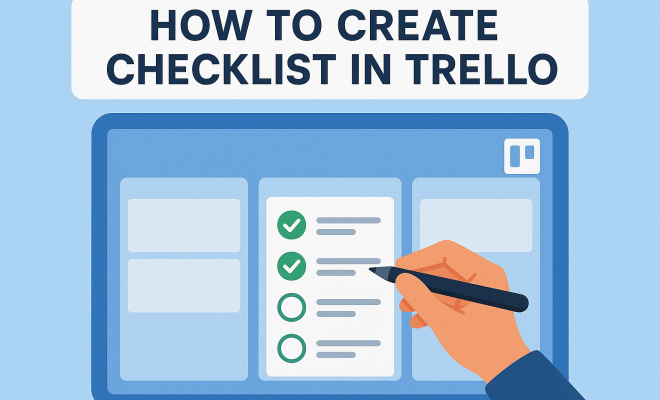
How to create checklist in Trello
“`html
Trello has emerged as one of the leading project management tools, revolutionizing how individuals and teams organize their tasks. Whether you’re managing a solo project or working collaboratively with a group, the ability to effectively create checklists in Trello can significantly enhance your productivity. In this article, we’ll delve into the practical steps, tips, and tricks for utilizing Trello’s checklist feature to its fullest potential.
1. Understanding Trello and Its Functionality
Before diving into how to create checklists in Trello, it’s essential to understand what Trello is all about. Trello is a visual collaboration tool that uses boards, lists, and cards to organize tasks and projects. Each board represents a project, lists categorize tasks, and cards act as individual tasks or ideas. This structured yet flexible layout allows users to visualize their workflow and prioritize effectively.
Trello’s checklist feature allows you to break down tasks into smaller, manageable components. This function is particularly useful for complex projects where a single task may include multiple steps. By creating checklists, you ensure that every aspect of a task is accounted for, helping to enhance organization and accountability.
2. Setting Up Your Trello Account
To begin, you’ll need a Trello account. If you don’t have one yet, head over to the Trello website and sign up for a free account. The sign-up process is straightforward and only requires an email address.
Once you’ve created your account, familiarize yourself with the Trello interface. You’ll find a navigation menu on the left, where you can create new boards, access your existing boards, and manage your account settings. The more comfortable you are with the interface, the easier it will be to create checklists in Trello.
3. Creating Your First Board
Upon logging in, your first task is to create a board. Click on the “Create new board” option, and you’ll be prompted to name your board and choose its visibility settings (private, workspace-visible, or public). Consider the purpose of this board: is it for personal projects, a team collaboration, or something else?
After naming your board, you can customize it further by adding a background and inviting team members if collaboration is a factor. This initial setup is crucial because it lays the groundwork for how you’ll manage your projects and tasks moving forward.
4. Adding Lists and Cards to Organize Your Tasks
With your board created, the next step is to add lists that represent different stages of your project or categories of tasks. For example, you might have lists titled “To Do,” “In Progress,” and “Completed.” This structure helps you visualize where each task stands in the workflow.
Now it’s time to add cards to your lists. Cards represent individual tasks or ideas that fall within each list. Click on “Add a card” within the relevant list to create a new task. When you add a card, you can include essential details like a due date, labels for categorization, and attachments if needed. This is where you can further streamline your checklist creation. We covered improve your project management in more detail.
5. How to Create a Checklist Within a Card
Now that you have your board, lists, and cards set up, let’s get into the heart of the matter: creating checklists within your cards. Open the card where you want to add a checklist and look for the “Checklist” option in the card menu. Click on it, and a prompt will appear for you to name your checklist. (See: Trello overview on Wikipedia.)
After naming your checklist, you can begin adding items. Simply type each item and hit “Enter” to add them to the list. You can check off items as you complete them, providing a satisfying visual representation of your progress. It’s also possible to create multiple checklists within a single card, allowing for even more detailed breakdowns of tasks.
6. Utilizing Checklist Features for Enhanced Productivity
Trello offers several features that can enhance your checklist experience. For instance, once you create a checklist, you can set due dates for individual items, which can be helpful for tracking timelines. Additionally, you can assign checklist items to different team members, ensuring that everyone knows their responsibilities.
Another useful feature is the ability to copy checklists from one card to another. This is particularly beneficial if you have recurring tasks that require the same steps each time. By keeping your checklists consistent, you save time and reduce the chances of overlooking essential tasks.
7. Integrating Trello with Other Tools
To maximize your productivity, consider integrating Trello with other tools you regularly use. For example, integrating Trello with Google Drive allows you to attach documents directly to your cards. Similarly, platforms like Slack can send notifications when tasks are completed or when due dates approach, keeping your team updated.
These integrations help centralize your workflow, allowing you to manage tasks without switching between multiple applications. Moreover, Trello’s flexible nature means you can customize your board to match your specific workflow, making checklist creation even more efficient.
8. Best Practices for Creating Effective Checklists
Creating checklists in Trello is about more than just listing tasks; it’s about maximizing efficiency and clarity. Here are some best practices to consider:
- Be Specific: When creating checklist items, be as detailed as possible. Instead of writing “Prepare report,” specify “Gather data, draft report, review with team.”
- Prioritize Tasks: Arrange your checklist items in the order they need to be completed. This helps prevent confusion and makes it easier to focus on what’s important.
- Regularly Review and Update: As projects evolve, so should your checklists. Regularly review them to ensure they remain relevant and comprehensive.
9. Common Mistakes to Avoid
While Trello’s checklist feature is incredibly useful, there are some common pitfalls to watch out for. One major mistake is creating overly complicated checklists that are hard to follow. Simplicity is key; each checklist should serve its purpose without unnecessary clutter.
Another mistake is failing to utilize the collaborative features. If you’re working with a team, ensure that everyone knows how to access and use the checklist feature. This promotes accountability and keeps everyone aligned with project goals.
10. Advanced Checklist Techniques
Once you’re comfortable with the basics of creating checklists in Trello, you might want to explore some advanced techniques that can really elevate your project management game.
10.1. Using Checklists for Agile Methodologies
If you’re following Agile methodologies, checklists can play a vital role in sprint planning and retrospective meetings. You can create a “Sprint Tasks” checklist for each card in your sprint board. This checklist can cover all the tasks that need to be completed during the sprint, ensuring that nothing falls through the cracks. During retrospectives, you can use the checklist to evaluate what went well and what needs improvement.
10.2. Creating Templates
For projects that require similar steps repeatedly, consider creating checklist templates. You can create a card with a checklist that serves as a template for future projects. When starting a new project, simply copy this card to your new board, and you’ll have a pre-populated checklist tailored to your recurring needs.
10.3. Utilizing Labels and Tags
Labels can bring an added layer of organization to your checklists. You can label checklist items based on priority, department, or type of task. For example, if your project involves various departments, you might use different colored labels to denote which department is responsible for each checklist item. This visually separates tasks and helps with quick identification. (See: CDC on productivity and ergonomics.)
11. Statistics and Impact of Using Checklists
The effectiveness of checklists is backed by research. Studies have found that using checklists can improve performance by up to 30%, particularly in complex tasks. For instance, in the medical field, the use of checklists has been shown to reduce surgical complications significantly.
In project management, teams that consistently utilize checklists report higher completion rates and fewer missed tasks. According to a survey of Trello users, 80% claimed that using checklists improved their task completion rates, with 65% saying it reduced their stress levels. This highlights the importance of incorporating effective checklist practices into your project management workflow.
12. Expert Perspectives
Industry experts agree on the advantages of using checklists in project management. According to David Allen, productivity consultant and author of “Getting Things Done,” checklists are essential for enhancing focus and ensuring that critical tasks are not overlooked. “A checklist serves as a guide, reminding you of the steps required to achieve your goals,” he states.
Similarly, productivity expert Laura Vanderkam emphasizes that checklists help individuals prioritize tasks effectively. “By breaking down larger projects into smaller, actionable items, you can maintain momentum and feel a sense of progress,” she says. These insights from experts reinforce the value of mastering checklist creation in Trello. (great collaboration tools for students)
13. FAQ: Creating Checklists in Trello
13.1. Can I have multiple checklists in a single Trello card?
Yes, you can create multiple checklists within a single Trello card. This allows you to organize different aspects of a task or project neatly.
13.2. Can I assign checklist items to different members?
Absolutely! You can assign checklist items to specific team members to clarify responsibilities and ensure everyone knows what they need to do.
13.3. How can I copy a checklist from one card to another?
To copy a checklist, open the card containing the checklist you want to duplicate, click on the checklist, and choose the ‘Copy Checklist’ option. You can then paste it into any other card.
13.4. Is it possible to set due dates for individual checklist items?
Yes, Trello allows you to set due dates for individual checklist items. This feature helps keep track of specific deadlines for each part of a task.
13.5. What should I do if my checklist becomes too long?
If your checklist is getting lengthy, consider breaking it down into multiple checklists within the same card or creating sub-cards that focus on specific areas of the task.
13.6. Can I customize checklist item names?
Yes, you can edit the names of checklist items at any time. Simply click on the item name to make changes. (See: Harvard University resources.)
13.7. Are there mobile app features for checklists?
Trello’s mobile app includes all the checklist features available on the desktop version, allowing you to manage your tasks on the go.
14. Real-World Applications of Trello Checklists
Trello checklists are not limited to just project management in corporate environments; they can be applied in various real-world scenarios. For instance, teachers can use Trello to manage class projects by creating checklists for assignment submissions, grading tasks, and parent communications. Similarly, event planners can utilize checklists to track vendor contracts, guest lists, and event schedules. The versatility of Trello checklists makes them useful across diverse industries.
15. Case Studies: Success Stories with Trello
Many organizations have shared their success stories about using Trello and its checklist feature. A small marketing agency reported that after implementing Trello for their project management, their task completion rate soared by 50%. By breaking down larger marketing campaigns into manageable checklist items, team members could focus on specific tasks without feeling overwhelmed. Another example comes from a nonprofit organization that used Trello to organize its fundraising events. By utilizing checklists, they streamlined their planning processes and increased their event participation by 40% compared to previous years.
16. Tips for Teams: Collaborative Checklist Management
For teams, managing checklists collaboratively can greatly enhance productivity. Here are a few tips to ensure effective teamwork:
- Regular Check-Ins: Schedule weekly or bi-weekly meetings to review checklist progress. This keeps everyone accountable and encourages open communication.
- Assign Roles: Clearly define roles for each team member based on the checklist items. This prevents overlap and ensures everyone knows their specific responsibilities.
- Utilize Comments: Encourage team members to use the comment section of each card to discuss checklist items. This can facilitate better understanding and collaboration.
17. Incorporating Feedback into Your Checklists
One of the key features of effective project management is the ability to adapt to feedback. After completing a project, consider gathering input from your team regarding the checklist process. You can ask questions like:
- Were the checklist items clear and actionable?
- Did the checklist help in completing tasks on time?
- What improvements can be made for future checklists?
Incorporating this feedback will help you refine your checklist process, making it more beneficial for future projects.
18. Final Thoughts on Creating Checklists in Trello
Creating checklists in Trello can dramatically improve your project management experience, whether you’re a lone wolf or part of a dynamic team. By following these steps and best practices, you’ll be well-equipped to harness the full potential of Trello’s checklist feature. Dive in, start organizing your tasks, and watch your productivity soar!
“`
Trending Now
Frequently Asked Questions
How do you create a checklist in Trello?
To create a checklist in Trello, first open a card within your board. Click on the 'Checklist' option in the card menu, then give your checklist a name. You can add items to the checklist by typing them in and hitting 'Enter' after each one. This feature allows you to break down tasks into manageable steps.
Can you have multiple checklists in Trello?
Yes, Trello allows you to create multiple checklists within a single card. This is useful for organizing different aspects of a task. Simply click 'Add Checklist' in the card, name it, and start adding items. You can create as many checklists as needed for your project.
What is the benefit of using checklists in Trello?
Using checklists in Trello helps enhance organization and accountability by breaking down complex tasks into smaller, manageable components. This approach allows individuals and teams to track progress while ensuring that all steps are completed, ultimately boosting productivity.
Do Trello checklists sync across devices?
Yes, Trello checklists sync across all devices. Any changes made to your checklists on one device will be reflected on others in real-time, ensuring you have the most up-to-date information available wherever you access Trello.
Is Trello free to use for creating checklists?
Trello offers a free version that includes the ability to create checklists. This allows users to manage their tasks effectively without any cost. However, additional features are available through paid plans, which may enhance your project management experience.
What's your take on this? Share your thoughts in the comments below — we read every one.