How to create checklist in OneNote
“`html
In today’s fast-paced environment, staying organized is essential for productivity. OneNote, Microsoft’s versatile note-taking app, provides an effective way to manage tasks through checklists. If you’re looking to streamline your workflow or keep track of personal tasks, learning how to create a checklist in OneNote can be a game-changer. This article will explore the ins and outs of creating checklists in OneNote, providing practical insights and useful tips to enhance your organization skills.
1. Understanding OneNote: A Brief Overview
OneNote is part of the Microsoft Office Suite and acts as a digital notebook that allows users to capture and organize information. Launched in 2003, it has evolved into a collaborative tool suited for both personal use and professional environments. OneNote’s appeal lies in its flexibility; users can incorporate text, images, audio, and even web clippings into their notes.
OneNote can be accessed across various devices, including PCs, tablets, and smartphones, making it easy to sync your notes in real-time. This multi-device accessibility is a crucial feature for anyone looking to stay organized without being tethered to one device. It’s equipped with numerous features that cater to different organizational needs, and one of the most effective methods is through the use of checklists. (Executive function strategies)
2. Why Use Checklists?: The Benefits of Task Management
Checklists are more than just simple lists; they are powerful tools for enhancing productivity. The cognitive psychology behind checklists indicates that they help reduce the mental load associated with task management. When you create a checklist in OneNote, you gain several advantages:
- Increased Focus: Checklists allow you to break down tasks into manageable steps, minimizing overwhelm.
- Enhanced Accountability: Physically checking off tasks can provide a sense of accomplishment and motivation.
- Improved Organization: Keeping track of tasks in OneNote centralizes your workload and allows for easy updates.
Moreover, checklists are particularly useful in team settings. They can be shared with collaborators, ensuring everyone is on the same page regarding project deadlines and responsibilities. This fosters a sense of teamwork and boosts overall productivity.
3. Getting Started: Setting Up OneNote for Your Checklist
Before you can create a checklist in OneNote, you’ll need to set up your workspace effectively. Start by opening OneNote on your preferred device. If you’re using OneNote for the first time, familiarize yourself with the interface. The primary components include:
- Notebooks: These are your main containers for organizing notes.
- Sections: Inside notebooks, sections allow you to categorize your notes further.
- Pages: Each page contains your notes and checklists.
To create a new checklist, simply select a notebook and section where you want it to reside, and create a new page. This will serve as the foundation for your checklist.
4. Steps to Create a Checklist in OneNote
Creating a checklist in OneNote is straightforward. Follow these steps to make your task management seamless:
- Open a New Page: Click on the ‘Add Page’ button in your selected section.
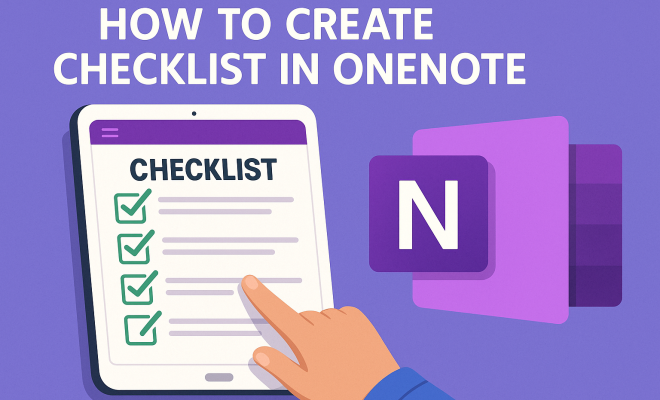
- Choose the Checklist Icon: In the toolbar, you’ll find the checklist option (usually represented by a checkbox icon). Click this to activate checklist mode.
- Type Your Tasks: Begin typing your tasks. Each time you hit ‘Enter,’ a new checkbox will be created.
- Check Off Tasks: As you complete each task, simply click the checkbox to mark it as done.
OneNote also allows for easy modifications. If you need to reorder tasks, drag and drop items on the list. This flexibility lets you adapt your checklist as priorities change.
5. Customizing Your Checklist: Making It Unique
One of the standout features of OneNote is its ability to be personalized. After creating your checklist, consider enhancing it with some customization options:
- Colors and Fonts: Change the text color or font to make specific tasks stand out. This is particularly useful for prioritization.
- Tags and Categories: Use built-in tags to categorize tasks (e.g., ‘Important’ or ‘Urgent’). This helps to streamline your workflow.
- Adding Notes: You can add additional details or notes next to tasks for further clarification.
Customizing your checklist in OneNote not only makes it visually appealing but also enhances its functionality. A well-organized checklist can save you time and effort in the long run. (See: Overview of OneNote.)
6. Using Checklists for Different Purposes
Checklists in OneNote aren’t limited to just to-do lists; they can be adapted for various purposes. Here are some ideas:
- Project Management: Create a checklist to track tasks and milestones for various projects.
- Event Planning: Use checklists to organize events, ensuring you cover every detail from venue booking to catering.
- Daily Routines: Incorporate checklists for daily or weekly routines, helping you stay consistent with tasks such as exercise or meal prep.
Adopting different types of checklists not only keeps you organized but also aids in maintaining a balanced schedule. You can even create a separate section in OneNote dedicated to different types of checklists.
7. Sharing and Collaborating on Checklists
OneNote shines in collaborative environments. You can easily share your checklists with colleagues or friends, making teamwork more productive. To share a checklist:
- Click on the Share Button: In the top right corner of OneNote, click on the share icon.
- Choose Your Sharing Method: You can send a link to your OneNote page or invite people via email.
- Set Permissions: Decide whether collaborators can edit or just view your checklist.
Collaborative checklists are invaluable for group projects, allowing everyone to contribute and track progress in real time. This feature enhances communication and accountability among team members.
8. Integrating OneNote with Other Tools
For users looking to maximize their productivity, integrating OneNote with other applications can elevate your checklist game. Here are a few tools you can link with OneNote:
- Outlook: Sync tasks between OneNote and Outlook. You can create tasks in Outlook that automatically appear in your OneNote checklists.
- To-Do Apps: Integrate with task management apps like Microsoft To-Do, creating a seamless workflow.
- Calendars: Connect OneNote to your calendar to manage deadlines associated with your checklists.
By utilizing these integrations, your checklists become even more powerful, allowing for a comprehensive view of your tasks and deadlines.
9. Tips for Effective Checklist Management
Creating a checklist in OneNote is just the first step; effectively managing it is crucial. Here are some tips to keep your checklists functional and useful:
- Regular Updates: Review and update your checklists regularly to reflect changes in tasks or priorities.
- Use Subtasks: For larger tasks, consider breaking them into subtasks within your checklist for better clarity and tracking.
- Set Deadlines: If applicable, assign deadlines to tasks to maintain urgency and focus.
By implementing these strategies, your OneNote checklists can become a central hub for managing your tasks effectively.
10. Real-Life Applications and Success Stories
The versatility of OneNote checklists is highlighted through various real-life applications. Many professionals have adopted this tool for project management, studying, and personal productivity:
- Students: Many students use OneNote checklists to manage assignments and study schedules, creating a more organized approach to their learning.
- Project Managers: In corporate settings, project managers leverage checklists to track project deliverables, ensuring nothing falls through the cracks.
- Homeowners: Individuals planning home renovations can use checklists to keep track of tasks, budgets, and timelines.
These examples illustrate the profound impact that OneNote checklists can have across various sectors, enhancing productivity and helping individuals stay organized.
11. Advanced Checklist Techniques
Once you’re comfortable with creating basic checklists in OneNote, you might want to explore more advanced techniques to further enhance your organization. Here are some methods:
- Conditional Formatting: While OneNote doesn’t have built-in conditional formatting like Excel, you can manually color-code tasks based on priority or status. For instance, red for urgent tasks and green for completed ones.
- Linking to Other Pages: If your checklist involves multiple steps or related information, consider adding links to other pages within OneNote. This creates a more connected and navigable workspace.
- Templates: If you find yourself creating similar checklists frequently, consider designing a template that you can reuse. This can save time and ensure consistency in your task management.
These advanced techniques can help you take your OneNote checklists to the next level, making them invaluable in your daily routines.
12. Statistics on Productivity and Checklists
Understanding the impact of checklists on productivity can motivate you to utilize them more effectively. Studies have shown that: (See: Benefits of organization for productivity.) Related reading: Classroom design insights.
- According to a study by the Dominican University of California, writing down your goals increases the likelihood of achieving them by 42%.
- Checklists can reduce errors in tasks by up to 30%, especially in complex environments like aviation and healthcare.
- Research from the Harvard Business Review indicates that people who use checklists feel more in control of their tasks and report higher levels of productivity.
These statistics showcase the potential of checklists, reinforcing why it’s beneficial to learn how to create a checklist in OneNote.
13. Checklist Examples for Different Scenarios
To further inspire you, here are some specific checklist examples tailored to various scenarios:
- Weekly Grocery Shopping:
- Check pantry for needed items
- List out meals for the week
- Organize by store sections (produce, dairy, etc.)
- Check for coupons
- Project Launch:
- Finalize project goals
- Assign tasks to team members
- Conduct a final review meeting
- Prepare marketing materials
- Travel Planning:
- Book flights and accommodations
- Create an itinerary of activities
- Ensure travel documents are ready (passport, visa)
- Pack essentials (clothing, toiletries)
These examples can be customized to fit your specific needs, providing a practical starting point to create your checklists in OneNote.
14. Common Mistakes to Avoid
While using checklists can enhance productivity, there are common pitfalls that can undermine their effectiveness:
- Being Overly Ambitious: It’s tempting to create long, exhaustive lists. Instead, focus on prioritizing tasks and keeping checklists manageable.
- Neglecting Regular Reviews: A checklist is only as good as how often you interact with it. Make it a habit to review and update your lists frequently.
- Ignoring Completion: Make sure to mark tasks as complete. This not only provides a sense of accomplishment but also helps you see what’s left to tackle.
Avoiding these mistakes can keep your OneNote checklists effective and aligned with your goals.
15. Frequently Asked Questions (FAQ)
Q1: Can I create a checklist in OneNote on my mobile device?
A1: Yes! The OneNote app allows you to create and manage checklists on mobile devices just like on a PC. Simply tap the checklist icon to start.
Q2: Is there a limit to the number of tasks I can add to a checklist?
A2: There is no specific limit to the number of tasks in a checklist, but keep in mind that too many tasks may lead to overwhelm. Prioritize for better efficiency. There’s a fuller look at Effective learning centers guide.
Q3: Can I collaborate on checklists with people who don’t have OneNote?
A3: Collaborators will need access to OneNote to view or edit shared checklists. You can share a link to the OneNote page, ensuring they have the app or web access.
Q4: Can I use OneNote checklists offline?
A4: Yes, OneNote allows you to work offline. Any changes made while offline will sync once you reconnect to the internet.
Q5: Are there any keyboard shortcuts for using checklists in OneNote?
A5: Yes, you can use shortcuts like Ctrl + 1 to create a checkbox quickly. Familiarizing yourself with these can speed up your workflow. (See: Latest technology news and updates.)
Q6: Can I import checklists from other applications?
A6: While OneNote doesn’t have a direct import feature, you can copy and paste items from other apps or export them as text files for manual entry.
Q7: How do I access my OneNote checklists from different devices?
A7: As long as you’re signed into your Microsoft account, your OneNote notebooks, including checklists, will sync across all devices connected to the internet.
If you’re looking to refine your productivity tools, mastering how to create a checklist in OneNote is an essential skill. Whether for personal tasks or collaborative projects, OneNote’s checklist feature is a robust solution to keep you organized and focused.
16. Enhancing Productivity with OneNote Checklists
Creating a checklist in OneNote isn’t just about listing tasks; it’s about enhancing productivity. Here are some strategies to make the most of your checklists:
- Prioritize Tasks: Use a numbering system or color coding to prioritize tasks based on deadlines or importance. This can help you focus on what needs immediate attention.
- Review and Reflect: At the end of each week, review your completed tasks. Reflecting on what you’ve accomplished can motivate you and provide insights on how to adjust future checklists.
- Integrate Mindfulness: Consider adding a short mindfulness task to your checklist, such as “Take a five-minute break.” This ensures you balance productivity with self-care, improving overall efficiency.
17. Case Studies: Success with OneNote Checklists
Real-life examples of individuals and teams utilizing OneNote checklists can provide inspiration and practical insights:
- Marketing Teams: A marketing team used OneNote checklists to manage their campaigns. Each campaign had its own checklist, detailing every task from brainstorming ideas to analyzing performance metrics, ensuring nothing was overlooked.
- Freelancers: Freelancers often juggle multiple clients and projects. By creating specific checklists for each client, they stay organized and can quickly reference what needs to be done for each project, aiding in time management.
- Event Coordinators: Event coordinators rely heavily on checklists to ensure that every element of an event is covered. From venue logistics to guest management, using OneNote allows them to collaborate seamlessly with their teams.
18. OneNote Checklist Templates
To help you get started, consider using checklist templates tailored for various scenarios. Here are a few ideas:
- Daily Task Checklist: A simple template that includes tasks like checking emails, attending meetings, and completing project updates.
- Event Planning Template: A detailed checklist that covers venue selection, invitations, catering, and event follow-up.
- Moving Checklist: A comprehensive list of tasks to handle before, during, and after a move, including packing, utilities setup, and change of address.
These templates can be saved within OneNote for quick access, making it easy to replicate successful strategies.
19. Conclusion: The Power of Checklists in OneNote
Mastering how to create a checklist in OneNote can dramatically enhance your productivity and organization skills. Whether you’re managing personal tasks or working on collaborative projects, the ability to create, customize, and share checklists makes OneNote an invaluable tool. The flexibility and accessibility of OneNote, combined with the effectiveness of checklists, empower users to stay focused and achieve their goals efficiently.
“`
Trending Now
Frequently Asked Questions
How do I create a checklist in OneNote?
To create a checklist in OneNote, open your notebook and select the page where you want the checklist. Click on the 'Home' tab, then choose the checkbox icon from the ribbon. Type your tasks, pressing 'Enter' after each one to create a new checkbox. This will allow you to track your tasks easily.
What are the benefits of using checklists in OneNote?
Using checklists in OneNote helps enhance productivity by breaking tasks into manageable steps, reducing mental load. It also increases accountability, as checking off completed tasks provides a sense of accomplishment, and improves organization by keeping your tasks clearly outlined.
Can I access my OneNote checklists on multiple devices?
Yes, OneNote is accessible across various devices, including PCs, tablets, and smartphones. This multi-device accessibility allows you to sync your checklists in real-time, ensuring you can manage your tasks no matter where you are.
Is OneNote suitable for team collaboration on checklists?
Absolutely! OneNote is designed for collaboration, allowing multiple users to edit and share checklists in real-time. This makes it an excellent tool for team projects, where members can add tasks, check off completed items, and keep everyone updated.
What features does OneNote offer for task management?
OneNote offers various features for task management, including the ability to create checklists, add tags, insert images and audio, and collaborate with others. Its versatility makes it a powerful tool for organizing personal and professional tasks effectively.
What's your take on this? Share your thoughts in the comments below — we read every one.