Convert PNG to JPG: Your Ultimate Guide for 2024
“`html
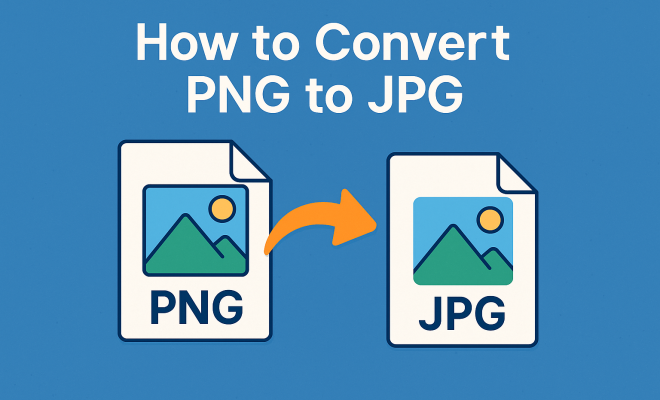
When it comes to image formats, PNG and JPG are among the most commonly used. Both have their unique strengths and weaknesses, but there are times when you might need to convert PNG to JPG to fit a specific requirement. Whether you’re looking to optimize your website’s loading speed, save space on your device, or share images more easily online, understanding how to convert between these formats is vital. Dive into this comprehensive guide to discover everything you need to know about converting PNG to JPG.
1. Understanding PNG and JPG Formats
Before getting into the nitty-gritty of conversions, it’s crucial to understand the differences between PNG and JPG formats. PNG (Portable Network Graphics) is a raster graphics file format that supports lossless data compression. This means that it retains all the image data, which is why PNGs are often used for images that require transparency or high fidelity, such as logos and graphics. On the other hand, JPG (Joint Photographic Experts Group) is a lossy format, which means that some image data is lost during compression, making it ideal for photographs where a smaller file size is more important than perfect quality.
In practical terms, this means that while PNGs can maintain clarity and sharpness even when resized, JPGs are typically more efficient for photographs and images with gradients, as they can drastically reduce file sizes. This makes JPGs preferable for online platforms where loading speed is critical. Understanding these distinctions lays the groundwork for knowing when and why you might want to convert PNG to JPG.
2. Why Convert PNG to JPG?
There are several reasons why you might find yourself needing to convert PNG to JPG. The most common reasons include:
- File Size: PNG files tend to be larger due to their lossless compression. If you’re running out of storage or need to optimize your website, converting to JPG can help reduce file size.
- Compatibility: While most modern platforms support both formats, JPG files are often more universally accepted. Some older programs may struggle with PNGs, making JPG a safer choice.
- Quality Versus Size Trade-offs: For photographs and images without transparency, JPG often offers a better balance between quality and file size, making it more suitable for sharing and uploading.
Ultimately, the decision to convert PNG to JPG boils down to your specific needs, whether it’s for web design, storage efficiency, or ease of use across different devices.
3. Common Methods to Convert PNG to JPG
There are various methods available for converting PNG images to JPG. They range from online tools to desktop applications. Here are some of the most popular options:
- Online Conversion Tools: Websites like Zamzar, Online-Convert, and Convertio allow you to upload PNG files and convert them to JPG format without the need for software installation. This method is quick and user-friendly, making it a popular choice.
- Image Editing Software: Programs like Adobe Photoshop, GIMP, and Paint.NET provide robust options for converting images. With these applications, you can also adjust quality settings and perform additional edits before saving your images.
- Built-in File Converters: Many operating systems come with built-in tools for image conversion. For instance, on Windows, you can use Microsoft Paint to open a PNG file and save it as a JPG.
Choosing the right method will depend on your preferences, whether you need extra editing capabilities or simply want a quick conversion.
4. Step-by-Step: Converting PNG to JPG Using Online Tools
Let’s explore how to convert PNG to JPG using an online tool. For instance, using Convertio is straightforward:
- Open the website and click on the “Select Files” button to upload your PNG image.
- Choose JPG as the output format from the dropdown menu.
- Click on the “Convert” button. The tool will process your file.
- Once the conversion is complete, download the JPG file to your device.
This method works well for users who want an easy and fast way to convert files without installing any software. Just remember to check the privacy policies of online tools, especially if you’re working with sensitive images. (See: Understanding PNG file format.)
5. Using Desktop Applications for Conversion
If you prefer to work offline or require more control over your images, using desktop applications might be the way to go. For example, Adobe Photoshop provides a comprehensive suite of tools for image editing and conversion:
- Open Adobe Photoshop and select “File” > “Open” to choose your PNG file.
- Once the image is open, navigate to “File” > “Save As.”
- In the format dropdown menu, select JPG and adjust the quality settings as needed.
- Click “Save” to export your image in JPG format.
This method allows you to tweak various settings, such as compression level, which can impact the quality and size of your final image.
6. Understanding Quality Loss in Conversion
One of the primary concerns when converting PNG to JPG is quality loss. Since JPG is a lossy format, it sacrifices some degree of image quality for smaller file sizes. This is particularly important if you plan to use the images for professional purposes, such as marketing materials or prints.
When saving a PNG as a JPG, you’ll often encounter a quality slider that dictates how much data will be lost during the conversion. Higher quality settings will retain more detail but result in larger file sizes, while lower-quality settings will shrink the size further at the cost of clarity. Striking a balance between quality and size is key, and it often requires experimentation to find what works best for your specific needs.
7. Batch Conversion: Saving Time and Effort
If you have multiple PNG images to convert, batch conversion tools can save significant time. Many software options, including Adobe Photoshop and dedicated batch converters like XnConvert, allow you to process multiple files simultaneously. Here’s how it works:
- Open your batch conversion software and select the folder containing your PNG files.
- Choose JPG as the output format.
- Set any desired quality parameters or resize options.
- Start the batch process, and the software will convert all images in the folder to JPG in one go.
This feature is particularly useful for photographers and designers who frequently handle large volumes of images and need a streamlined workflow.
8. Best Practices for Converting PNG to JPG
To get the best results when converting PNG to JPG, consider these best practices:
- Always Keep a Backup: Before converting, ensure you have a backup of your original PNG files. This way, you can revert if the JPG conversion does not meet your expectations.
- Choose the Right Quality Settings: Experiment with different quality levels during conversion. Higher quality settings may be necessary for professional projects, while lower settings can suffice for casual use.
- Optimize File Sizes: After conversion, check the file size. If the JPG is still larger than you’d like, consider using image optimization tools to compress it further without significant quality loss.
Implementing these practices will ensure that your converted images maintain a good balance of quality and file size, tailored to your specific needs.
9. Potential Drawbacks of Converting PNG to JPG
While converting PNG to JPG has its advantages, there are potential drawbacks you should be aware of. These include:
- Loss of Transparency: PNGs support transparency, which is essential for logos and web graphics. When you convert to JPG, any transparent areas will become opaque, potentially altering the image’s appearance.
- Reduced Quality for Detailed Graphics: For images with fine details and sharp contrasts, the lossy nature of JPG can lead to visible artifacts, especially at lower quality settings.
- Color Variations: Occasionally, the color representation may shift slightly during conversion. This can be problematic if color accuracy is critical, such as in branding or professional photography.
Being aware of these drawbacks can help you make more informed decisions about when and how to convert your images, ensuring you’re prepared for any potential issues that may arise.
10. Expert Tips for Image Conversion
To help you navigate the world of image conversions, we’ve gathered some tips from industry experts: (See: Overview of JPG image format.)
- Use Higher Quality Settings: If you’re converting images for print, opt for the highest quality settings to preserve detail. This is especially relevant for images that will be enlarged.
- Test Different Formats: If you’re unsure about which format to use, test your images in both PNG and JPG to see how they perform on your target platform, particularly for web use.
- Consider Alternative Formats: Depending on your needs, consider exploring other formats such as WebP for web use or TIFF for high-quality prints. Each format has its benefits and ideal applications.
By implementing these expert tips, you can enhance your image management practices and ensure that your files meet your specific requirements.
11. Frequently Asked Questions (FAQ)
1. Can I convert PNG to JPG on my smartphone?
Yes, there are numerous apps available for both Android and iOS that allow you to convert PNG files to JPG directly from your smartphone. Apps like Image Converter and Photo & Picture Resizer can help you achieve this easily.
2. Is there a significant quality difference between PNG and JPG?
Yes, PNG supports lossless compression, which retains all image details, whereas JPG uses lossy compression that can lead to quality loss. This means that while PNGs maintain clearer images, JPGs are typically smaller in file size but may sacrifice some clarity.
3. What’s the best resolution for JPG files?
The best resolution depends on the intended use. For web use, 72 DPI is often sufficient, while for prints, you may want to aim for at least 300 DPI to ensure quality. Always consider the context in which the image will be used.
4. Can I convert multiple PNG files to JPG at once?
Yes! Many desktop applications and online tools support batch conversion, allowing you to convert multiple PNG files to JPG simultaneously. This feature saves time and effort, especially when dealing with large projects.
5. What should I do if the JPG file size is still too large after conversion?
If the JPG file size remains large, consider using an image compression tool like TinyPNG or JPEGmini. These tools can further reduce file size without significant quality loss, making them perfect for web optimization.
6. Are there any online converters that are particularly recommended?
Yes, some popular online converters include CloudConvert, Zamzar, and Online-Convert. These tools offer user-friendly interfaces and various options for keeping your images secure during the conversion process.
7. What happens to image quality when converting a PNG with detailed graphics?
When you convert a PNG with detailed graphics to JPG, you might notice a reduction in sharpness due to the lossy compression method used by JPG files. Fine details can become blurry, and sharp edges may appear less defined. If preserving detail is crucial, you might want to stick with PNG or choose a high-quality JPG setting.
8. How does color depth affect my conversion from PNG to JPG?
Color depth refers to the number of bits used to represent colors in an image. PNG supports a higher color depth, which allows for more vibrant colors and smoother color transitions. When converting to JPG, the color depth may decrease, potentially affecting the image’s appearance, especially in areas with subtle gradients. Adjusting quality settings in JPG conversion can help mitigate some of these effects. (See: CDC on image formats and health.)
9. Can I revert back to PNG after converting to JPG?
Once you convert a PNG to JPG, the process is irreversible in terms of quality. While you can save a new file as a PNG after converting to JPG, any quality loss from the original PNG will remain. Always keep your original PNG files to ensure you have the highest quality version available.
12. Conclusion: The Importance of Image Format Flexibility
In an increasingly digital world, the ability to convert PNG to JPG is a fundamental skill for anyone who works with images. Whether for personal use or professional projects, understanding the nuances between these formats can enhance your workflow, save space, and improve image compatibility across various platforms. With the methods outlined in this guide, you’re equipped to make informed decisions about when and how to convert your images. Remember, the right format can make all the difference in achieving the desired outcome, so choose wisely!
13. Real-World Applications of Converting PNG to JPG
While understanding the technical details is essential, it’s also valuable to consider real-world applications of converting PNG to JPG. Below are some scenarios where converting might be particularly useful:
- Web Development: When building websites, developers often convert PNG images to JPG to improve loading times. This is especially beneficial for galleries and image-heavy pages where quick loading is critical for user retention.
- Email Marketing: JPGs are widely accepted by email clients. Converting PNGs to JPG can ensure that images display properly across diverse email platforms, ultimately enhancing visual communication without sacrificing speed.
- Social Media Publishing: Many social media platforms optimize images for faster loading. Converting images to JPG can enhance post engagement by ensuring images load quickly and maintain a good visual quality.
- E-commerce Product Images: For online shops, images of products are crucial. JPGs can help manage file sizes without significantly compromising quality, allowing customers to browse more quickly while still seeing detailed product images.
14. Choosing the Right Conversion Tool for Your Needs
With a plethora of conversion tools available, choosing the right one can be overwhelming. Here are some factors to consider when making your choice:
- Ease of Use: Look for tools with simple interfaces that allow for easy uploads and conversions without complex steps.
- Quality Control: Some tools allow you to preview the converted image quality before finalizing the conversion. This feature can help you make more informed decisions.
- Batch Processing: If you frequently convert multiple files, consider tools that support batch processing to save time.
- Security Features: Especially when dealing with personal or sensitive images, it’s essential to choose tools that prioritize user data privacy and offer secure conversions.
15. The Future of Image Formats
As technology progresses, we’re likely to see further developments in image formats and conversion processes. Emerging formats like AVIF and WebP offer both smaller file sizes and improved quality, challenging traditional formats like JPG and PNG. Keeping an eye on these advancements can help you stay ahead in managing image quality and efficiency.
Understanding how to convert PNG to JPG efficiently, along with recognizing the appropriate contexts for each format, is essential in today’s digital age. With the tips, tools, and insights provided in this guide, you’re now better equipped to navigate the world of image conversion!
“`
Trending Now
Frequently Asked Questions
What is the difference between PNG and JPG?
PNG (Portable Network Graphics) supports lossless compression, retaining all image data, making it ideal for graphics with transparency. JPG (Joint Photographic Experts Group), on the other hand, uses lossy compression, resulting in smaller file sizes, which is better for photographs where high fidelity is less critical.
Why would I want to convert PNG to JPG?
Converting PNG to JPG is beneficial for reducing file size, enhancing website loading speed, and ensuring better compatibility across various platforms. JPG files are typically smaller, making them easier to share and store.
How do I convert a PNG file to JPG?
You can convert a PNG to JPG using various methods, including online converters, photo editing software like Adobe Photoshop, or built-in tools on your device. Simply open the PNG file and choose the 'Save As' or 'Export' option to select JPG as the format.
Does converting PNG to JPG affect image quality?
Yes, converting PNG to JPG can affect image quality due to JPG's lossy compression. While it reduces file size, some image data is lost, which may result in a decrease in clarity, especially in images with sharp edges or text.
Are there any disadvantages to using JPG instead of PNG?
Yes, JPG files do not support transparency and can lose image quality due to compression. They are less suitable for images that require high detail or sharpness, such as logos and graphics, where PNG would be the better choice.
Agree or disagree? Drop a comment and tell us what you think.