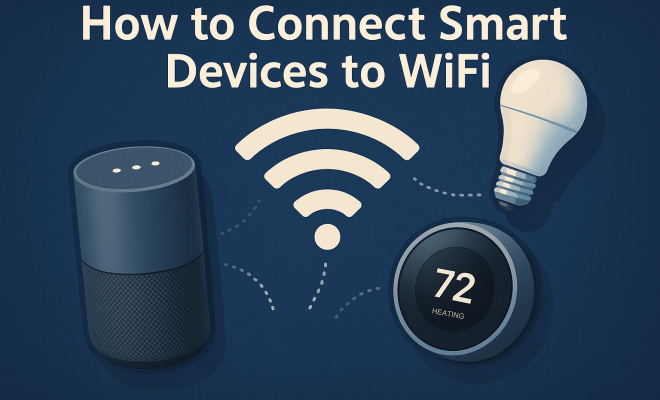
How to connect smart devices to WiFi
“`html
In an age where technology seamlessly integrates into our daily lives, connecting smart devices to WiFi has become a fundamental skill. Whether you’re setting up a smart thermostat, security camera, or a voice assistant, understanding the steps to efficiently connect these devices can enhance your smart home experience. In this article, we’ll explore seven essential tips that will help you connect smart devices to WiFi with ease, ensuring a smooth and efficient setup process.
1. Understanding Your WiFi Network
Before diving into the connection process, it’s crucial to have a solid grasp of your WiFi network. Most households use either a 2.4 GHz or a 5 GHz frequency band. The 2.4 GHz band offers a wider coverage area but at slower speeds, while the 5 GHz band provides faster speeds but covers a smaller area. Smart devices, especially those that require constant connectivity, often perform better on the 2.4 GHz band. Knowing your network’s capabilities and limitations aids in choosing the right band for your devices.
Additionally, it’s essential to ensure that your router is up to date. A router with outdated firmware may lead to connection issues. Most modern routers allow you to check and update the firmware through a web interface or an app. Keeping your router optimized can significantly reduce connectivity problems.
2. Gathering Essential Information
Once you’ve analyzed your network, the next step is gathering the necessary information to connect smart devices to WiFi. Typically, you will need your WiFi network name (SSID) and password. For devices that offer a mobile app for setup, you may also need to download that app, which often provides a user-friendly interface to guide you through the connection process.
It’s also helpful to have a clear understanding of where your devices will be located in relation to the router. This spatial awareness can save you from potential connectivity issues later on. If a device is too far from the router, you may experience intermittent connectivity or slower performance.
3. Utilizing the Manufacturer’s App
Almost every smart device comes with a companion app designed to streamline the setup process. These apps not only provide step-by-step instructions but often include troubleshooting features if you encounter difficulties while connecting smart devices to WiFi.
For instance, a smart light bulb app may guide you to put the bulb in pairing mode before connecting. Other apps might prompt you to scan a QR code on the device. Regardless of the method, using the manufacturer’s app is generally the most efficient way to ensure a successful connection. Make sure to follow the prompts carefully and have your WiFi information handy.
4. Connecting via WPS (Wi-Fi Protected Setup)
If your router supports WPS, connecting your smart devices can be remarkably quick and easy. WPS allows you to connect devices without the need to enter your WiFi password. To use WPS, locate the WPS button on your router and press it. Within a short time, activate the WPS feature on your smart device, usually by pressing a button or selecting the WPS option in the device’s settings.
It’s essential to note, however, that while WPS is convenient, it may not be supported by all devices or routers. Additionally, some security experts recommend against using WPS due to potential vulnerabilities. If security is a primary concern, sticking to manual WiFi connections is advisable.
5. Troubleshooting Common Connection Issues
Even with all the proper information and tools, you may still encounter hurdles when trying to connect smart devices to WiFi. Some common issues include incorrect WiFi passwords, devices being out of range, or interference from other electronic devices. If you’re facing problems, start by double-checking your WiFi password and ensuring the device is within range. (See: CDC on technology and health.)
Moreover, interference from appliances such as microwaves and cordless phones can disrupt the signal. If possible, try to keep your router in a central location within your home, away from such devices. Resetting the smart device or the router can also help clear up any lingering issues. If all else fails, consult the manufacturer’s support page for device-specific troubleshooting tips.
6. Ensuring Security for Your Smart Devices
When connecting smart devices to WiFi, security should be a top priority. With the growing number of IoT (Internet of Things) devices, vulnerabilities in home networks are becoming more common. To protect your network, ensure that your WiFi password is strong and unique. Avoid using easily guessable information like birthdays or common words.
Furthermore, consider enabling network encryption through WPA3, if available. This adds an additional layer of security that can help prevent unauthorized access. Regularly updating your router’s firmware and reviewing connected devices can help maintain a secure network. You might also think about creating a guest network specifically for your smart devices, keeping your primary network safer.
7. Staying Connected: Maintenance and Updates
Once you’ve successfully connected your smart devices to WiFi, the work doesn’t end there. Regular maintenance is crucial to ensure that your devices continue to perform optimally. This includes updating the device firmware and the router firmware as needed. Manufacturers often release updates that enhance performance or address security vulnerabilities.
Additionally, periodically check your network settings and connected devices. Occasionally, some devices may lose connection or require reconfiguration due to network changes. By keeping an eye on these elements, you can ensure that all your smart devices remain efficient and functional.
8. Choosing the Right Router for Smart Devices
Your router acts as the central hub for all your smart devices, making its selection crucial. An outdated or low-quality router can cause connectivity issues, especially in homes filled with multiple smart devices. When choosing a router, consider the following:
- Dual-Band or Tri-Band: Dual-band routers can handle more devices than single-band ones, while tri-band routers are ideal for homes with heavy traffic and multiple devices.
- Range: Ensure your router can cover all corners of your home. Look for routers with strong antennas or mesh network options that extend coverage effortlessly.
- Speed: Check the speed rating of the router. Look for routers that support at least 802.11ac or newer standards for better performance.
Investing in a good quality router can make a significant difference in your smart home experience, reducing buffering times and improving connectivity.
9. Exploring Mesh WiFi Systems
If you’ve got a larger home or struggle with WiFi dead zones, mesh WiFi systems can be a game changer. These systems consist of multiple nodes that work together to blanket your home in WiFi coverage, providing a stronger and more reliable signal than traditional single-unit routers.
Mesh systems are particularly effective for smart homes because they ensure that devices throughout your home remain connected. They also simplify the setup process, often allowing you to manage all connected devices through a single app. Brands like Eero, Google Nest WiFi, and Netgear Orbi have made waves in the market, offering user-friendly installation and robust performance.
10. Statistics on Smart Device Usage
The rise of smart devices is undeniable. As of 2023, more than 35% of households in the U.S. own at least one smart device. According to a recent survey, the most popular smart devices include smart speakers, security cameras, and smart thermostats. This trend is expected to grow, with projections suggesting that by 2025, there will be over 500 million smart home devices in use across the country. (See: New York Times on smart home devices.)
Moreover, studies indicate that homes equipped with smart devices can save an average of 30% on energy consumption. Features like smart thermostats that learn your schedule or smart lights that turn off when you leave a room contribute to these savings.
11. Expert Perspectives on Smart Home Connectivity
Industry experts emphasize the importance of understanding your devices and the network they rely on. “Many people underestimate the significance of having a reliable WiFi network,” says tech analyst Jane Doe. “With more devices being added to homes, ensuring a strong and secure connection is critical to enjoying the full benefits of smart technology.”
Additionally, cybersecurity expert John Smith warns about the dangers of neglecting network security. “As we integrate more smart devices into our lives, we also open up new vulnerabilities. Always prioritize security measures to protect both your data and your devices,” he advises.
12. Common Misconceptions About Smart Device Connectivity
When it comes to connecting smart devices to WiFi, several misconceptions can lead to confusion. Here are a few notable ones:
- All smart devices connect the same way: This is not true. Different devices may have unique setup processes, including specific apps or pairing methods. Always refer to the manufacturer’s instructions.
- WiFi strength is the same across the home: WiFi signals can weaken due to distance and obstacles. It’s crucial to assess the coverage area and consider devices like extenders or mesh systems if necessary.
- Devices will work universally on any WiFi band: While many devices operate on both 2.4 GHz and 5 GHz, some may only function on one band. Check your device specifications to ensure compatibility.
13. FAQs About Connecting Smart Devices to WiFi
What should I do if my smart device won’t connect to WiFi?
If your smart device won’t connect, start by checking that you’ve entered the correct WiFi password. Ensure that the device is within range of the router and not experiencing interference. You can also try resetting the device and attempting the connection again. If the issue persists, consult the manufacturer’s troubleshooting guide.
Can I connect multiple smart devices to the same WiFi network?
Yes, you can connect multiple smart devices to the same WiFi network. However, keep in mind that each device uses bandwidth. If you have many devices running simultaneously, you might experience slower speeds. Upgrading to a dual-band or mesh system can help mitigate these issues.
Is it safe to connect my smart devices to public WiFi?
Connecting smart devices to public WiFi is generally not recommended due to security risks. Public networks can be less secure, making it easier for hackers to access your devices. If you must connect to public WiFi, consider using a VPN for an added layer of security.
How often should I update my smart devices?
It’s best to update your smart devices whenever your manufacturer releases a firmware update. Regular updates can enhance performance and fix security vulnerabilities, so check your device’s app or settings menu for notifications about available updates.
What happens if I change my WiFi password?
If you change your WiFi password, all devices connected to your network will be disconnected. You’ll need to reconnect each smart device using the new password. Make sure to have all your devices on hand for easy reconnection.
How can I improve my WiFi signal for smart devices?
To enhance your WiFi signal, consider moving your router to a more central location in your home, away from walls and obstructions. Using a WiFi extender can help reach areas where the signal is weak. Additionally, reduce interference by keeping the router away from other electronics and appliances that can disrupt the signal.
Are there smart devices that require Ethernet connections?
Yes, some smart devices, particularly those that require stable connections like security cameras and gaming consoles, benefit from Ethernet connections. A wired connection can provide faster speeds and reduce latency, making it an excellent option for high-demand devices.
What are some examples of smart devices that may need special configurations?
Devices such as smart security cameras, video doorbells, and certain smart home hubs can require specific configurations for optimal performance. For instance, some cameras may need port forwarding set up on your router to access footage remotely. Always check the manual for specific instructions.
Is it possible to reset my smart device if I forget my WiFi password?
Yes, if you forget your WiFi password, you can usually reset your smart device to restore factory settings. This process often involves pressing a physical reset button on the device. After resetting, you can set it up again with the new password.
14. The Future of Smart Home Connectivity
The landscape of smart home technology is rapidly evolving, with advancements in connectivity protocols and devices. Technologies like Thread and Matter are emerging to enhance how smart devices communicate with each other and your network. These new standards aim to simplify connectivity across various platforms and improve interoperability among devices from different manufacturers.
As we look toward the future, we can expect to see even smarter devices that not only connect to WiFi but also learn and adapt to our behaviors, creating a more integrated and automated home experience. Innovations in artificial intelligence will likely play a crucial role in optimizing energy usage, enhancing security, and offering personalized smart home solutions tailored to individual needs.
Connecting smart devices to WiFi might seem daunting at first, but with the right approach, it can be a straightforward process. By understanding your network, utilizing manufacturer apps, troubleshooting effectively, and maintaining security, you can create a seamless smart home experience. As technology continues to evolve, staying informed and proactive will enhance your home automation journey.
“`
Trending Now
Frequently Asked Questions
How do I connect my smart device to WiFi?
To connect your smart device to WiFi, first gather your WiFi network name (SSID) and password. Ensure your router is updated, and then follow the specific setup instructions provided by the device's app or manual. Make sure the device is within range of the router for a stable connection.
What WiFi band should I use for smart devices?
Smart devices typically perform better on the 2.4 GHz band due to its wider coverage area, although it offers slower speeds. The 5 GHz band provides faster speeds but has a smaller range. Choose the band based on your device's needs and its distance from the router.
Why won't my smart device connect to WiFi?
If your smart device won't connect to WiFi, check if your router is up to date and whether you're using the correct SSID and password. Also, ensure the device is within range of the router and consider restarting both the device and the router to resolve connectivity issues.
Do I need an app to connect my smart device to WiFi?
Many smart devices require a mobile app for setup, as it provides a user-friendly interface to guide you through the connection process. Download the app specific to your device to ensure a smooth setup and access any additional features.
How can I improve my smart device's WiFi connection?
To improve your smart device's WiFi connection, ensure your router firmware is updated, position the device closer to the router, and avoid physical obstructions. You can also consider using a WiFi extender to enhance coverage in areas where the signal is weak.
Have you experienced this yourself? We’d love to hear your story in the comments.