How to configure access point
“`html
In today’s connected world, ensuring a reliable and expansive Wi-Fi network at home or in the office is crucial. One of the best ways to achieve this is by learning how to configure access points effectively. This guide dives into every essential aspect of configuring access points, providing you with practical insights and current relevance to enhance your networking skills.
1. Understanding Access Points
Before we dive into configurations, it’s important to understand what an access point (AP) is. An access point is a device that allows wireless devices to connect to a wired network using Wi-Fi or other standards. Essentially, it acts as a bridge between wired and wireless networks. While routers typically serve as the main connection point for internet access in homes and offices, access points extend the range and capacity of your Wi-Fi network.
Access points are particularly beneficial in larger environments where a single router’s signal may not reach all areas effectively. By strategically placing these devices, you can eliminate dead zones and ensure a strong connection throughout your space.
2. Why You Need to Configure Access Points
Configuring access points is essential for optimizing your network’s performance and security. With proper configuration, you can manage bandwidth, set up guest networks, and prioritize traffic for specific devices. This is particularly useful in business environments where multiple users and devices compete for bandwidth.
Moreover, security is a paramount concern. An unconfigured access point can leave your network vulnerable to unauthorized access. By implementing strong security protocols and configurations, you can safeguard your network against potential threats.
3. Essential Components for Configuration
To configure access points effectively, you need to gather the right components. These include:
- Access Point: Choose a model suited for your needs, considering factors like range, speed, and supported standards (e.g., Wi-Fi 5, Wi-Fi 6).
- Cable Connections: Ensure you have Ethernet cables for connecting the AP to your router or switch.
- Power Source: Many access points require a Power over Ethernet (PoE) setup, while others need a wall outlet.
- Network Configuration Tool: This could be a web interface, mobile app, or dedicated software that aids in the configuration process.
4. Step-by-Step Process to Configure Access Point
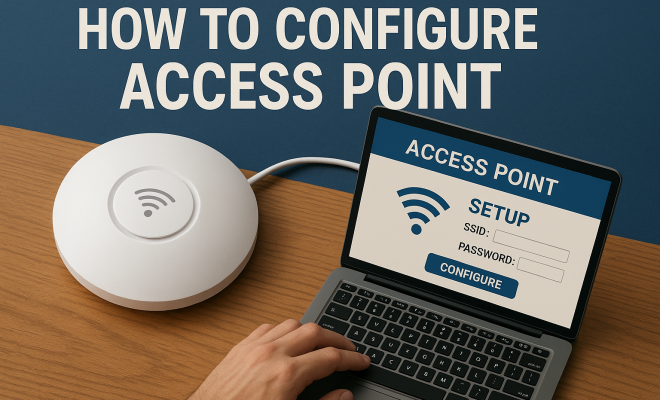
Now that you have the necessary components, let’s look at how to configure the access point step-by-step:
- Connect the Device: Start by connecting your access point to your router using an Ethernet cable. If your AP supports PoE, connect it to a PoE switch.
- Access the Configuration Interface: Open a web browser and enter the access point’s IP address (typically found in the user manual). Log in with the default credentials (also included in the manual).
- Change Default Credentials: For security purposes, immediately change the default username and password.
- Configure Basic Settings: Set up the SSID (network name), security type (WPA2 or WPA3), and a strong password.
- Advanced Settings: Depending on your needs, you can configure other settings such as channel width, bandwidth allocation, and QoS (Quality of Service) settings.
- Save and Reboot: Once you’ve made your changes, save the configuration and reboot the access point to apply the new settings.
Following these steps will set a solid foundation for your access point’s configuration.
5. Choosing the Right Wireless Standards
Choosing the correct wireless standards is crucial when configuring access points. The most common standards are:
- 802.11n: An older standard that offers decent speeds and range.
- 802.11ac: A major upgrade with faster speeds and improved bandwidth capabilities.
- 802.11ax (Wi-Fi 6): The latest standard, offering even greater speeds, efficiency, and capacity.
When configuring your access point, it’s wise to consider the devices that will connect to it. Older devices may not support the latest standards, which can affect overall network performance. Opt for the highest standard that is compatible with your devices for the best results. (See: Understanding wireless access points.)
6. Setting Up Security Protocols
Security should be a top priority when you configure access point settings. Here are essential security measures:
- Use Strong Passwords: Avoid easily guessed passwords. Instead, create complex combinations of letters, numbers, and symbols.
- Enable WPA3: Whenever possible, use WPA3 security, which offers enhanced protection against brute-force attacks.
- Disable WPS: Wi-Fi Protected Setup can be a security risk. Disable this feature to prevent unauthorized access.
Regularly updating your access point’s firmware is also vital for keeping security measures up-to-date. Manufacturers release updates that patch vulnerabilities, so make checking for updates a routine task.
7. Managing Bandwidth and Traffic
When configuring an access point, managing bandwidth and traffic is essential, especially in environments with many users. QoS settings can prioritize bandwidth for specific applications or devices. For example, if you have users streaming videos or gaming, you can allocate more bandwidth to those activities for a smoother experience.
Consider implementing a guest network as well. This allows visitors to connect to the internet without accessing your main network, protecting sensitive devices and data. Set bandwidth limits for the guest network to maintain performance for primary users.
8. Placement and Signal Testing
The placement of your access point can significantly impact network performance. Ideally, you want to position it in a central location, elevated if possible, to maximize coverage. Avoid placing your AP near thick walls or metal objects that can obstruct signals.
After configuring and placing your access point, conducting signal tests is essential. Tools like Wi-Fi analyzers can help you identify dead zones and optimal signal strength areas. Adjust the placement if necessary to ensure comprehensive coverage throughout your intended space.
9. Troubleshooting Common Issues
Even with a well-configured access point, issues can arise. Here’s how to troubleshoot common problems:
- No Connection: Check cable connections and ensure the access point is powered on. Restart the device if necessary.
- Weak Signal: If users report a weak signal, try repositioning the access point or changing the Wi-Fi channel to reduce interference.
- Slow Speeds: Examine connected devices for bandwidth hogs. Implement QoS settings to manage high-traffic applications effectively.
Having a strategy to troubleshoot these issues will save you time and frustration, keeping your network running smoothly.
10. The Future of Access Points
As technology evolves, so does the capability of access points. Advanced features like mesh networking are becoming increasingly popular, creating a network of interconnected access points that provide seamless coverage across large areas. This is especially advantageous in large homes or multi-story office buildings.
Moreover, as more smart devices connect to networks, the need for robust, user-friendly configurations will continue to grow. Staying informed about emerging technologies and standards will help you maintain an efficient and secure network.
By mastering the skills to configure access points, you can enhance your network’s performance and security, ultimately leading to a better online experience for everyone involved. Whether at home or in the workplace, the ability to configure access points effectively is a valuable asset in our increasingly digital age. (See: Importance of network security.)
11. Advanced Configuration Settings
Once you’ve successfully set up your access point, you might want to explore advanced configuration settings to optimize your network even further. Here are some key areas to consider:
- VLAN Support: If your network includes multiple departments or user groups, configuring Virtual Local Area Networks (VLANs) can help you segment traffic efficiently. This allows better management of network resources and can enhance security by isolating different types of traffic.
- Captive Portal: Implementing a captive portal is useful for guest networks, where users must agree to terms of service or log in before accessing the internet. This adds a layer of security and allows for better tracking of guest usage.
- Network Access Control (NAC): By using NAC, you can enforce security policies on devices trying to connect to your network. It enables you to block or allow devices based on their compliance with security measures.
12. Understanding Wireless Interference
Wireless interference is a common issue that can significantly degrade network performance. Various factors may contribute to interference, including:
- Electronic Devices: Appliances like microwaves, cordless phones, and Bluetooth devices can disrupt Wi-Fi signals. If possible, keep your access point away from these devices to minimize interference.
- Physical Barriers: Thick walls, floors, and metal objects can obstruct Wi-Fi signals. Consider the layout of your space and try to position the access point in a location that maximizes line-of-sight to connected devices.
- Neighboring Networks: If you live in a densely populated area, competing Wi-Fi networks may cause interference. Use a Wi-Fi analyzer to identify which channels are congested and select a less crowded channel for your access point.
13. Choosing the Right Access Point for Your Needs
Not all access points are created equal, and choosing the right one for your environment can significantly impact performance. Here are a few considerations:
- Range and Coverage: If you’re covering a large area, opt for access points with better range. Models with multiple antennas (MIMO technology) can provide better coverage and performance.
- Concurrent Connections: For environments with many users, look for access points that can handle multiple simultaneous connections without degrading performance.
- Support for Mesh Networking: If you anticipate needing expanded coverage in the future, consider an access point that supports mesh networking. This makes it easier to add additional access points to your network seamlessly.
14. Statistics on Wi-Fi Usage and Performance
Understanding the current landscape of Wi-Fi usage can provide insights into the importance of effective access point configuration. Here are some statistics that highlight trends:
- According to a report by Cisco, global internet traffic will reach an estimated 4.8 zettabytes per year by 2022, with Wi-Fi accounting for over 50% of the total traffic.
- Statista reported that as of 2021, around 82% of the global population was connected to the internet, which means a high demand for reliable and high-speed Wi-Fi networks.
- Research from the Wi-Fi Alliance shows that Wi-Fi 6 (802.11ax) provides up to four times the capacity of previous generations, which is vital for supporting numerous connected devices in homes and businesses.
15. Expert Perspectives on Access Point Configuration
Industry experts emphasize the significance of configuring access points for optimal performance. Networking specialists recommend:
- Investing in quality equipment: High-quality access points may have a higher upfront cost but can save you money in the long run by reducing maintenance and downtime.
- Regular monitoring: Utilizing network monitoring tools can help you maintain optimal performance by allowing you to track usage patterns and identify issues before they escalate.
- Staying updated: The networking landscape is always evolving. Keeping abreast of the latest updates and configurations for your access point ensures that you are leveraging the best available features for your network.
16. Frequently Asked Questions (FAQ)
Here are some common questions about configuring access points that might help you further:
Q1: How often should I change my access point’s password?
A1: It’s a good practice to change your password every 6 to 12 months, especially if you have guests frequently accessing your network.
Q2: Can I configure multiple access points in the same network?
A2: Yes, you can configure multiple access points in the same network. Make sure to set them to different channels to minimize interference.
Q3: What is the difference between an access point and a range extender?
A3: An access point creates a new network segment, allowing more devices to connect; a range extender simply amplifies an existing signal to extend coverage.
Q4: How do I know if my access point needs a firmware update?
A4: Check the manufacturer’s website for your specific model or use the configuration interface to look for notifications regarding firmware updates. (See: Guide to secure wireless networking.)
Q5: What should I do if I forgot the access point’s admin password?
A5: You may need to perform a factory reset on the access point, which will revert it to default settings, including the default admin password. Refer to the manual for detailed instructions.
Q6: Is it necessary to enable QoS on my access point?
A6: Enabling QoS is not mandatory, but it can greatly enhance performance in environments with heavy bandwidth usage by prioritizing important traffic.
17. Common Misconceptions About Access Points
While configuring access points can seem straightforward, there are several misconceptions that might lead to suboptimal setups:
- Access points are only for large networks: While access points are beneficial in larger setups, they can also significantly enhance performance in smaller environments by reducing dead spots.
- All access points are the same: Different access points have varying specifications and features that cater to specific needs. Understanding these differences is crucial for optimal network performance.
- Once configured, no further adjustments are needed: Regularly reviewing and adjusting settings based on changing network demands is essential for maintaining performance.
18. Cost Considerations When Configuring Access Points
Configuring access points can involve several costs beyond just the initial purchase of the hardware. Here are some factors to keep in mind:
- Installation Costs: If you’re not comfortable setting up the access point yourself, hiring a professional can add to expenses. However, this can ensure optimal placement and configuration.
- Maintenance and Upgrades: Regular firmware updates and potential upgrades to newer standards (like moving to Wi-Fi 6) should be factored into your budget.
- Network Management Tools: Investing in software or services to monitor and manage your network can also incur additional costs, but this can greatly enhance your ability to keep the network running smoothly.
19. Comparing Different Access Points
When considering which access point to purchase, it’s useful to compare different models. Here’s a brief comparison between three popular models:
| Model | Wireless Standard | Max Speed | Range | Price |
|---|---|---|---|---|
| TP-Link EAP245 | 802.11ac | 1750 Mbps | Up to 2000 sq ft | $89.99 |
| Ubiquiti UniFi AP AC Pro | 802.11ac | 1300 Mbps | Up to 400 ft | $149.00 |
| Netgear WAC104 | 802.11ac | 1900 Mbps | Up to 1500 sq ft | $119.99 |
Each model has its strengths, and the best choice depends on your specific needs, such as coverage area, desired speeds, and budget. It’s worth looking into user reviews and expert recommendations to make an informed choice.
20. Final Thoughts
Configuring access points is more than just a technical task; it’s about building a reliable communication framework that enhances productivity and connectivity. By applying the knowledge and tips outlined in this guide, you can create a seamless networking experience that meets the needs of users, whether in a home or business setting. Remember, a well-configured access point can transform your internet experience, ensuring fast, secure, and reliable connectivity across your network.
“`
Trending Now
Frequently Asked Questions
What is the purpose of an access point?
An access point (AP) allows wireless devices to connect to a wired network using Wi-Fi. It acts as a bridge between wired and wireless networks, extending the Wi-Fi range and improving connectivity, especially in larger environments where a single router may not suffice.
How do I configure an access point?
To configure an access point, access its management interface via a web browser, set up the network name (SSID), configure security settings like WPA2, and adjust other settings such as IP address and channel selection to optimize performance.
Why is it important to configure access points?
Configuring access points is crucial for optimizing network performance and security. Proper configuration allows bandwidth management, guest network setup, and traffic prioritization, which is especially important in environments with multiple users and devices.
What components do I need to configure an access point?
Essential components for configuring an access point include the access point device itself, a compatible router, Ethernet cables for wired connections, and a computer or mobile device to access the configuration interface.
How can I improve my Wi-Fi network with access points?
You can improve your Wi-Fi network by strategically placing access points in areas with weak signals to eliminate dead zones. This enhances coverage and capacity, ensuring a strong and reliable connection throughout your home or office.
What did we miss? Let us know in the comments and join the conversation.