Add Channels to Roku: Your Ultimate Streaming Guide
“`html
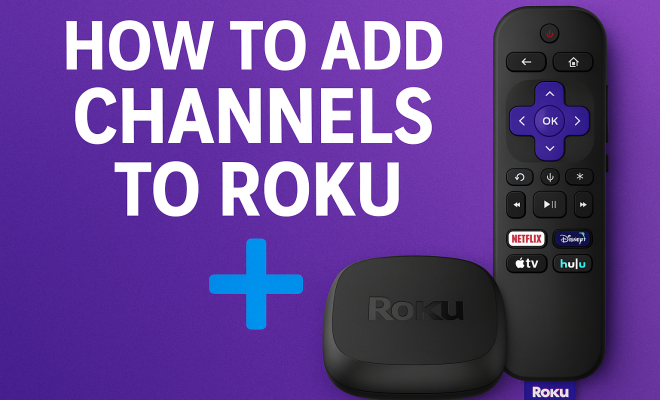
Roku has emerged as one of the most popular streaming devices available, offering a wide range of channels that cater to all sorts of viewers. Whether you’re looking to watch your favorite movies, catch up on shows, or explore new content, knowing how to add channels to Roku can significantly enhance your viewing experience. Here’s a detailed guide on how to effectively add channels to your Roku device.
1. Understanding Roku Channels
Before you dive into adding channels, it’s essential to understand what Roku channels are. Essentially, a channel on Roku is akin to an app on your smartphone. Each channel provides access to various streaming services, ranging from Netflix and Hulu to niche channels focusing on specific genres or interests. Roku’s channel store is expansive, housing thousands of channels, so there’s something for everyone.
Each channel can offer live TV, movies, shows, and even music. The diversity is what makes Roku popular among cord-cutters looking to replace traditional cable subscriptions. With that in mind, let’s explore how you can enhance your Roku experience by adding new channels.
2. Using the Roku Remote
The first and most straightforward method to add channels to Roku is through the Roku remote. Follow these steps:
- Press the Home button on your Roku remote to access the main menu.
- Scroll down to the “Streaming Channels” option and select it.
- Here, you can browse through different categories such as Movies, TV, News, Sports, and more.
- Once you find a channel you want to add, select it and click on “Add Channel.”
This method is user-friendly and allows for easy exploration of available channels. You’ll also find that Roku often features promotions or popular channels on the main screen, making it easier to discover new content.
3. Adding Channels via the Roku Mobile App
For those who prefer using a smartphone or tablet, the Roku mobile app is a great alternative for managing your channels. Here’s how to do it:
- Download the Roku app from the App Store (iOS) or Google Play Store (Android).
- Open the app and log in with your Roku account.
- Tap on “Channel Store” from the app’s menu.
- Browse through the categories or use the search function to find specific channels.
- Select the channel you wish to add and tap “Add Channel.”
Using the app not only allows you to add channels but also provides additional features like private listening and device search, enhancing your overall Roku experience.
4. Adding Channels via the Roku Website
If you prefer managing your Roku channels from a computer, you can also do this through the Roku website. Here’s a step-by-step guide:
- Visit the official Roku website and log into your account.
- Navigate to the “Channel Store” section.
- Browse or search for the channels you want to add.
- Select the desired channel and click on “Add Channel.”
This method is particularly convenient if you’re already using a computer, allowing you to quickly navigate and add multiple channels without needing a remote or mobile device.
5. Adding Non-Certified Channels
While browsing through Roku’s official channel store, you might notice that some channels are not listed there. These non-certified channels can still be added but require a different approach. Here’s how:
- First, you’ll need to enable “Developer Mode” on your Roku device. To do this, press the Home button multiple times, followed by a specific combination (Home, Up, Left, Right, Left, Right, Left, Right).
- Once in Developer Mode, enter a username and password.
- Next, access the Roku website and log into your account.
- Find the channel’s private code (often provided by the channel developer).
- Add the channel using that code.
This process is slightly more technical and is primarily meant for advanced users. However, it opens up a treasure trove of content that may not be available through the official channel store.
6. Managing Your Channels
After you’ve successfully added channels to Roku, managing them effectively becomes crucial for optimized viewing. The Roku interface allows you to rearrange the order of your channels for ease of access. To manage your channels: (See: Roku overview on Wikipedia.)
- Press the Home button on your remote.
- Highlight the channel you want to move.
- Press the * button on your remote to access the options menu.
- Select “Move Channel” and then use the directional arrows to position it where you want.
This simple rearrangement can enhance your user experience by placing your most-watched channels at the forefront, providing easy access without endlessly scrolling through your channel list.
7. Removing Channels
Just as easily as you add channels to Roku, you can also remove them when they no longer pique your interest. To remove a channel:
- Select the channel from the Home screen.
- Press the * button on your remote to open the options menu.
- Select “Remove Channel” and confirm your choice.
This process is straightforward, ensuring that your Roku interface remains uncluttered and focused on your preferred content. Remember, you can always re-add a channel later if you change your mind.
8. Updating Roku Channels
Keeping your channels updated is vital for optimal performance and access to the latest content. Roku channels can update automatically, but you can also manually check for updates. To do this, follow these steps:
- Press the Home button on your remote.
- Scroll to “Settings” and select it.
- Choose “System” and then “System Update.”
- It will check for any available updates, including those for your channels.
Regular updates ensure you’re not missing out on new features, bug fixes, or content that the streaming channels may provide. It’s a good habit to check for updates periodically, especially if you notice performance issues.
9. Exploring Premium Channels
Many users flock to Roku for its wide variety of free content, but there’s also a significant number of premium channels available for a subscription fee. Channels like HBO Max, Starz, and Showtime offer exclusive content that can be added through the same methods discussed earlier. To add premium channels:
- Visit the Channel Store from your Roku device or app.
- Search for the premium channel you want.
- Follow the prompts to subscribe and add the channel.
Subscribing to these channels often provides access to popular movies, series, and original programming that may not be available elsewhere. If you’re a cinephile or a binge-watcher, investing in a few premium channels can be well worth it.
10. Maximizing Your Roku Experience
Lastly, to truly maximize your streaming experience, consider these tips:
- Regularly explore new channels and categories to find fresh content.
- Utilize the search feature to find specific shows or movies quickly.
- Check out Roku’s recommendations based on your viewing habits.
- Engage with the Roku community online for tips and tricks.
By staying proactive in managing and exploring channels, you’ll ensure that your Roku experience remains enjoyable and filled with diverse content. Remember, adding channels to Roku is just the beginning of a rich and rewarding streaming journey. Happy viewing!
11. Popular Roku Channels to Consider
When it comes to adding channels to Roku, you might be wondering which ones are worth your time. Below are some popular channels across various categories that can vastly enhance your viewing experience.
Entertainment
- Netflix: A staple for movie and TV show enthusiasts, Netflix offers a diverse library of content including original series, documentaries, and films.
- Hulu: Known for its vast collection of current TV episodes, Hulu also features a robust selection of movies and original content.
- Disney+: Perfect for families, Disney+ provides access to a plethora of Disney classics, Pixar films, Marvel movies, and Star Wars content.
News
- CNN: Stay updated with the latest news from around the world through CNN’s dedicated channel.
- BBC News: Offering international coverage, BBC News provides a different perspective on global events.
Sports
- ESPN: A must-have for sports enthusiasts, ESPN offers live games, analysis, and sports documentaries.
- NHL.TV: Fans of hockey can stream live games and access archived content through this channel.
These channels not only cater to a wide array of interests but also enhance the overall Roku experience by providing diverse and quality content.
12. Exploring International Channels
If you’re interested in global content, Roku also offers a rich selection of international channels. These channels can be particularly beneficial for expatriates or those interested in foreign cultures.
Spanish Channels
- Univision: Popular for Spanish-language programming including telenovelas, news, and sports.
- Telemundo: Offers a variety of Spanish-language content, including popular series and films.
Indian Channels
- Hotstar: A premier destination for Indian movies, TV shows, and live sports.
- Zee5: Offers a variety of Indian languages and genres, making it a great choice for diverse content.
Chinese Channels
- iQIYI: A popular Chinese streaming service that offers a wide variety of dramas, variety shows, and movies.
- Funimation: Great for anime fans, it hosts a plethora of popular and classic titles.
Adding these international channels to your Roku can significantly broaden your viewing options, allowing you to explore different cultures and languages without leaving your home.
13. Frequently Asked Questions (FAQ)
How do I add channels to Roku without a credit card?
You can add many free channels to your Roku device without needing to enter credit card details. Simply navigate to the Channel Store, find the channel you want, and select “Add Channel.” (See: CDC on streaming during COVID-19.)
Can I remove channels from Roku?
Yes! You can easily remove channels by highlighting the channel, pressing the * button on your remote, selecting “Remove Channel,” and confirming your choice.
Are all Roku channels free?
No, while many channels on Roku are free, several premium channels require a subscription for access. Channels like HBO Max, Showtime, and Starz charge a fee for their content.
What should I do if a channel isn’t working properly?
If a channel isn’t functioning correctly, try restarting your Roku device. If the problem persists, check if there are any updates available for that channel by following the update process discussed earlier.
Is it possible to add channels from another country?
Yes, you can add international channels to your Roku, but availability may vary. Some channels may require you to be in the country of origin or use a VPN service to access them.
How do I find new channels?
You can discover new channels through the Channel Store by browsing categories or using the search function. Additionally, checking recommendations based on your viewing habits can lead you to new favorites.
14. Roku Tips and Tricks
To get the most out of your Roku experience, here are some insider tips:
- Voice Search: If your Roku remote has a microphone, use voice search to quickly find shows or channels.
- Screen Mirroring: You can mirror your smartphone or tablet screen onto your Roku, giving you access to content not available directly on the channel.
- Private Listening: Use the Roku mobile app for private listening, which lets you stream audio through your headphones connected to your mobile device.
- Roku’s Search Feature: Take advantage of Roku’s universal search feature to compare prices across channels for specific shows or movies, helping you save money.
These tips can streamline your streaming experience, making it easier to access the content you love and discover new favorites.
15. Future of Roku
As technology evolves, so does streaming. Roku is continually looking for ways to improve its platform. Future updates may include enhanced voice controls, more personalized recommendations, and potentially even more channels tailored to user preferences. The integration of smart home features and broader content partnerships could make Roku an even more central hub for entertainment in your home.
Staying informed about these developments will ensure you’re making the most of your Roku device as updates roll out. Whether it’s through improved user interfaces or expanded channel offerings, the future of Roku looks promising.
16. Understanding Roku’s User Interface
Roku’s user interface is designed to be straightforward and intuitive. When you first set up your device, you’re welcomed with a home screen that presents all your installed channels in a grid format. This layout makes it easy to access your favorite content quickly. However, understanding some of the nuances can help you navigate the interface even more effectively.
For instance, the “My Feed” feature allows you to follow specific movies and shows. You can get notifications when they become available to stream or when their prices drop across various channels. This feature is particularly useful for tracking highly anticipated releases without having to constantly check each channel individually. (See: New York Times on streaming services.)
Roku also provides a “Channel Store” section where users can discover new channels. The store is divided into various categories such as Recommended, New & Notable, and Popular, making it easy to find content that suits your tastes. Regular updates to the interface also mean that new features and recommendations are often added, enhancing the user experience.
17. Parental Controls on Roku
If you have kids, managing what they can access on your Roku is essential. Thankfully, Roku provides robust parental controls to help you restrict access to certain content. Here’s how to set them up:
- Press the Home button on your remote and navigate to Settings.
- Select “Parental Controls” and follow the prompts to set up a PIN.
- Once the PIN is set, you can restrict access to specific channels or content ratings.
By establishing parental controls, you can ensure that your children only have access to age-appropriate content, giving you peace of mind while they enjoy their viewing experience.
18. Comparing Roku with Other Streaming Devices
While Roku is a powerful streaming option, it’s essential to consider how it stacks up against other popular devices like Amazon Fire TV, Apple TV, and Google Chromecast. Here’s a quick comparison:
- Content Variety: Roku boasts one of the most extensive channel libraries available, which includes both free and paid options. In contrast, Fire TV offers a similar breadth of content but is more heavily skewed towards Amazon Prime Video.
- User Interface: Roku’s interface is often praised for its simplicity and ease of use. Apple TV, while feature-rich, can be somewhat complex for new users. Chromecast relies on your mobile device for navigation, which might not be as user-friendly for everyone.
- Price Point: Roku devices tend to be competitively priced, providing great value for the features offered. Apple TV tends to be on the higher end of the price spectrum, while Fire TV and Chromecast offer various budget options.
This comparison highlights how Roku stands out for its variety and user-friendly interface, making it an excellent choice for users seeking a straightforward streaming experience.
19. Real User Experiences
To give you a better idea of how adding channels to Roku impacts users, let’s take a look at some real user experiences:
Many users praise the diversity of content available on Roku. For instance, a family might add channels like Disney+ for kids’ programming and Hulu for adult dramas, creating a comprehensive viewing experience for all ages. Others highlight the ease of adding channels as a significant benefit, stating that discovering new content is a breeze.
However, some users have expressed frustration with specific channel subscriptions. While Roku makes it easy to add channels, managing multiple subscriptions can become a hassle. This is a common concern among users who find themselves overwhelmed by numerous services. To mitigate this, users often recommend taking advantage of free trial periods before committing to any premium channels.
20. Final Thoughts on Adding Channels to Roku
Adding channels to Roku is an integral part of optimizing your viewing experience, providing access to a wide array of content from movies and shows to live sports and international programming. As you explore the various ways to add channels, remember to also consider your viewing habits and preferences. Taking the time to curate your channel lineup can lead to a more enjoyable and personalized streaming journey. Happy streaming!
“`
Trending Now
Frequently Asked Questions
How do I add channels to my Roku device?
To add channels to your Roku device, press the Home button on your Roku remote, scroll to 'Streaming Channels', browse categories, select a channel, and click 'Add Channel'.
What are Roku channels?
Roku channels are similar to apps on a smartphone, providing access to various streaming services like Netflix and Hulu, as well as niche content. The Roku channel store offers a wide range of options for all types of viewers.
Can I add channels to Roku using my phone?
Yes, you can add channels to Roku using the Roku mobile app. Simply download the app, connect it to your Roku device, and manage your channels directly from your smartphone or tablet.
Are there free channels available on Roku?
Yes, Roku offers a variety of free channels in its channel store, allowing users to access movies, shows, and live TV without any subscription fees.
How do I find new channels on Roku?
To discover new channels on Roku, go to the 'Streaming Channels' section from the Home menu. You can browse categories, check featured promotions, and explore popular channels to find new content.
What’s your take on this? Share your thoughts in the comments below — we read every one.