Effortlessly Screen Mirror to Roku: Your Complete Guide
“`html
1. Understanding Screen Mirroring
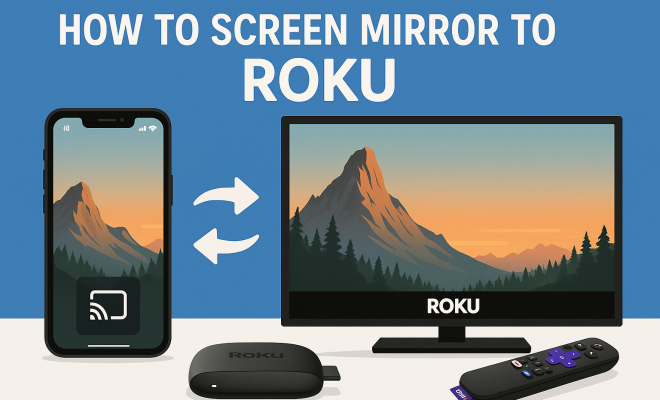
Screen mirroring is a technology that enables you to display the content of your mobile device or computer onto a larger screen, such as a television. In the case of Roku, this means you can project photos, videos, apps, and even games from your smartphone or tablet directly to your TV. This capability is especially useful for sharing media with friends or family during gatherings or simply enjoying your favorite content on a bigger screen.
Roku devices, known for their user-friendly streaming capabilities, support various screen mirroring protocols, including Miracast and Apple’s AirPlay 2. These options provide flexibility depending on your device type, whether you’re using an iOS or Android smartphone, a Windows PC, or a Mac. Understanding these protocols is crucial for optimizing your screen mirroring experience.
2. Why Use Screen Mirroring with Roku?
There are several compelling reasons to screen mirror to Roku. First, the convenience factor is significant. Instead of huddling around a small phone screen or trying to pass around a tablet, you can easily cast your content to a TV that everyone can see. Whether you’re showcasing vacation photos, presenting a slideshow for work, or streaming a movie, screen mirroring makes it all easier.
Moreover, screen mirroring can enhance your gaming experience. For gamers, being able to project gameplay can provide a more immersive experience. Many users find it more enjoyable to play on a larger screen, especially for cooperative or competitive games shared with friends. Additionally, screen mirroring can facilitate online meetings or classes by allowing participants to view presentations or documents directly on the TV.
3. Compatible Devices for Screen Mirroring to Roku
Before you begin the process of screen mirroring to your Roku, ensure your devices are compatible. Most modern smartphones and tablets from manufacturers like Apple, Samsung, Google, and LG support screen mirroring. For Android users, devices running Android 4.4.2 (KitKat) or later typically support Miracast, which is crucial for connecting to Roku.
For iOS users, any iPhone or iPad that supports iOS 12 or later can utilize Apple’s AirPlay feature for screen mirroring. On the desktop front, Windows 8.1 and later versions also include built-in support for Miracast, while Mac users can use AirPlay to connect to Roku without much hassle. Make sure your Roku device is updated to the latest software version to ensure compatibility.
4. Setting Up Your Roku for Screen Mirroring
To begin screen mirroring to Roku, the first step is to enable the feature on your Roku device. Navigate to the ‘Settings’ menu on your Roku home screen, and select ‘System’. Here, you will find an option labeled ‘Screen Mirroring’. Click on it and make sure it is enabled. You can choose between ‘Prompt’ and ‘Always allow’. The ‘Prompt’ option will ask for permission whenever a device tries to connect, while ‘Always allow’ will permit any compatible device to connect automatically.
After setting this up, ensure that your Roku device and the device you want to mirror are connected to the same Wi-Fi network. This is essential for a smooth connection. If you encounter any issues, restarting your Roku and the device you’re mirroring from can often resolve connectivity problems.
5. How to Screen Mirror from Android Devices
For Android users, the process of screen mirroring to Roku is relatively straightforward. Begin by pulling down the Quick Settings menu on your device, where you can find the ‘Cast’ option. Tap on it, and a list of available devices will appear. Look for your Roku device on the list and select it. You may need to confirm the connection on your Roku TV depending on your screen mirroring settings.
Once connected, your Android screen should now be mirrored on your Roku. You can navigate through your apps, photos, and videos as you normally would, and they will be displayed on your television screen. If you experience lag or connectivity issues, it might help to disconnect other devices from the same Wi-Fi network temporarily to enhance performance.
6. How to Screen Mirror from iOS Devices
iOS users can take advantage of Apple’s AirPlay feature to screen mirror to Roku easily. To start, swipe down from the upper right corner of your iPhone or iPad to access the Control Center. Look for the ‘Screen Mirroring’ option and tap on it. You’ll see a list of available devices, including your Roku. Select it, and if prompted, enter the code displayed on your TV screen.
After establishing the connection, your iOS device’s display will be mirrored on your Roku. This setup is particularly advantageous for streaming media from apps like YouTube, Netflix, or even Apple Photos, as it seamlessly integrates the content with the Roku platform. Whether you’re sharing a video or browsing through photos, AirPlay makes it convenient. (See: Understanding screen mirroring technology.)
7. Troubleshooting Common Screen Mirroring Issues
Despite its ease of use, you might run into a few common issues while trying to screen mirror to Roku. One frequent problem is lag or choppy video. This can often be solved by ensuring the Wi-Fi signal is strong. Check the distance between your router and both devices, and reduce any interference from other electronics.
Another issue could be a complete inability to connect. If this happens, double-check that both devices are on the same Wi-Fi network and that screen mirroring is enabled on your Roku device. If the problem persists, consider rebooting your Roku and the device you are trying to mirror from. In some cases, updating your Roku’s software can also resolve connectivity challenges.
8. Advanced Features and Tips for Screen Mirroring
Once you have mastered the basics of screen mirroring, there are several advanced features and tips that can enhance your experience. For example, you can use Roku’s mobile app, which allows you to control your TV from your smartphone. This app can be particularly useful for browsing content, launching apps, or switching between channels without needing to use the remote.
Another tip is to explore the various settings within both your Roku device and the mirroring device. Adjusting resolution settings can improve display quality, and enabling ‘Do Not Disturb’ on your phone can prevent notifications from interrupting your viewing experience. Experimenting with these settings can help you find the optimal setup for your needs.
9. The Future of Screen Mirroring and Streaming Technology
As technology continues to evolve, so too does the landscape of screen mirroring. Future advancements may see an increase in compatibility across devices and platforms, making it easier than ever to share content without cumbersome setups. Integration of voice-activated controls and AI enhancements could also streamline the mirroring process, allowing for even more intuitive interactions.
Moreover, as the trend towards remote work and digital gatherings grows, the demand for effective screen mirroring solutions will likely increase. Companies and app developers will continue to innovate, providing users with better tools to connect, collaborate, and share experiences seamlessly. For now, mastering how to screen mirror to Roku can significantly enhance your entertainment and productivity at home.
10. Real-World Applications of Screen Mirroring
Screen mirroring isn’t just a trendy feature; it’s a practical tool with a range of real-world applications. For families, it can be a way to enjoy home movies or slideshow presentations of vacations without the hassle of transferring files to a USB drive or dealing with complicated setups. For educators, using screen mirroring during lessons can make learning more engaging, allowing them to display rich media directly from their devices.
In corporate settings, screen mirroring can facilitate presentations during meetings. By mirroring a laptop or tablet, speakers can easily share their slideshows, videos, or documents without needing to connect cables or worry about compatibility issues. This can also enhance remote work setups, where team members can share their screens during video calls, ensuring everyone is on the same page.
For gamers, screen mirroring opens up a whole new world of possibilities. Imagine playing your favorite mobile game on a big screen with your friends gathered around, making the experience far more social. Plus, with the capabilities of apps like Steam Link, you can even mirror PC games to your Roku, creating an exciting hybrid gaming environment.
11. Statistics on Screen Mirroring Usage
Screen mirroring has become increasingly popular over the years. According to a recent survey by eMarketer, more than 60% of smartphone users have utilized some form of screen mirroring technology in the last year. This statistic highlights how ingrained this feature has become in everyday life, as people seek ways to enhance their viewing experiences.
Additionally, research from Statista indicates that the global screen mirroring market is projected to grow significantly, reaching USD 23.2 billion by 2025. This growth is fueled by increasing demand for smart devices and the rise of video streaming services, as more individuals seek to maximize their screen time effectively. Understanding these statistics emphasizes the relevance of mastering screen mirroring technologies like those available on Roku.
12. Expert Perspectives on Screen Mirroring
Technology experts highlight the importance of screen mirroring in today’s digital landscape. Tech reviewer and influencer, Sarah Johnson, notes, “Screen mirroring has changed the way we consume content in our homes. It’s no longer about just watching TV; it’s about creating an interactive experience that brings people together.”
Similarly, Dr. Ian Carter, a tech analyst, mentions, “As more devices become interconnected, the seamless integration of screen mirroring will play a crucial role in how we share information and entertainment. Companies like Roku are at the forefront of this shift, making it easier for users to transition from personal devices to larger screens without a hitch.” (See: Screen time recommendations and benefits.)
13. Screen Mirroring vs. Streaming: What’s the Difference?
While screen mirroring and streaming both allow you to view content on a larger screen, they operate differently. When you stream content, you’re often accessing it directly from a service like Netflix or Hulu. Your device acts as a remote control to browse and play content, with the actual video streamed from the internet to your TV.
In contrast, screen mirroring duplicates whatever is on your device’s screen. This means if you’re browsing photos, playing a game, or even using apps, everything appears on the television in real-time. For instance, if you receive a message while mirroring, your notifications will show up on the TV as well. Understanding this distinction can help you choose the best method for your content-sharing needs.
14. Frequently Asked Questions About Screen Mirroring to Roku
What is screen mirroring?
Screen mirroring allows you to display the content on your mobile device, tablet, or computer on a larger screen, like a TV. This is done wirelessly and is especially convenient for sharing videos, photos, or presentations.
Can I screen mirror to Roku from any device?
Not all devices support screen mirroring. To mirror to Roku, your device needs to support either AirPlay (for iOS devices) or Miracast (for many Android devices). Check your device’s specifications to confirm compatibility.
Is there a lag when screen mirroring to Roku?
Some users may experience a slight lag while mirroring, especially if the Wi-Fi signal is weak. To minimize lag, ensure both devices are on the same network and that you have a strong Wi-Fi connection.
Can I screen mirror to Roku without Wi-Fi?
Screen mirroring typically requires a Wi-Fi connection. However, some devices offer options for direct connections via Wi-Fi Direct, but this feature is device-specific and may not work for all setups.
What if my device doesn’t support screen mirroring?
If your device doesn’t support screen mirroring, you can consider using an HDMI adapter or a streaming device that connects to your TV. These options can provide alternative ways to connect your device to your TV.
Is screen mirroring safe?
Yes, screen mirroring is considered safe as long as you’re using secure connections and are aware of the content you’re sharing. It’s advisable to only mirror content in private settings to maintain privacy.
Can I use screen mirroring to play games on my Roku?
Absolutely! Screen mirroring can enhance your gaming experience significantly. You can play mobile games on the big screen, making it more enjoyable to share with friends and family.
How do I disconnect screen mirroring?
To disconnect, you usually just need to access the screen mirroring settings on your mobile device and select the option to disconnect from Roku. Alternatively, you can disable screen mirroring from the Roku settings menu or turn off the TV.
Are there any apps that enhance screen mirroring to Roku?
Yes, several apps can enhance your screen mirroring experience by offering additional features. Apps like AllCast, LocalCast, and Roku’s official app provide extra functionalities for media sharing and device management. (See: Benefits of screen mirroring for sharing content.)
What should I do if I encounter issues while mirroring?
If you face issues while mirroring, ensure both devices are on the same Wi-Fi network, restart your devices, and check for software updates. If problems persist, consulting the Roku support page for troubleshooting tips may be helpful.
15. Benefits of Screen Mirroring for Different Use Cases
Screen mirroring serves various purposes across different demographics. For families, it can be a wonderful way to enjoy movie nights without the hassle of transferring files. Imagine gathering around and reliving memories through vacation photos or home videos all displayed on a large screen. This creates a more intimate and engaging atmosphere compared to sharing on smaller devices.
In educational settings, teachers can leverage screen mirroring to share materials in real-time, enhancing interactive learning experiences. For instance, educators can showcase educational videos, conduct live demonstrations, or even utilize real-time quizzes with students participating via their devices. This integration of technology in classrooms not only makes learning more captivating but also helps students retain information more effectively.
In the corporate world, presenting reports or project updates is simplified through screen mirroring. Employees can easily display their screens during meetings, facilitating discussions without the need for cumbersome cables or connectors. This seamless integration can lead to more productive meetings, as everyone can follow along on a larger display, ensuring clarity and engagement.
16. Security Considerations When Screen Mirroring
While screen mirroring is convenient and effective, it’s essential to keep security in mind. When you mirror your device, you’re potentially sharing sensitive information with everyone in the room. It’s advisable to ensure that you’re only mirroring to trusted devices. Always check the device name before connecting and avoid mirroring in public spaces where others can observe your screen.
Make sure to use strong passwords for your Wi-Fi network and consider setting your Roku device to require permission for all connection requests. This way, you can maintain control over who is allowed to mirror to your television.
17. Future Trends in Screen Mirroring Technology
The future of screen mirroring is set to evolve significantly with advancements in wireless technology and increasing integration with smart home devices. As 5G technology becomes more widespread, we can expect improved streaming capabilities with minimal lag and higher resolutions. This could redefine how we interact with our TVs and devices.
Additionally, the rise of augmented reality (AR) and virtual reality (VR) may lead to new methods of screen mirroring that allow users to immerse themselves in shared experiences. Imagine having virtual meetings where participants can see 3D renderings of presentations right in front of them, enhancing engagement further. As these technologies develop, screen mirroring could bridge the gap between digital content and physical interaction, making for a richer user experience.
“`
Trending Now
Frequently Asked Questions
How do I screen mirror to my Roku?
To screen mirror to your Roku, ensure your Roku device is set up for screen mirroring in the settings. Then, on your mobile device or computer, enable screen mirroring or casting options. Select your Roku device from the list, and your content should appear on the TV.
What devices are compatible with Roku screen mirroring?
Roku screen mirroring is compatible with most modern smartphones and tablets from brands like Apple, Samsung, Google, and LG. Additionally, Windows PCs and Macs can also utilize screen mirroring features, provided they support Miracast or Apple’s AirPlay 2.
Why should I use screen mirroring with Roku?
Using screen mirroring with Roku enhances your viewing experience by allowing you to display content from your smaller devices on a larger TV screen. This is particularly useful for sharing photos, streaming videos, or enjoying gaming sessions with friends and family.
What protocols does Roku support for screen mirroring?
Roku supports various screen mirroring protocols, including Miracast for Android and Windows devices, and Apple’s AirPlay 2 for iOS and Mac users. This variety allows for flexible options depending on the type of device you are using.
Can I mirror my iPhone to Roku?
Yes, you can mirror your iPhone to Roku using Apple’s AirPlay 2. Ensure both your iPhone and Roku are connected to the same Wi-Fi network, then access the Control Center on your iPhone, select 'Screen Mirroring,' and choose your Roku device.
Have you experienced this yourself? We’d love to hear your story in the comments.