Fix OBS Dropped Frames: 7 Solutions for Smooth Streaming
“`html
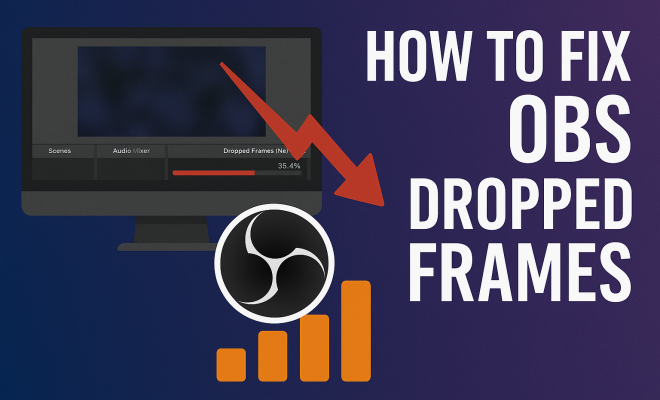
Streaming has become a staple in the gaming community and content creation landscape. However, nothing ruins a live session faster than dropped frames in your OBS (Open Broadcaster Software) stream. Whether you’re a seasoned streamer or just starting out, dealing with dropped frames can be frustrating. But don’t worry! This article will cover seven effective solutions to fix OBS dropped frames, ensuring your streams run smoothly.
1. Understanding OBS and Dropped Frames
Before jumping into solutions, it’s crucial to understand what OBS and dropped frames are. OBS is an open-source software used for video recording and live streaming. It allows users to capture video from multiple sources, including game footage, webcams, and more. However, as you stream, your computer processes a ton of information all at once. If it can’t keep up, you’ll experience dropped frames, leading to choppy video and a poor viewing experience.
Dropped frames occur when the software can’t encode and send the video stream to your broadcasting platform at the required frame rate. This can happen due to various factors, including hardware limitations, internet connection issues, or misconfigured settings. By identifying and addressing these issues, you can fix OBS dropped frames and enjoy a seamless streaming experience.
2. Optimize Your System Resources
Your computer’s hardware plays a significant role in streaming performance. If your CPU or GPU is working at maximum capacity, it may struggle with the demands of OBS, leading to dropped frames. To optimize your system resources, start by closing unnecessary applications and processes running in the background. Consider using Task Manager (Ctrl + Shift + Esc) to see what’s consuming your CPU and memory.
Additionally, check if your system meets the minimum requirements for OBS. For a smooth experience, having at least a quad-core CPU, 8 GB of RAM, and a dedicated graphics card is recommended. If your hardware is outdated, upgrading components could dramatically improve your streaming performance and help you fix OBS dropped frames.
3. Adjusting OBS Settings
Sometimes, the settings within OBS can be the culprit behind dropped frames. Adjusting your output settings can make a significant difference. Start by going to the ‘Settings’ tab, then ‘Output’. Ensure your video bitrate is reasonable; for 1080p streaming, a bitrate of 4500 kbps is commonly recommended. If you’re experiencing issues, consider lowering this number to see if it stabilizes your stream.
Additionally, check the encoder settings. OBS offers various encoders, including x264 and hardware encoders like NVENC or AMD VCE. Hardware encoders typically perform better, reducing CPU load and allowing for smoother streaming. If you’re using x264, try switching to a hardware encoder to see if it helps fix OBS dropped frames.
4. Optimize Your Internet Connection
Your internet connection is a critical component of streaming. A slow or unstable connection can lead to dropped frames and buffering issues. First, check your upload speed using a speed test website. For streaming, you generally want an upload speed of at least double your bitrate. If your upload speed is insufficient, consider contacting your Internet Service Provider (ISP) to discuss options for an upgrade.
Also, use a wired connection instead of Wi-Fi. Ethernet connections provide more stability and lower latency, reducing the likelihood of dropped frames. If you must use Wi-Fi, ensure you’re as close to the router as possible and minimize interference from other devices.
5. Lowering Your Resolution and Frame Rate
When all else fails, reducing your streaming resolution and frame rate can help fix OBS dropped frames. A high resolution like 1080p or 1440p can be taxing on your system and network. If you’re having consistent issues, try lowering your output resolution to 720p, which requires less bandwidth and processing power. (See: Open Broadcaster Software overview.)
Similarly, consider lowering your frame rate from 60fps to 30fps. While this may not provide the same visual fidelity, it can significantly alleviate strain on your system and network, leading to a more stable stream. Many viewers won’t notice the difference, especially if the content is engaging.
6. Update Drivers and Software
Keeping your software up to date is essential for optimal performance. Outdated drivers, especially for your graphics card, can lead to compatibility issues with OBS, resulting in dropped frames. Ensure your GPU drivers are current by visiting the manufacturer’s website (such as NVIDIA or AMD) and downloading the latest version.
In addition to your GPU drivers, check for updates for OBS itself. Developers frequently release new versions to fix bugs, add features, and improve performance. By updating both your drivers and OBS, you can often resolve issues related to dropped frames and enhance your overall streaming experience.
7. Monitoring Performance with OBS Stats
OBS comes with a built-in Statistics feature that gives you valuable insights into your stream’s performance. You can access this by clicking on ‘View’ in the top menu and then selecting ‘Stats’. This feature displays real-time information on your CPU usage, dropped frames, and encoding performance.
Monitoring these statistics while you stream can help you identify when and why you’re experiencing dropped frames. For instance, if you see a spike in CPU usage during specific moments, it might indicate that you need to adjust your settings or optimize your system further. Being proactive and keeping an eye on these stats can be key in maintaining a smooth streaming experience.
8. Advanced OBS Settings Adjustments
For those who are a bit more tech-savvy, diving into advanced settings can provide additional avenues for fixing dropped frames in OBS. One important setting to consider is the “Process Priority.” By default, OBS runs with normal priority, but you can set it to high priority if your system allows. This can give OBS more CPU resources, which can help improve performance during streaming. To do this, go to ‘Settings’, then ‘Advanced’, and find the ‘Process Priority’ option.
Another valuable adjustment is the “Keyframe Interval.” Depending on your streaming platform, you may need to set this to 2 seconds. Platforms like Twitch and YouTube often recommend a keyframe interval of 2 seconds for optimal performance. Adjusting this setting can lead to better stream stability and improved viewer experience.
9. Using a Dedicated Streaming PC
If you’re serious about streaming, you might consider investing in a dedicated streaming PC. This setup allows you to offload the resource-intensive task of running OBS to a separate machine, while your gaming or primary PC handles the gameplay. This setup can dramatically reduce dropped frames because both systems can function without straining their respective resources. Additionally, a dual PC setup often results in higher quality streams since the encoding and processing demands are balanced across two machines.
When setting up a dual PC environment, you’ll need to use a capture card to transmit video and audio from the gaming PC to the streaming PC. The Elgato HD60S is a popular choice for many streamers, enabling high-quality video transfer with minimal latency. While this investment can be substantial, many streamers find it pays off in improved stream quality and reliability.
10. Network Quality Assurance
It’s not just about the speed of your internet connection; the quality of your network is vital as well. Ensure your router is capable of handling multiple devices and high bandwidth. If you have several devices connected to your network, consider limiting their usage during your stream. Unplugging devices that aren’t in use can help reduce network congestion and improve overall streaming performance.
For those living in homes with multiple users, it may also be beneficial to schedule streams during off-peak hours, when fewer people are online. Additionally, enabling Quality of Service (QoS) settings on your router can prioritize gaming and streaming traffic, helping to reduce dropped frames. (See: computer ergonomics and performance.)
11. Understanding Bitrate and Its Impact
Bitrate is one of the most crucial elements in streaming. It represents the amount of data transmitted per second during your stream. If your bitrate is too high for your internet connection, it can lead to dropped frames. Conversely, a low bitrate can result in poor video quality. Finding the right balance is key.
To determine the optimal bitrate for your stream, consider using the formula: Bitrate = (Upload Speed / 2). For instance, if your upload speed is 10 Mbps, you should aim for a maximum bitrate of around 5000 kbps. Keep in mind that your specific content type may also require adjustments. Fast-paced games may require a higher bitrate to ensure quality, while slower or static content might work well with a lower bitrate.
12. Understanding Frame Rate and Resolution
Frame rate and resolution are intertwined factors that influence your streaming quality. The frame rate refers to how many frames are displayed per second (fps). Higher frame rates provide smoother motion, which is particularly important for fast-paced games. Most streamers opt for 60fps, but if you’re experiencing dropped frames, dialing it back to 30fps can relieve stress on your system.
Similarly, resolution determines the clarity of your stream. While 1080p is the standard, 720p can be a more manageable option, especially if you’re working with a limited internet connection or older hardware. It’s always best to test different settings to see which combination works best for your situation and offers the smoothest experience for your viewers.
13. Investing in Better Hardware
If you’re still struggling with dropped frames despite making adjustments in OBS, it might be time to consider upgrading your hardware. A powerful CPU and GPU can significantly boost your encoding capabilities. For instance, the latest AMD Ryzen or Intel i7/i9 processors offer better performance for multitasking and streaming. Similarly, newer graphics cards provide advanced encoding features that can relieve CPU stress.
Additionally, ensuring you have enough RAM can positively impact your streaming experience. Increasing your RAM to 16 GB or more can give your system the breathing room it needs to handle streaming and gaming simultaneously without dropping frames.
14. Utilizing OBS Plugins and Tools
OBS supports a range of plugins and tools that can enhance your streaming experience. Some plugins are designed specifically to optimize performance and help reduce dropped frames. For example, the OBS WebSocket plugin allows for remote control and monitoring, while the StreamElements plugin can help streamline your streaming setup.
Additionally, tools like Streamlabs can provide enhanced overlays and alerts, without significantly impacting your system’s performance. Exploring these tools can be beneficial in creating a more professional streaming setup while maintaining optimal performance.
15. FAQ About Fixing OBS Dropped Frames
What are dropped frames in OBS?
Dropped frames occur when your computer or your internet connection can’t keep up with the demands of streaming. This results in a choppy video feed and can significantly affect viewer experience.
How can I check if I’m dropping frames?
You can check for dropped frames through OBS’s built-in Statistics feature. It shows real-time performance metrics, including frames dropped and CPU usage. (See: the rise of streaming video technology.)
Is my internet speed fast enough for streaming?
To stream smoothly, you generally need an upload speed of at least double your streaming bitrate. Use a speed test to determine your current internet speed.
Should I stream in 1080p or lower?
If you’re experiencing dropped frames, consider lowering your resolution from 1080p to 720p. This requires less bandwidth and processing power, making it easier to maintain a stable stream.
What encoder should I use in OBS?
If your system supports it, hardware encoders like NVENC or AMD VCE are often better than software options like x264, as they offload encoding tasks to your GPU, reducing CPU strain.
Can a dual PC setup help with dropped frames?
Yes! A dual PC setup can significantly reduce the load on your gaming machine by using a separate PC for streaming. This can help overcome resource limitations and improve overall stream quality.
How often should I update OBS and my drivers?
Regular updates are essential. Check for OBS updates at least once a month and keep your GPU drivers current to ensure maximum compatibility and performance.
What can I do if my dropped frames continue despite optimizations?
If you’ve tried all the above steps and still experience dropped frames, consider reaching out to streaming communities for advice. Sometimes, specific hardware or software combinations can cause unique issues, and fellow streamers may have the insights you need.
Final Thoughts
Dealing with OBS dropped frames can be a stressor for any streamer, but implementing these strategies can significantly improve your streaming experience. From optimizing your hardware to fine-tuning your OBS settings, each step can contribute to a smoother, more enjoyable live session. Remember that every streaming setup is unique, so some trial and error might be necessary to find the perfect balance for your specific situation. Happy streaming!
“`
Trending Now
Frequently Asked Questions
What causes dropped frames in OBS?
Dropped frames in OBS occur when the software can't encode and transmit the video stream at the required frame rate. This can be due to hardware limitations, such as an overloaded CPU or GPU, or issues with your internet connection and OBS settings.
How can I fix OBS dropped frames?
To fix dropped frames in OBS, optimize your system resources by closing unnecessary applications, ensure your hardware meets OBS requirements, adjust your bitrate settings, and check your internet connection for stability.
What are the minimum requirements for OBS?
The minimum requirements for OBS typically include a quad-core CPU, at least 8 GB of RAM, and a dedicated graphics card to ensure smooth streaming and recording performance.
How do I check my computer's performance while streaming?
You can check your computer's performance while streaming by using Task Manager (Ctrl + Shift + Esc) to monitor CPU, GPU, and memory usage. This helps identify any bottlenecks that may cause dropped frames.
Does my internet speed affect OBS streaming?
Yes, your internet speed significantly affects OBS streaming. A stable and fast internet connection is crucial for transmitting video data smoothly. If your upload speed is too low, it can lead to dropped frames and a poor viewing experience.
What’s your take on this? Share your thoughts in the comments below — we read every one.