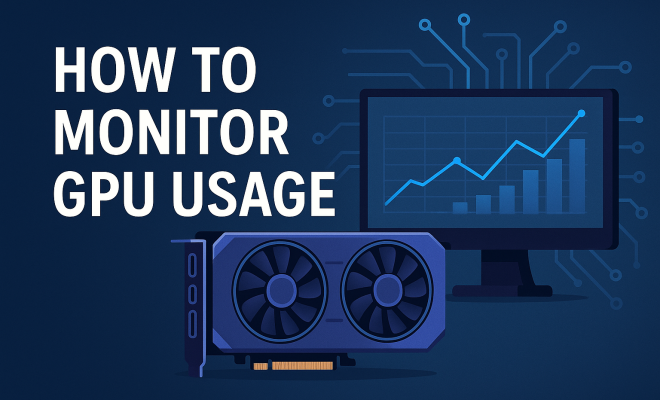
Monitor GPU Usage: A Comprehensive Guide to Performance
“`html
Introduction: Understanding GPU Usage
In the realm of computing, monitoring GPU usage is essential for users ranging from casual gamers to professional graphic designers. The GPU, or Graphics Processing Unit, plays a pivotal role in rendering images, animations, and video in a way that the CPU alone cannot. For many, the GPU is the unsung hero of their computing experience. So, how do you keep tabs on your GPU’s performance? In this guide, we’ll explore various methods to monitor GPU usage effectively, enabling you to optimize your system and enhance your overall experience.
1. Why Monitor GPU Usage?
Monitoring GPU usage is critical for several reasons. First, it allows users to identify performance bottlenecks in their systems. High GPU usage can indicate that a game or application is demanding too much from your hardware, which may lead to slowdowns or crashes. Additionally, by keeping an eye on GPU temperature, you can avoid overheating, extending the life of your components.
Moreover, understanding your GPU’s performance can assist in troubleshooting. If your computer is lagging during gaming or graphics-intensive tasks, monitoring the GPU can help pinpoint whether the issue is hardware-related or due to software conflicts. In essence, being proactive about GPU health can save time, money, and frustration.
2. How to Access GPU Usage Data
Before you can monitor GPU usage effectively, you’ll need to access the relevant data. Most operating systems provide built-in tools to track GPU performance. For instance, Windows users can utilize the Task Manager.
- Windows Task Manager: To access this, right-click on the taskbar and select Task Manager. Navigate to the ‘Performance’ tab, where you can view detailed statistics about your GPU usage, including memory usage and temperature.
- Activity Monitor on macOS: If you’re using a Mac, the Activity Monitor provides a similar function. Open the Activity Monitor, click on the ‘Window’ menu, and select ‘GPU History’ to see your GPU’s performance over time.
These built-in tools are a great starting point, but they often lack depth. For more advanced monitoring, you might consider third-party software solutions.
3. Third-Party Software for GPU Monitoring
There are numerous third-party applications that can provide a more comprehensive overview of GPU usage. Here are some noteworthy options:
- MSI Afterburner: Widely regarded as one of the best tools for GPU monitoring, MSI Afterburner offers real-time stats on GPU load, temperature, and memory usage. It also allows for overclocking, providing advanced users with the ability to push their GPU’s performance even further.
- GPU-Z: This lightweight utility focuses exclusively on graphics cards, providing detailed specifications and real-time monitoring of GPU usage. It’s especially helpful for users who want in-depth information about their hardware.
- HWMonitor: This application monitors various sensors throughout your system, including GPU temperature, load, and fan speeds. It’s straightforward and provides a clear overview of system health.
Using these tools can provide valuable insights into your GPU’s performance, allowing you to make informed decisions about upgrades or system optimization.
4. Understanding GPU Load and Usage Metrics
When you’re monitoring GPU usage, it’s important to understand the various metrics displayed by the monitoring software. Here are some key terms you should know:
- GPU Load: This percentage indicates how much of the GPU’s processing power is being utilized. A high load means the GPU is working hard, while a low load may suggest underutilization.
- GPU Temperature: Keeping an eye on your GPU’s temperature is crucial, as overheating can lead to throttling or even hardware failure. Most GPUs operate efficiently under 85°C, though this may vary by manufacturer.
- Memory Usage: This metric shows how much of the GPU’s dedicated memory (VRAM) is being used. If your application is consuming all available VRAM, it may lead to performance issues.
Understanding these metrics can help you optimize your system for the best performance, whether you’re gaming, designing, or running complex simulations.
5. Optimizing GPU Performance
Once you have the tools and knowledge to monitor GPU usage, the next step is optimization. Here are some effective strategies to enhance your GPU’s performance:
- Update Drivers: Keeping your GPU drivers up to date can significantly improve performance and compatibility with new games and applications. Check the manufacturer’s website regularly for updates.
- Adjust Graphics Settings: For gaming, reducing the graphics settings will decrease GPU load, potentially improving frame rates. Settings like shadow quality, anti-aliasing, and texture resolution can be adjusted for better performance.
- Clean Your PC: Dust buildup can lead to overheating. Regularly cleaning your PC’s interior can improve airflow and cooling efficiency.
By taking these steps, you can ensure your GPU operates at peak performance, reducing the chance of lag and overheating. (See: Understanding the importance of GPUs.)
6. Using GPU Usage Data for Troubleshooting
Monitoring GPU usage isn’t just about optimization; it’s also invaluable for troubleshooting performance issues. If you’re experiencing lags or crashes, here’s how GPU data can help:
- Identifying Bottlenecks: If your GPU load is consistently at 100% while your CPU remains underutilized, you may need to upgrade your graphics card. Conversely, if your GPU is idling, the issue might lie elsewhere in your system.
- Temperature Monitoring: If you notice high temperatures alongside decreased performance, it may be time to reapply thermal paste or invest in better cooling solutions.
- Memory Overload: If you find your GPU memory usage maxed out, consider reducing the number of applications running simultaneously or upgrading your GPU to one with more VRAM.
Using this data effectively can save you time and money when diagnosing issues, leading to quicker resolutions and happier computing.
7. The Relevance of GPU Monitoring in Gaming
In the gaming world, the performance of your GPU can make or break your experience. As games become increasingly visually demanding, understanding how to monitor GPU usage is more important than ever. High-performance gaming requires a balance between frame rates, resolution, and graphics settings, and monitoring your GPU can aid in achieving that balance.
For instance, many gamers prefer a steady 60 frames per second (FPS) for a smooth experience. By monitoring GPU load and temperature during gameplay, players can make real-time adjustments to settings to maintain that FPS. This is especially crucial in competitive gaming, where every millisecond counts.
Moreover, with the rise of virtual reality (VR) gaming, the demand on GPUs has intensified. VR applications often require high and consistent frame rates to create immersive experiences without causing discomfort. Thus, keeping an eye on GPU performance becomes not just a preference but a necessity in the gaming community.
8. Future Trends in GPU Monitoring
As technology continues to evolve, so do the methods and tools for monitoring GPU usage. The advent of artificial intelligence (AI) and machine learning is poised to transform how we analyze performance data. Future monitoring tools may integrate AI to predict potential hardware failures before they happen, allowing for preventative measures and minimizing downtime.
Additionally, as cloud gaming platforms rise in popularity, understanding GPU performance will shift. Users will need to monitor not just their local GPU but also how cloud-based GPUs perform in real-time, ensuring a smooth gaming experience even when relying on external servers.
As game development continues to push the boundaries of graphic fidelity, the significance of GPU monitoring will only increase. Staying informed about these trends can help you remain at the forefront of technology, ensuring you get the most out of your hardware.
9. The Importance of GPU Monitoring for Creative Professionals
For creative professionals, monitoring GPU usage can be equally crucial. Whether you’re working in 3D modeling, video editing, or graphic design, understanding how your GPU performs can directly impact your productivity and the quality of your work. Programs like Adobe Premiere Pro, Blender, and Autodesk Maya rely heavily on GPU power to render images and process videos. Therefore, keeping tabs on your GPU usage can help prevent disruptions during critical workflows.
Many creative applications also include performance monitoring features, but these often don’t provide the same level of detail as dedicated GPU monitoring tools. By cross-referencing data from your creative software with a monitoring application, you can gain insights into how each program utilizes GPU resources. This knowledge can guide decisions about hardware upgrades, helping you choose a GPU that meets your specific needs.
10. Statistics on GPU Usage Trends
As gaming and visual applications become more demanding, understanding the statistics surrounding GPU usage can help users make informed decisions. According to recent studies, over 75% of gamers actively monitor their GPU performance to enhance their gaming experience. Additionally, a survey conducted by Steam revealed that around 60% of PC gamers are using GPUs with at least 6GB of VRAM, indicating a trend towards more powerful graphics hardware as games become more resource-intensive.
On the professional side, a report by the International Data Corporation (IDC) found that the demand for GPUs in industries like AI, machine learning, and content creation has surged by over 40% in recent years. This statistic underscores the importance of monitoring GPU usage not just for gaming but for professionals in various fields who rely on high-performance computing.
11. Comparing Built-in Tools vs. Third-party Software
While built-in tools like Windows Task Manager and macOS Activity Monitor offer basic monitoring capabilities, they often lack the depth and customization that dedicated software provides. Here’s a quick comparison: (See: Research on GPU performance monitoring.)
| Feature | Built-in Tools | Third-party Software |
|---|---|---|
| Real-time Monitoring | Basic overview | Detailed statistics and graphs |
| Customization | Limited | Highly customizable dashboards and settings |
| Alerts & Notifications | No | Yes, for temperature and usage thresholds |
| Overclocking Capability | No | Yes, with tools like MSI Afterburner |
This comparison highlights why many users opt for third-party solutions to monitor GPU usage, especially if they’re serious about getting the best performance out of their systems.
12. Frequently Asked Questions (FAQ)
What is the ideal GPU temperature while gaming?
The ideal GPU temperature while gaming should typically be below 85°C. However, this can vary by manufacturer and model. Always check your specific GPU’s specifications for the recommended operating temperature.
Can I monitor GPU usage while gaming?
Yes, you can monitor GPU usage during gaming with various tools. MSI Afterburner and Fraps are popular choices that provide real-time overlays displaying GPU load and temperature while you play.
How do I know if my GPU is overheating?
Signs of an overheating GPU include sudden drops in performance, graphical glitches, or system crashes. Monitoring software will also alert you if temperatures exceed safe limits.
Is it worth investing in a high-end GPU for casual gaming?
If you’re primarily a casual gamer, a mid-range GPU may suffice. However, if you plan to play more demanding games or want better graphics quality, investing in a higher-end GPU can enhance your experience significantly.
What should I do if my GPU usage is consistently at 100%?
If your GPU usage is constantly at 100%, consider upgrading your GPU, optimizing your graphics settings in games, or closing background applications that might be consuming GPU resources.
13. Advanced Techniques for Monitoring GPU Usage
Beyond the basic monitoring, there are several advanced techniques that can take your GPU usage tracking to the next level. One such method is profiling, which involves analyzing how applications utilize GPU resources over time. This can help identify specific processes or tasks that may be hindering performance.
Another technique is using performance benchmarks, which can provide insight into the maximum capabilities of your GPU in various scenarios. Tools like 3DMark and Unigine Heaven can stress test your GPU, giving you comparative metrics against other models, helping you understand where your setup stands in relation to the competition.
Consider also utilizing logging features found in many monitoring applications. This allows you to track performance over extended periods, which can be invaluable for identifying issues that only arise under specific conditions, such as during long gaming sessions or heavy rendering tasks.
14. The Role of GPU Usage in Cryptocurrency Mining
While gaming and creative applications are common reasons for monitoring GPU usage, the rise of cryptocurrency mining has also shifted focus onto this aspect of performance. Miners need to maximize their GPU’s efficiency to ensure profitability, which makes monitoring paramount.
In mining, GPU load is often pushed to its limits, so understanding how to track and manage this load becomes crucial. Overheating can not only damage the GPU but also reduce mining efficiency, making temperature monitoring essential. (See: Study on GPU usage and optimization.)
Additionally, miners often utilize specific software that tracks hash rates, power consumption, and effective thermals. Such metrics help in making informed decisions about overclocking and cooling strategies, ensuring that the investment in hardware yields maximum returns.
15. Understanding GPU Utilization in Different Applications
Different applications utilize GPU resources in varying ways, and understanding these differences can help you optimize performance. For instance, gaming applications typically demand high GPU load for rendering, while productivity applications may use the GPU for acceleration in specific tasks such as rendering previews or real-time video editing.
AI and machine learning applications can also leverage GPU power differently, often utilizing parallel processing capabilities. Knowing how your specific applications use GPU resources can assist you in configuring your system for optimal performance.
For example, Adobe Photoshop uses the GPU primarily for rendering effects and filters, while Blender relies heavily on it for rendering 3D graphics. Understanding these distinctions allows users to allocate resources better and make informed upgrades to their GPU if necessary.
16. Common Misconceptions About GPU Usage
There are several misconceptions surrounding GPU usage that can lead to confusion. One common belief is that higher GPU usage is always better. In reality, consistent high utilization can indicate that your GPU is overworked, which can lead to overheating and performance issues.
Another misconception is that all applications benefit equally from a powerful GPU. While gaming and graphic design applications certainly do, many everyday tasks—such as web browsing or word processing—do not require significant GPU resources. Thus, investing heavily in a high-end GPU for such tasks may not yield noticeable performance improvements.
Understanding these misconceptions can help users make more informed decisions about their hardware and utilization strategies.
17. Conclusion: The Importance of Monitoring Your GPU
Monitoring GPU usage is not just a technical task; it’s essential for anyone who relies on their computer for gaming, graphic design, or any resource-intensive applications. By understanding how to effectively monitor and interpret GPU performance, you can optimize your system, troubleshoot issues, and enhance your computing experience overall. Whether you’re a seasoned gamer or a professional designer, taking the time to monitor your GPU could be the difference between a mediocre and an exceptional experience.
“`
Trending Now
Frequently Asked Questions
Why is it important to monitor GPU usage?
Monitoring GPU usage is crucial as it helps identify performance bottlenecks, prevents overheating, and extends the lifespan of your components. It also aids in troubleshooting issues during graphics-intensive tasks, ensuring a smoother experience whether you're gaming or working on design projects.
How can I check my GPU usage on Windows?
To check GPU usage on Windows, right-click the taskbar and select Task Manager. Then, navigate to the 'Performance' tab, where you can view detailed statistics on your GPU's usage, memory consumption, and temperature.
What tools can I use to monitor GPU performance?
You can use built-in tools like Windows Task Manager or Activity Monitor on macOS to monitor GPU performance. Additionally, third-party software such as MSI Afterburner or GPU-Z provides more advanced monitoring options.
How do I know if my GPU is overheating?
You can check for overheating by monitoring your GPU's temperature using tools like Task Manager on Windows or Activity Monitor on macOS. If temperatures exceed safe limits, it may indicate inadequate cooling or excessive usage.
What are the signs of high GPU usage?
Signs of high GPU usage include lagging during gaming or graphics-intensive applications, increased fan noise, and overheating. Monitoring your GPU can help determine if these issues are due to hardware limitations or software conflicts.
What’s your take on this? Share your thoughts in the comments below — we read every one.