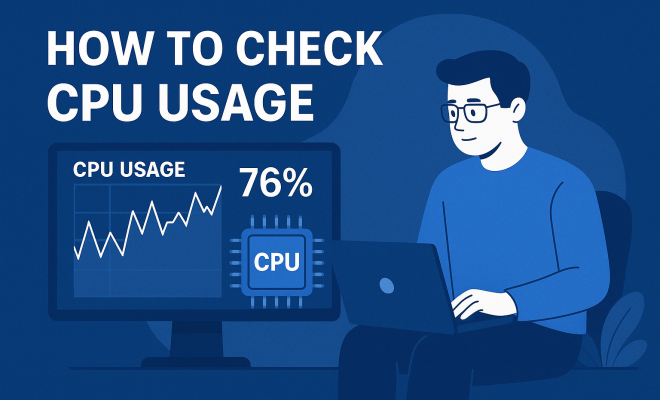
How to check CPU usage
“`html
Understanding your computer’s performance is critical, especially when it comes to ensuring that everything runs smoothly and efficiently. One of the key indicators of performance is CPU usage. Knowing how to check CPU usage can help you identify software that is hogging resources or troubleshoot issues that may arise during your daily tasks. In this article, we’ll explore seven essential methods to monitor CPU usage effectively, including detailed instructions and insights to help you optimize your system.
1. Using Task Manager on Windows
One of the most straightforward ways to check CPU usage is through the Task Manager in Windows. To access it, simply right-click on the taskbar and select Task Manager, or press Ctrl + Shift + Esc. Once it opens, go to the Processes tab where you can see a list of all running applications and their corresponding CPU usage.
In the Task Manager, the CPU column displays the percentage of CPU resources that each application is consuming. This visual representation makes it easy to spot any applications that are using an abnormal amount of CPU. For a more detailed analysis, you can switch to the Performance tab, where you’ll find real-time graphs and statistics related to CPU performance over time.
2. Using Activity Monitor on macOS
If you’re using a Mac, the method to check CPU usage is also quite simple. You can access the Activity Monitor by searching for it in Spotlight (press Command + Space and type “Activity Monitor”) or by finding it in Applications > Utilities.
In the Activity Monitor, you’ll find a CPU tab that shows you the percentage of CPU usage by each process. You can also see a graph at the bottom that illustrates CPU activity over time. This tool not only helps you identify which applications are consuming the most resources but also allows you to force quit any unresponsive applications directly from the interface.
3. Command Line Tools for Advanced Users
For those who prefer a more hands-on approach, command line tools can provide detailed insights. On Windows, you can use the Command Prompt to check CPU usage. Simply open the Command Prompt and type wmic cpu get loadpercentage. This will return the current CPU load as a percentage.
On a Mac or Linux system, the top command serves a similar function. Open the Terminal and type top, which will list all active processes along with their CPU usage in real-time. Using these command line tools can give you a deeper understanding of your CPU’s performance without relying on graphical interfaces.
4. Third-Party Applications
There are numerous third-party applications designed to provide even more detailed insights into your CPU usage. Tools like HWMonitor and Core Temp are popular among users looking to monitor not just CPU usage, but also temperatures, voltages, and fan speeds. These applications can be particularly useful for those who overclock their CPUs or are involved in gaming. (See: Central Processing Unit overview.)
Additionally, applications like Process Explorer (for Windows) offer extensive details about running processes, including their CPU usage and how much memory they consume. These tools can help you troubleshoot performance issues more effectively by providing a complete picture of what’s happening under the hood.
5. Using System Monitor on Linux
Linux users can check CPU usage with the System Monitor tool, which comes pre-installed on many distributions. You can access it from the application menu or by searching for it directly. The System Monitor provides a user-friendly interface showing CPU usage and memory consumption for all processes.
If you prefer a command line approach, you can use htop, an interactive process viewer. Htop provides an easy way to view CPU usage across all cores in real-time, making it a favorite among Linux enthusiasts. You can install it via your distribution’s package manager and then run it simply by typing htop in the terminal.
6. Monitoring CPU Usage Over Time
Sometimes, you want to check CPU usage not just at a single moment but over a specified period. Tools like Windows Performance Monitor allow you to set up a monitoring session to log CPU performance over time. You can access it by typing Performance Monitor in the Windows search bar and selecting it.
Once inside, you can add new counters to monitor CPU usage and specify the frequency of data collection. This can be particularly useful for identifying trends or spikes in CPU usage during specific tasks or applications. For Mac users, the built-in Console app can also be used to log performance data over time.
7. Understanding CPU Usage and Its Implications
Finally, it’s essential to understand what CPU usage means and why it’s relevant to your system’s health. High CPU usage can lead to system slowdowns, crashes, or even hardware failures if sustained over long periods. Knowing how to check CPU usage regularly can help you maintain your system’s performance and longevity.
For instance, if you notice consistently high CPU usage from a particular application, you may want to look for alternatives or updates to that software. It’s also wise to keep your operating system and drivers updated to ensure optimal CPU performance. Regular checks can help you intervene before minor issues escalate into significant problems.
8. Common Causes of High CPU Usage
Understanding what can cause high CPU usage is just as important as knowing how to check it. Several factors can lead to increased CPU load, including:
- Background Processes: Many applications run background tasks that can consume CPU resources without you realizing it. For example, antivirus software will often run scans that can spike CPU usage.
- Malware and Viruses: If your computer is infected with malicious software, it can use CPU resources to perform unwanted tasks like sending spam emails or participating in a botnet.
- Resource-Heavy Applications: Applications such as video editing software, 3D rendering programs, and high-end games require significant CPU resources. If you’re running such applications on an underpowered machine, you may frequently experience high CPU usage.
- Outdated Drivers: Sometimes, older drivers can cause inefficiencies in how your system uses its resources. Keeping drivers up to date can help mitigate this issue.
- System Updates: When your system is updating, it can temporarily increase CPU usage. This is usually a normal process but can be alarming if you’re unaware.
9. Tips for Optimizing CPU Usage
Reducing CPU usage is often a matter of adjusting settings and being mindful of the applications you run. Here are several tips to help you optimize CPU usage: (See: CDC on computer usage and health.)
- Close Unneeded Applications: Make it a habit to close applications when you’re not using them. Background applications can silently consume CPU resources.
- Limit Startup Programs: Many applications set themselves to start when your computer boots up. You can manage startup programs through Task Manager on Windows or System Preferences on macOS.
- Upgrade Your Hardware: If you regularly find that your CPU is maxed out, consider upgrading to a more powerful CPU or adding more RAM. This can have a significant impact on your system’s performance.
- Run Malware Scans: Regularly check your system for malware. Use a reputable antivirus solution and keep it updated to protect against threats that can slow down your system.
- Optimize Software: Look for lighter alternatives to the software you typically use. For example, if a particular web browser is consuming a lot of resources, consider switching to a less resource-intensive option.
10. How to Troubleshoot High CPU Usage
If you’ve identified that your CPU usage is consistently high, here are steps to troubleshoot the issue:
- Identify Resource-Hungry Processes: Use Task Manager or Activity Monitor to find out which processes are using the most CPU. Once you have this information, you can decide whether to close them or investigate further.
- Look for Software Updates: Check if the application causing high CPU usage has available updates. Developers often release patches to fix performance issues.
- Uninstall Problematic Applications: If a specific application consistently causes high CPU usage, consider uninstalling it and finding an alternative.
- Reboot Your Computer: Sometimes, a simple restart can resolve issues causing unusually high CPU activity.
- Check for Windows Services Issues: Occasionally, certain Windows services can become problematic. Use the Services tool to manage them, stopping or disabling those that are unnecessary.
11. Statistics on CPU Usage
Understanding statistics on CPU usage can help contextualize your own system’s performance. According to various studies and surveys, the following statistics are notable:
- In general, a CPU usage level of 70% or above is considered high for regular tasks. Systems often start to lag or become unresponsive when usage exceeds this level.
- Research shows that resource-heavy applications, such as video games or rendering software, can push CPU usage levels over 90% during peak activity.
- An online survey indicated that 40% of users experience high CPU usage due to background processes running without their knowledge.
- According to a recent study, over 50% of users are unaware of the impact of background applications on CPU usage, often resulting in unnecessary slowdowns.
12. Frequently Asked Questions (FAQ)
What is CPU usage?
CPU usage refers to the percentage of the CPU’s capacity being utilized at any given time. High CPU usage can slow down performance, while low CPU usage usually indicates that the computer is under minimal load.
How can I check CPU usage on Windows 10?
You can check CPU usage by opening the Task Manager (Ctrl + Shift + Esc), then navigating to the Processes tab and looking at the CPU column.
Is high CPU usage dangerous?
While occasional high CPU usage is normal, sustained high usage can lead to overheating, system crashes, and hardware damage over time. Regular monitoring is essential to prevent these issues.
How can I reduce CPU usage?
To reduce CPU usage, close unnecessary applications, manage startup programs, run malware scans, and consider hardware upgrades if necessary.
Are there tools for monitoring CPU usage over time?
Yes, tools like Windows Performance Monitor and third-party applications like MSI Afterburner and HWMonitor can help you track CPU performance over time.
What does it mean if my CPU is running at 100%?
If your CPU is consistently at 100% usage, it indicates that your computer is under heavy load, possibly due to one or more demanding processes running. You should investigate which applications are responsible and take necessary actions. (See: Scientific articles on CPU usage.)
13. How CPU Usage Affects Overall System Performance
CPU usage is a significant factor in determining your computer’s overall performance. When your CPU is under heavy load, it slows down other processes, leading to a lagging system. This can manifest in various ways, including:
- Slower Response Times: Programs may take longer to open and respond to user inputs, disrupting your workflow.
- Increased Fan Noise: High CPU usage can lead to higher temperatures, forcing your cooling fans to work harder, which in turn creates more noise.
- Application Crashes: Some applications may become unresponsive or crash entirely if the CPU is unable to allocate the necessary resources.
- System Instability: Persistent high CPU usage can lead to system freezes, requiring you to reboot your machine frequently.
Understanding the relationship between CPU usage and overall system performance can help you take proactive measures to ensure smooth operation.
14. Real-World Examples of CPU Usage Problems
To provide a clearer picture of how CPU usage can affect your computing experience, let’s look at a few real-world scenarios:
- Scenario 1 – Gaming: A gamer using a mid-range PC attempts to run a demanding game while streaming on Twitch. With the game consuming 85% of the CPU resources, the streaming software struggles to maintain a stable connection, leading to dropped frames and a poor viewing experience.
- Scenario 2 – Video Editing: An amateur filmmaker trying to edit a 4K video on a laptop with limited processing power notices significant delays in rendering. The CPU spikes to 100% usage, causing the editing software to freeze and forcing them to restart the application multiple times.
- Scenario 3 – Office Work: A business professional running several applications like spreadsheets, browsers, and email clients at once finds that their laptop becomes sluggish. Investigating CPU usage reveals that the email client has a background process that continuously checks for updates, consuming valuable resources.
15. Best Practices for Managing CPU Usage
To ensure a smooth computing experience, following best practices for managing CPU usage is essential. Here are some suggestions:
- Regularly Audit Software: Periodically review the applications you have installed and uninstall any that you no longer use, as they can consume resources even when not actively used.
- Schedule Resource-Heavy Tasks: If you frequently run applications that are resource-intensive, consider scheduling them during off-hours when you’re not using the computer for other tasks.
- Consider Virtualization: For users needing to run multiple operating systems, using virtualization software can allow you to allocate CPU resources more effectively rather than overwhelming your primary OS.
- Monitor Performance Regularly: Use the various tools discussed throughout this article to perform regular checks on CPU usage, keeping an eye out for any unusual spikes.
- Educate Yourself About Applications: Understanding how different applications use CPU resources can help you make informed decisions about which software to use based on your needs.
In summary, monitoring CPU usage is a vital skill for anyone who uses a computer regularly. Whether you’re a casual user, a gamer, or a professional, knowing how to effectively check CPU usage can help you optimize your system and enhance its performance. With the methods outlined above, you can take control of your computing experience and ensure that your system runs smoothly for all your needs.
“`
Trending Now
Frequently Asked Questions
How do I check CPU usage on Windows?
You can check CPU usage on Windows by opening Task Manager. Right-click on the taskbar and select Task Manager or press Ctrl + Shift + Esc. In the Processes tab, you'll see the CPU column displaying the usage percentage for each application.
What is the best way to monitor CPU usage on a Mac?
On a Mac, the best way to monitor CPU usage is through Activity Monitor. You can access it via Spotlight by pressing Command + Space and typing 'Activity Monitor'. The CPU tab shows the usage percentage for each process and includes a graph for CPU activity.
How can I identify which applications are using the most CPU?
You can identify CPU-hogging applications by checking the CPU column in Task Manager on Windows or the CPU tab in Activity Monitor on macOS. Both tools provide a clear percentage of CPU usage for each running application.
Is there a command line tool to check CPU usage?
Yes, advanced users can utilize command line tools to check CPU usage. On Windows, you can use 'wmic cpu get loadpercentage', and on macOS, commands like 'top' or 'htop' can provide detailed CPU usage statistics.
Why is it important to monitor CPU usage?
Monitoring CPU usage is crucial for maintaining system performance. It helps you identify resource-heavy applications, troubleshoot issues, and ensure your computer runs smoothly and efficiently during daily tasks.
What did we miss? Let us know in the comments and join the conversation.