How to use presenter view
“`html
In today’s digital age, effective presentations can make or break a meeting, lecture, or pitch. Enter Presenter View—a powerful tool that can elevate your presentation skills and enhance audience engagement. Whether you’re a seasoned presenter or new to the scene, mastering Presenter View can significantly impact the way you deliver information. Below, we’ll explore seven essential presenter view tips that will help you harness its full potential.
1. Understanding Presenter View: What It Is and How It Works
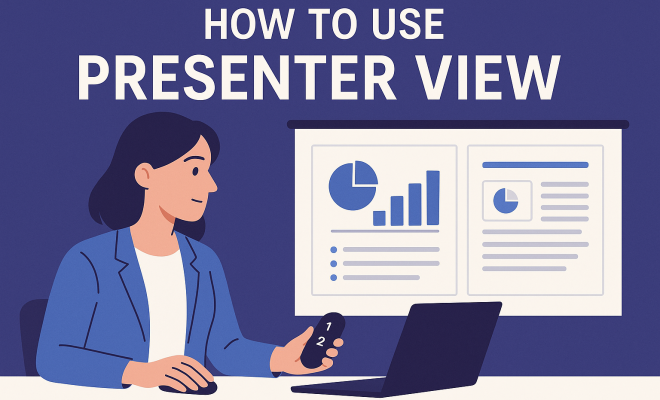
Before diving into the tips, it’s crucial to understand what Presenter View is. Essentially, Presenter View is a feature available in presentation software like Microsoft PowerPoint and Apple Keynote. This mode allows the presenter to see their notes, upcoming slides, and a timer on one screen, while the audience sees only the slides being presented. This split-screen setup enables a smoother flow of information and helps presenters stay organized during their talks.
To activate Presenter View, connect your laptop or device to a projector or second screen. When you start your presentation, the software will automatically recognize the external display, and you can select Presenter View from the options provided. Familiarizing yourself with this setup will allow you to utilize its features effectively, leading to a more polished and professional presentation.
2. Customize Your Notes: Tailoring Presenter View to Your Needs
One of the standout features of Presenter View is the ability to include notes that are only visible to you. This can be a game-changer when it comes to delivering your content smoothly. Take time to go through each slide and add relevant notes, reminders, or cues that can help you remember key points.
Moreover, you can adjust the font size or text layout to ensure that your notes are easily readable during the presentation. Remember, the goal is to enhance your confidence without making the audience aware of your prompts. Experiment with different styles and layouts to find what works best for you, allowing you to engage with your audience rather than reading off your notes.
3. Use the Timer Feature: Staying Within Your Time Limit
Time management is of the essence in any presentation. Presenter View includes a timer feature that displays how long you’ve been presenting. This is vital for pacing yourself, ensuring you cover all key points without rushing or dragging on.
Set specific time limits for each section of your presentation. For example, if you have a 30-minute slot, allocate 5 minutes for the introduction, 20 minutes for the main content, and 5 minutes for Q&A. You can refer to the timer discreetly to adjust your delivery if you notice you’re running behind schedule, ensuring a well-rounded presentation.
4. Engage with Your Audience: Building Connection While Presenting
One of the biggest challenges during presentations is maintaining audience engagement. A common pitfall is focusing too much on the slides rather than connecting with your audience. With Presenter View, you can enhance this connection by using your notes to guide your delivery while keeping your eyes on your audience.
Practice making eye contact and using gestures to emphasize points. Your notes can serve as a reminder of what to discuss, so you don’t have to turn your back to the audience to read from your slides. This approach not only fosters a better connection but also makes you appear more confident and knowledgeable about the subject. (See: Overview of presentation software.)
5. Preview Upcoming Slides: Smooth Transitions Are Key
Another fantastic feature of Presenter View is the ability to preview slides that are coming up next. This allows you to prepare your comments about the next slide while discussing the current one. As a result, transitions between slides can be much smoother, and your audience will appreciate the fluidity of the presentation.
Practice your transitions beforehand. Familiarizing yourself with the upcoming slides helps you create a narrative that flows logically and naturally, making your presentation more cohesive. Moreover, this practice can greatly reduce the anxiety that comes with jumping from one topic to another, leaving room for more impactful discussions.
6. Utilize Interactive Features: Polls and Audience Feedback
Today’s presentations can benefit greatly from interactivity, and Presenter View facilitates this. Many presentation software programs allow you to incorporate polls, quizzes, or question-and-answer sections directly into your slides. Utilizing these features can create more engagement and provide immediate feedback.
For instance, you might use a poll to gauge understanding after a complex section or ask questions that the audience can answer in real-time. This not only breaks the monotony but also makes your presentation more memorable. Encourage participation by acknowledging responses and integrating audience feedback into your discussion.
7. Practice, Practice, Practice: The Key to Confidence
No amount of technology can replace the value of preparation. Using Presenter View effectively requires practice. Familiarize yourself with the software and rehearse your presentation multiple times. This will help you become comfortable with navigating the slides and using the features without hesitation.
Consider recording your practice sessions. Watching yourself can reveal areas where you can improve, such as body language or pacing. Additionally, presenting in front of friends or colleagues can provide valuable feedback. The more you practice, the more natural and confident you’ll feel when it’s time to present.
8. Utilize Visual Aids: Enhancing Conceptual Understanding
Visual aids play a crucial role in presentations, and Presenter View enables you to incorporate them effectively. Use images, charts, graphs, and videos to illustrate key points. These visuals can help clarify complex information and make your presentation more engaging.
When using visual aids, ensure they are relevant to your content. For example, if you’re discussing sales data, a graph showing trends over time can provide immediate context. Remember to refer to these visuals during your presentation, but don’t get too caught up in them. Your audience should still focus on you as the primary source of information.
9. Adjust Your Environment: Setting the Stage for Success
The environment where you present can significantly impact both your performance and the audience’s experience. Before starting, check that the lighting is appropriate and that your visuals are easily visible from all angles. If you’re using a projector, ensure it’s set up correctly and that the resolution is clear.
Consider the seating arrangement as well. If you want a more interactive presentation, having a circular or U-shaped seating arrangement can facilitate better communication. If your audience is seated in rows, make sure to engage with each section to avoid leaving anyone out. A well-set environment can enhance the effectiveness of your presentation and make you feel more at ease.
10. Dealing with Technical Issues: Staying Calm Under Pressure
Even the best-prepared presentations can encounter technical difficulties. The key is to remain calm and collected. Before your presentation, always have a backup plan. This might include having a printed version of your slides or notes, or even a backup device with your presentation loaded. (See: Tips for effective presentations.)
If something goes wrong during your presentation, try to troubleshoot quickly without panicking. For example, if your projector fails, you might switch to a screen share if you’re presenting online, or simply continue speaking about the content until the issue is resolved. Your audience will appreciate your poise and professionalism, regardless of the setbacks.
11. Gather Feedback: The Path to Improvement
Feedback is essential for growth, so don’t shy away from asking your audience for their thoughts after the presentation. Utilize tools like surveys or informal discussions to gather insights on what worked and what didn’t. This information can be invaluable for improving your next presentation.
Consider asking specific questions. For instance, inquire about the clarity of your message, the effectiveness of your visuals, or even the engagement level. By actively seeking feedback, you show your audience that you value their opinions and are committed to continual improvement.
12. Common Mistakes to Avoid: Learning from Others
Many presenters fall into the trap of common mistakes, often without realizing it. One major error is overloading slides with too much text or information. Remember, your slides should support your presentation, not replace it. Aim for clarity and simplicity.
Another mistake is failing to rehearse adequately. Presenting without proper practice can lead to stumbling over words or forgetting key points. Finally, keep an eye on your audience’s body language—if they seem disengaged or confused, it might be time to adjust your approach.
13. Presenter View Tips: Frequently Asked Questions
What is Presenter View?
Presenter View is a mode in presentation software that allows the presenter to see their notes, upcoming slides, and other essential information while the audience sees only the current slide. This setup helps in delivering presentations more smoothly and confidently.
How do I activate Presenter View?
To activate Presenter View, connect your device to a second display, start your presentation, and select the Presenter View option in your software settings. Ensure your presentation software recognizes the external display first.
Can I customize my notes in Presenter View?
Yes! You can customize your notes in Presenter View to include reminders or cues that will help you during your presentation. You can also adjust the text size and layout for better readability.
How can I keep my audience engaged during my presentation?
Engagement can be maintained by making eye contact, using visual aids, and incorporating interactive elements like polls or questions. This helps create a connection with the audience, making your presentation more memorable. (See: Presentation tips from The New York Times.)
What should I do if technical issues arise?
Stay calm and have a backup plan, such as printed slides or a backup device. If something goes wrong, continue with your presentation verbally until the issue is resolved, displaying professionalism under pressure.
14. Enhancing Your Presentation Skills: More Tips for Success
Mastering Presenter View is just one part of becoming an effective presenter. Here are a few additional strategies to refine your skills:
- Know Your Audience: Understanding who you are presenting to can help tailor your content and delivery style. Are they familiar with the topic? Are they looking for detailed data or a high-level overview? Adjust your presentation accordingly.
- Storytelling: Incorporate storytelling into your presentations to create a more engaging experience. Stories can help illustrate your points and make your content relatable.
- Vary Your Tone and Pace: Monotone delivery can quickly lead to disengagement. Use variations in your tone and pace to keep the audience’s attention and highlight key points.
- Incorporate Personal Experiences: Sharing personal anecdotes related to your topic can enhance your credibility and make your presentation more memorable.
15. Statistics and Trends in Presentation Skills
Understanding the importance of presentation skills in today’s workplace can highlight why mastering tools like Presenter View is essential. According to a study by Prezi, 70% of professionals feel that effective presentation skills impact their career advancement. Furthermore, research from the National Center for Education Statistics shows that students who engage in regular presentations score higher in communication skills by nearly 15%. These statistics underline the vital role presentations play in both academic and professional settings.
16. Case Studies: Successful Presentations Using Presenter View
Examining case studies can provide insight into how effective use of Presenter View can enhance presentations. For instance, during a product launch, a tech company utilized Presenter View to seamlessly transition between product demonstrations and data slides, resulting in a 30% increase in audience engagement as measured by post-event surveys.
Another example is a nonprofit organization that integrated polls into their presentation to gauge audience opinions on community issues. By using Presenter View to manage the live responses, they not only kept the audience engaged but also collected valuable data for future initiatives.
17. Conclusion: Embrace the Power of Presenter View
Presenter View can significantly enhance your presentation skills, providing you with tools to engage your audience effectively. From customizing your notes to using interactive features, these presenter view tips will help you deliver presentations that are not only informative but also engaging. Remember, the key to a successful presentation lies in preparation and practice, so take the time to master this powerful tool.
“`
Trending Now
Frequently Asked Questions
What is Presenter View in PowerPoint?
Presenter View is a feature in PowerPoint that allows the presenter to see their notes, upcoming slides, and a timer on one screen, while the audience views only the presentation slides. This setup helps maintain a smooth flow of information and keeps the presenter organized.
How do I activate Presenter View?
To activate Presenter View, connect your laptop to a projector or second screen. Start your presentation, and the software will detect the external display. You can then select Presenter View from the options provided to utilize its features effectively.
Can I customize my notes in Presenter View?
Yes, Presenter View allows you to customize your notes that are only visible to you. You can add relevant reminders and adjust the font size or layout to ensure readability, enhancing your confidence during the presentation.
What are the benefits of using Presenter View?
Using Presenter View can significantly improve your presentation skills by allowing you to see your notes and upcoming slides. This feature helps maintain audience engagement and ensures you stay organized and focused throughout your talk.
Is Presenter View available in Apple Keynote?
Yes, Presenter View is also available in Apple Keynote. Similar to PowerPoint, it allows presenters to view their notes and upcoming slides while the audience sees only the presentation, enhancing the overall delivery of the content.
What’s your take on this? Share your thoughts in the comments below — we read every one.