Master iPad Split View: Boost Your Productivity Today!
“`html
The iPad has revolutionized the way we approach productivity and multitasking. One of its most powerful features is the split view iPad, which allows users to run two applications side by side. This capability transforms your device into a versatile workstation, enabling efficient workflows, enhanced creativity, and seamless communication. In this guide, we will explore the ins and outs of using split view on your iPad, providing tips, tricks, and insights to maximize your experience.
1. What is Split View on iPad?
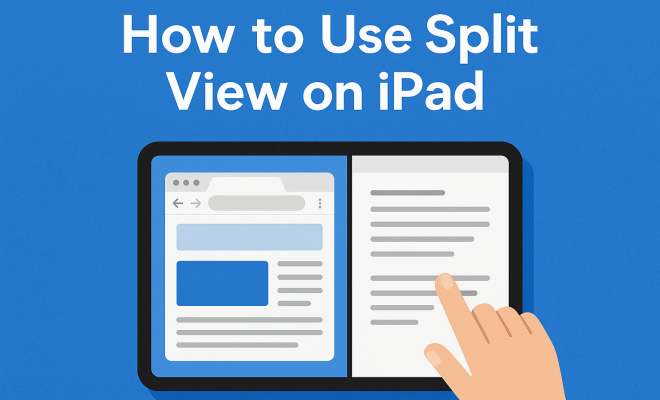
Split View is a multitasking feature available on iPads running iOS 9 or later, enabling users to view and interact with two apps simultaneously. This functionality is particularly beneficial for users who want to enhance their productivity by taking advantage of the spacious screen real estate available on the iPad. With split view, you can, for instance, write an email while referencing a document, or watch a video while taking notes.
This feature is designed for both efficiency and ease of use. It allows you to engage with multiple apps without needing to switch back and forth, which can disrupt your workflow. The introduction of Split View marked a significant upgrade in how users interact with their iPads, making them more akin to laptops and desktop computers.
2. How to Enable Split View on Your iPad
Enabling split view on your iPad is straightforward. First, ensure that you are using an iPad model that supports this feature. Generally, most modern iPads, including iPad Air, iPad Pro, and iPad Mini (from 2019 onward), support Split View.
To activate split view, swipe up from the bottom of the screen to access the Dock, which is where your frequently used apps are stored. Next, tap and hold the icon of the app you want to use in split view and drag it to the left or right edge of the screen. Release the app, and it will open in a narrow window alongside the primary app you were using, effectively creating a split view.
3. Adjusting the Split View Configuration
Once you have split the screen, you might want to adjust the size of each app’s window. You can do this by dragging the divider line between the two apps. Move it left or right to allocate more or less space to either app. This flexibility is particularly useful if one app requires more screen space for better usability, such as a document editor or photo editing application.
It’s also important to know that some apps may not support Split View. If you attempt to open an app that doesn’t allow this feature, you won’t see it in the Dock. Always check app compatibility if you encounter issues when trying to set up your split view.
4. Using Slide Over with Split View
In addition to Split View, iPadOS offers another multitasking option known as Slide Over. This feature allows you to open a third app in a smaller, floating window that hovers on top of your split view. To activate Slide Over, you can swipe in from the right edge of your screen to access the Slide Over pane, which contains apps that are compatible with this feature.
To add an app to your existing Split View setup, simply drag it from the Slide Over pane and position it as needed. This can be particularly useful for referencing notes or checking messages without fully committing to a new split view session.
5. Switching Between Apps in Split View
When you have multiple apps open in Split View, switching between them can be seamless. You can simply tap on the app you wish to interact with, and it will become the primary focus. For instance, if you’re writing an email and need to check a calendar event, just tap on the calendar app in split view, and it will take precedence.
Additionally, you can easily close one of the apps in split view by swiping down on the app window you wish to dismiss. This action quickly returns you to the other app without the need to navigate through the home screen or app switcher. (See: Wikipedia article on iPad.)
6. Best Practices for Enhanced Productivity
To make the most of the split view iPad, consider these best practices. First, keep your most-used apps readily accessible in the Dock, making it easier to drag them into split view as needed. Second, use apps that complement each other. For example, pairing a note-taking app with a web browser can streamline research and documentation.
Moreover, utilize keyboard shortcuts if you have an external keyboard connected to your iPad. Many apps support specific shortcuts that can speed up your workflow, allowing you to switch apps, copy, paste, and more without needing to rely on touch controls.
7. Common Issues and Troubleshooting
While using split view, you may encounter some common issues. One such issue is the inability to drag an app into split view. If this happens, first ensure that the app you are trying to add supports this feature. If the app is compatible but still won’t work, try restarting your iPad or closing any apps that may be unresponsive.
Another common issue is a lag in performance when using two resource-intensive apps simultaneously. This can be alleviated by closing background apps or ensuring that your iPadOS is up to date. Keeping your software updated can help improve overall performance and compatibility with new features.
8. Real-World Applications of Split View
The practical applications of split view are vast. For students, it can be invaluable for researching topics while taking notes. Imagine writing a paper in Pages while simultaneously referencing articles in Safari—this kind of multitasking can drastically reduce the time spent switching between apps.
For professionals, being able to conduct video calls in one window while accessing a presentation in the other can enhance productivity during meetings. Whether you’re a developer testing code while viewing documentation or a graphic designer comparing images side by side, the split view iPad functionality supports a variety of workflows.
9. Future of Multitasking on iPad
As Apple continues to develop iPadOS, the future of multitasking holds great promise. With each new update, we see enhancements that make split view and overall multitasking even more intuitive. Features like improved drag-and-drop capabilities, the potential for multiple split views, and enhanced app compatibility signify that Apple is committed to making the iPad a powerhouse for productivity.
Looking ahead, we might also expect greater integration between iPad and other Apple devices, allowing for seamless transitions and interactions across platforms. Given the rise in remote work and digital learning, features like split view will undoubtedly evolve to meet users’ growing demands for flexibility and productivity.
10. Comparing Split View to Other Multitasking Features
Besides Split View, iPadOS includes a range of multitasking features that serve different purposes. Understanding the differences can help you decide which mode to use based on your needs. Here, we’ll take a closer look at how Split View stacks up against other multitasking options like Slide Over and Picture in Picture (PiP).
10.1. Split View vs. Slide Over
Slide Over allows you to open a single app in a floating window that you can access while using another app in full screen. It’s a quick way to check messages or notes without needing to commit to a full split-screen experience. In contrast, Split View shows two apps side by side, giving equal attention to both. If your goal is to work closely with two apps, Split View is likely the better option. However, if you want quick access to a third app without full immersion, then Slide Over is ideal.
10.2. Split View vs. Picture in Picture (PiP)
Picture in Picture is particularly useful for media consumption, allowing users to watch videos while simultaneously using other apps. The video reduces to a smaller window that can be moved around the screen. This is different from Split View, which is designed for productivity, enabling active engagement with two different apps. If you’re focused on a video call but need to check details from a document, PiP can enhance your experience without fully shifting to another app.
11. Tips for App Pairing in Split View
Knowing which apps work best together in Split View can significantly enhance your experience. Here are some effective pairings that can cater to different tasks:
- Notes & Safari: Perfect for students or researchers who need to take notes while referencing information online.
- Mail & Calendar: Ideal for professionals managing appointments and emails, allowing for quick scheduling and message replies.
- Photos & Messages: Great for sharing images quickly without the need to switch between apps multiple times.
Experiment with different combinations to find what best suits your workflow. The right pairings can save you time and streamline your tasks.
12. Split View and Accessibility
Split View can be a game-changer for users with accessibility needs. By allowing two apps to be open simultaneously, users can enhance their ability to perform tasks that might otherwise require multiple steps. For example, someone using a voice dictation app can have a text editor open in Split View to see their transcriptions in real time.
Additionally, iPadOS offers various accessibility features, such as VoiceOver, which can be used concurrently with Split View. This means that users who rely on assistive technology can navigate and interact with multiple applications without any hindrance.
13. Split View FAQs
13.1. Which iPad models support Split View?
Most modern iPads support Split View, including the iPad Air, iPad Pro, and iPad Mini models released from 2019 onwards. If you’re using an older iPad, you may need to check your model’s compatibility with iOS 9 or later.
13.2. Can I use any app in Split View?
Not all apps support Split View. Apps must specifically enable this functionality to be used in a multitasking environment. If you can’t drag an app into Split View, it may not be compatible.
13.3. How can I exit Split View?
To exit Split View, simply swipe down on the app window you want to close. This will return you to the full screen of the other app that remains open.
13.4. Can I customize the size of the split screen?
Yes! You can adjust the size of the app windows by dragging the divider line between them. This allows you to give more space to the app that you are currently focusing on.
13.5. What do I do if Split View isn’t working?
If you’re having trouble with Split View, ensure that the apps you want to use are compatible. Restarting your iPad or updating to the latest iPadOS can also help resolve issues.
14. Advanced Features of Split View
As you become more familiar with the split view functionality, you’ll discover advanced features that can further enhance your multitasking experience. For instance, many iPad users might not realize that they can actually have multiple instances of the same app open in Split View. This means you can have two documents open in Pages side-by-side or different email threads in the Mail app. To do this, simply open the app from your dock, then tap and hold the app icon until you see the option to open another instance.
This feature is particularly useful for tasks that require comparison or cross-referencing, such as reviewing documents or collating information from multiple sources.
15. Statistics on iPad Usage and Multitasking
Understanding the impact of multitasking features like Split View on user productivity can be quite fascinating. Recent studies indicate that users who leverage multitasking features on their devices report a 30% increase in overall productivity. In a survey conducted by Apple, over 60% of iPad users stated that they frequently use Split View, with 75% of those respondents claiming it significantly improved their workflow efficiency.
Moreover, research shows that professionals in sectors like education and design are among the most frequent users of Split View, utilizing it to manage tasks that involve heavy information processing and content creation. These statistics highlight the importance of multitasking features in modern applications and their role in enhancing productivity.
16. Split View in Education
In the educational sector, the split view feature on iPads can drastically change how students and educators interact with learning materials. Imagine a classroom where students can take real-time notes in a note-taking app while simultaneously watching instructional videos or accessing course materials. This not only increases engagement but also empowers students to take control of their learning processes.
Educators can also benefit from Split View by preparing lesson plans in one app while browsing educational content or gathering resources in another. This streamlined approach can save valuable time and enhance the quality of instruction. As schools increasingly adopt technology in the classroom, the split view capability on iPads will become an essential tool for both teaching and learning.
17. Split View and Remote Work
The rise of remote work has highlighted the need for efficient multitasking tools, and the split view feature on the iPad fits the bill perfectly. For remote workers, being able to manage video conferencing apps alongside collaboration tools like Slack or Microsoft Teams can make communication smoother and enhance productivity.
Consider a scenario where you’re in a virtual meeting while taking notes or collaborating on a document with colleagues. With Split View, you can seamlessly shift your focus between the video call and the relevant files or chats, all within the same screen space. This not only minimizes distractions but also helps maintain a smooth workflow, which is crucial in a remote work environment.
18. Conclusion
The Split View feature on the iPad is a powerful tool that can vastly improve productivity. Whether you’re a student, a professional, or just someone who enjoys multitasking, mastering Split View can help streamline your workflows and enhance your experience. By understanding how to use this feature effectively, you can turn your iPad into a more efficient workhorse.
“`
Trending Now
Frequently Asked Questions
What is Split View on iPad?
Split View on iPad is a multitasking feature that allows users to run two applications side by side. It enhances productivity by enabling seamless interaction with multiple apps, making it easier to perform tasks like writing emails while referencing documents or taking notes during video playback.
How do I enable Split View on my iPad?
To enable Split View, swipe up from the bottom of your iPad screen to access the Dock. Then, tap and hold the app icon you want to use, drag it to either the left or right edge of the screen, and release it. This will open the app in a narrow window alongside your primary app.
Which iPad models support Split View?
Most modern iPads support Split View, including the iPad Air, iPad Pro, and iPad Mini models from 2019 onward. Ensure your device is running iOS 9 or later to utilize this multitasking feature effectively.
Can I use Split View with any app on my iPad?
Not all apps support Split View. However, many popular applications, such as Safari, Mail, and Notes, are compatible. You can check if an app supports Split View by attempting to drag it from the Dock to the side of the screen.
What are the benefits of using Split View on iPad?
Using Split View on iPad allows for enhanced productivity by enabling multitasking. Users can easily reference information from one app while working in another, reducing the need to switch back and forth, which streamlines workflows and improves overall efficiency.
What’s your take on this? Share your thoughts in the comments below — we read every one.