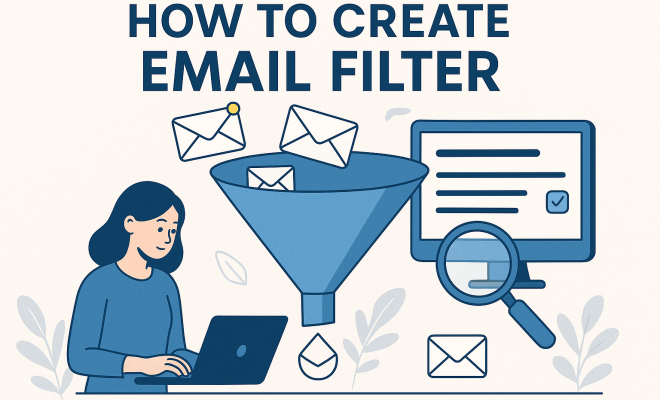
How to create email filter
“`html
In an era where the average person receives over 100 emails daily, cluttered inboxes can be overwhelming. Managing your emails effectively is crucial not only for productivity but also for mental clarity. One powerful strategy to regain control is by learning how to create email filters. Email filters help you sort, prioritize, and manage incoming messages without the constant need to sift through each one manually. Let’s dive into the essentials of creating email filters, their benefits, and practical steps to implement them.
1. Understanding Email Filters
Email filters are automated rules that allow you to manage incoming emails based on specific criteria. When you create an email filter, you define what conditions must be met for the filter to apply. These conditions can include the sender’s email address, keywords in the subject line, or messages coming from a particular domain. Once set, filters automatically execute actions on incoming emails, such as moving them to specific folders, marking them as read, or even deleting them.
Email filtering essentially helps you declutter your inbox and ensures that important messages don’t get lost amid the noise. For example, if you frequently receive newsletters that you want to read later, you can create a filter to send those emails to a designated “Newsletters” folder. This way, your main inbox remains clear for urgent communications.
2. Why Use Email Filters?
Implementing email filters can transform your email management strategy. Here are several compelling reasons to create email filters:
- Increased Efficiency: Filters save time by automatically organizing emails, allowing you to focus on essential tasks instead of constantly managing your inbox.
- Improved Organization: With filters, you can categorize emails by projects, clients, or urgency, making it easier to locate important messages when needed.
- Reduced Stress: A clutter-free inbox contributes to a more manageable email experience, leading to decreased anxiety and better overall productivity.
In summary, email filters facilitate a more organized and efficient inbox, enabling you to prioritize what matters most and streamline your communication.
3. Types of Email Filters
When deciding how to create email filters, it’s essential to understand the various types available. Each type serves different organizational needs:
- Sender Filters: These filters sort emails from specific senders into designated folders. For instance, you might want all emails from your boss to go directly into a “Work” folder.
- Keyword Filters: You can set filters that target specific words or phrases in the subject line or message body. This is useful for sorting messages related to particular projects.
- Date Filters: Filters can also be configured to act on emails received within a specified date range. This is handy for managing receipts or time-sensitive information.
- Size Filters: If you’re low on storage, you can filter out large emails or those with attachments, ensuring your inbox stays within limits.
Choosing the right type of filter—or combination of filters—will help you effectively tailor your email management system.
4. How to Create Email Filters in Popular Email Clients
Now that you understand the purpose and types of filters, let’s explore how to create email filters in some of the most popular email clients:
Gmail
Creating email filters in Gmail is straightforward. Here’s how:
- Open Gmail and click on the gear icon in the upper-right corner.
- Select “See all settings” to access the full settings menu.
- Navigate to the “Filters and Blocked Addresses” tab.
- Click on “Create a new filter.”
- Enter the criteria for your filter (e.g., email address, keywords) and click “Create filter.”
- Choose what action you want Gmail to take (e.g., skip the inbox, mark as read, apply a label) and finalize by clicking “Create filter.”
With just a few clicks, you can instantly enhance your email organization.
Outlook
If you’re using Outlook, the process is slightly different: (See: Wikipedia on email filters.)
- Open Outlook and go to the “Home” tab.
- Click on “Rules” in the ribbon, and select “Manage Rules & Alerts.”
- In the “Rules and Alerts” dialog box, click “New Rule.”
- Select the template for your rule, such as “Apply rule on messages I receive.”
- Follow the prompts to set your conditions, actions, and exceptions.
- Finish by clicking “Finish” and then “OK” to save your rule.
Outlook’s rules system provides robust options for filtering your emails effectively.
Apple Mail
For Apple Mail users, here’s how to set filters:
- Open Apple Mail and go to the “Mail” menu.
- Select “Preferences” and navigate to the “Rules” tab.
- Click on “Add Rule” to create a new rule.
- Define the rule’s conditions, actions, and name your rule.
- Click “OK” to save the rule and apply it to your inbox.
Apple Mail allows for easy filtering based on specific criteria you set.
5. Best Practices for Email Filters
To make the most out of your email filters, consider these best practices:
- Regular Review: Periodically review your filters to ensure they remain relevant. Your communication needs may change, and filters that were once helpful may no longer be necessary.
- Test Filters: After creating filters, send test emails to yourself to verify that they work as intended. This will help you catch any errors early on.
- Avoid Over-Filtering: While filters can be beneficial, too many can lead to missed important emails. Strike a balance between organization and accessibility.
By incorporating these practices, you can optimize your email filtering experience and maintain a well-organized inbox.
6. Common Mistakes to Avoid
As you learn how to create email filters, it’s important to be aware of common pitfalls to avoid:
- Ignoring Spam: While filters can help manage unwanted emails, relying solely on them for spam can lead to legitimate messages being missed. Always check your spam folder periodically.
- Creating Conflicting Filters: Having multiple filters that act on the same set of conditions can create confusion and lead to unintended consequences. Keep your filters straightforward and distinct.
- Neglecting Notifications: Remember to set notifications for crucial emails, especially if they are filtered away from your main inbox. This ensures that you don’t miss any urgent correspondence.
Steering clear of these mistakes will lead to a more effective and seamless email management system.
7. Advanced Email Filtering Techniques
For those looking to take their email filtering to the next level, there are advanced techniques worth considering:
- Combining Filters: Use a combination of filters for more precise control. For instance, you can filter emails from a specific sender that include certain keywords.
- Integrating Third-Party Tools: Consider using third-party applications that offer additional functionalities for email management, such as Unroll.Me for managing subscriptions.
- Automating Tasks: Utilize automation tools like Zapier to connect your email with other applications, allowing you to create workflows that enhance your email filtering experience.
By employing these techniques, you can refine your email strategy and enhance your productivity further.
8. The Current Relevance of Email Filters
In today’s digital landscape, email remains a vital communication tool, despite the rise of messaging apps and social media. With the average office worker spending 28% of their workweek managing email, effective email filtering is more relevant than ever. Businesses are increasingly adopting email filters to streamline communication and enhance employee productivity.
Moreover, as cyber threats grow, filters can play a crucial role in email security. By setting filters to block spam and phishing attempts, you can protect sensitive information and reduce the risk of data breaches. As email continues to evolve, mastering email filters will remain a critical skill for anyone looking to navigate their inbox efficiently.
9. Email Filters and Productivity: A Deeper Dive
Understanding how to create email filters can significantly boost your productivity. A study by McKinsey found that professionals spend an average of 28% of their work week reading and responding to emails. This staggering figure emphasizes the need for effective email management. Filters help you focus on high-priority emails while relegating less urgent messages to the background.
For example, if you’re a project manager, you might receive daily updates from your team alongside numerous promotional emails. By creating filters, you can ensure that emails from your team land in a dedicated folder, allowing you to review them without distraction. This curated approach helps maintain a clear focus on your responsibilities. (See: CDC on technology and mental health.)
Furthermore, research shows that a disorganized email inbox can lead to an increase in stress and decrease in overall satisfaction at work. By creating email filters, you can cultivate a sense of control over your communication, leading to improved mental well-being and an enhanced work atmosphere.
10. Statistics on Email Usage and Management
The statistics around email usage are astonishing and underscore the importance of effective email management, particularly through the creation of email filters. According to Statista, over 347 billion emails are sent each day worldwide. With this volume, an individual can easily feel overwhelmed by the sheer quantity of messages arriving in their inbox.
Here are some key stats to consider:
- In 2023, it is estimated that the average person will receive 121 emails per day.
- A report by the Radicati Group indicates that the average office worker spends 4.1 hours a day managing emails.
- Emails categorized as “important” or requiring immediate attention often go unnoticed, with 50% of employees admitting they miss important emails because of an overloaded inbox.
These statistics highlight the critical need for tools and strategies, such as email filters, to help alleviate email overload and ensure important communication is prioritized.
11. Expert Perspectives on Email Management
Many productivity experts recommend regular email filtering as a fundamental method to enhance workplace efficiency. Productivity coach Julie Morgenstern emphasizes the importance of having a system in place. She states, “An effective email management system keeps you from spending hours digging through your inbox for important messages. Filters help you automatically categorize emails, making it easier to find what you’re looking for when you need it.”
Similarly, renowned time management expert David Allen, author of *Getting Things Done*, advocates for the use of filtering in managing not just emails but all tasks. He notes, “By filtering tasks and emails, you create a system where you can focus on high-priority work while other items are managed in the background.”
These expert insights reinforce the notion that creating email filters is not just a technical task; it’s a strategic approach to managing your workload and improving overall productivity.
12. Frequently Asked Questions (FAQ)
Q1: Can I create email filters on my mobile device?
A1: Yes, most email clients allow you to create filters or rules directly from their mobile applications. The process may vary slightly between different email apps. For instance, in Gmail’s mobile app, you can set up filters by accessing the settings menu.
Q2: What happens to emails that are filtered into a folder?
A2: Filtered emails will be moved to the designated folder and will not appear in your main inbox. However, they will still be accessible in their respective folders, allowing you to review them at your convenience.
Q3: How many filters should I create?
A3: There’s no one-size-fits-all answer to this. The number of filters you create should depend on your email volume and communication needs. Start with a few essential filters and expand as necessary to manage your email effectively.
Q4: Can I edit or delete existing filters?
A4: Yes, you can edit or delete filters in most email clients by going back to the settings where you created them. Regularly reviewing and updating filters ensures they remain effective as your email habits change. (See: NY Times on email management strategies.)
Q5: Are email filters available on all email platforms?
A5: Most major email clients, including Gmail, Outlook, and Apple Mail, offer email filtering capabilities. Each platform may have slightly different functionality, but the core concept remains the same.
13. More Tips for Email Management
In addition to creating filters, there are several other strategies you can employ to manage your email effectively:
- Use Labels and Tags: Utilizing labels (in Gmail) or tags (in Outlook) allows you to categorize your emails visually. This adds another layer of organization that complements filtering.
- Unsubscribe from Unwanted Emails: Take time to unsubscribe from newsletters or promotional emails that no longer interest you. This will reduce the volume of messages you receive and make filtering even more effective.
- Archive Instead of Deleting: Archiving emails instead of permanently deleting them allows you to keep your inbox clear while retaining important messages for future reference.
- Set Specific Times for Email Checking: Instead of constantly monitoring your inbox throughout the day, designate specific times to check your emails. This can help you stay focused on your tasks and reduce distractions.
Employing these additional strategies can further enhance your email management skills and contribute to a more organized digital workspace.
14. Case Study: A Company’s Email Filtering Success
Let’s look at how a mid-sized tech company transformed its email management through effective filtering. The company, which had been struggling with email overload, decided to implement a comprehensive email filtering system. They started by identifying common issues that plagued their inboxes, such as irrelevant newsletters, internal communications, and client emails.
They created filters based on departments and projects, ensuring that emails were categorized appropriately. For instance, client emails were directed to a “Clients” folder, while internal memos went into a “Team Updates” folder. The company reported a significant reduction in email response times and an increase in productivity. Employees were no longer overwhelmed by their inboxes, allowing them to focus on core tasks.
This case study illustrates that with the right email filtering strategy, organizations can enhance communication, boost productivity, and create a healthier work environment.
15. Conclusion: Take Charge of Your Email Today
Learning how to create email filters is an essential step toward a more organized and efficient email experience. By understanding the types of filters, knowing how to implement them in various email clients, and adhering to best practices, you can reclaim control of your inbox. Whether you’re managing personal or professional emails, mastering filters will save you time and enhance your productivity.
By applying these strategies, you can significantly reduce your email stress and enhance your overall communication effectiveness. Start creating your email filters today and watch how your inbox transforms into a more manageable space.
“`
Trending Now
Frequently Asked Questions
How do I create an email filter?
To create an email filter, access your email settings and find the filters section. Define criteria such as sender, subject keywords, or domains. Choose actions for emails that meet these criteria, like moving them to folders or marking them as read. Save the filter to automate the organization of your incoming messages.
What are the benefits of using email filters?
Email filters enhance productivity by saving time and reducing inbox clutter. They help organize emails by categories like projects or urgency, making it easier to find important messages. Additionally, filters can lower stress by maintaining a clear inbox, allowing you to focus on essential tasks.
Can email filters help manage newsletters?
Yes, email filters are excellent for managing newsletters. You can create a filter that automatically directs newsletter emails to a specific folder, such as 'Newsletters'. This keeps your main inbox clear for urgent communications while allowing you to read newsletters at your convenience.
What criteria can I use for email filters?
You can use various criteria for email filters, including the sender's email address, specific keywords in the subject line, or messages from a certain domain. These criteria help you tailor your email management to your specific needs and preferences.
How do email filters improve email organization?
Email filters improve organization by automatically categorizing incoming messages based on defined rules. This allows you to sort emails by project, client, or urgency, making it easier to locate important communications quickly and efficiently.
What did we miss? Let us know in the comments and join the conversation.