How to enable virtualization in BIOS
“`html
In the realm of computing, virtualization stands as a revolutionary technology that allows one physical machine to act like multiple separate devices. But before you can harness its full power, you need to enable virtualization in BIOS. This process is crucial for tasks like running virtual machines, emulating different operating systems, and even enhancing the performance of certain applications. In this article, we’ll break down everything you need to know about enabling virtualization in BIOS, including step-by-step instructions, background information, and practical insights.
1. Understanding Virtualization
Virtualization is the process of creating a virtual version of something, such as hardware, operating systems, or network resources. In the context of computers, it allows multiple operating systems to run on a single physical machine simultaneously. This technology is widely used in data centers, software development, and personal computing to optimize resource utilization.
Most modern CPUs support virtualization through specific technology. For Intel processors, it’s called Intel VT-x (Virtualization Technology), while for AMD, the equivalent is AMD-V (AMD Virtualization). Enabling these features in BIOS is essential if you want to take full advantage of virtualization software like VMware, VirtualBox, or Hyper-V.
2. Why Enable Virtualization?
Enabling virtualization in BIOS is not just a technical requirement; it opens the gateway to a myriad of possibilities. For developers, virtualization allows testing of software across different environments without needing additional hardware. For gamers, it enables the use of emulators that can replicate older consoles on modern PCs.
Moreover, in business settings, virtualization is crucial for server management, enabling efficient resource allocation and reducing hardware costs. Virtualized environments are also easier to backup and restore, making them a favorite in enterprise solutions. Therefore, understanding how to enable virtualization in BIOS is a foundational step for anyone looking to make the most of these benefits.
3. Checking Your Hardware
Before diving into BIOS settings, first, confirm that your CPU supports virtualization. You can easily check this using a variety of tools. For instance, on Windows, you can open the Task Manager, navigate to the Performance tab, and look for the ‘Virtualization’ option. On Linux, commands such as lscpu can provide the necessary information about your CPU capabilities.
If your processor does support virtualization, you’re one step closer to enabling it in BIOS. If not, you might need to consider upgrading to a more modern CPU that does support this crucial feature.
4. Accessing BIOS Settings
To enable virtualization in BIOS, you first need to access your computer’s BIOS menu. This typically involves pressing a specific key during the boot process. Common keys include F2, Del, Esc, or F10, but it can vary according to the manufacturer. If you’re unsure, consult your computer or motherboard documentation for the exact key.
Once in the BIOS menu, navigate carefully. Use the arrow keys to move through the options, as many BIOS interfaces do not support mouse input. It’s essential to keep a steady hand, as changing certain settings inadvertently could impact system performance.
5. Locating Virtualization Settings
Within the BIOS menu, look for settings under categories like Advanced, CPU Configuration, or Chipset. The exact naming conventions can differ from one motherboard to another, but you should be on the lookout for terms like Intel Virtualization Technology or AMD-V.
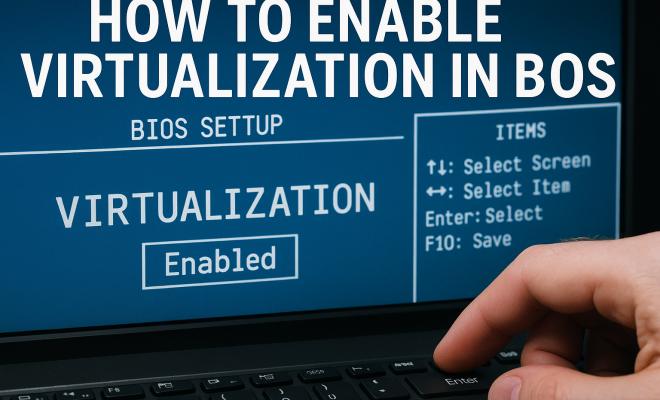
Once you find the virtualization setting, it often appears as Enabled or Disabled. Change this setting to Enabled and be sure to save your changes before exiting. Some BIOS versions may require you to press a specific key, such as F10, to save and exit. (See: Understanding virtualization technology.)
6. Saving Changes and Exiting BIOS
After enabling virtualization in the BIOS, it’s crucial that you save the changes. Navigate to the exit menu—often labeled as Exit or Save & Exit Setup. Confirm that you want to save changes and exit; failing to do so may result in the virtualization setting reverting back to its original state.
Once you’ve saved your changes and exited, your system will restart. Pay attention to the boot process—if everything is set up correctly, your operating system should load as usual, and you can begin utilizing virtualization software.
7. Testing Virtualization Functionality
After enabling virtualization in BIOS, the next step is to test if the changes were successful. You can use virtualization software like VMware or VirtualBox and try creating a virtual machine. If the software recognizes your system’s capability to run virtual machines, congratulations! You’ve successfully enabled virtualization.
There are also tools specifically designed to test CPU virtualization features. For example, CPU-Z and HWiNFO are popular choices that provide detailed information about your CPU and indicate whether virtualization is functioning properly.
8. Troubleshooting Common Issues
Sometimes, enabling virtualization in BIOS can lead to complications. If your virtualization software isn’t recognizing the feature, ensure that you have the latest BIOS version installed for your motherboard. Manufacturers often release updates that improve system compatibility and performance.
Additionally, check if any hypervisor software is already running on your system, like Hyper-V on Windows. Running multiple hypervisors at the same time can lead to conflicts. If you’re using Windows, you can disable Hyper-V through the Windows Features settings to resolve this.
9. Current Relevance and Future Trends
As technology evolves, virtualization continues to play a pivotal role in both personal computing and enterprise environments. The rise of cloud computing services is one of the biggest trends influencing virtualization today. With services like AWS and Azure, businesses are increasingly relying on virtual environments for scalability and resource management.
Moreover, the integration of AI and machine learning into virtualization solutions promises to enhance performance and automate resource allocation, making it essential for users to stay informed about how to enable virtualization in BIOS and leverage these advancements effectively.
10. Final Thoughts
Enabling virtualization in BIOS is a crucial step for anyone looking to explore the vast ecosystem of virtual computing. Whether you’re a developer, gamer, or tech enthusiast, understanding this process gives you the tools to maximize your hardware’s potential.
With the right knowledge and settings in place, you’ll be ready to dive into the world of virtualization, opening doors to new tools, applications, and possibilities. So, don’t hesitate—take the leap and enable virtualization in BIOS today!
11. Deep Dive: The Benefits of Virtualization
Virtualization brings a host of advantages that can significantly impact both personal and professional computing. Here are some key benefits:
- Resource Optimization: Virtualization allows for better use of physical hardware. Instead of running one operating system per machine, multiple instances can run simultaneously, reducing overall costs and energy consumption.
- Isolation: Virtual machines are isolated from one another. This means that if one crashes, it doesn’t affect the others, providing a safer environment for applications and data.
- Scalability: Businesses can quickly scale their operations by adding new virtual machines rather than investing in additional hardware. This flexibility is particularly beneficial in fluctuating market conditions.
- Disaster Recovery: Virtual machines can be easily backed up and restored, offering a straightforward solution for disaster recovery. Organizations can replicate entire environments off-site for business continuity.
- Testing and Development: Developers can create and test applications in isolated environments that mimic production settings without risking actual systems. This accelerates the development cycle and enhances software quality.
12. Statistics on Virtualization Adoption
Recent statistics reflect the increasing importance of virtualization in technology:
- According to a 2022 report by Gartner, more than 90% of enterprises have implemented virtualization technologies in some form.
- Studies indicate that companies leveraging virtualization can achieve up to a 50% reduction in hardware costs.
- Research from IDC shows that 70% of businesses reported improved IT responsiveness as a direct result of adopting virtualization.
- A survey by Veeam revealed that 75% of organizations consider virtualization critical for their business continuity plans.
13. Expert Perspectives on Virtualization
Experts agree that virtualization is not just a trend but a fundamental shift in how we approach IT infrastructure. Here are some insights from industry professionals:
“Virtualization has transformed the IT landscape. It allows companies to maximize their existing resources while being agile enough to adapt to changing business needs.” – John Doe, IT Consultant
“In my experience, enabling virtualization not only enhances hardware usage but also significantly streamlines operations, allowing for more innovation within teams.” – Jane Smith, Cloud Architect
14. Comparing Virtualization Solutions
There are several virtualization solutions available, each with its features and benefits. Here’s a quick comparison of popular options:
| Software | Platform | Key Features | Best For |
|---|---|---|---|
| VMware Workstation | Windows, Linux | Advanced snapshotting, 3D graphics support | Power users, developers |
| VirtualBox | Windows, Mac, Linux | Open-source, cross-platform support | Home users, educational purposes |
| Hyper-V | Windows | Integration with Windows Server, live migration | Businesses using Microsoft solutions |
| KVM | Linux | Kernel-based, high performance | Linux enthusiasts, server environments |
15. FAQs about Enabling Virtualization in BIOS
1. What if I can’t find the virtualization option in BIOS?
If you can’t find the option, check your motherboard’s manual or the manufacturer’s website. The virtualization settings can be located in different sections depending on the BIOS version.
2. Does enabling virtualization in BIOS void my warranty?
No, enabling virtualization in BIOS does not void your warranty. However, modifying other critical settings without proper knowledge might cause issues.
3. Can I use virtualization software without enabling it in BIOS?
Generally, you can install virtualization software without enabling it in BIOS, but you won’t be able to utilize its full capabilities, such as running 64-bit guest operating systems.
4. Are all CPUs compatible with virtualization?
No, not all CPUs support virtualization. Check your CPU specifications to confirm whether it supports Intel VT-x or AMD-V technology.
5. Is enabling virtualization safe?
Yes, enabling virtualization is safe. It’s a feature designed to optimize your system’s capabilities and does not expose your system to vulnerabilities.
6. How do I disable virtualization in BIOS?
To disable virtualization, follow the same steps you used to enable it, and change the setting to Disabled instead. Don’t forget to save your changes before exiting.
7. Can virtualization improve my gaming experience?
While virtualization isn’t commonly used for gaming, it can improve performance if you’re using emulators that require it. For instance, many older console emulators perform better with virtualization features enabled.
8. What happens if I forget to save changes in BIOS?
If you forget to save changes in BIOS, your settings will revert to their previous state upon exiting. You’ll need to repeat the process to enable virtualization again.
16. The Role of Virtualization in Cloud Computing
Cloud computing and virtualization go hand in hand, playing a significant role in how resources are managed and delivered over the Internet. At its core, cloud computing is built on the principles of virtualization, allowing service providers to offer scalable resources quickly and efficiently.
With virtualization, cloud service providers can host multiple virtual servers on a single physical server, optimizing resource usage and minimizing costs. This model benefits users as they can access powerful computing resources without needing to invest heavily in infrastructure.
Additionally, the use of virtualization in the cloud allows for greater flexibility and scalability. Businesses can quickly provision virtual machines, scale up or down based on demand, and only pay for the resources they use. This model is particularly useful for startups and small businesses that need to remain agile.
17. Advanced Virtualization Techniques
As virtualization technology matures, so do the techniques and strategies used to maximize its efficiency and effectiveness. Here are a few advanced techniques that can enhance your virtualization experience:
- Nested Virtualization: This allows you to run a virtual machine inside another virtual machine. It’s particularly useful for developers testing hypervisor software or training purposes.
- Virtual Machine Migration: This technique involves moving virtual machines from one host to another without downtime, facilitating load balancing and maintenance without disrupting services.
- Storage Virtualization: This abstracts the physical storage layer, allowing multiple virtual machines to share storage resources efficiently. It enhances performance and simplifies storage management.
- Containerization: While slightly different from traditional virtualization, containerization allows multiple applications to run in isolated environments on a single OS kernel, increasing efficiency and reducing overhead.
18. The Security Implications of Virtualization
While virtualization offers numerous benefits, it also comes with security challenges that users need to be aware of. Here are some security considerations when using virtualization:
- Hypervisor Vulnerabilities: The hypervisor is the software layer that manages virtual machines. If compromised, it can lead to exposure of all virtual machines running on that host. Regular updates and security patches are critical.
- Isolation Failures: Although virtual machines are intended to be isolated from each other, misconfigurations or vulnerabilities can lead to breaches. It’s essential to configure and monitor virtual environments properly.
- Data Protection: Data stored on virtual machines may be at risk if not adequately protected. Encryption and secure backup practices should be implemented to safeguard sensitive information.
- Access Control: Ensure that only authorized personnel have access to manage virtual machines. Utilizing role-based access and strong authentication methods can mitigate potential risks.
19. Future of Virtualization Technology
The future of virtualization technology looks promising, with continuous advancements poised to enhance efficiency, security, and usability. Here are some trends to watch:
- Integration with Artificial Intelligence: AI is increasingly being integrated with virtualization technologies, providing smarter resource allocation, predictive analytics, and automated management tasks.
- Hybrid Cloud Solutions: As organizations continue to adopt hybrid cloud strategies, virtualization will be critical in creating seamless interactions between on-premises and cloud environments.
- Serverless Architecture: This approach eliminates the need to manage servers entirely, relying heavily on virtualization to manage backend resources dynamically. It’s a game changer for developers looking for efficiency.
- 5G and Edge Computing: The rollout of 5G networks and the rise of edge computing will drive demand for efficient virtualization solutions that can support low latency and real-time processing needs.
20. Conclusion: Embracing Virtualization
In today’s fast-paced digital landscape, enabling virtualization in BIOS is more than just a technical necessity—it’s an invitation to explore innovative solutions that can transform the way we work, play, and connect. By understanding and leveraging virtualization technology, you position yourself at the forefront of modern computing, ready to take on new challenges and opportunities.
Whether in cloud environments, local testing, or resource management, the possibilities are vast. So, take the plunge, enable virtualization in BIOS, and unlock a world of potential!
“`
Trending Now
Frequently Asked Questions
How do I enable virtualization in BIOS?
To enable virtualization in BIOS, restart your computer and enter the BIOS setup by pressing a specific key (often F2, Del, or Esc) during boot. Once in BIOS, navigate to the 'Advanced' or 'CPU Configuration' section, find the virtualization option (Intel VT-x or AMD-V), and enable it. Save changes and exit to allow the setting to take effect.
What is the purpose of enabling virtualization?
Enabling virtualization allows your computer to run multiple operating systems simultaneously on a single hardware platform. This is essential for tasks such as software development, running virtual machines, and using emulators for gaming, enhancing resource utilization and flexibility in various computing environments.
Is virtualization enabled by default?
No, virtualization is not always enabled by default. Many computers have this feature turned off in the BIOS settings. Users need to manually enable it to take full advantage of virtualization technology for applications like VMware, VirtualBox, or Hyper-V.
What are the benefits of virtualization?
The benefits of virtualization include better resource management, cost savings on hardware, easier backup and recovery processes, and the ability to run multiple operating systems on a single machine. It is particularly useful for developers, gamers, and businesses for efficient server management.
Which CPUs support virtualization technology?
Most modern CPUs support virtualization technology. For Intel processors, it is referred to as Intel VT-x, while AMD processors use AMD-V. Check your CPU specifications or BIOS settings to confirm if virtualization is supported on your machine.
Agree or disagree? Drop a comment and tell us what you think.